


ANNOUNCING THE LAUNCH OF DEDICATED DASHBOARDS FOR EACH MODULE


Dear valued customers,
1Office sincerely thanks you for your trust and for using our services. With the desire to improve product quality and provide you with a better experience, we are constantly researching and developing new features. In this upgrade, we are adding a Dashboard feature to each module
Scheduled upgrade time: 18:00, July 12, 2023
Adding a Dashboard to each module is an important step to help managers get a comprehensive overview of data, enabling them to make accurate and timely assessments. By integrating a Dashboard into each module, managers can access an intuitive, easy-to-use toolkit to monitor key metrics and important information.
For example, in the Work Management module, the Dashboard will display key metrics such as work progress, number of incomplete tasks, overdue tasks, and other related indicators. Managers can view this information on an intuitive and easy-to-understand interface, allowing them to assess work performance, identify issues, and apply timely corrective measures.
Note: In this update, we are first building the Dashboard for 3 modules: Work, HR, and Requests. For other modules, we will continue to update and add them continuously.
Below are instructions for using the Dashboard for the Work module. Other modules will function similarly.
1. Dashboard Templates
– In each module, we will provide a pre-designed Dashboard template to supply the necessary information, helping users monitor and manage effectively.
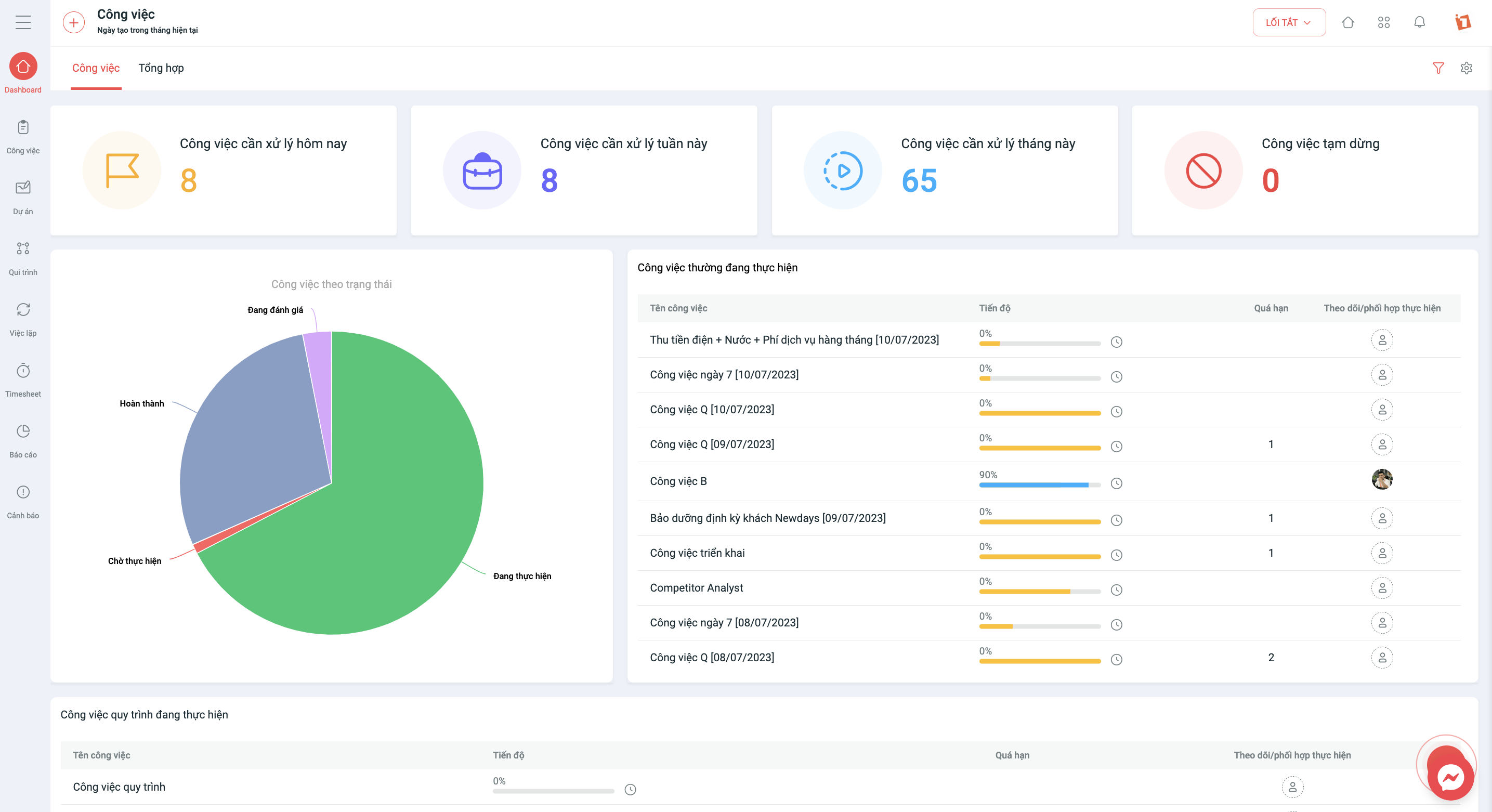
Figure 1. Sample Work Dashboard screen
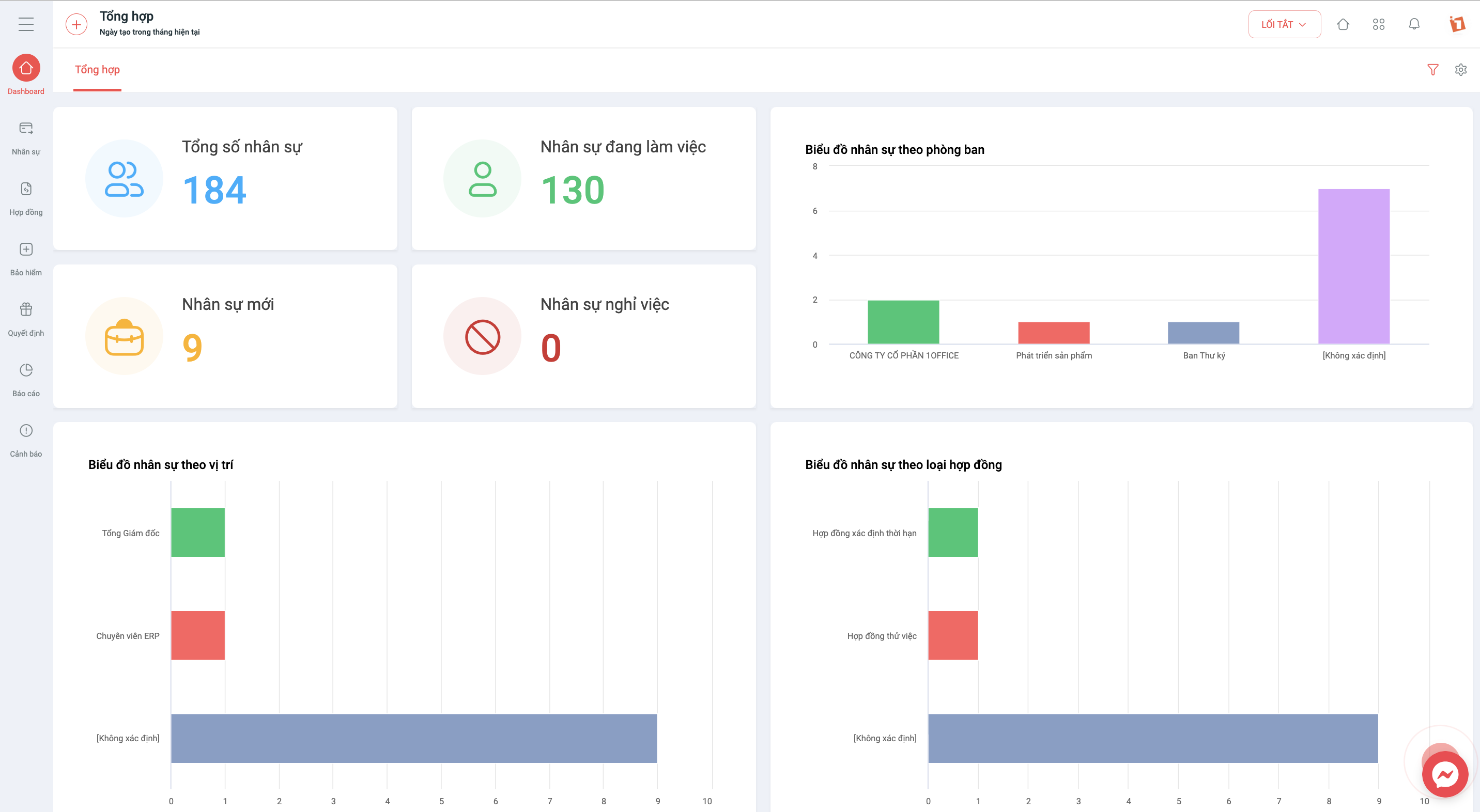
Figure 2. Sample HR Dashboard screen
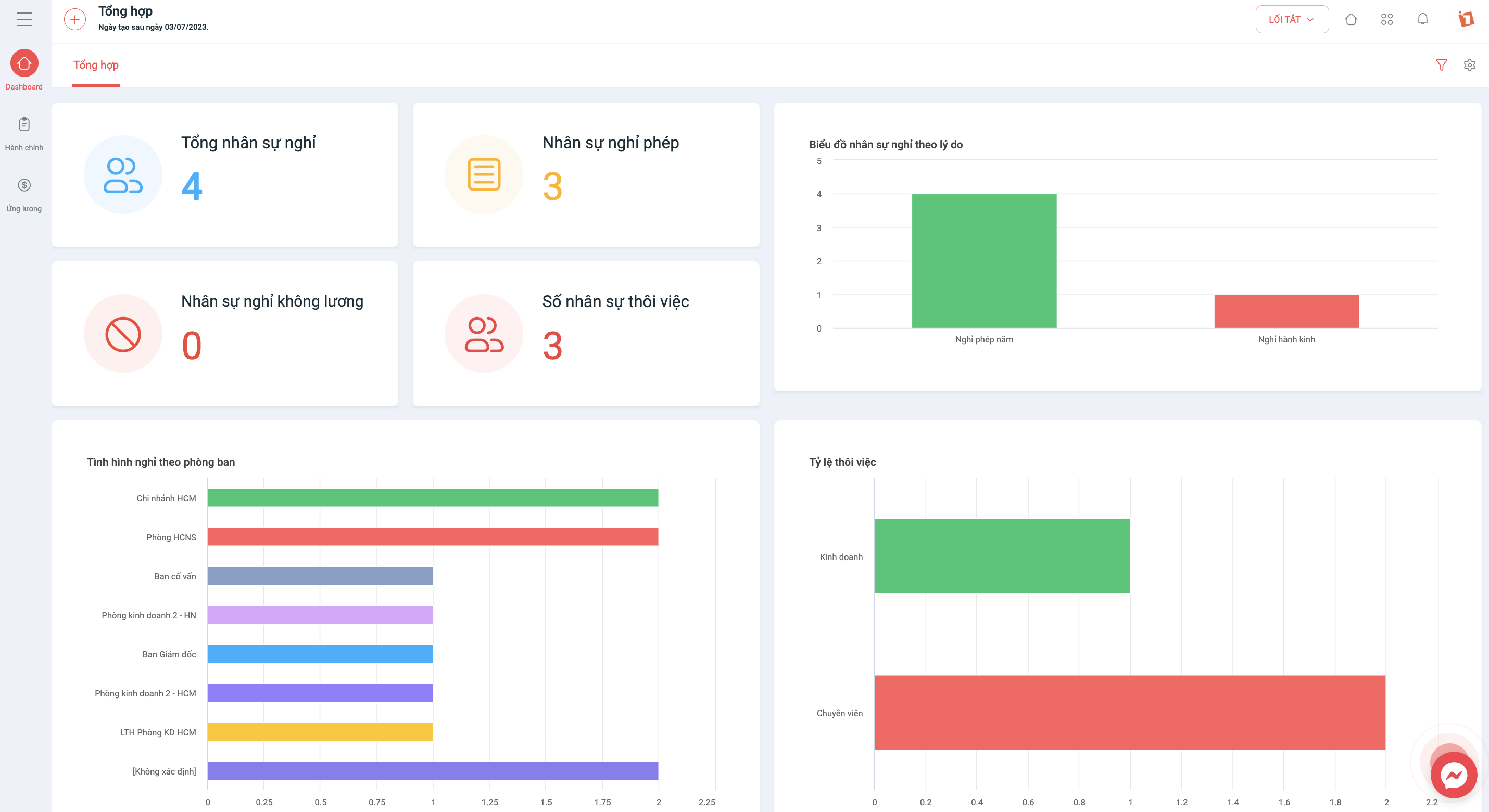
Figure 3. Sample Requests Dashboard screen
2. Creating a New Dashboard
– Users can design, customize, and shape the Dashboard to suit the needs of their business or organization.
– Only the overall manager of the object can create a new Dashboard.
The steps to set up a Dashboard for the Work module are as follows:
Step 1: Click the ‘Settings’ icon on the Work Dashboard screen
Step 2: Click the ‘+’ icon to add a new Dashboard tab
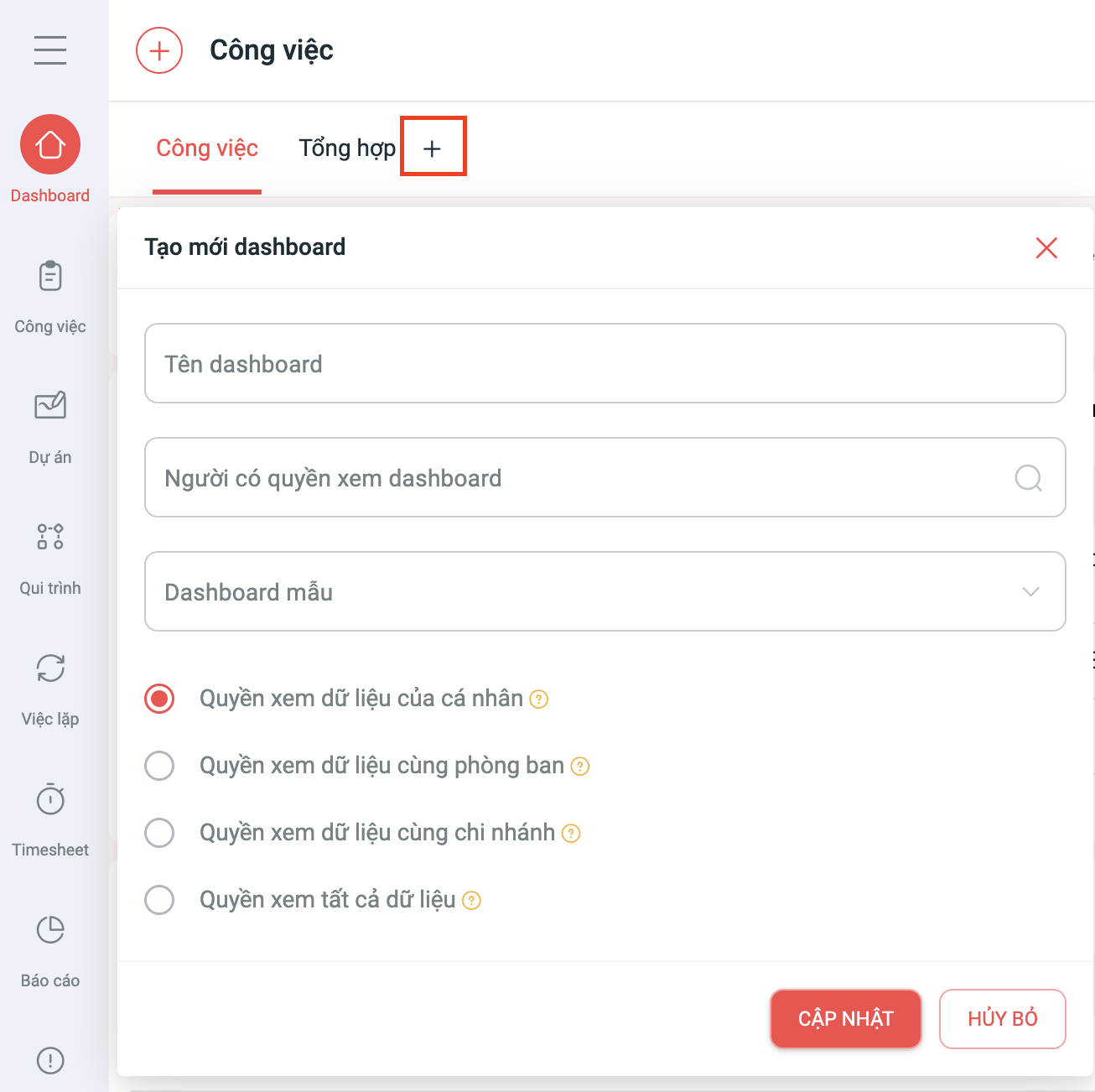
– Users with permission to view dashboard: Allows personnel, positions, and departments to monitor the dashboard for the object.
– Dashboard template: Displays a list of available Dashboard templates that users can install and build upon.
– Dashboard Permissions:
- Permission to view personal data
- Permission to view data of the same department
- Permission to view data of the same branch
- Permission to view all data
Step 3: Add and configure Widgets in the Dashboard
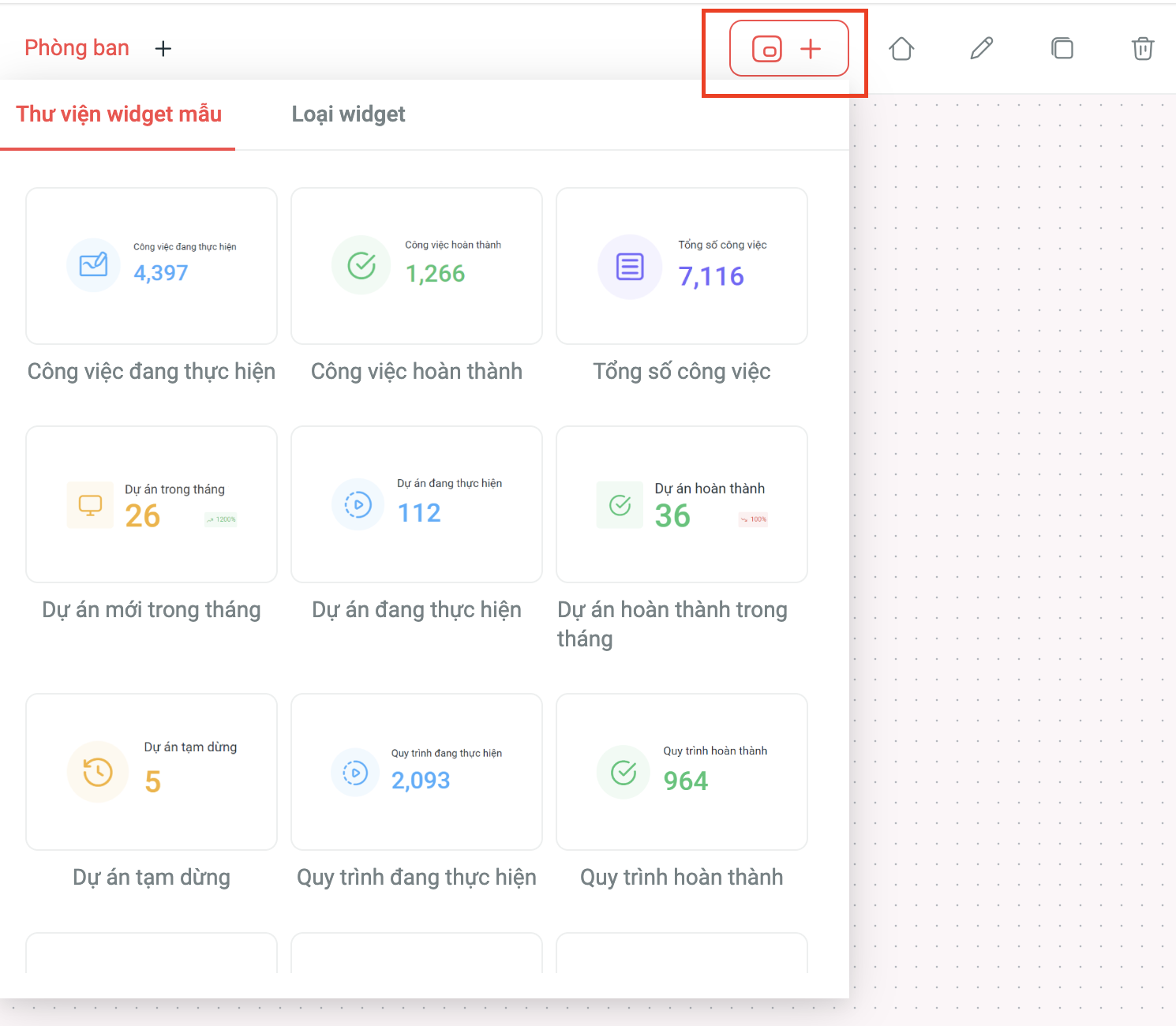
– When adding a new widget, 2 tabs will be displayed:
- Widget template library: A list of widgets with pre-configured data (Users can simply drag them onto the Dashboard to use).
- Widget type: A list of widget types without pre-configured data (Users must set up the data from scratch).
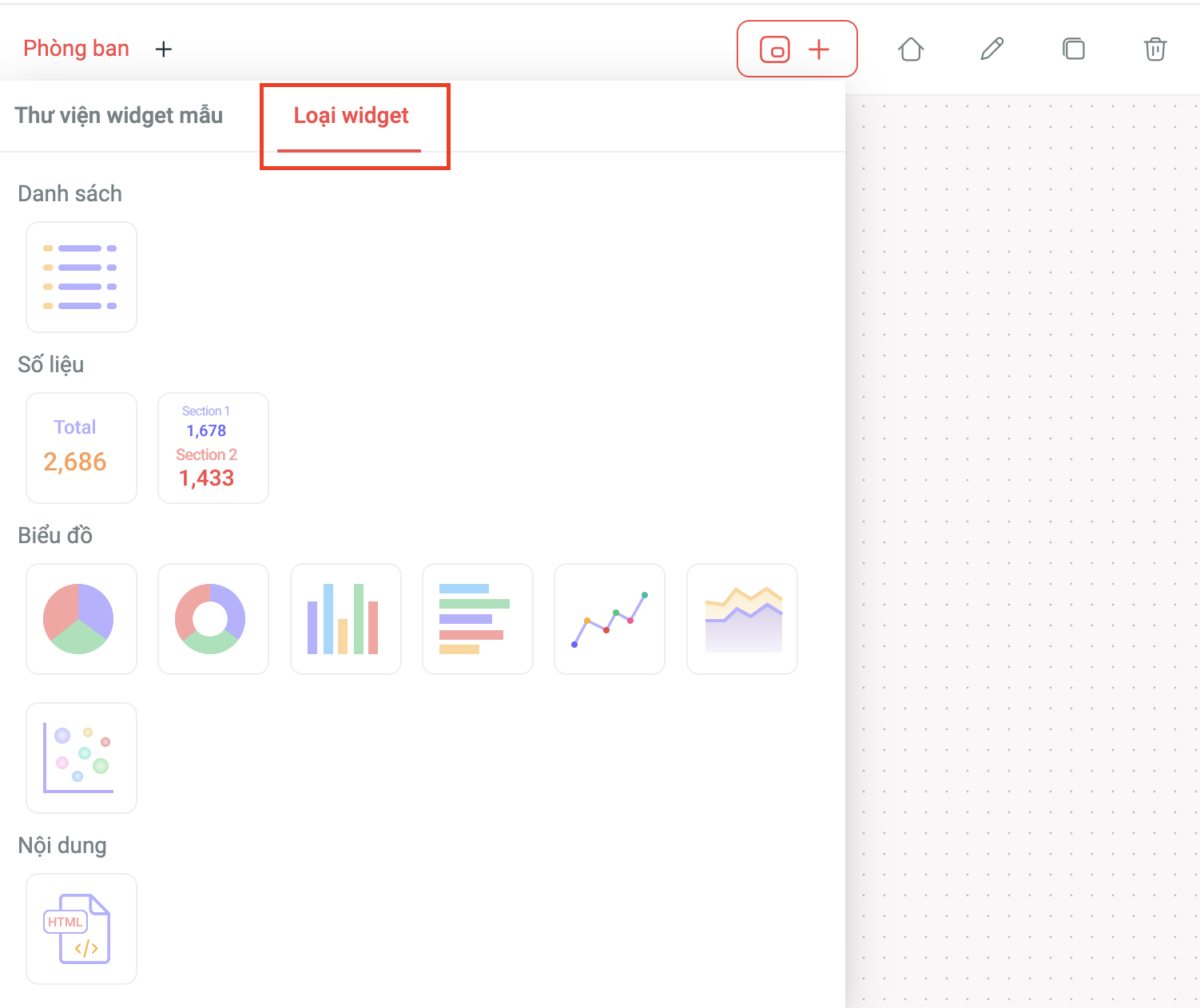
– The list of widget types includes:
- List: Displays data in a list format.
- Metric: Displays data in 2 ways: a single metric or a comparison of two metrics.
- Chart: Pie chart, Doughnut chart, Column chart, Bar chart, Line chart, Area chart, Heatmap chart.
- Content: Displays data in text format.
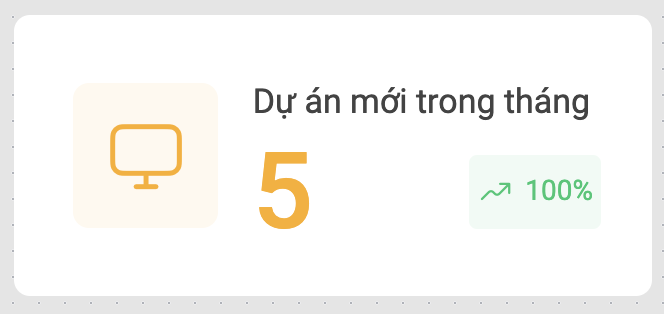
– For the Metric widget type, we have added:
- Icon before the metric: Helps to make the data more vivid
- Percentage (%) comparison between 2 metrics: Helps users get an overview of the increase/decrease ratio between two metrics.
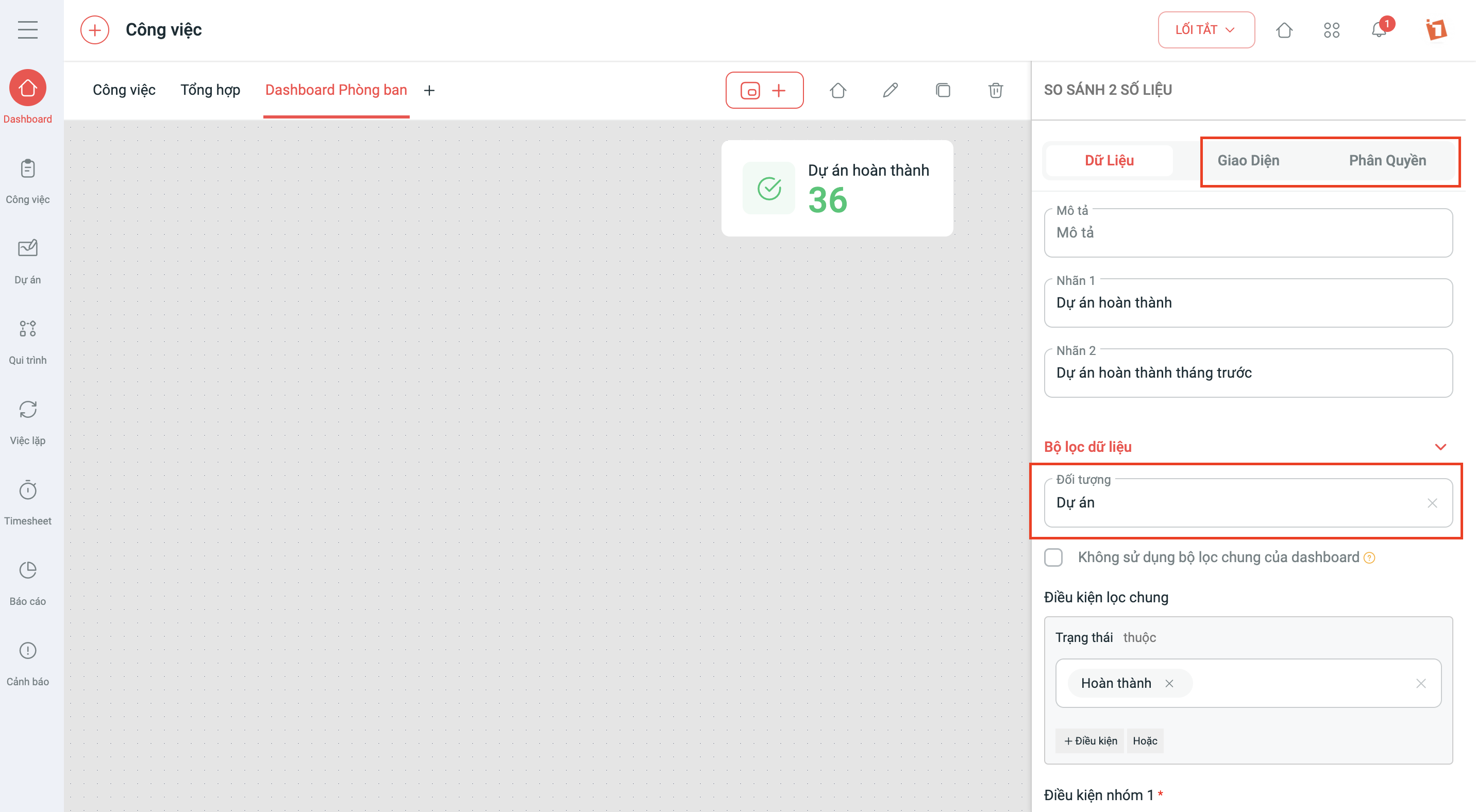
– Set up the widget by selecting the object for which data needs to be displayed, then configure the display conditions and interface of the widget
– After setting permissions for the Dashboard, the administrator can proceed to set permissions for each widget within the Dashboard. This helps ensure that data is only accessed and processed by users with valid permissions, while also protecting important information.
3. Dashboard Screen
– On the Dashboard screen, users select the ‘Home’ icon to exit to the Dashboard overview to monitor the displayed data
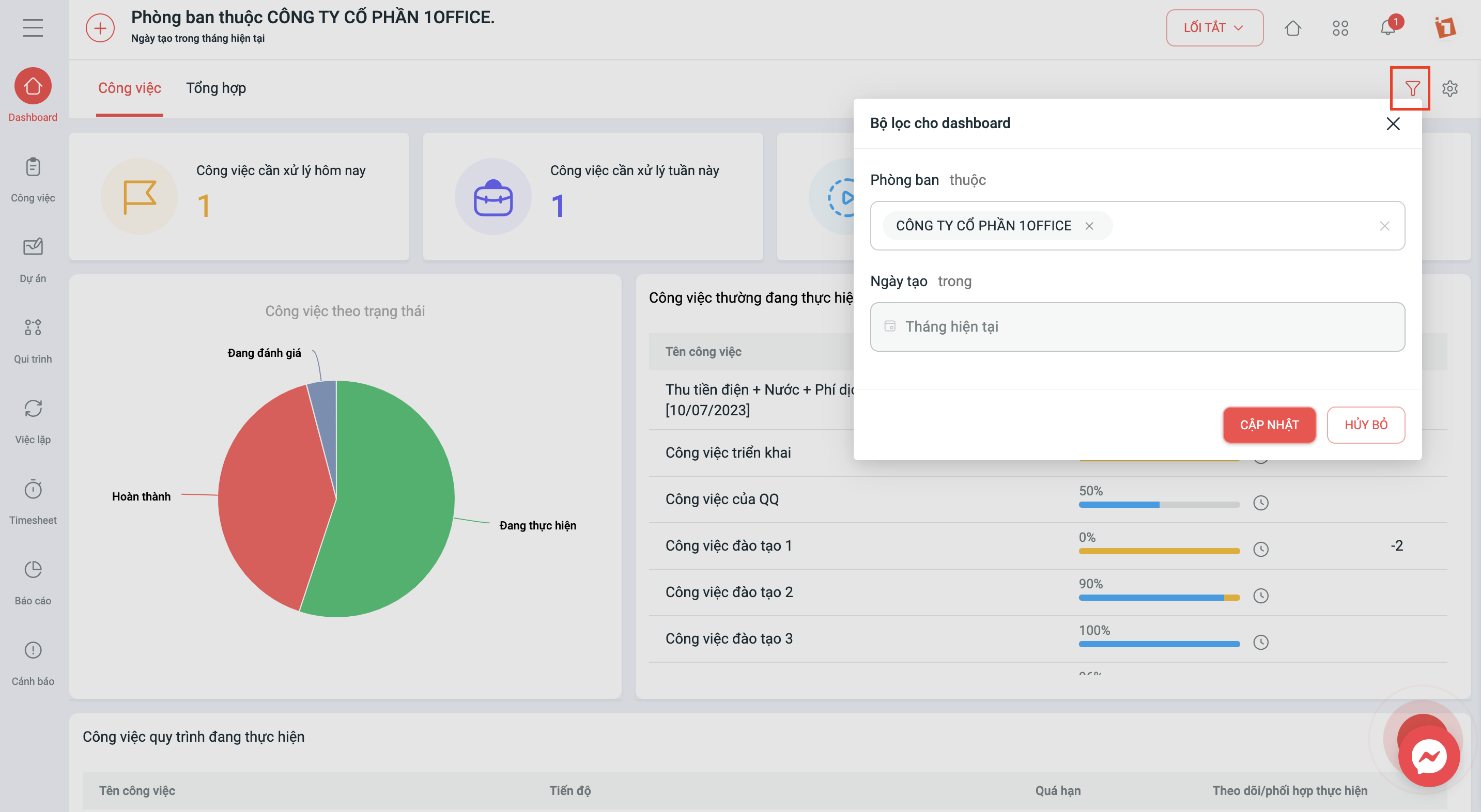
– Users select the ‘Filter’ icon to filter Dashboard data by space and time
- Department: Allows filtering widget data by the department you want to display
- Creation Date: Allows filtering widget data by the current date, current month, current year, etc.
Note:
The feature update process is performed periodically and does not affect customer data in any way. After this period, the system will resume normal operation. We kindly ask our valued customers to take note of the update schedule to avoid any interruption to your business operations.
For any support, please contact us via Hotline 19003313 or our Livechat and Ticket system.
Sincerely,
The 1Office Product Development Team.




