10/05/2026
  1822 views
Cursor AI is the “next-generation intelligent source code editor” – a code editor built on the familiar Visual Studio Code platform but deeply integrated with artificial intelligence (AI) to turn programming into a “say it, do it” experience. Launched in 2023 and exploding in popularity throughout 2024-2025, Cursor not only suggests code line-by-line like GitHub Copilot but also understands the entire project, automatically creating/editing/refactoring multi-file code from natural language descriptions like “Create a login API with JWT and email validation.”
With powerful AI models like GPT-4o, Claude 3.5 Sonnet, and cursor-small, Cursor AI helps developers increase productivity by 2-5 times, reduce errors, and focus on logic instead of repetitive syntax. Easily migrate from VS Code without relearning shortcuts, completely free at the basic level, and starting at just $20/month to unlock unlimited features – Cursor AI is becoming an indispensable “AI colleague” for millions of developers, from coding beginners to large teams working on complex projects. If you’ve ever been tired of boilerplate code or debugging for hours, Cursor AI is the turning point that makes programming faster, smarter, and more exciting than ever in the 2025 AI era!
Mục lục
- 1. What is Cursor AI?
- 2. Key Differentiators of Cursor AI
- 3. Powerful Features of Cursor AI
- 4. Cursor AI Pricing
- 5. Comprehensive Benefits of Using Cursor AI
- 6. Detailed Guide to Installing and Using Cursor AI
- 7. Integrated and Customizable AI Models in Cursor AI
- 8. Tips and Tricks to Optimize Your Cursor AI Experience
- 9. Limitations and Drawbacks
- 10. Who Should Use Cursor AI?
1. What is Cursor AI?
Cursor AI is an intelligent source code editor built on Microsoft’s Visual Studio Code (VS Code) platform, but deeply integrated with artificial intelligence (AI) to provide comprehensive and groundbreaking support for developers. Launched in 2023 and quickly becoming a favorite tool for millions of developers by 2025, Cursor is not just a regular editor but a true “AI companion” in the coding process.
Essentially, Cursor retains the entire familiar interface, shortcuts, and extension ecosystem of VS Code, but enhances it powerfully with large language models (LLMs) like GPT-4o, Claude 3.5 Sonnet, and custom models, allowing the AI to understand the entire project, predict the developer’s intent, and automatically create/edit code in context.

1.1 Main Objective
The core objective of Cursor AI is to simplify, accelerate, and optimize the software development process, helping developers:
- Reduce time spent on writing repetitive (boilerplate) code.
- Increase productivity by 2-5 times (according to a 2025 user survey).
- Reduce errors and improve code quality.
- Focus on logic and creativity instead of detailed syntax.
Cursor aims to turn programming into a “conversation with AI” experience – you describe your ideas in natural language, and the AI understands and writes the code for you.
1.2 The Role of AI in Cursor
The AI in Cursor is not just an auxiliary chatbot; it is deeply integrated into every aspect of the editor, creating a significant difference compared to Copilot or other AI tools:
- Convert natural language ideas into code: You just need to type a comment or description in English/Vietnamese (e.g., “Create a RESTful API to manage users with JWT authentication”), and the AI will automatically generate the complete code suitable for the current project.
- Understand the entire project context (project-wide context): Unlike Copilot, which only looks at the current file, Cursor AI scans the entire codebase, understanding the structure, dependencies, and framework in use to provide accurate and consistent suggestions.
- Prominent AI features:
- Composer: Create/edit multiple files simultaneously based on complex requests.
- Chat with Project: Ask the AI about the project (“Explain what this function does,” “Where can I find the bug?”).
- Inline Edit: Select a code snippet → describe the change → the AI edits it instantly.
- Automatic Debug & Refactor: Detects errors and suggests code optimizations.
With this role, Cursor AI is not just a support tool but is gradually becoming an “AI developer colleague” – changing the way developers work, helping beginners learn faster, and allowing experts to focus on complex problems. In the 2025 AI era, Cursor is considered the “VS Code of the future,” leading the trend of deep AI-assisted programming.
2. Key Differentiators of Cursor AI
Cursor AI is not just a regular code editor but a significant leap forward in AI-assisted programming. Compared to VS Code (the most popular code editor) and GitHub Copilot (the leading AI assistant), Cursor AI offers an “AI-first” experience – where AI is designed as the core, rather than just an add-on feature.
2.1 Comparison with VS Code and GitHub Copilot
| Criteria | Cursor AI | VS Code + GitHub Copilot |
| AI Integration | AI-first: AI is the core of the product, operating smoothly across the entire editor. | AI is just a plugin (Copilot), dependent on the extension. |
| Project Context Awareness | Understands the entire codebase: Analyzes project structure, module relationships, and dependencies – providing accurate suggestions based on the context of the entire project. | Only understands the current file or a few nearby files; limited context. |
| AI Model | Built-in and optimized for GPT-4o, Claude 3.5 Sonnet, and custom models – no additional configuration required. | Relies on Copilot (GPT-based), requires a separate subscription, and can sometimes be slow due to server issues. |
| Code Completion | Multi-line autocompletion, automatic imports, predicts complex logic. | Mainly single-line inline suggestions, with fewer automatic imports. |
| Code Editing & Generation | Powerful Composer: Edit multiple files, view before/after diffs, accept/reject changes in parts. | Basic editing via the chat sidebar, no visual diff view. |
| Interface & Transition | Based entirely on VS Code – keeps your shortcuts, themes, and extensions – transition requires almost no relearning. | It’s the original VS Code + the Copilot plugin. |
2.2 Outstanding Advantages of Cursor AI
- Automatic multi-line code completion, automatic imports: Cursor predicts and writes entire code blocks (functions, classes) from just a comment or a short description, and automatically adds necessary imports – saving significant time compared to Copilot, which only suggests line by line.
- Controlled code editing and generation (Composer) with diff view: You can request “Add JWT authentication to this API” → The AI creates/edits multiple files simultaneously, displaying a clear diff for review before applying – safer and more intuitive than Copilot.
- Familiar interface (based on VS Code): VS Code users can switch to Cursor with almost no learning curve, but immediately gain deeper AI power – ideal for developers who want to upgrade without changing their habits.
Cursor AI is not just a “better VS Code + Copilot”; it’s a true leap forward in AI-native programming. With its ability to understand the entire project and integrate AI from the core, Cursor helps developers increase productivity by 2-5 times, reduce errors, and focus on creating logic instead of syntax. If you’re using VS Code + Copilot and feel it’s not powerful enough, Cursor AI is the perfect upgrade choice for 2025!

3. Powerful Features of Cursor AI
Cursor AI is not just a code editor but a comprehensive “AI programming assistant,” with features designed to deeply understand context and support developers at all levels. Here are its most prominent features (updated for 2025), which help multiply productivity.
3.1 Intelligent Code Completion (Tab)
How it works: Unlike Copilot, which only predicts the next line of code, Cursor AI predicts entire logical code blocks based on the current context and the entire project – using powerful AI models (GPT-4o, Claude 3.5 Sonnet) to understand the developer’s intent.
Specific examples:
- Type a comment: // Create a recursive factorial function → Press Tab → The AI automatically generates the entire function, including the base case check.
- Create complex loops: Start writing for item in list → The AI suggests filters, maps, or error handling.
- Data structures: Type class User → The AI generates a complete constructor, getter/setter methods, and validation.
Benefits: Saves time writing boilerplate code, reduces syntax errors.
3.2 Chat with AI (Ctrl + L / Cmd + L)
Functionality: Opens a chat sidebar to ask questions directly about the source code, explain code snippets, fix bugs, optimize algorithms, or generate documentation – the AI understands the entire project.
How to enhance context: Use the “@” symbol to specify:
- @file: Reference a specific file.
- @folder: The entire directory.
- @project: The entire codebase.
- @web: Search the web for the latest information.
Example: “@project Explain what this authentication function does?” → The AI provides a detailed answer with suggestions for improvement.
Benefits: Fast debugging, learning unfamiliar code, safe refactoring.
3.3 Edit and Generate Code with AI
Process:
- Select a code snippet (or select nothing to generate new code).
- Press Ctrl/Cmd + K → Enter your request in natural language (e.g., “Add JWT authentication to this route”).
- The AI displays a diff view (before/after changes).
- Accept all changes or apply them individually.
Applications:
- Refactor legacy code into clean code.
- Generate new multi-file code snippets (Composer creates/edits multiple files at once).
- Convert terminal commands to code or vice versa.
Benefits: High control, safe, without worrying about incorrect AI output.
- Codebase indexing: Cursor automatically indexes the entire project upon opening, helping the AI understand the structure, dependencies, and frameworks (React, Django, Spring…).
- Search and Q&A across the entire codebase: Quickly find functions/classes, ask “Where is the 404 error occurring?” → The AI pinpoints the exact file/line.
Benefits: Easily work with large projects, quickly onboard with unfamiliar code.
3.5 Multi-language programming support
Cursor AI provides excellent support for most popular languages:
- Python, JavaScript/TypeScript, Java, C++, Go, Rust, Ruby, PHP, C#, Kotlin, Swift, SQL, and many other languages (over 50 languages).
For frameworks/libraries: React, Next.js, Vue, Angular, Django, Flask, Spring Boot, .NET, etc.
Cursor AI’s features transform programming into a smarter, faster, and more creative experience. From multi-line code completion to understanding the entire project, Cursor not only assists but also “partners” with developers – ideal for individual developers, teams, and businesses in the 2025 AI era!
4. Cursor AI Pricing
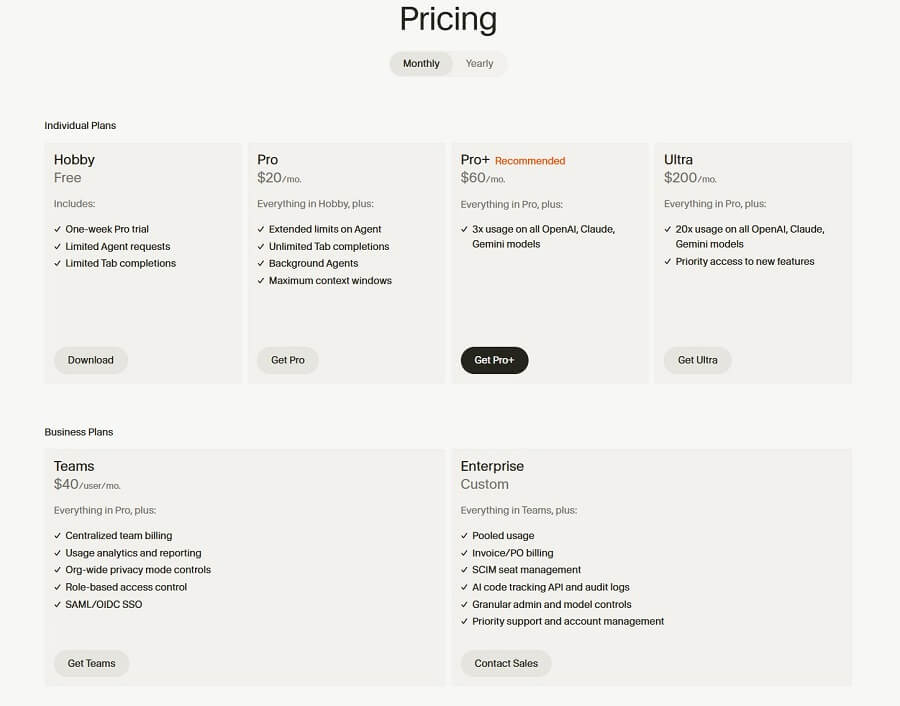
Cursor AI uses a usage-based pricing model (calculated by the amount of credits used for AI requests), with a basic free plan and paid plans to unlock priority (faster), premium models, and unlimited usage. Prices are in USD/month (discounted for annual payment), based on official information from cursor.com/pricing and 2025 updates.
4.1 Free Plan
- Price: 0 USD.
- Limits: Around 10-40 generations/week (slow queue), basic model (cursor-small), limited code reviews/month.
- Suitable for: New users trying it out, learning to code, light usage.
4.2 Main Paid Plans
| Plan | Monthly Price (USD) | Annual Price (USD/month equivalent) | Main Credits/Usage | Key Features |
| Pro | $20 | ~$16-17 (yearly discount) | ~$20 credit pool (approx. 500 fast requests) + unlimited slow/Auto model | Priority generations, full model (GPT-4o, Claude 3.5), Powerful Composer, commercial use. |
| Pro Plus | ~$60 | Yearly discount | ~$70 credit pool + bonus | Higher usage than Pro (triple), private features. |
| Ultra | $200 | Yearly discount | ~$400 credit pool + bonus (20x Pro) | Premium unlimited, priority support, early access features. |
| Team/Business | $32-40/user | Yearly discount | Custom credits | Team collaboration, admin controls. |
| Enterprise | Custom (contact sales) | Custom | Custom | SSO, audit logs, dedicated support, API. |
- Overages: When the credit pool is exhausted, it switches to pay-as-you-go (~$0.04/request for fast, or use your own API keys for a lower cost).
- Offers: Student discount for Pro; some plans offer refunds for overcharges (from the 2025 update).
Cursor AI’s pricing is competitive with Copilot (~$10-19/month), but it is more powerful in project-wide context. Start for free at cursor.com – upgrade to Pro for regular use. Prices may change; check the official cursor.com/pricing for the latest updates!
5. Comprehensive Benefits of Using Cursor AI
Cursor AI is not just an advanced code editor but a true “AI programming assistant,” offering outstanding benefits that help developers at all levels work more efficiently, faster, and smarter. Here are the main benefits Cursor AI provides (based on user feedback and a 2025 survey).
5.1 Increase Productivity and Coding Speed
Cursor AI helps save significant time, up to 30-50% (even higher for experienced developers) compared to conventional tools like VS Code + Copilot.
- Reason: Automatically completes multi-line code, auto-imports libraries, and generates logical code blocks from just a comment or a short description.
- Example: Instead of manually writing an API endpoint with validation and error handling, you just type “Create a POST endpoint for user registration with email/password validation” → The AI generates the entire clean code in seconds.
- Practical Benefit: Developers complete features faster, spending more time on system design and creativity instead of repetitive syntax.
Improve Code Quality and Reduce Errors
Cursor’s AI not only writes code but also suggests clean, optimized code that adheres to best practices.
- Reason: It understands the entire codebase, suggests framework-appropriate patterns, and detects code smells early.
- Example: When writing a data processing function, Cursor automatically suggests handling edge cases, using async/await correctly, or switching to a generator if appropriate.
- Practical Benefit: Reduces production bugs, making code easier to maintain – especially useful in large projects.
5.2 Simplify Refactoring and Debugging
This is one of the “game-changer” benefits of Cursor AI.
- Reason: Composer and Chat with project allow you to request refactoring/debugging in natural language; the AI analyzes and provides solutions with a diff view.
- Example: “Refactor this function to use async/await and add error handling” → The AI edits multiple files and clearly displays the changes; or “Find the bug causing a memory leak here” → The AI pinpoints the exact location and suggests a fix.
- Practical Benefit: Reduces debugging time from hours to minutes, making it safer to refactor legacy code.
5.3 Support Learning and Skill Development
Cursor AI is an excellent “AI tutor” for both beginners and experienced programmers.
- Reason: Explains code in detail, suggests new solutions, and helps learn patterns from real projects.
- Example: A beginner asks, “Explain what this piece of code does?” → The AI analyzes it line by line; a senior dev discovers new libraries through optimization suggestions.
- Practical Benefit: Lowers the barrier to learning programming, helps juniors onboard quickly, and enables seniors to explore creative solutions.
5.4 Benefits for Individuals and Teams
Cursor AI is suitable for both individual work and large teams.
- Reason: Understands project-wide context, supports multi-file editing, and makes it easy to share workflows.
- Example: Teams use Composer to refactor multiple files in sync; code reviews are faster thanks to AI-suggested improvements.
- Practical Benefit: Enhances team efficiency (pair programming with AI), simplifies management of large projects, and reduces time spent in debugging meetings.
Cursor AI not only boosts productivity but also changes the way developers work – from writing code faster and cleaner to learning and collaborating effectively. With its reasonable cost (free basic plan, Pro ~$20/month), it is the most worthwhile investment for developers in the 2025 AI era. If you are looking to “level up” your programming, Cursor AI is the breakthrough choice!

6. Detailed Guide to Installing and Using Cursor AI
Cursor AI is a powerful AI code editor that is easy to install and use, even for beginners. Below is a detailed guide (updated December 2025).
6.1 System Requirements and Preparation
- Supported Operating Systems:
- Windows: 10/11 (64-bit).
- macOS: 11 Big Sur or later (Intel or Apple Silicon).
- Linux: Ubuntu 20.04+, Debian-based distro (AppImage or deb package).
- Other Requirements:
- Minimum 8GB RAM (16GB+ recommended for large projects).
- Stable internet connection (AI is cloud-based, requires online access for full functionality).
- A powerful GPU is not required (AI processing is done on the server).
6.2 Installation Steps
- Download from the official website:
- Visit https://cursor.com (or cursor.sh).
- Click “Download” → Select the version appropriate for your operating system (Windows .exe, macOS .dmg, Linux .AppImage/.deb).
- Step-by-step installation guide:
- Windows:
- Run the downloaded .exe file.
- Agree to the terms → Next → Install.
- Finish → Launch Cursor.
- macOS:
- Open the .dmg file.
- Drag the Cursor icon to the Applications folder.
- Open from Applications (allow it to open if macOS shows a warning).
- Linux:
- For .AppImage: Chmod +x Cursor.AppImage → Run directly.
- For .deb: sudo dpkg -i cursor.deb → sudo apt install -f.
- Windows:
Installation only takes 1-2 minutes. Cursor will automatically import settings/extensions from VS Code if you have used it before.
6.3 Initial Configuration Setup
- Login/Create Account:
- Open Cursor → Click “Sign In”.
- Log in with Google, GitHub, or email.
- The free account is sufficient for basic use; Pro (~$20/month) offers unlimited usage and more powerful models.
- Configure Keyboard Shortcuts: Defaults are 100% the same as VS Code (Ctrl+C/V, Ctrl+Shift+P…), no changes needed if you are familiar with VS Code.
- Select AI Language: Settings → AI → Language (English is best supported, basic Vietnamese is available via prompts).
- Enable Global Codebase Understanding:
- Settings → Features → Enable Project Indexing (enabled by default).
- Open a project → Cursor will automatically index the codebase (takes a few seconds to minutes depending on size).
6.4 Guide to Using Basic Features
- Generate Code Directly with Ctrl+K (Composer):
- Press Ctrl+K (Windows/Linux) or Cmd+K (macOS).
- Enter a description in natural language (e.g., “Create a user login function with JWT”).
- The AI will display a diff → Accept all or part of the changes.
- Edit existing code with Ctrl+K:
- Select the code snippet to edit.
- Press Ctrl+K → Describe the change (“Add email and password validation”).
- View diff → Apply.
- Use Chat (Ctrl+L):
- Press Ctrl+L (Windows/Linux) or Cmd+L (macOS) → Open the chat sidebar.
- Ask about the code (“Explain this function”, “Find memory leak bug”).
- Use “@” to add context: @file (current file), @folder, @project (entire project).
- Leverage Tab for smart Autocomplete:
- Type a comment or code → Press Tab → AI completes the multi-line code block, auto-imports.
- Use “@” to enhance context: In chat or Composer, add @ to help the AI reference accurately (e.g., “@src/utils Explain this file”).
6.5 Important keyboard shortcuts (for Windows/Linux and macOS)
| Shortcut (Windows/Linux) | Shortcut (macOS) | Function |
| Ctrl + K | Cmd + K | Open Composer (create/edit code) |
| Ctrl + L | Cmd + L | Open Chat AI sidebar |
| Tab | Tab | Accept autocomplete suggestion |
| Ctrl + Shift + P | Cmd + Shift + P | Open Command Palette (quick command search) |
| Ctrl + ` | Cmd + ` | Open integrated Terminal |
| Ctrl + / | Cmd + / | Comment line of code |
| Alt + ↑/↓ | Option + ↑/↓ | Move line of code |
Installing Cursor AI only takes a few minutes. Its familiar interface and powerful AI features will help you code faster right from the start. Start with a small project to get acquainted, then explore Composer and Chat – you’ll see your productivity soar! If you encounter any issues, join the community on forum.cursor.com or Discord. Enjoy your experience with Cursor AI!

7. Integrated and Customizable AI Models in Cursor AI
Cursor AI stands out with its flexibility, allowing users to choose from various powerful AI models to customize their programming experience based on their needs (speed, accuracy, cost). As of December 2025, Cursor supports the following models (subject to change with updates):
7.1 List of currently available AI models
- GPT-4o (OpenAI): The default model, offering the best balance between speed and complex reasoning capabilities.
- GPT-4 (OpenAI): An older version of GPT-4o, strong in deep logic but slower and more expensive.
- Claude 3.5 Sonnet (Anthropic): Excellent at writing clean code and understanding long contexts, often rated highest for complex programming.
- Cursor-small: Cursor’s in-house model, the fastest and most cost-effective, suitable for autocomplete and simple tasks (based on fine-tuned open-source models).
Additionally, Cursor supports local models (via Ollama/LM Studio) and other models like Claude 3 Opus and GPT-4-Turbo, depending on the Pro plan.
7.2 How to select and change AI models in Cursor
- Open Cursor → Click the AI Model icon in the bottom status bar (bottom right, usually displaying the current model’s name like “GPT-4o”).
- Select a model from the dropdown list.
- To change the default: Settings (Ctrl/Cmd + ,) → AI Settings → Default Model → Select and Save.
- For specific tasks: In Composer (Ctrl/Cmd + K) or Chat (Ctrl/Cmd + L), you can select a specific model for that session.
Tip: The free plan offers limited use of GPT-4o and cursor-small; the Pro plan unlocks Claude 3.5 Sonnet and unlimited usage.
7.3 Discussion on the differences between models
| Model | Speed | Reasoning/Coding Ability | Cost (relative) | Best for |
| GPT-4o | Fast (default) | Very good, balanced | Medium | Most daily tasks, autocomplete |
| GPT-4 | Slower than GPT-4o | Strong in deep logic | Higher | Complex projects requiring high accuracy |
| Claude 3.5 Sonnet | As fast as GPT-4o | Excellent at clean code, understands long context | Medium – High | Large refactoring, debugging, writing complex code |
| Cursor-small | Fastest | Basic, sufficient | Lowest | Fast autocomplete, simple tasks |
- Speed: Cursor-small > GPT-4o ≈ Claude 3.5 > GPT-4.
- Capability: Claude 3.5 Sonnet is often rated highest by the community for programming (clean code, fewer bugs), followed by GPT-4o.
- Cost: Free/Pro users find cursor-small most cost-effective; Claude/GPT-4o consume more credits with heavy usage.
Choose GPT-4o for a daily balance; Claude 3.5 Sonnet when you need high-quality code; cursor-small to save costs. Experiment with the models in Settings to find the best fit for your workflow – Cursor AI allows for easy switching to optimize your programming experience!
8. Tips and Tricks to Optimize Your Cursor AI Experience
Cursor AI is a powerful tool, but its effectiveness largely depends on how you “communicate” with the AI. Below are practical tips and tricks from the developer community (updated 2025) to help you harness the full power of Cursor, from writing prompts to managing context.
8.1 Prompt Engineering Techniques
A good prompt determines 80% of the output quality – treat the AI like a “junior colleague” who needs clear instructions.
- Write clear, specific, and contextual prompts: Instead of “Fix this function,” write “Fix this login function to add email validation using regex, return an error message if invalid, and maintain the current async/await structure.”
- Break down large tasks into smaller requests: For complex features, use Composer step-by-step:
- “Create a User schema with email and hashed password.”
- “Create a POST /register route with validation and JWT.”
- “Write a unit test for this route.” → This prevents the AI from being overloaded and yields more accurate results.
- Provide examples or the desired format: “Write a function to sort an array in a clean code format like the following example: [paste sample code].” Or “Create an API response following REST standards with a status code and message like this: { success: true, data: … }.”
8.2 Effective Context Management
Cursor is most powerful when the AI understands the entire project – leverage this feature for accurate suggestions.
- Attach files/folders to the context in the chat window: In Chat (Ctrl+L), use @ to specify:
- @file: the current file.
- @folder: the entire directory (e.g., @src/controllers).
- @project: the entire codebase. → Example: “@src/models Create a migration to add an age field to the User model.”
- Use the “Codebase-wide” feature to let the AI understand the entire project: Cursor automatically indexes the codebase when a project is opened – enable it in Settings > Features > Codebase Indexing. Then, ask “Find all authentication handling functions in the project” → the AI will list them accurately.
- Set up Project Rules: Go to Settings > Project Rules → Add rules to guide the AI:
- “Always use async/await instead of promise chains.”
- “Do not automatically delete console.log.”
- “Write code in Airbnb style.” → The AI will adhere to this rule in all suggestions, ensuring project-wide consistency.
8.3 Integrating into Your Workflow
Cursor works best when it becomes an indispensable part of your workflow.
- Use with Git: Use Composer to refactor → view the diff → commit directly from Cursor (Git integration).
- Combine with ClickUp/Jira: Copy the task description from your project management tool → paste it into Composer → the AI generates code based on the task requirements.
- Other tips:
- Use Tab continuously for fast autocompletion.
- Save frequently used prompts as snippets (Ctrl+Shift+P > Snippets).
- For teams: Share Project Rules so everyone has a consistent coding style.
By applying the tips above, you’ll transform Cursor AI from a support tool into a “superhuman colleague”—boosting productivity by 2-5x, reducing errors, and writing cleaner code. Start with simple prompts, gradually experiment with Project Rules and @context—after just 1-2 weeks, you won’t be able to go back to the regular VS Code!
9. Limitations and Drawbacks
Although Cursor AI is a groundbreaking AI programming tool, like any new technology, it has some limitations that developers should consider before regular use. These weaknesses don’t diminish its overall value, but understanding them will help you use it more effectively.
9.1 Scenarios Where Cursor AI May Not Be Optimal
- Requires very precise prompts: Cursor’s AI is powerful but still heavily dependent on prompt quality. Vague or context-lacking prompts can lead to logically incorrect code, code unsuitable for the project, or code that requires multiple revisions. For example: Requesting to “Create a data processing function” without specifying the language/framework → the AI might generate code that doesn’t match the current codebase.
- Learning curve: New users switching from the standard VS Code may need 1-2 weeks to get used to the AI workflow (Composer, Chat, @context). Initially, trusting the AI to modify code across multiple files can be unnerving, leading to more manual checks.
- Performance on extremely large or complex projects: Indexing a large codebase can be slow initially; some models (like GPT-4) sometimes hallucinate (generate incorrect code) for very niche logic or old legacy code.
9.2 Copyright, Trial, and Paid Plans
- Copyright of AI-generated code: Code generated by Cursor belongs to the user (as of the 2025 policy), but there’s an indirect risk from the model’s training data (which may contain open-source code). Businesses should be cautious when using it for proprietary projects—it’s recommended to check licenses and avoid sharing sensitive code.
- Trial and paid plans: Cursor offers a Free plan (limited generations/month, basic models like cursor-small). The Pro plan (~$20/month for individuals, ~$40/user for teams) unlocks unlimited generations, powerful models (Claude 3.5 Sonnet, GPT-4o), private generations, and a full commercial license. There is no long-term trial—only a free tier for testing.
9.3 Privacy and Data Security Concerns
- Sending code to the AI: Code and prompts are sent to Cursor/Anthropic/OpenAI servers for processing—risking exposure of sensitive information (proprietary code, API keys). Cursor commits to not using data for training (private mode in Pro), but general concerns about cloud AI (potential data breaches) remain.
- Solutions:
- Use local models (via Ollama integration in Pro) for sensitive projects.
- Avoid pasting code containing secret keys.
- Large enterprises should opt for the Enterprise plan with advanced encryption.
Cursor AI is powerful but not perfect—it’s best suited for individual developers or small teams looking to accelerate their workflow who can accept the learning curve and low security risks. For highly sensitive projects or those requiring 100% control, combine it with local AI or traditional tools. Overall, the benefits outweigh the limitations—Cursor remains a programming “game-changer” for 2025!

10. Who Should Use Cursor AI?
Cursor AI isn’t for everyone, but for those who want to speed up programming, reduce errors, and focus on creative logic, it’s a true game-changer. Here are the main audiences who should use Cursor AI and the ideal use cases (updated for 2025).
Individual Developers: Want to speed up daily coding, automate repetitive tasks
This is the most common user group for Cursor AI.
- Why it’s a good fit: Freelance or full-time developers often encounter boilerplate code (CRUD, API setup, validation…)—Cursor completely automates this.
- Ideal use cases:
- Quickly writing scripts, prototyping new ideas.
- Personal debugging, refactoring old code.
- Working with multiple languages/frameworks without needing to remember detailed syntax.
- Benefits: Increase productivity 2-5 times, spend time on system design instead of writing repetitive code.
Development teams: Especially those with monorepos, multiple languages, frequent refactoring, or large migrations
Cursor AI shines in a team environment by understanding the entire codebase and editing multiple files.
- Why it’s a good fit: Large teams often face challenges when onboarding new members, refactoring the entire project, or performing migrations (e.g., from JavaScript to TypeScript).
- Ideal use cases:
- Monorepo projects (Next.js, NestJS, microservices).
- Large-scale refactoring (changing architecture, updating dependencies).
- Quick code reviews: AI suggests improvements and detects bugs across the entire project.
- Benefits: Synchronize code style via Project Rules, reduce time spent in debugging meetings, and easily scale the team.
Beginner programmers: Lowering barriers, understanding code faster
Cursor AI is an excellent “AI tutor” for beginners.
- Why it’s a good fit: Beginners often struggle with syntax, logic, and debugging – Cursor explains code and suggests step-by-step solutions.
- Ideal use cases:
- Learning a new language (Python, JavaScript, Rust…).
- Doing exercises, personal projects.
- Asking “Explain this code snippet” or “Fix the error here.”
- Benefits: Learn 3-5 times faster, reduce frustration when encountering errors, and build good programming habits early on.
Those building MVPs and testing features quickly
Startup founders, indie hackers, or product managers who need to prototype quickly.
- Why it’s a good fit: MVPs require high speed and minimal manual coding – Cursor helps create full features just from a description.
- Ideal use cases:
- Building a web/app MVP in just a few days.
- Testing new features (A/B testing backend/frontend).
- Creating automation scripts, internal tools.
- Benefits: Go from idea to running code in hours instead of days/weeks, reducing initial development costs.
Cursor AI is ideal for any programmer who wants to increase productivity and reduce repetitive work – from beginners learning to code to large teams working on complex projects. If you’re using VS Code + Copilot and feel it’s not powerful enough, or you want to “code as fast as you can speak,” Cursor AI is the next step. With a free plan sufficient for testing and a Pro plan at only ~$20/month, this is the most worthwhile investment for a developer in 2025!