10/05/2026
  1831 views
Leonardo AI is one of the world’s leading creative AI platforms, specializing in transforming abstract ideas into high-quality images, videos, and art assets. With rapid growth since 2022, by December 2025, it has attracted over 18 million users, becoming an indispensable tool for artists, designers, and game studios. Below is a detailed analysis following the requested structure, based on updated information from the official website.
Mục lục
- 1. What is Leonardo AI?
- 2. Key Features of Leonardo AI
- 3. A-Z Guide to Using Leonardo AI
- 4. Effective Prompt Writing Techniques with Leonardo AI
- 5. Tips for Using Leonardo AI Like an Expert
- 6. Leonardo AI’s Costs and Service Plans
- 7. Practical Applications of Leonardo AI
- 8. Tips and Advice to Optimize Your Leonardo AI Experience
1. What is Leonardo AI?
Leonardo AI is an AI image and video generator platform that allows users to convert text descriptions (prompts) into works of art, design assets, or professional video content. It doesn’t just stop at image creation but also supports AI canvas editing, 3D texture generation, and API integration for application development. The platform was developed by Leonardo Interactive Pty Ltd (an Australian tech company), with its first version launched in 2022. By 2025, Leonardo AI had obtained SOC 2 Type I and Type II security certifications, ensuring data safety for enterprise users.
The main goal of Leonardo AI is to unleash creativity and democratize AI art, helping everyone—from professional artists to beginners—easily create production-ready image assets. It focuses on areas such as character design, game assets, concept art, graphic design, fashion, marketing, advertising, product photography, architecture, and interior design. Its primary audience includes creative individuals, collaborative teams, and developers who need to integrate AI into large-scale workflows.
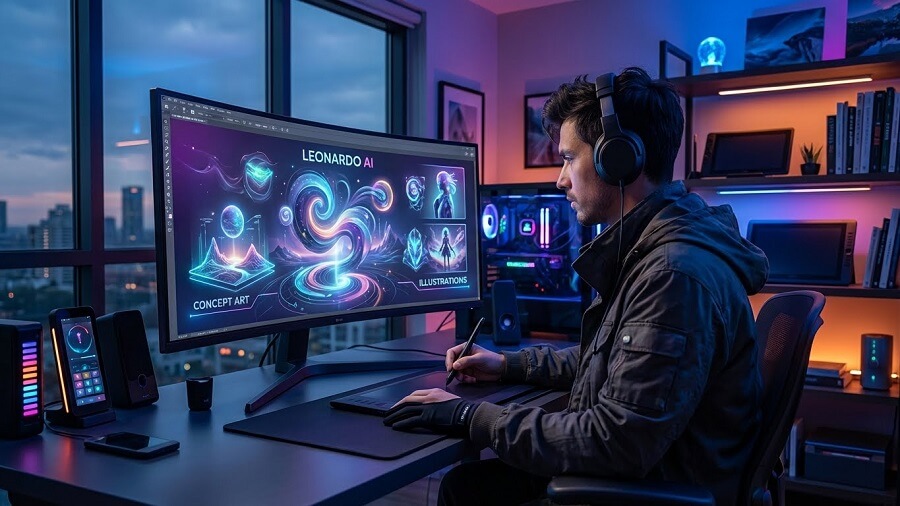
How Leonardo AI Works
Leonardo AI operates based on deep learning and neural networks, specifically generative AI models based on diffusion (diffusion models). The main process includes the following steps:
- Enter a text prompt: The user inputs a detailed description (e.g., “A samurai warrior in a misty forest, anime style, highly detailed, cinematic lighting”). The system analyzes the prompt through natural language processing (NLP) to understand the context, style, and key elements.
- Processing through the diffusion model: It uses core models like Stable Diffusion XL (SDXL 1.0 and 0.9)—a type of generative adversarial network (GAN) combined with diffusion models. The diffusion mechanism starts with a “noisy” image (random noise) and gradually “cleans” it through hundreds of iterations, where the neural network learns to predict and refine pixels based on the prompt. Specialized fine-tuned models like Leonardo Anime XL (for anime), Leonardo Lightning XL (high speed), Leonardo Kino XL (cinematic), PhotoReal (realistic), RPG v5 (game characters), or DreamShaper v7 help optimize for specific styles.
- Refinement and output: Users can make adjustments using tools like ControlNet (to guide image structure), Image Guidance (to control style), or AI Canvas (for post-generation editing). The result is a high-quality image/video with resolutions up to 8K, generated in just 5-30 seconds depending on the model. By 2025, the Kling O1 Video update allows for creating dynamic videos from prompts, expanding from static to motion.
The entire process runs on the cloud with powerful GPUs, ensuring speed and consistency, which differs from open-source models that require personal hardware.
Key Advantages of Leonardo AI
Leonardo AI stands out due to its combination of advanced technology, ease of use, and a strong community, helping it surpass competitors like Midjourney or DALL-E. The main advantages include:
- Superior quality and speed: Creates production-ready images in just a few seconds, with high detail and few errors (thanks to fine-tuned models). The video equivalent with Kling O1 is 2-3 times faster than other platforms.
- Flexible customization: Hundreds of specialized models (anime, photoreal, isometric fantasy, etc.) and tools like 3D Texture Generation and AI Canvas for pixel-level editing, suitable for all user levels—from beginner to pro.
- Community and collaboration: Over 18 million users, the world’s 3rd largest Discord server (4 million members) for sharing, learning, and building common resources. Features collaborative workflows for teams.
- Affordable and accessible: Starts for free (no credit card required), with paid plans from $10/month for unlimited tokens. Mobile app on iOS/Android and an API for integration (e.g., into Unity for game dev).
- Breakthrough 2025 updates: Launched advanced video generation, SOC 2 security, and multi-platform integration, making it popular in the gaming industry (like creating assets for RPGs) and marketing (for quick concept art). According to reviews, 70% of users choose Leonardo for its “ease of use and high quality” compared to competitors.
2. Key Features of Leonardo AI
Leonardo AI stands out with its comprehensive creative ecosystem, using models based on Stable Diffusion (like SDXL) to generate high-quality content. As of December 2025, the platform has updated features such as Kling O1 Video for video, Image Guidance to enhance ControlNet, and support for Elements (LoRA-style) for style customization. These tools help users from newbies to pros create production-ready assets quickly, with a focus on detailed control and personalization. Below is a detailed analysis.
Text-to-Image: The Core Feature and How It Works
Text-to-Image is the main feature, turning text prompts into high-quality images in just a few seconds.
- How it works: Users input a detailed prompt (e.g., “Samurai warrior in a misty forest, anime style, highly detailed, cinematic lighting”). The system uses a diffusion model (like Leonardo Anime XL or PhotoReal V2) to start from random noise and gradually refine it over hundreds of steps, using NLP to understand context, style, and details. Adjust parameters like guidance scale (how closely to follow the prompt, default ~7), number of images (default 4), aspect ratio, and Alchemy/Prompt Magic v3 (to increase coherence and detail).
- Benefits: High speed (5-30 seconds), supports resolutions up to 8K, and offers a variety of styles. Suitable for concept art, thumbnails, or marketing visuals. With Flow State (2025), you can generate a continuous stream of variations from a single prompt to explore ideas quickly.
Training Custom AI Models
This feature allows you to fine-tune personal models to match a specific style, ideal for brands or artists.
- How to train:
- Go to “Models & Training” > “Train New Model”.
- Create a dataset: Upload 8-15 high-quality images (minimum 5, maximum 30; multiple angles and consistent subjects like characters or products are recommended).
- Select type: Finetuned Model (legacy) or Elements (LoRA-style, recommended in 2025 for faster results).
- Set a name, description, trigger word (e.g., “my_style”), base model (SDXL or Phoenix), and advanced settings (epochs, learning rate).
- Train: The process takes 10-60 minutes depending on the dataset and consumes tokens (2 free models/month; Pro plan offers 10-50).
- Benefits: Creates consistent output (e.g., a personal artistic style or branded products), reduces hallucinations, and saves time on large projects. It’s completely private and supports API for integration. In 2025, Elements allows for easy mixing of style weights, increasing flexibility for teams.
Diverse Library of Finetuned Models
The library contains hundreds of finetuned models based on models like SDXL 1.0/0.9 or Phoenix, developed by the community and Leonardo.
- Main types:
- Anime/Illustrative: Leonardo Anime XL (fast anime/CG), RPG v5 (game characters), DreamShaper v7 (fantasy).
- Photography/Realism: PhotoReal V2 (hyper-realistic), Lucid Realism (realistic with typography), Vision XL (prompt-adherent).
- 3D Render/Creative: Kino XL (cinematic 3D), AlbedoBase XL (CG art), Isometric Fantasy/SciFi (3D isometric), 3D Vray Render.
- Other: Lightning XL (high-speed generalist), Diffusion XL (powerful with short prompts), Spirit Creatures/Character Portraits (niche creative).
- How to choose: In the generation interface, select from the dropdown (Platform Models or Your Models). Check the base model and examples on the details page. Combine with Alchemy for high detail. Prioritize by style: Anime for illustrative, PhotoReal for realistic.
Image-to-Image & Image Prompt
- How it works: Upload an image as a reference (init_image_id), adjust the init_strength (0-1, e.g., 0.5 for 50% influence). Use ControlNet preprocessors (ID depends on the model: Style Reference 67, Character 133 for SDXL) to guide style/pose/depth. Combine multiple ControlNets (up to 4) with independent weights.
- Benefits: Transforms old images into new variations while preserving the structure (e.g., changing the background or character pose). Image Prompt uses an image as a basis for the text prompt, increasing accuracy.
Real-time Canvas Editor
- How it works: Open an image in Canvas (browser-based like Photoshop AI): Brush/erase to mask, prompt for replacement (inpaint), expand the frame (outpaint), use layers/masks for pixel-level editing. Realtime Gen for sketching and live AI completion.
- Benefits: Immersive editing, combining AI and manual controls, supports erasing distractions or compositing. The 2025 update will introduce Realtime Canvas for rapid ideation.
Upscaling & Image Enhancement
- How it works: Universal Upscaler from the menu: Upload/select an image, choose a mode (Ultra/Legacy), adjust strength/smoothing, supports >4K while preserving texture. Combine with Alchemy for enhancement (reduces artifacts, increases detail).
- Benefits: From low-res to print-quality, ideal for game/3D exports.
Other Features
- ControlNet (Image Guidance 2025): Advanced with multiple options (Depth/Edge/Pose/Sketch-to-Image, etc.), independent weighting. Example: Pose + Depth for characters with depth. Benefit: Precise structural control.
- Prompt Generation (Magic Prompt v3): AI automatically creates/refines prompts from basic ideas, activate with Alchemy for better output.
- Removal Tool: One-click Remove Background (hover over image > click), or erase in Canvas.
- Dynamic Range & More: Alchemy for dynamic adjustment (HDR-like detail); 3D Texture Generation (from OBJ files); Motion (Kling O1) for creating videos from images/prompts (4-8 second clips, adjustable motion strength). Flow State for streaming real-time variations.
These features make Leonardo a comprehensive creative suite, with an API for developers and a community of 18M+ users. Start for free (150 tokens/day), upgrade to train more.
3. A-Z Guide to Using Leonardo AI
Leonardo AI is an accessible platform with a user-friendly interface and rich learning resources like Leonardo Learn (video tutorials) and a Discord community (over 4 million members). By December 2025, new updates like Image Guidance (enhanced ControlNet) and real-time AI Canvas will make the creative process even smoother. Below is a detailed guide from basics to practice, based on official documentation and updated instructions. You can start for free with 150 tokens/day (approximately 75 images).
Step 1: Sign Up and Create a Leonardo AI Account
The registration process is quick, takes less than 2 minutes, and does not require a credit card. Visit https://leonardo.ai/ in your browser (supports desktop and mobile).
- Click the “Get Started” or “Start using Leonardo” button on the homepage.
- Choose a sign-up method:
- Google: Click “Continue with Google” to sign in quickly with your Google account (recommended for individual users, automatically syncs email and doesn’t require a separate password).
- Microsoft: Select “Continue with Microsoft” for Outlook or Azure accounts (suitable if you use Microsoft 365 for work).
- Apple: Click “Continue with Apple” to use your Apple ID (integrates well with iOS/macOS, supports Face ID).
- Email: Enter your email address (e.g., yourname@gmail.com), create a strong password (at least 8 characters, including uppercase/lowercase letters, numbers, and special characters), and confirm via the code sent to your email.
- After selecting, the system will send a verification code (if using email). Agree to the Privacy Policy and Terms of Service (you can opt-in to receive updates via email).
- Complete: You will be redirected to the main dashboard with 150 free tokens. If you encounter an error (like not receiving the email code), check your spam folder or try another method.
Note: The free account is sufficient for testing; upgrade to Pro ($10/month) for unlimited tokens and to train your own models. Join the Discord (link on the homepage) for community support.
Step 2: Understand the User Interface
The Leonardo AI interface is designed to be simple and AI-first, with a navigation bar on the left and the main area in the center. After logging in, you will see the main dashboard – where you can manage your tokens, generation history, and learning resources.
- Main Area:
- AI Image Generation (or Image Generator): The central hub where you enter prompts and create images. This is the default tab, featuring the prompt bar, model dropdown, and Generate button.
- Community Feed: A tab on the left that displays images from the community (millions of creations). You can like, comment, or copy the prompt/model from your favorite images to learn (click the image → “Copy Prompt/Settings”).
- Personal Feed (or Gallery/Your Creations): Your personal storage area, displaying your generation history. Filter by model, prompt, or date.
- AI Canvas: A real-time editing tab (opened from the Tools menu) that allows you to draw, inpaint/outpaint, or make pixel-level adjustments.
- Models & Training: The area for training custom models (Elements/LoRA) or browsing the library of finetuned models.
- Other: The top bar contains Token Balance (check your quota), Settings (language, notifications), and Learn (tutorial videos, webinars).
Tip: Use the search bar to browse the feed quickly. The interface supports multiple languages (including Vietnamese via settings).
Step 3: Create your first image with AI Image Generation
Now, let’s create your first image! Go to the AI Image Generation tab (or click the large Image icon on the dashboard).
- Enter a “Prompt” (text description):
- In the main prompt bar, type a detailed description (e.g., “A samurai warrior in a misty forest, anime style, highly detailed, cinematic lighting”). Start simple and then add details like style, color, and perspective.
- Tip: Click the dice icon (Random Prompt) for AI suggestions, or “Improve Your Prompt” to automatically refine it (adding details like “8K, hyper-realistic”).
- Select a suitable “Finetuned Model”:
- Model Dropdown: Choose from the library (hundreds of options). For example:
- Leonardo Anime XL: For anime/illustrative styles.
- PhotoReal V2: For realistic/photographic results.
- Leonardo Lightning XL: High-speed, multi-style.
- RPG v5: For game characters.
- Recommendation: Start with Leonardo Diffusion XL for short, easy-to-use prompts.
- Model Dropdown: Choose from the library (hundreds of options). For example:
- Customize the number of images, image size, and aspect ratio:
- Number of Images: Set to 4-8 (default is 4; costs more tokens).
- Dimensions/Aspect Ratio: Choose a preset like 1:1 (square), 16:9 (landscape), or custom (e.g., 1024×1024 pixels). Supports up to 8K with the upscaler.
- Use a “Negative Prompt” (unwanted elements):
- In the Negative Prompt box, list elements to avoid (e.g., “blurry, low quality, distorted face, extra limbs”). This is not mandatory for some models like Kino XL, but it helps refine the output.
- Other advanced settings (Guidance Scale, Tiling, Seed, etc.):
- Guidance Scale: Adjusts how strictly the AI follows the prompt (default is 7-11; lower for more creative freedom, higher for more accuracy).
- Tiling: Enable for repeating patterns (seamless, useful for 3D textures).
- Seed: A random number (default is random; copy the seed from a favorite image to recreate variations).
- Other: Alchemy (increases detail), ControlNet (guides pose/depth from an uploaded image), Image Guidance (2025 update: independent weights for multiple ControlNets).
- Click “Generate” and see the results:
- Click Generate (costs 2 tokens/image). The process takes 5-30 seconds and shows the progress. The results appear below, with options to Upscale (increase resolution) or Remix (create variations).
Step 4: Save and manage your creations
After generating, easily manage your work to integrate it into your projects.
- Storage: Automatically saves to your Personal Feed/Gallery. Click an image to see details (prompt, model, seed) and add tags/descriptions.
- Download: Click the download icon (down arrow) on the image – JPG by default; PNG if there is transparency (after background removal). Batch download is supported for multiple images.
- Share:
- Within the platform: Click Share to post to the Community Feed (public, receive feedback) or send a private link.
- Externally: Copy the image link (from the Share menu) to post on Discord, social media, or export to other tools (Photoshop, Unity). With Pro, integrate the API for automation.
- Advanced management: Use Projects (create folders by theme), or Canvas to edit before saving. Delete/archive old items via the Gallery menu.
Tip: Always check your tokens after generating (top bar). If you run out, wait for the daily reset or upgrade. Refer to Leonardo Learn (on the dashboard) for detailed video tutorials. Start with simple prompts to get familiar – happy creating!
4. Effective Prompt Writing Techniques with Leonardo AI
The prompt is the “brain” that determines image quality. Leonardo AI (especially with Alchemy v3 + Prompt Magic v3 in 2025) is very sensitive to structure and keywords, so a good prompt is 80% of the success. Below is a formula tested millions of times by the community and top artists.
1. Optimal Prompt Structure (the 5-part golden formula)
Using this exact order → stable and highly detailed results:
text
[Main Subject] + [Detailed & Quality Adjectives] + [Descriptive Details] + [Style & Artist Reference] + [Technical Settings & Mood]
| Part | Specific Example | Important Note |
| Main Subject | a beautiful cyberpunk girl, majestic dragon, sleek futuristic car | Place first, always use singular (a/an) |
| Adjectives & Quality | highly detailed, ultra realistic, masterpiece, best quality, intricate, sharp focus | Use 3–6 words, more words cost more tokens |
| Descriptive Details | wearing neon jacket, glowing tattoos, standing on rainy rooftop, mechanical wings | The more specific the description, the better |
| Style & Artist | in the style of Alphonse Mucha, Studio Ghibli, Greg Rutkowski, WLOP, artstation trending | Use artist’s name + “style of” |
| Technical Settings | 8k, HDR, cinematic lighting, depth of field, octane render, unreal engine 5, ray tracing | End of the prompt, adds a “pro” touch |
Sample complete prompt:
text
A majestic white dragon, highly detailed scales, glowing blue eyes, flying over snowy mountains at sunrise, epic fantasy, in the style of Ciruelo Cabral and Studio Ghibli, cinematic volumetric lighting, 8k, ultra realistic, sharp focus, artstation trending
2. “Magic” keywords for higher quality
| Purpose | Powerful Keywords (copy-pasteable) |
| Extremely high quality | masterpiece, best quality, ultra detailed, intricate, absurdres, highres |
| Sharpness & detail | extremely detailed, sharp focus, finely detailed, meticulous |
| Beautiful lighting | cinematic lighting, volumetric godrays, dramatic lighting, soft rim lighting, backlight, golden hour |
| Mood & emotion | ethereal, moody, melancholic, serene, mystical, epic, breathtaking |
| Camera & angle | shot on 35mm, depth of field, bokeh, close-up portrait, wide angle, bird’s eye view, low angle |
| Materials & texture | iridescent, metallic, glossy, matte, leather, silk, glass, chrome, crystal, translucent |
| Color | vibrant colors, neon, pastel tones, moody dark, warm tones, cool blue tones |
| Render engine | octane render, unreal engine 5, redshift, cycles render, ray tracing |
| Trending | trending on artstation, trending on cgsociety, featured on behance |
Tip: Combine 5–8 of the above keywords at the end of the prompt → quality increases by 2–3 levels.
3. Detailed Prompt Examples by Topic (ready to copy-paste)
| Topic | Complete Prompt (optimized for 2025) |
| Realistic Character Portrait | A stunning female cyberpunk assassin, neon pink hair, glowing tattoos, rain-soaked rooftop at night, cinematic lighting, ultra realistic, highly detailed, 8k, sharp focus, in the style of Sakimichan and Guweiz |
| Fantasy Portrait | Ethereal elven queen, flowing silver hair, crystal crown, glowing emerald eyes, intricate filigree armor, fantasy forest background, volumetric godrays, masterpiece, art by Alphonse Mucha and Ross Tran |
| Majestic Landscape | Epic fantasy mountain range at sunset, misty valleys, golden clouds, towering peaks, dramatic volumetric lighting, ultra detailed, cinematic, in the style of Albert Bierstadt and Studio Ghibli, 8k |
| Product/Object | Sleek minimalist luxury watch, rose gold and black ceramic, floating in dark studio, dramatic rim lighting, product photography, ultra realistic, octane render, 8k |
| Anime/Manga | Cute anime girl with cat ears, pastel pink hair, cherry blossom garden, big sparkling eyes, detailed background, vibrant colors, in the style of Kyoto Animation and Makoto Shinkai |
| Sci-fi/Cyberpunk | Futuristic Tokyo street at night, neon signs reflection on wet pavement, flying cars, holographic ads, cyberpunk aesthetic, ultra detailed, cinematic, blade runner 2049 style, 8k |
| Isometric/Game Asset | Cozy isometric fantasy tavern, warm interior lighting, wooden furniture, potions on shelves, detailed pixel-perfect, in the style of Stardew Valley and Octopath Traveler |
4. Utilize Negative Prompts Effectively
Negative Prompts act as a “shield” to help eliminate common errors. Below are the 3 most popular sets (ready to copy and paste):
| Type | Recommended Negative Prompts (2025) |
| General (use anytime) | blurry, low quality, lowres, bad anatomy, bad hands, missing fingers, extra digits, cropped, worst quality, jpeg artifacts, signature, watermark, username |
| Human Portraits | deformed, ugly, mutilated, disfigured, poorly drawn face, bad proportions, extra limbs, cloned face, malformed limbs, missing arms, long neck |
| Anime | 3d, realistic, photorealistic, western cartoon, lowres, bad anatomy, bad hands, text, error, missing fingers, extra digit, fewer digits, cropped |
| Products/Objects | people, human, text, watermark, logo, deformed, blurry, low quality, out of frame, bad composition |
Pro Tip:
- Enable Alchemy v3 + Prompt Magic v3 → reduces natural errors by 50%.
- Use “–no” instead of a negative prompt in some new models (e.g., –no watermark, blurry).
- For characters, add: out of frame, duplicate, morbid, mutilated, extra fingers.
Final tip to achieve “pro” results in just one generation
- Enable Alchemy + High Contrast.
- Guidance Scale: 7–9 (realistic), 10–14 (artistic/anime).
- Steps: 30–60.
- Use PhotoReal V2 or Leonardo Vision XL for realistic photos; Anime XL or AbsoluteReality for anime.
- End the prompt with: masterpiece, best quality, ultra detailed, 8k.
By applying the formula above, you’ll create gallery/artstation-quality works in just a few tries!
5. Tips for Using Leonardo AI Like an Expert
Leonardo AI is not just a basic image generation tool but a professional creative studio, especially with 2025 updates like Image Guidance (enhancing ControlNet with multiple uploads and independent weighting), Realtime Canvas (immersive editing), and Elements (LoRA-style for custom styles). These features give you detailed control to create consistent content for games, marketing, or art. Below is an in-depth guide, based on official documentation and community experience (over 30 million users by the end of 2025), to help you use it like a pro.
In-depth Guide to Custom Model Training
Custom Model Training (now called Elements for faster LoRA-style) is Leonardo’s “signature” feature, allowing you to create your own model based on a personal dataset, ensuring consistency (e.g., brand style or game characters). The process takes 10-60 minutes and requires a Pro account ($10/month, up to 10-50 models depending on the plan). Here are the detailed steps:
- Select Dataset and Upload Images:
- Go to Models & Training > Train New Model (or Elements for fast LoRA).
- Create dataset: Upload 8-30 high-quality images (minimum 5, recommended 15-20; size 512×512+ pixels, diverse angles, consistent theme like a character, product, or art style). Supports JPG/PNG, total size <100MB.
- Pro tip: Use images you generated with Leonardo (do not use copyrighted images to avoid legal issues). Add auto-captioning to each image to help the AI learn better (e.g., “cyberpunk assassin, neon lights”). Check the dataset preview to remove low-quality images.
- Configure and Start Training:
- Select type: Finetuned Model (legacy, deep detail) or Elements (LoRA) (fast, flexible to mix with a base model).
- Settings: Name the model (e.g., “MyBrandStyle”), description (trigger word like “mystyle” to activate), base model (SDXL 1.0 for high quality or Phoenix for speed), epochs (20-50 for balance, higher for accuracy), learning rate (0.0001-0.001, lower to avoid overfitting).
- Advanced: Enable High Resolution for large datasets, or Style Transfer for a specific artist’s style. Consumes 500-2000 tokens depending on complexity.
- Click Train: Track progress on the dashboard (email notification upon completion). Tip: Train multiple small datasets to test, avoid overfitting by using a validation set (10% of the dataset).
- Apply the Trained Model:
- After training, the model will appear in Your Models. Select it from the dropdown when generating (combine with a prompt like “mystyle cyberpunk city”).
- Pro tip: Mix with Elements (weight 0.5-1.0 to adjust intensity), or export via API for Unity/Blender integration. Use it for a series (e.g., creating 100 consistent character variations). 2025 update: Completely private training, supports remixing community models.
Benefit: Reduces time by 70% for repetitive projects, like creating game assets. If there’s an error (overfit), retrain with a more diverse dataset.
Using “Image-to-Image” and “Image Prompt” to Enhance Images
Image-to-Image (I2I) and Image Prompt transform existing images into new versions, preserving the original structure while applying a new style/prompt – ideal for recreation or transformation (e.g., aging a historical photo or turning a real photo into cyberpunk art).
- How to use Image-to-Image:
- In AI Image Generation, upload the original image (init_image) via the attachment icon.
- Set the Init Strength (0.3-0.8: lower for significant changes, higher to preserve the original structure).
- Enter a new prompt (e.g., “convert to steampunk style, intricate gears, vintage lighting”) and a negative prompt (to avoid “modern, blurry”).
- Select a model (PhotoReal for realistic results) and generate. Pro-tip: Combine with Alchemy v3 to enhance details, create 4-8 variations, then upscale.
- Image Prompt (Reference): Upload an image as a “guide” (not an init image), which influences the style/color (strength 0.2-0.6). Example: Upload an artist’s image to “prompt” a similar style.
- Pro-tip: Use multiple uploads (premium: up to 4 images) with independent weighting for complex recreations (e.g., keep the pose from image 1, the style from image 2). Application: Transform products (real photo → concept art), saving 50% of manual editing time. Note: Not fully compatible with some SDXL models except for Style/Character Reference.
Exploring “Real-time Canvas”
Realtime Canvas (2025 update: AI-assisted painting) is an integrated “AI Photoshop”, allowing for immersive edits like hand-drawing with real-time AI completion – turning generation into an iterative workflow.
- How to use:
- Generate a base image, then click Open in Canvas (or the AI Canvas tab).
- Main tools: Brush/Inpaint (draw a mask to replace, e.g., remove the background and prompt “replace with fantasy forest”); Outpaint (expand the frame); Erase (remove details); Layers/Masks (stack layers like in Photoshop).
- Realtime Gen: Draw a sketch on the left, and the AI updates on the right based on the prompt (e.g., draw character outlines → AI adds details).
- Pro-tip: Use Flow State to stream continuous variations (for rapid ideation); combine with ControlNet for precise poses within the canvas. Application: Fine-tune game concept art (change a character’s expression while maintaining proportions). Benefit: Reduces the need to export to external software by 80%, supports browser-based use without downloads.
Using “ControlNet”: More Precise Control Over Composition and Poses
ControlNet (now Image Guidance, launching in 2025) is the “control brain” for structure, with multiple options (up to 4 simultaneous ControlNets, independent weighting) – excelling at pose, depth, and edge detection.
- How to use:
- In Image Generation, enable Image Guidance (upload a reference image).
- Select a ControlNet from the dropdown (greyed out if not compatible with the model):
- Depth-to-Image: Analyzes pixel depth (a popular ID for 3D-like results).
- Edge/Line Art: Preserves lines/sketches (ID 0-10 for SD1.5).
- Pose/OpenPose: Character poses (ID 12, use a pose reference image).
- Normal Map: 3D textures (premium).
- Multiple: Select 2-4 (e.g., Depth + Pose), set the weight for each (0.5-1.0).
- Enter a prompt and generate. Pro-tip: With SDXL, only use Style Reference (IDWith these tips, you can upgrade from a basic user to a pro, creating production-ready content in just a few minutes. Join the Leonardo Discord to share models and learn more.
6. Leonardo AI’s Costs and Service Plans
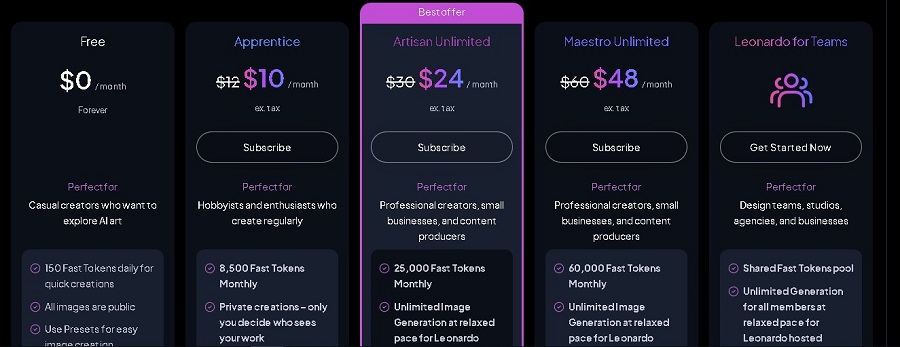
Leonardo AI offers a flexible pricing model centered around tokens (the unit of calculation for image/video generation), with a free plan suitable for testing and paid plans that unlock high speed, customization, and full commercial rights. As of December 2025, prices are in USD/month (with annual discounts), do not include taxes, and are subject to change – check at https://leonardo.ai/pricing. Tokens are deducted based on complexity (e.g., a basic image costs ~2 tokens, a video ~50-200 tokens). Below are the details of the plans and management tips.
Free Plan
The Free plan is ideal for newcomers, requires no credit card, but has strict limitations to encourage upgrading.
- Price: 0 USD/month (forever).
- Token limit: 150 Fast Tokens per day (resets daily; no rollover).
- Included features:
- Basic image generation with Presets and Community AI models.
- Basic quality (no Enhanced Upscaling).
- All images are public (Leonardo has the right to use them).
- 1 personal collection for storage.
- Commercial rights: Non-exclusive, royalty-free license (can be used commercially, but Leonardo retains the right to use your images).
- Limitations: No private mode, no custom model training, slow speeds during peak hours, no concurrent generations.
Paid Plans
Paid plans (Apprentice, Artisan Unlimited, Maestro Unlimited) offer more tokens, private creations, and full IP rights (you have complete ownership and unlimited commercial use). All support Top-up Tokens (buy more, do not expire) and Relaxed Generation (slower generation after Fast Tokens are used, only with Leonardo-hosted models, not applicable to Flow State or third-party models like Flux.1).
Plan Price (USD/month, annually) Monthly Tokens (Fast + Rollover Bank) Key Additional Features Speed & Concurrency Commercial Rights & Other Apprentice $12 ($10/year) 8,500 Fast + 25,500 Bank (rollover unused) – Private creations – Train 10 personal AI models
– Enhanced Quality & Upscaling
– Unlimited collections
– 2 concurrent generations – Relaxed after Fast tokens are used
– Full IP ownership – Top-up Tokens
– Unlimited commercial use
Artisan Unlimited $30 ($24/year) 25,000 Fast + 75,000 Bank (rollover) – Same as Apprentice + Unlimited Image Gen (relaxed pace) – Train 20 models
– Queue 10 generations
– 3 concurrent generations – Queue 10
– 2-3x faster than Free
– Full IP ownership – Top-up Tokens
– Ideal for freelancers
Maestro Unlimited $60 ($48/year) 60,000 Fast + 180,000 Bank (rollover) – Same as Artisan + Unlimited Video Gen (relaxed) – Train 50 models
– Unlimited Ultra generations
– 6 concurrent generations – Queue 20
– Highest priority
– Full IP ownership – Top-up Tokens
– Suitable for large studios
- General image generation speed: Fast Tokens for high speed (5-30 seconds/image); Relaxed is slower (1-5 minutes) but doesn’t cost extra tokens. Maestro is the fastest due to its large queue.
- Commercial rights: All paid plans grant full ownership, not shared with Leonardo – ideal for selling products, game assets, or NFTs.
- Other plans: Team (from $60/user/month, for groups) and API (pay-per-token, from $0.001/token) for businesses.
How to manage tokens effectively
Tokens are Leonardo’s “currency,” so good management helps optimize costs (especially with rollover). Here are pro tips from the community and official guides:
- Track & rollover: Check the token counter on the dashboard/app (displays Fast, Rollover Bank). Unused Fast tokens rollover into the Bank (limit based on plan: 25,500 for Apprentice, up to 180,000 for Maestro) – use the Bank before Fast tokens to save.
- Optimize generation:
- Choose a lightweight model (Lightning XL) for quick tests (1-2 tokens/image instead of 5+ for Ultra).
- Enable Alchemy v3 only when high detail is needed (increases token cost by 20-50%).
- Use Relaxed pace after Fast tokens run out (free, slow but unlimited for hosted images/videos).
- Batch generate: Create 4-8 images at a time to test variations and avoid waste.
- Buy top-ups: On paid plans, buy top-up packs of 1,000-10,000 tokens ($5-50, non-expiring) as a backup – used after the Bank, requires an active subscription.
- Advanced tips: Train a custom model once (saves tokens long-term for consistent series); use the Community Feed to learn cost-effective prompts (copy settings from pros). If you run out of tokens, wait for the reset (daily for Free, monthly for paid) or temporarily downgrade.
In summary, start with the Free plan to try it out, then upgrade to Apprentice for personal use ($12/month is the most economical). For high-demand needs, Maestro ($60) is a worthwhile investment for its unlimited generations and speed.

Leonardo AI Pricing 7. Practical Applications of Leonardo AI
Leonardo AI has evolved beyond a simple image generation tool, becoming an indispensable assistant for millions of professionals worldwide (over 18 million users by the end of 2025). With its ability to quickly create production-ready assets, the platform saves time and money, from initial concept to final product. Below are notable real-world applications, complete with examples and case studies from major businesses.
Graphic Design & Marketing
Leonardo AI is a “secret weapon” for marketers, helping to create high-quality visual assets in just seconds, supporting A/B testing and large-scale campaigns.
Specific Applications Real-world Examples & Case Studies Banners & Advertisements Create futuristic neon banners for fashion campaigns; hyper-realistic product mockups for landing pages. Social Media Images 50+ TikTok/Reels thumbnail variations from a single prompt; social media graphics with AI Marketing Tools. Case Study Springbok Group uses it to blend/enhance images for detailed visual assets; a fashion brand increased engagement by 40% through an AI-generated campaign. Game Development: Design characters, environments, and items
Leonardo AI revolutionizes game dev by quickly creating a full asset suite (characters, environments, props), supporting isometric views and RPG styles.
Specific Applications Practical Examples & Case Studies Characters Consistent RPG character portraits; cute animal characters for mobile games. Environments Immersive fantasy/sci-fi environments with 3D Vray Render; isometric fantasy for Stardew Valley-style. Items Multi-material magic items (shields, weapons); 3D Texture Generation from OBJ files. Case Studies Studios at Gamescom 2025 use it for dynamic content & personalized experiences; AAA Game Art Studio creates custom assets. Art & Creativity
Artists use Leonardo to quickly explore ideas, from concept art to finished illustrations, with a rich library of styles (Anime XL, Illustration V2).
Specific Applications Real-world Examples & Case Studies Digital Art Spirit creatures, paper art, cyberpunk evocations; galaxy energy diamonds. Book Illustrations Whimsical illustrations for children’s books; character designs for novels. Case Study Independent artists create NFT series; 4M+ community on Discord sharing workflows. Architecture & Interior Design: Sketching design concepts
Quickly create visualizations for architectural concepts and interior mockups with isometric and photorealistic styles.
Specific Applications Real-world Examples & Case Studies Architectural Sketching Sci-fi buildings isometric; glasslike alien monuments. Interior Design Fantasy tavern interiors; 3D renders for showrooms. Case study Architects use it for rapid ideation, reducing sketching time by 70%. Fashion & Products: Mockups, concept ideas
Gen AI workflows for fashion visuals and product photography, from runway concepts to e-commerce shots.
Specific Applications Real-world Examples & Case Studies Fashion Designs Futuristic baro outfits, neon rococo tech; full-body shots. Product Concepts Luxury watch mockups; Scrambler Ducati custom bikes. Case study Vogue August 2025 used for AI models (in combination with Leonardo); GUESS campaign via AI agency. 
Practical applications of Leonardo AI 8. Tips and Advice to Optimize Your Leonardo AI Experience
Leonardo AI is constantly evolving, with 2025 updates like Realtime Canvas, Alchemy v3, and Elements (LoRA-style) helping users create higher-quality content than ever before. To make the most of this platform (with over 18 million users worldwide), apply the following tips – from learning from the community to troubleshooting. This advice is based on experience from Leonardo Learn, the community Discord, and official guides, helping you go from newbie to pro quickly.
Explore the community
The community is Leonardo AI’s greatest “treasure,” with over 4 million members on Discord (the 3rd largest in the world) and Facebook, where people share prompts, custom models, and workflows. Here’s an effective approach:
- Join Discord and the Community Feed: On Discord (link from the dashboard), follow the #masterclass, #prompt-sharing, and #showcase channels to see real creations. For example, copy a prompt from a fantasy concept art piece like “Epic fantasy mountain range at sunset, misty valleys, volumetric godrays, in the style of Albert Bierstadt” and remix it to your liking. In the app, browse the Community Feed to like/comment and get instant feedback.
- Learn from Leonardo Learn: Visit the “Hacks” section on leonardo.ai/learn for short videos on tips like using Style Reference to transfer styles from community images. Weekly webinars (e.g., “Creating Consistent Characters”) help you learn how to train models from shared datasets.
- Pro tip: Follow top creators on X (Twitter) or Medium (like @TwitticusMktg with 15 tips for using Leonardo like a pro). Try the “I’m Feeling Lucky” button to generate randomly from community trends, saving ideation time.
Result: Users often see a 50% improvement in quality after just one week of community participation.
Stay updated with new features
Leonardo AI updates monthly, with 2025 bringing Kling O1 Video, Image Guidance (multiple ControlNet), and Flux.1 integration – missing out could put you at a competitive disadvantage.
- Follow the changelog: Check the blog (leonardo.ai/blog) or newsletter (subscribe on the dashboard) for updates like “Realtime Canvas Sketch-to-Fashion” (draw a sketch and the AI completes it in real-time). For example, Alchemy v3 (new in 2025) increases detail by 2x – enable it in settings for “production-ready” output.
- Test beta features: In the “Labs” section or the #beta-testing channel on Discord, try Elements (mix styles with a weight of 0.5-1.0) or the Universal Upscaler (free up to 8K). If you use the API, update your docs to avoid “invalid dimensions” errors.
- Pro tip: Schedule a weekly check for updates (e.g., on Mondays), and join webinars on Leonardo Learn to learn new workflows like “Cinematic Storyboards”. Result: Save 30-50% on generation time thanks to new features.
Practice and experiment
Practice is key – Leonardo AI rewards persistence, with Prompt Magic v3 helping to automatically refine ideas.
- Experiment with prompts: Use the structure “Subject + Adjective + Details + Style + Technique” (e.g., “A stunning cyberpunk assassin, neon pink hair, rain-soaked rooftop, in the style of Sakimichan, 8K, cinematic lighting”). Test 3 versions of the prompt with minor variations (add “volumetric godrays”) and choose the best match. Enable Prompt Enhance for the AI to improve it automatically.
- Explore settings: Change the model (Leonardo Anime XL for illustrative, PhotoReal V2 for realistic), Guidance Scale (7-9 for accuracy), and Elements (add fog/rain for mood). Upload an image as an Image Prompt to transform it, or use Canvas to inpaint/outpaint.
- Pro tip: Save favorite prompts in “Projects” for reuse; test with Relaxed Generation (unlimited after Fast Tokens run out) to experiment without cost. Following guidance from starryai, experiment with adjectives like “serene” or “dramatic” to influence the mood. Result: After 10-20 sessions, your output will be more consistent and professional.
Troubleshoot common issues
Common issues are often caused by network or settings problems but are easy to fix following official guides. Below is a quick troubleshooting table:
Common Issues Possible Causes How to Fix Login Error Old browser cache or incorrect API key Clear cache/cookies (Chrome: Settings > Privacy > Clear browsing data); try Google/Apple login instead of email. If using API: Check Bearer token format (UUID). Unsatisfactory images (slop) Vague prompt or unsuitable model Enable Prompt Magic v3/Improve Your Prompt; change the model (e.g., Diffusion XL for short prompts); add a negative prompt like “blurry, low quality”. If overfit, retrain with a diverse dataset. ERR_CONNECTION_TIMED_OUT Slow network or high server load Check speedtest.net; try a VPN (if there’s a regional block); clear cache and update your browser. If the issue persists, contact support via the Intercom widget. Payment errors (e.g., subscription count >1) Card declined or pending transaction Wait 24h for it to reset; check funds with your bank; try a different card. Do not cancel the subscription mid-process. Generation fail (Oops, that didn’t work) Out of tokens or incorrect init_image_id Check token balance; use the image ID from Get Single Generation for Motion SVD; refresh the page or try Relaxed mode. App crash/slow loading Old device or outdated app version Update the app (iOS/Android); restart the device; clear the app cache (Settings > Apps > Leonardo > Storage). - Pro tip: For API errors (like “invalid dimensions” when using Alchemy), check docs.leonardo.ai/docs/api-error-messages. If you’re still stuck, use Intercom (bottom-right on the dashboard) to chat with support – they respond within 24 hours. According to Medium, if a render “won’t cooperate”, scrap the prompt and restart from a new seed.