


 10/05/2026
  14300 views
Managing assets with Excel is a crucial process for planning and monitoring the depreciation of business assets. For small and medium-sized enterprises, using the right asset management template is extremely important to ensure transparency, clarity, and ease of tracking and monitoring. Below are the TOP 5 free and most detailed Excel asset management templates for 2023, compiled by 1Office.
Mục lục
- 1. The process of managing assets with Excel
- 2. What Excel functions support asset and product management?
- 3. TOP 5+ Most Detailed Excel Asset Management Templates 2025
- 4. Pros and cons of managing assets with Excel
- 5. What are the Key Considerations for Asset Management?
- 6. Use 1Office for effective asset management software
- 7. Frequently Asked Questions about Managing Assets with Excel (FAQs)
- 8. Conclusion
1. The process of managing assets with Excel
Managing assets with Excel is one of the most popular methods for asset management for small to medium-sized businesses and individuals. Here are the steps to manage assets using Excel:
Define the purpose and scope of asset management: This will help determine the necessary information to track and store, as well as the appropriate spreadsheet format. Define the purpose of using the Excel spreadsheet for asset management (e.g., managing personal assets, managing company assets). Define the scope of asset management (e.g., managing fixed assets, current assets, food assets)
Prepare the data: List of assets, detailed information for each asset, including asset name, description, value, purchase date, serial number, warranty information, etc. At the same time, you must check the accuracy of the data.
Set up the Excel spreadsheet for asset management: Create an Excel spreadsheet and name the columns according to the asset information that needs to be managed. You should also add other columns to track maintenance, repair, or replacement information.
Enter data into the Excel spreadsheet: Once you have the list of assets and detailed information, proceed to enter the data into the Excel spreadsheet. Adjust the columns to input the information into the corresponding columns.
Calculate and analyze asset information: Use calculation formulas in Excel to calculate the total asset value, total number of assets, and other necessary information. Alternatively, you can create a summary table to track the status of assets according to various criteria.
Track and update asset information on the Excel spreadsheet: When there are changes to asset information, update the information in the Excel spreadsheet. Monitor the status of the assets and update maintenance, repair, or replacement information as needed.
2. What Excel functions support asset and product management?
Excel supports asset management by digitizing centralized information, allowing users to utilize smart filters, a flexible system of calculation functions, and visual charts to control the lifecycle, value, and usage status of each item code.
Specifically, the Excel functions that support asset and product management include:
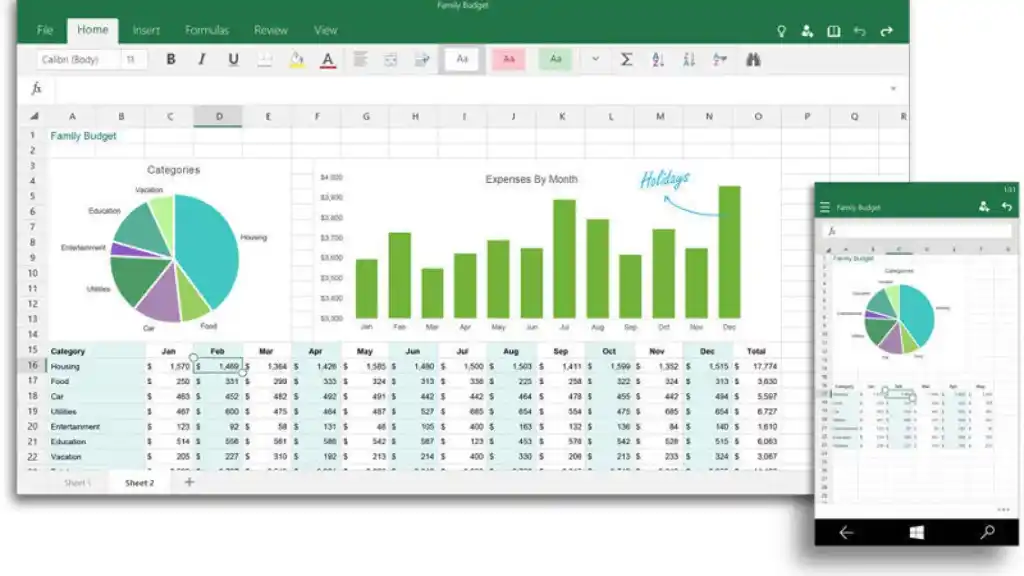
2.1 Create an asset list
Excel provides many ways to create an asset list, from creating a new spreadsheet and entering asset information into the corresponding columns, to using available templates or downloading them from the internet.
For example: Create a new Excel spreadsheet and name it “Asset List,” then create information columns such as asset name, asset code, purchase date, value, quantity, storage location, usage status, and then enter the information and description of each asset into that spreadsheet.
2.2 Sort, search, and filter data
This function helps users get a more intuitive view and easily search for and sort assets in the list. Users can sort assets by name, value, purchase date, or other attributes. They can also search for assets based on specific keywords or conditions, or filter data to display only the assets that meet specific search criteria.
For example: To sort assets by value from high to low: select the value column, click the sort button in Excel, and choose descending order. Or search for information on a specific asset by entering the asset name into the search box in Excel. Or to filter assets by usage status as “in use,” you can select the data filter cell, choose the usage status column, and select the value “in use.”
2.3 Calculate total asset value
Managing assets with Excel helps users calculate the total value of assets in the list. Users can use simple calculation formulas or built-in tools in Excel like the SUM or AVERAGE functions to calculate the total value of assets.
Some functions frequently used for asset management include:
- SUM function: This function is used to calculate the total value of assets. For example: =SUM(B2:B10) will calculate the total value of assets from cell B2 to cell B10.
- IF function: This function is used to check a condition and return different results depending on the outcome of that condition. For example: =IF(B2>1000, “Expensive”, “Inexpensive”) will check the value of the asset in cell B2; if it is greater than 1000, it will return “Expensive,” otherwise it will return “Inexpensive”.
- VLOOKUP function: This function is used to search for a value in a table and return a value in a different column in that row. For example: =VLOOKUP(A2, D:E, 2, FALSE) will search for the value of the asset in cell A2 in column D, and if found, it will return the value from column E.
- COUNTIF function: This function is used to count the number of assets that meet a condition. For example: =COUNTIF(C2:C10, “>100”) will count the number of assets with a value greater than 100 in column C.
- AVERAGE function: This function is used to calculate the average value of assets. For example: =AVERAGE(B2:B10) will calculate the average value of assets from cell B2 to B10.
2.4 Track information on asset depreciation and replacement
This function allows users to track asset information, including details on the asset’s depreciation status and when it needs to be replaced. Users can use Excel’s formulas and calculation tools to calculate the asset’s depreciation time and make predictions about when it will need replacement.
For example: A manager wants to track information about replacing assets that are damaged or need upgrading. They can add a status column to the asset list and update the status of each asset as it becomes damaged or requires replacement.
>> See more related articles:
- 12+ Professional Excel Project Management Templates 2026 for All Project Types
- FREE DOWNLOAD 5+ Latest Employee Payroll Templates 2026
- Guide to Creating a Simple, Easy-to-Understand Timesheet in Excel
2.5 Create statistical reports on assets
Excel provides many tools for creating reports, including charts, graphs, and statistical tables. Users can customize reports to fit their needs and share them with other stakeholders.
For example: A statistical report on assets can be created using a column chart to show the quantity of assets by type, a pie chart to show the percentage of asset types, a line chart to show asset value over time, and a scatter plot to show the usage status of assets. By using these charts, users can easily evaluate and analyze information about assets and various financial costs, thereby making more effective asset management decisions.
3. TOP 5+ Most Detailed Excel Asset Management Templates 2025
Essential components in a fixed asset management template include: asset, asset code, quantity, purchase date, purchase price, useful life, storage location, and current status. Below are the 5 most detailed and free Excel asset management templates for managers.
3.1 Manage increases and decreases in fixed assets
This is a data management template that helps users manage information about the company’s fixed assets, including details like asset name, value, quantity, purchase date, and disposal date. By updating this fixed asset information, users can easily track the increase and decrease of fixed assets within the company.
3.2 Fixed asset labels
This template helps users label fixed assets for easy differentiation and tracking. For example, users can label assets with a unique number or code to identify them.
3.3 Fixed asset tracking template
This template helps users track detailed information about fixed assets, including asset name, value, purchase date, expiration date, user, and current status of the asset. By using this template, users can easily manage fixed assets and track their depreciation and value over time.
3.4 Fixed asset inventory schedule
This template helps users plan for fixed asset inventory. It includes information such as asset name, quantity, unit, user, and inventory date. By using this template, users can plan the company’s fixed asset inventory reasonably, ensuring it is conducted on time and correctly.
3.5 Fixed asset inventory sheet
This template helps users record the results of a fixed asset inventory, including asset name, quantity, unit, value, current status of the asset, and notes. By using this template, users can easily track and update information about fixed assets completely and accurately.
The Excel asset management templates above are for reference and can be customized according to the needs and requirements of each organization or individual. However, using Excel for asset management can help simplify the process, save time, and increase accuracy.
4. Pros and cons of managing assets with Excel
4.1 Advantages of Managing Assets with Excel
Easy to operate and use because Excel is a popular and simple software, so users can quickly learn how to use it and create spreadsheets to manage assets.
Cost-effective compared to using professional asset management software or outsourcing asset management services.
Excel is highly customizable, providing many tools to customize spreadsheets and a variety of formula templates to meet the different needs of users.
4.2 Disadvantages of Managing Assets with Excel
Prone to errors because data entry and calculations in Excel are entirely dependent on the user. If not careful, mistakes during data entry can lead to calculation errors and result in financial and business risks.
Excel has data scale limitations, so if the number of assets is too large, managing them with Excel can become difficult and cause issues.
It does not allow for continuous data updates from different sources. This means users must manually update asset information, which is time-consuming and inefficient when dealing with a large number of assets.
5. What are the Key Considerations for Asset Management?
Asset management requires a close combination of compliance with the legal accounting framework and maintaining a strict physical inventory process to ensure the integrity of resources and transparency in all of the company’s financial reports.
5.3 Accounting and Legal Principles in Asset Management
Businesses need to manage assets based on the following core principles:
-
Proper Asset Recognition
-
Assets must have a useful life of > 1 year and meet the minimum value threshold as regulated.
-
Assets must provide future economic benefits.
-
-
Accurate Asset Valuation and Classification
-
Classify by group: Fixed assets, tools and supplies, current assets.
-
Valuate at historical cost, including all costs to bring the asset into working condition.
-
-
Depreciation According to Ministry of Finance Regulations
-
Apply appropriate depreciation methods: straight-line, declining balance, etc.
-
Depreciate over the correct period and for the correct asset type.
-
-
Security and Transparency of Asset Data
-
Maintain complete records, conduct periodic reconciliations.
-
All changes must have someone responsible.
-
-
Legal liability compliance
-
The manager is responsible for any loss or discrepancy.
-
Fully comply with decrees and circulars regarding corporate assets.
-
5.2 Regulations on asset inventory and reporting according to corporate law
According to legal regulations, businesses must conduct asset inventories and reporting transparently and in the correct order:
-
Periodic asset inventory
-
Conducted at least once a year, or when there are major fluctuations.
-
Inventory of all assets: fixed assets, goods, tools, office equipment, etc.
-
Create an inventory report with the full signatures of the inventory committee.
-
-
Asset reporting according to prescribed forms
-
Report on increases/decreases in fixed assets.
-
Monthly/quarterly/annual depreciation report.
-
Report on usage status: wear and tear, repairs, replacements.
-
-
Store asset records for the correct duration
-
Minimum of 5–10 years depending on the type of record.
-
Includes: handover minutes, invoices, inventory reports, repair records.
-
-
Business responsibilities
-
Standardize asset management processes, update periodically.
-
Ensure complete records are provided to auditors/supervisory boards upon request.
-
6. Use 1Office for effective asset management software
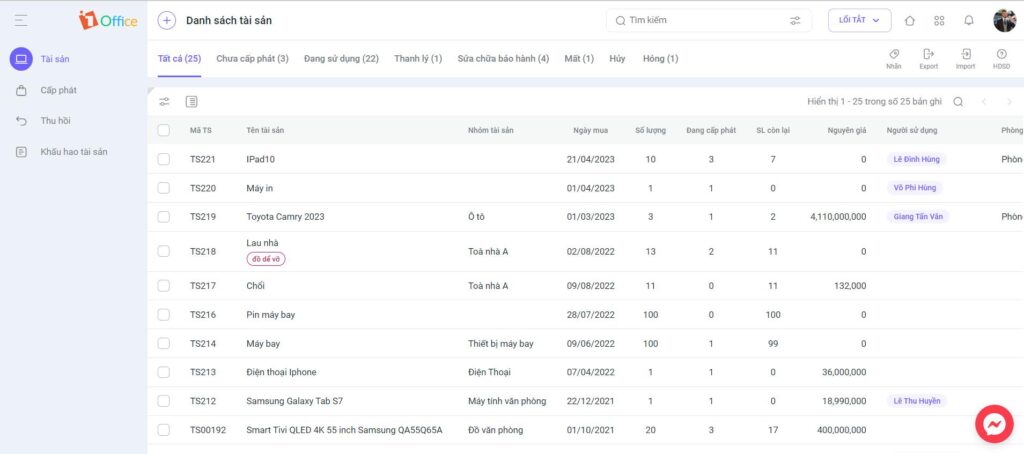
The solution to all the above drawbacks is to use 1Office asset management software. This software will help businesses overcome some of the limitations of managing assets with Excel. Here are some features of using 1Office software for asset management:
- Online asset management: 1Office software allows for online asset management, making it easier to manage and retrieve asset information, unrestricted by time and location.
- Asset location management feature: 1Office software provides an asset location management feature, allowing users to track where assets are being used, which increases efficiency in inventory and asset locating.
- Maintenance and repair management support: 1Office software allows users to track information related to asset maintenance and repairs, helping to ensure that maintenance and repairs are carried out promptly, correctly, and cost-effectively.
- Reporting and statistics feature: 1Office software provides asset reporting and statistics features, giving users a comprehensive overview of the asset situation and enabling them to make more effective management decisions.
- Multimedia asset management: 1Office software supports the management of various types of assets such as electronic devices, software, furniture, vehicles, and other assets, making asset management more complete.
Get a free 1Office software demo
In summary, using the effective asset management software 1Office will help resolve the drawbacks of managing assets with Excel, bringing greater efficiency to asset management for businesses.
7. Frequently Asked Questions about Managing Assets with Excel (FAQs)
How do you distinguish between fixed assets and tools when entering them into the tracking sheet?
Fixed assets must have a useful life of over 1 year and a value of 30 million VND or more (according to current regulations). Items with a lower value or shorter useful life are classified as tools.
Is there a way to automatically set maintenance reminders for assets in a spreadsheet?
You can use the “Conditional Formatting” feature in your spreadsheet. Set it up so that the date cell turns red when maintenance is due, or use a function to compare the current date with the scheduled maintenance date to generate a text-based alert.
Why do the asset figures on the tracking sheet often differ from the actual count during inventory?
The main reason is the failure to update in a timely manner when assets are transferred between departments or when damage or loss occurs. To fix this, any change in an asset’s location or status must be recorded immediately in the tracking sheet.
At what scale of assets should a business stop using spreadsheets and switch to software?
When the asset catalog exceeds 100 items or involves many complex transfers and repairs, you should switch to software. At this point, manual spreadsheets are prone to data entry errors and it’s difficult to ensure security.
Is asset tagging really necessary?
It is very necessary. A tag containing a code number helps make inventory checks fast and accurate, and prevents confusion between assets that look identical (like computers, desks, and chairs). This provides a basis for reconciling data between the records and the physical assets.
8. Conclusion
Managing assets with Excel effectively helps optimize costs and ensure stable operations. Whether using spreadsheets or a management system, the key factor is still accurate, timely data, and process compliance. We hope you apply this effectively to control assets transparently and promote sustainable growth.
















