


 10/05/2026
  2179 views
A debt tracking sheet is a tool that helps businesses control cash flow, understand accounts receivable and payable, and minimize financial risks. If your business needs a simple template that accountants can use immediately, the following content will meet your needs. In this article, 1Office will provide 5+ free accounts receivable and payable tracking sheet templates with PDF files for businesses to download and use right away.
Mục lục
1. What is a debt tracking sheet? Why is it necessary?
A debt tracking sheet is a document used to record and monitor all accounts receivable from customers and accounts payable to suppliers. This sheet typically includes: partner name, outstanding amount, amount paid, due date, and payment status. This allows the business to always have a clear understanding of its debt situation and cash flow at any given time.
Businesses need a debt tracking sheet to:
- Control cash inflow and outflow, avoiding budget shortfalls.
- Detect bad or overdue debts early for timely resolution.
- Make accurate financial decisions, such as adjusting sales policies, negotiating payments, or controlling borrowing costs.
Currently, businesses typically use two main tracking methods:
- Excel sheets: flexible, easy to customize, suitable for small businesses or those with a low volume of transactions.
- Automated software: automatically calculates, sends payment reminders, minimizes errors, and is suitable for large-scale businesses or those needing data synchronization.
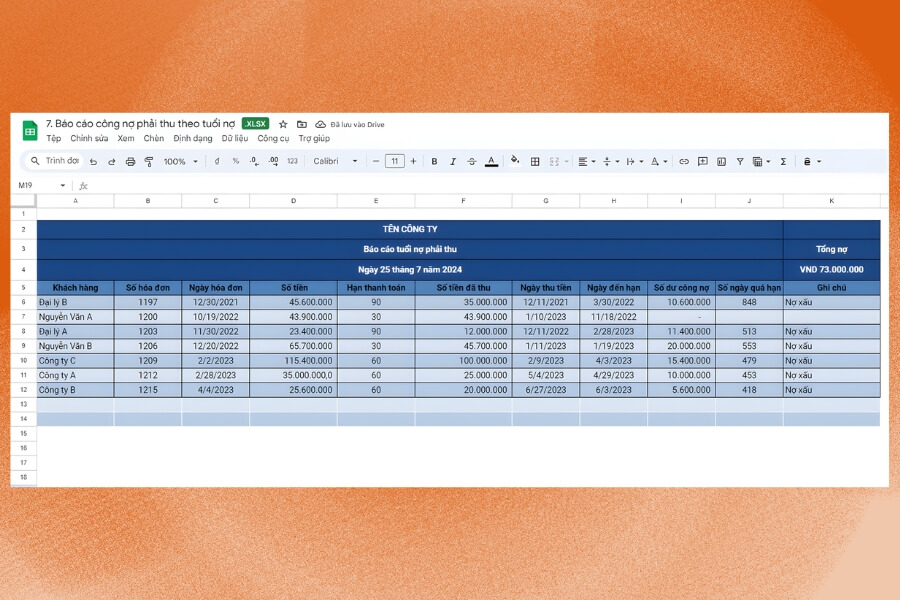
2. Detailed guide on how to create a debt management file in Excel
Below is a step-by-step guide to help businesses create a standard, user-friendly debt tracking sheet suitable for all types of businesses:
Step 1: Classify debts
(1) Accounts receivable: This is the total amount of money that customers or partners owe the business after receiving goods or using services. A clear understanding of accounts receivable helps management:
- Know the actual collected vs. uncollected revenue,
- Proactively plan for debt collection,
- Reduce the risk of losses and the occurrence of bad debt.
(2) Accounts payable: These are the amounts the business needs to pay to suppliers or other related parties. Accurate tracking of accounts payable helps the business:
- Maintain credibility with partners through timely payments,
- Plan cash flow appropriately,
- Avoid sudden budget shortfalls.
When these two types of debt are separated, the tracking file becomes easier to read, reconcile, and report. A CEO or business owner can glance at the figures and instantly understand how much the company is collecting, how much it needs to pay, and the current state of its cash flow. This is a crucial step to ensure all subsequent data is clearly structured, preventing confusion and making financial management more effective.
See also: The latest debt reconciliation report template for 2026
Step 2: Build the file structure
Once the business has clearly classified accounts receivable and accounts payable, the next step is to design the structure of the tracking file. This is an important step to ensure all data is presented clearly, is easy to view, easy to reconcile, and convenient for reporting to management.
The business can choose one of two methods:
- Separate them into 2 different tables
- Place them on 2 separate Excel sheets: Accounts Receivable and Accounts Payable.
(1) Accounts receivable: The accounts receivable tracking sheet helps the business monitor the amount owed by customers, identify who is paying late, and who has already paid, thereby managing cash flow effectively. A basic sheet should include the following columns:
| No. | Customer Code | Customer Name | Transaction Date | Invoice Number | Description | Amount | Paid | Balance | Due Date | Notes |
Explanation of columns:
- No.: Sorts data in order for quick lookup.
- Customer ID: Internal customer code, used to distinguish between customers with the same name.
- Customer Name: The full name of the customer or partner.
- Issue Date: The date the debt was recorded, usually the invoice date or delivery date.
- Invoice Number: VAT invoice number or related documents.
- Description: A brief description of the transaction, e.g., “Sale of August shipment” or “Design service.”
- Incurred Amount: The total value of the debt from the transaction.
- Paid: The amount the customer has paid to date.
- Balance: The unpaid portion of the debt, often calculated automatically with the formula =Incurred – Paid.
- Due Date: The date the customer needs to pay according to the contract or invoice.
- Notes: Additional information such as “customer needs a reminder,” “late payment,” etc.
Example of accounts receivable:
| No. | Customer ID | Customer Name | Transaction Date | Invoice Number | Description | Amount | Received | Balance | Due Date | Notes |
| 1 | KH001 | ABC Company | 01/11/2025 | HD001 | Sale of 100 products | 50.000.000 | 30.000.000 | 20.000.000 | 15/11/2025 | Remind customer |
| 2 | KH002 | XYZ Company | 03/11/2025 | HD002 | Design service | 25.000.000 | 0 | 25.000.000 | 20/11/2025 | Pay later |
(2) Accounts Payable: This report helps businesses track their payment obligations to suppliers, ensuring they are paid on time to avoid late fees and maintain a strong reputation. The basic report includes:
| No. | Supplier Code | Supplier Name | Transaction Date | Voucher No. | Description | Incurred Amount | Paid | Balance | Due Date | Notes |
Explanation of columns:
- No.: Helps organize and control data.
- Supplier Code: Supplier code, convenient for filtering or summarizing.
- Supplier Name: Enter the full name of the unit providing goods or services.
- Incurred Date: The date the payment obligation is recorded (date of purchase or invoice receipt).
- Voucher No.: Input invoice number, goods receipt note, or contract number.
- Description: Transaction details, e.g., “Purchase of raw materials for September” or “Machine repair costs”.
- Amount Incurred: The value to be paid according to the document.
- Paid: The amount already paid to the supplier.
- Remaining: The outstanding debt balance, formula = Incurred – Paid.
- Due Date: The due date as per the contract or agreement.
- Notes: Other information such as “payment in installments,” “reconciled,” “awaiting documents,” etc.
Example: Accounts Payable
| No. | Supplier Code | Supplier Name | Incurred Date | Voucher No. | Description | Amount Incurred | Paid | Balance | Payment Due Date | Notes |
| 1 | NCC001 | LMN Company | 02/11/2025 | CT001 | Raw materials for November | 40,000,000 | 20,000,000 | 20,000,000 | 18/11/2025 | 2nd installment payment |
| 2 | NCC002 | OPQ Company | 05/11/2025 | CT002 | Machinery repair costs | 15,000,000 | 0 | 15,000,000 | 25/11/2025 | Awaiting acceptance certificate |
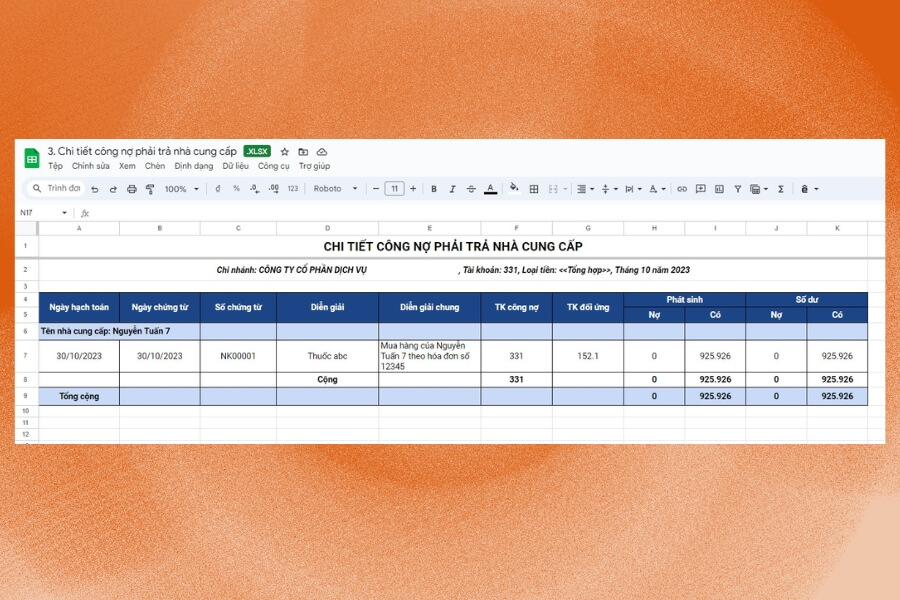
Step 3: Set up formulas for automatic calculation
After creating the debt tracking sheet, applying basic Excel formulas will help automate calculations, data aggregation, and analysis. This allows businesses to control cash flow more tightly, detect overdue debts early, and make timely decisions.
Common Excel formulas for debt management include:
- SUM function: Calculates the total balance, new transactions, amounts collected/paid, and ending balance.
- IF function: Determines overdue debts or classifies debt aging.
- SUMIF function: Calculates totals based on specific criteria, such as the total debt for each customer or supplier.
- VLOOKUP function: Looks up and retrieves information from other data tables, reducing errors from manual data entry.
- AVERAGE function: Calculates the average value of debts in a period, helping to assess the average debt level.
- COUNTIF function: Counts the number of debts based on specific criteria, such as the number of overdue debts.
- DATEDIF function: Calculates debt aging based on the transaction date and the current date.
4. Detailed Excel Debt Summary Sheet Templates
Below are common debt file templates for businesses to reference and apply immediately to their actual debt tracking activities:
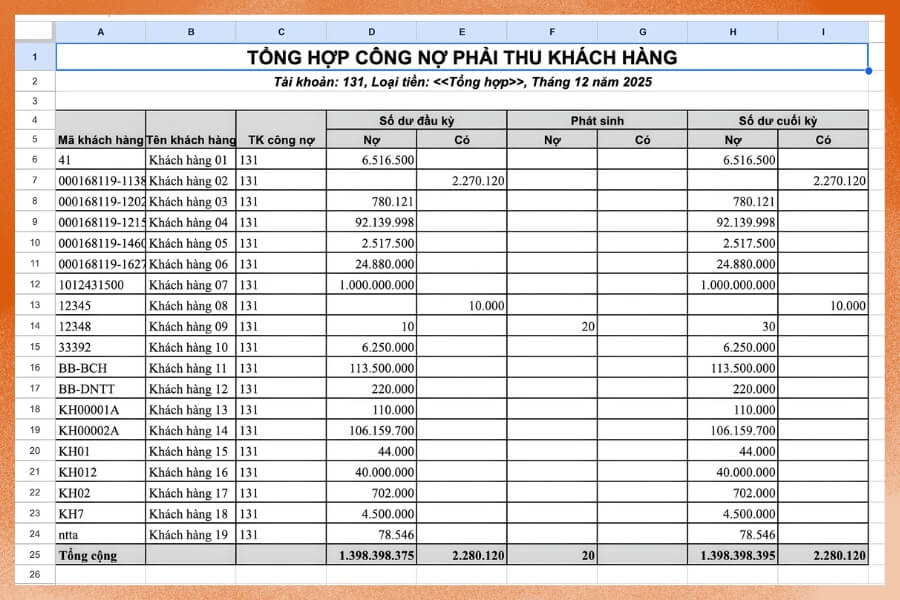
4.1. Accounts Receivable Management Excel File (Customer Debt Tracking Sheet)
This is a sheet for tracking amounts owed to the business by customers. The sheet helps summarize debts by customer, invoice, due date, and collection status, ensuring the business has a clear view of incoming cash flow and can plan for timely recovery.
>>> Download the accounts receivable management Excel file template HERE.
4.2. Accounts Payable Management Excel File (Supplier Debt Tracking Sheet)
This sheet records the amounts the business must pay to suppliers or partners. Detailed tracking of accounts payable helps avoid late payments, reduces the risk of late fees, and maintains a good reputation with partners.
>>> Download the accounts payable management Excel file template HERE.
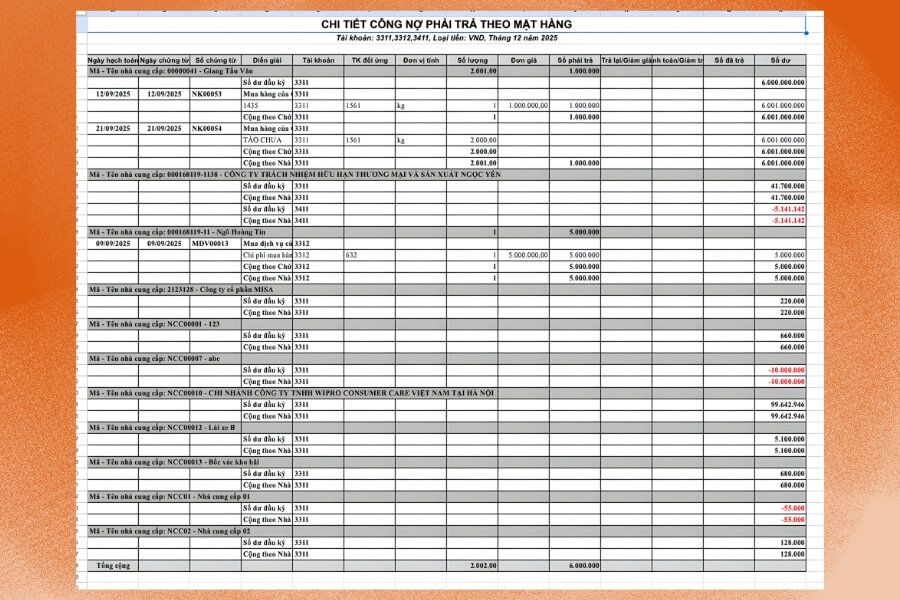
4.3. Consolidated Debt Sheet
This is a tool that helps businesses get an overview of all debts, including both receivables and payables. The consolidated sheet allows for a quick view of the current debt situation, categorized by time or by customer/supplier, to support cash flow management decisions.
>>> Download the consolidated debt sheet Excel file template HERE
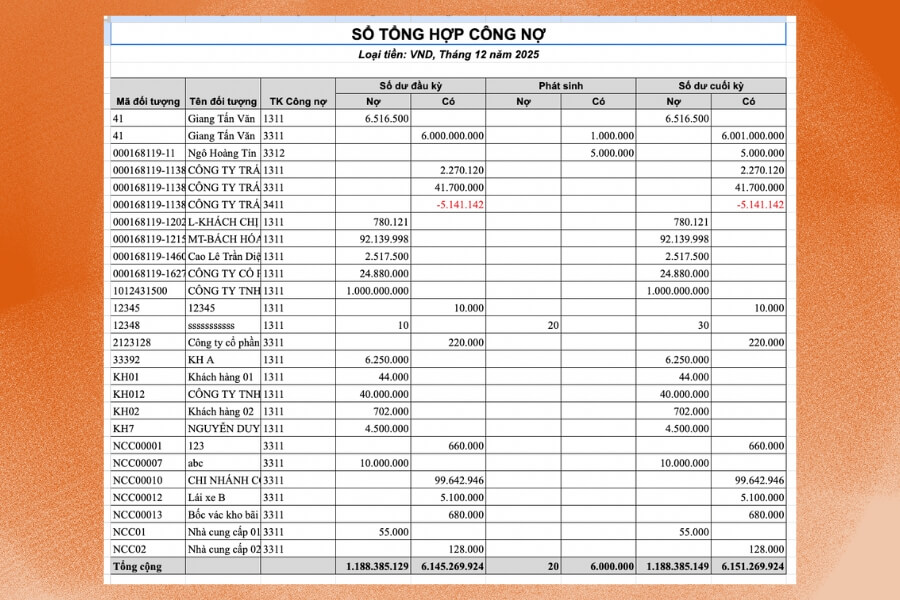
4.4. Detailed Debt Sheet
The detailed sheet lists each transaction, creation date, invoice number, amount, and payment status. Having this sheet helps in checking and reconciling debts and makes it easy to identify overdue amounts or errors during data entry.
>>> Download the detailed debt sheet Excel file template HERE.
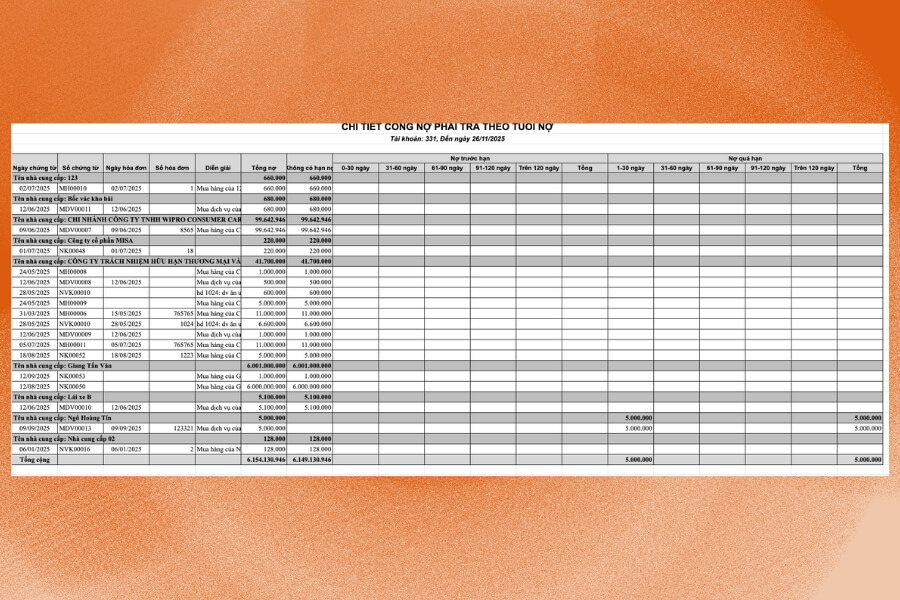
4.5. Customer Directory Sheet
This is a basic table that stores customer or supplier information such as code, name, contact details, and group classification. The directory table allows for quick lookups, supports detailed and summary accounts receivable/payable tables, and facilitates sending payment reminders or periodic reports.
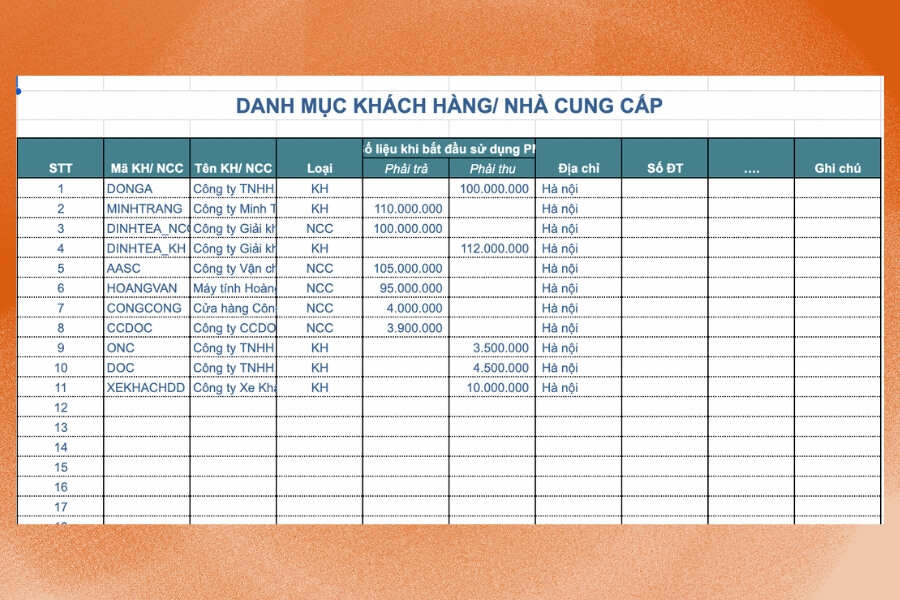
>>> Download the sample Excel file for the customer directory table HERE.
| CONSOLIDATED Excel File for Detailed Debt Management – Consolidated Debt – Customer Debt [COPY to use] |
5. Pros and cons of managing debt with Excel
Many businesses, especially small and micro-enterprises, still use Excel as their primary tool for tracking debt. While this method has some advantages, it also comes with many significant limitations.
| Advantages | Disadvantages |
|
|

6. Automated Debt Management with 1CRM 1Office Software
1CRM is a comprehensive sales and debt management solution, trusted by over 6,000 businesses and 500,000 users. The software helps businesses consolidate all sales, revenue/expense, and debt tracking activities onto a single platform, reducing manual errors and improving operational efficiency.
Key Features of 1CRM
- Sales Management: Supports creating quotes, contracts, invoices, and payment/receipt vouchers; tracks orders and inventory; and monitors the entire sales process in real-time.
- Debt Management: Automatically updates accounts receivable/payable, sends overdue debt alerts, assists with payment reminders, and reduces the risk of bad debt. Managers can easily track cash flow status at all times.
- Customer Management: Stores customer data centrally, records the entire interaction history, categorizes customer groups, and provides strict access permissions for each staff member/department.
- Sales Tracking: The system automatically compiles the value of goods and services sold over specific periods, while also calculating sales figures and employee commissions without manual data entry.
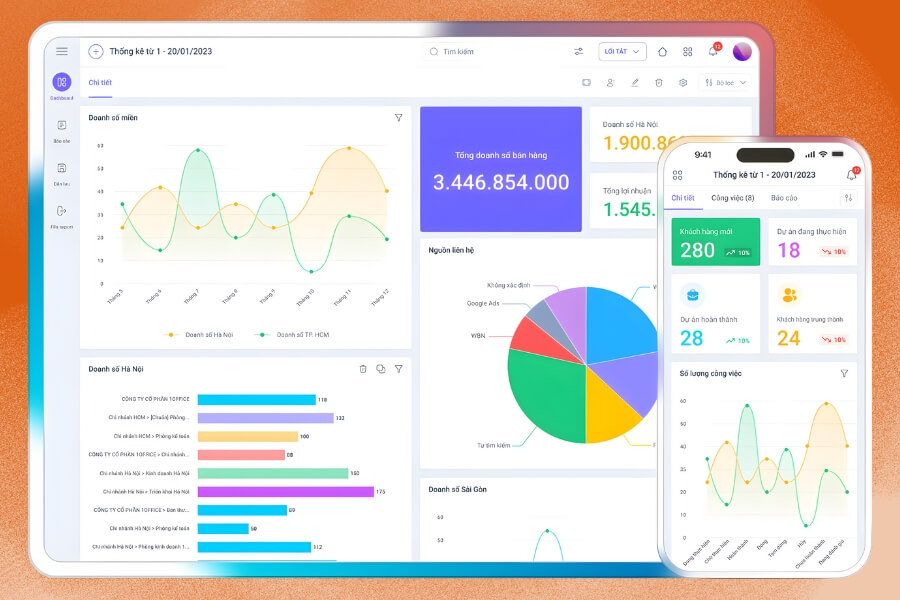
- Reporting & Data Analysis: An intuitive dashboard displays all key metrics such as debt recovery rate, employee performance, sales by region, inventory, cash flow, and more. All data is updated automatically from various modules, giving managers a comprehensive overview to make accurate and timely decisions.
Beyond just data management, 1CRM acts as an intelligent analysis system, helping businesses identify issues, optimize sales strategies, and improve operational efficiency. Its user-friendly interface is suitable for all business sizes, enabling quick implementation without complex training.
>>> See more: 7 most accurate and effective debt management software in 2026
The debt tracking sheets above will help you clearly control receivables and payables and reduce the risk of errors from manual work. However, as data volume grows, Excel can easily become overloaded and lacks features for automatic alerts and reconciliation. If your business needs a more accurate, real-time debt management solution, consider 1Office. The system supports sales, contract, revenue/expense, and debt management on a single platform. Contact us for a consultation and a free demo experience.
















