


 12/05/2026
  194 views
Dear valued customers,
Over the past period, 1Office has been continuously striving to improve in order to provide the best user experience. In particular, after conducting surveys and research on the need to integrate recruitment channels, we found that most businesses are recruiting personnel on many different channels. To help businesses manage the recruitment process more effectively, we have upgraded the Recruitment module, allowing connection and automatic data synchronization from recruitment channels, helping to post/unpost job listings, and update candidate CVs directly on the 1Office software.
Currently, we have connected and integrated with the TOPCV recruitment channel. In the near future, we will add other providers to suit our customers’ needs.
With this feature, Customers can:
- Post jobs to TOPCV directly from 1Office, saving time and synchronizing information quickly.
- Manage and track job postings easily on 1Office, with the ability to update, edit, and unpost them quickly.
- Automatically receive and update candidate CVs from TOPCV into the 1Office system, reducing the amount of manual candidate data entry.
Estimated upgrade time: 3:00 PM, June 13, 2024
Below are the steps to help you integrate and sync job postings to the TOPCV recruitment channel.
Mục lục
1. Set up recruitment channel
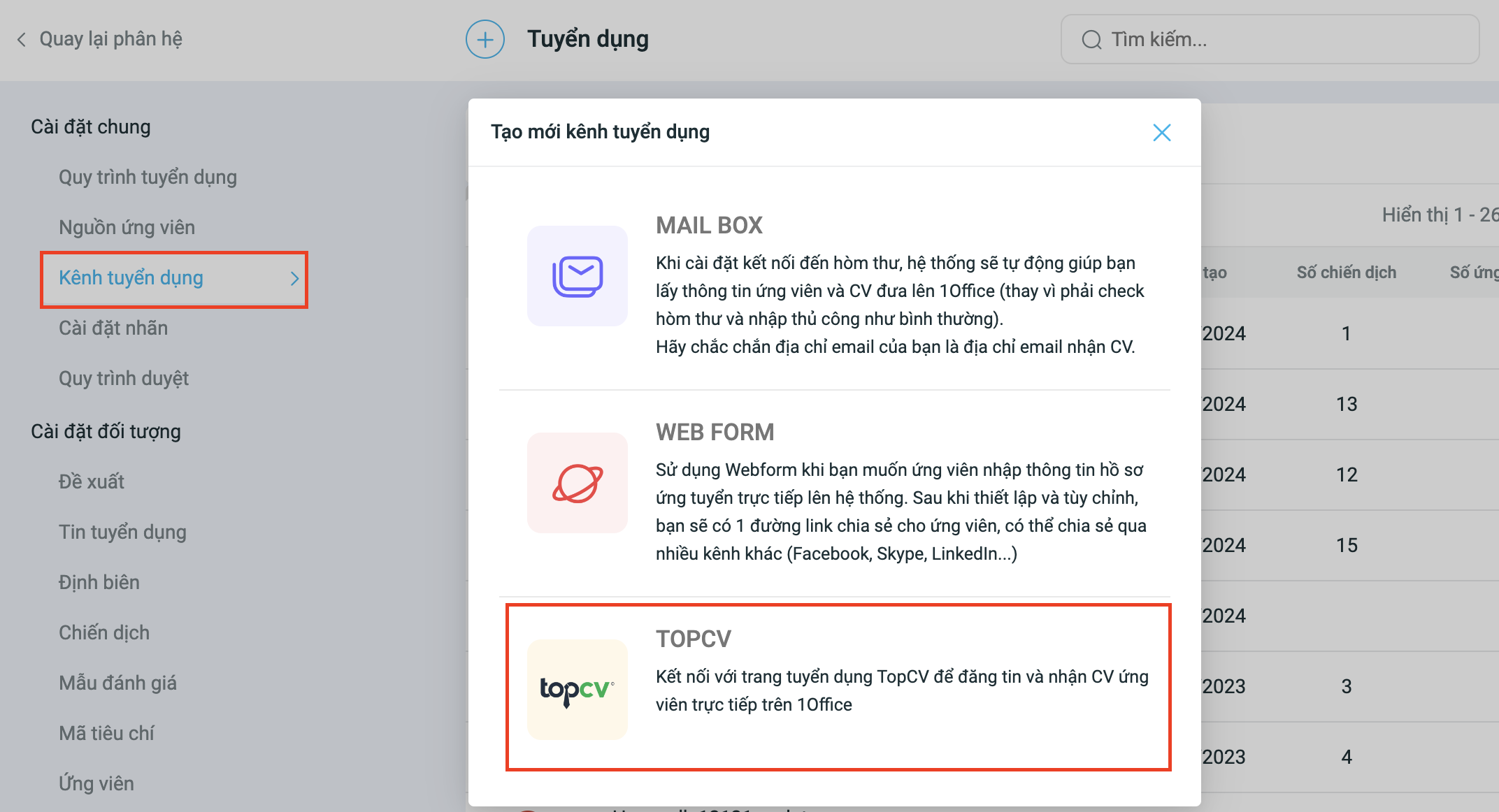
To integrate with TOPCV, go to the Recruitment Module Settings and follow these steps:
Step 1: Name your integration channel (e.g., 1Office Joint Stock Company Recruitment Channel).
Step 2: The system will redirect you to the TOPCV account login page.
Step 3: Log in with the TOPCV account that has purchased the integration package.
Note:
- You need a TOPCV business account.
(If you don’t have one, visit the TOPCV page to Register. The account will be provided immediately if the declared information is accurate)
- Ensure you have purchased the integration package from 1Office.
2. Add a recruitment channel to a campaign
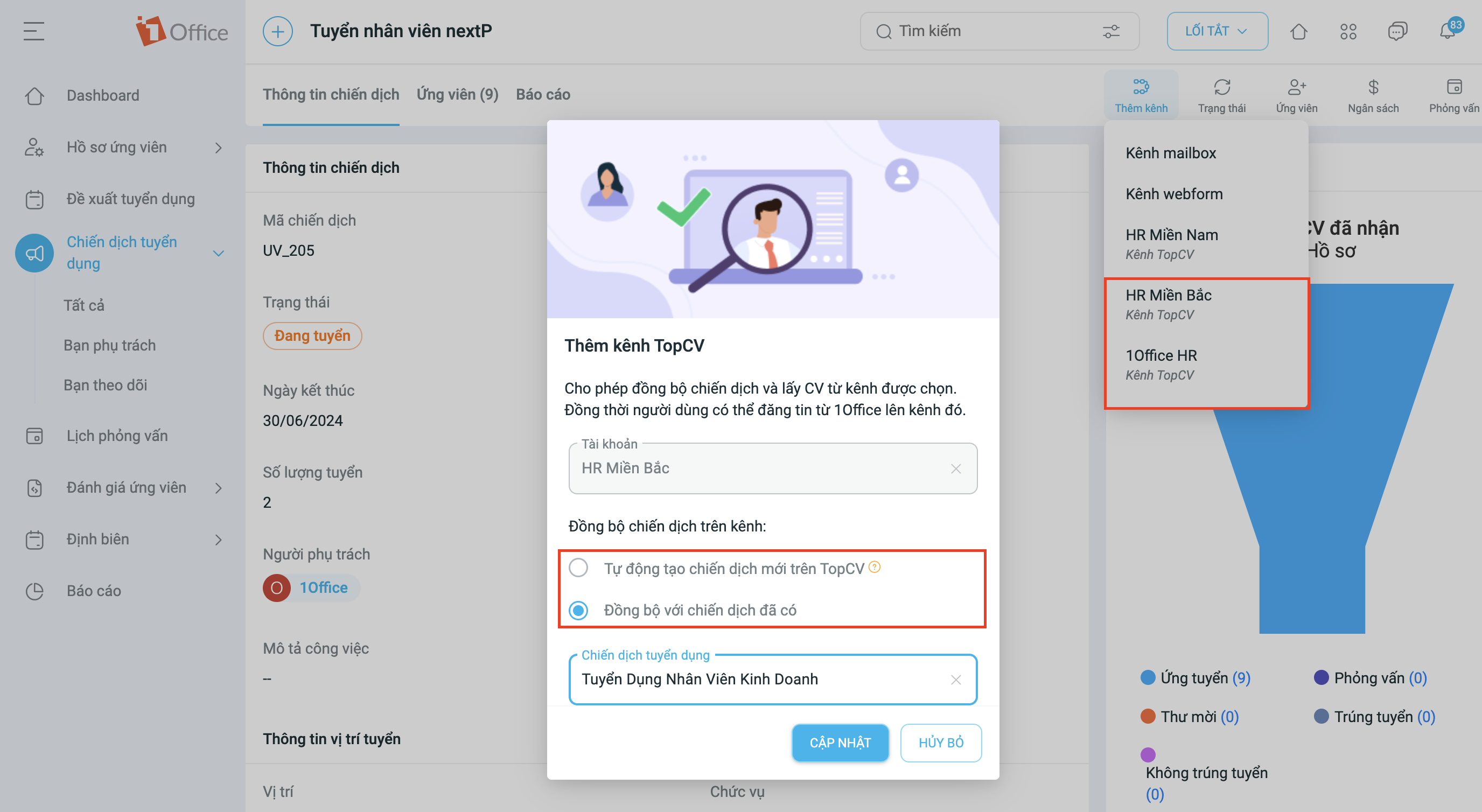
After integrating the 1Office software with TOPCV, customers can sync job postings and candidate CVs from TOPCV as follows:
Step 1: In the recruitment campaign, add the channel integrated with TOPCV.
Step 2: Choose the synchronization campaign:
- Automatically create a campaign on TOPCV: Automatically pushes the current campaign from 1Office to TOPCV.
- Sync an existing campaign: Search for and sync a campaign or job posting from TOPCV to 1Office.
3. Post a job
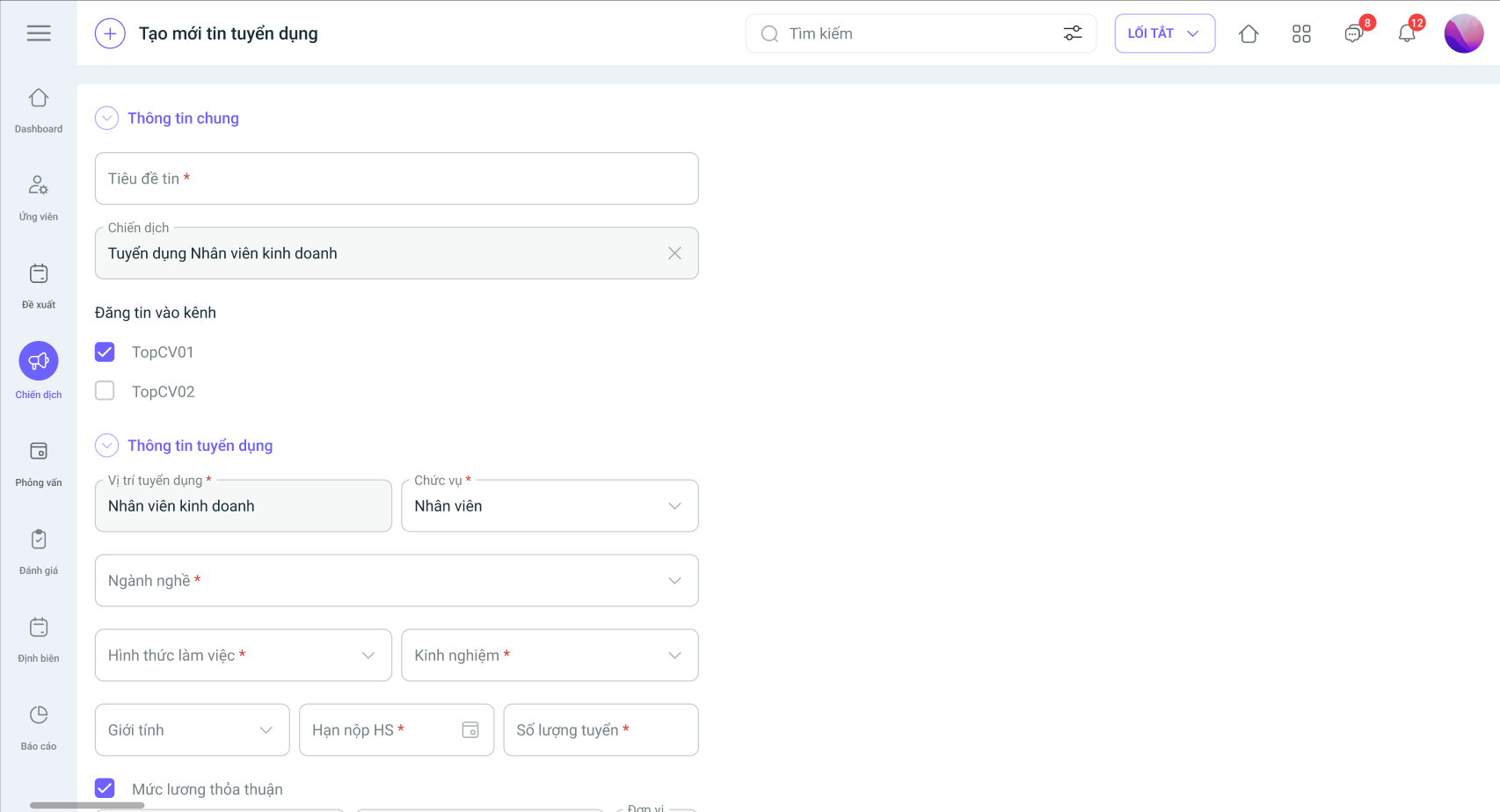
To post and sync jobs from 1Office to TOPCV and vice versa, users need to follow these steps:
Step 1: Create a job posting in the recruitment campaign that is synced with TOPCV, or vice versa.
Step 2: Wait for TOPCV to approve the posting; the approval time is a maximum of 72 hours.
Step 3: After the posting is approved, candidates can submit their CVs, and the information will be synced to the campaign on TOPCV.
4. Manage postings
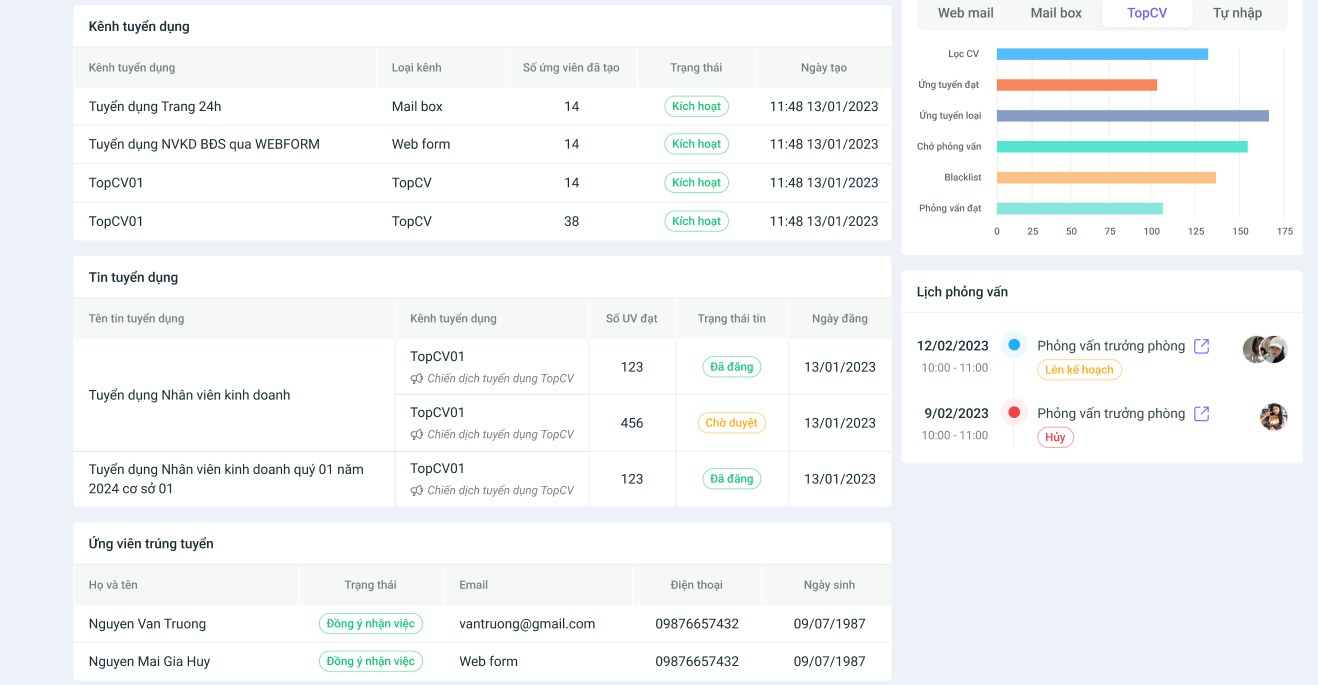
Finally, the job posting management feature on 1Office allows users to flexibly manage and adjust their recruitment posts. Specifically:
- Edit: Users can modify information and content as well as extend the post’s duration.
- Unpost/Post: When the recruitment need is no longer active, users can unpost to hide the listing, or Post when they want to republish it.
- Track postings: Allows tracking the number of applicants directly on their management interface in 1Office.
Note:
The feature update process is performed periodically and will not affect customer data in any way. After the specified time, the system will return to normal operation. We kindly ask our valued customers to take note of the update time to avoid any interruption to your business operations. For any detailed information or support, please contact us via:
- Customer Support Hotline: 1900 3313
- Email: support@1office.vn
- Live chat on the Ticket software
Best regards,
The 1Office Product Development Team.
















