


 10/05/2026
  7570 views
One of the indispensable tools in warehouse management, helping accountants accurately control inventory levels, prevent losses, and ensure smooth business operations, is the daily goods import-export-inventory report. Mastering how to create and use it is a basic yet crucial skill for every accountant. Join 1Office to explore the detailed process of creating an inventory management report in the article below!
Mục lục
- What is a daily goods import-export-inventory report?
- Structure of a daily goods import-export-inventory report
- Daily Goods Import-Export-Inventory Template in Excel
- A super simple 6-step process to create a daily inventory import-export report file
- Step 1: Create a business information sheet
- Step 2: Create an import/export sheet and set up formulas
- Step 3: Create a user directory sheet
- Step 4: Create the summary inventory import-export report
- Step 5: Set up formulas for the “imported during the period” and “exported during the period” columns
- Step 6: Summarize inventory import, export, and stock levels
- What should you keep in mind for effective inventory management?
- Pros & cons of managing inventory with Excel
- The trend of switching from Excel to smart inventory management software
- Optimize Inventory Management Efficiency with 1Office
- Frequently Asked Questions about Daily Inventory Reports
- Conclusion
What is a daily goods import-export-inventory report?
A daily goods import-export-inventory report is a tool for tracking the dispatch, receipt, and inventory levels of goods in a company’s warehouse, created based on the detailed goods ledger. This report is usually prepared at the end of each day and shows the opening inventory, goods received, goods dispatched, and closing inventory for the day.
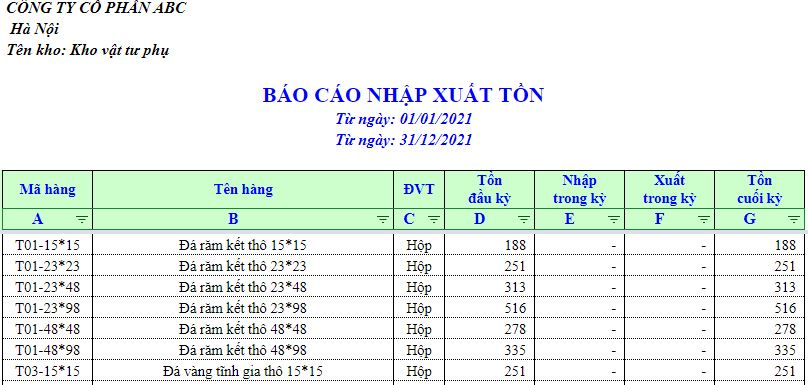
The daily goods import-export-inventory report helps businesses understand the current status of goods in the warehouse, supporting management and accounting in tracking inventory levels and new receipts for the day.
Structure of a daily goods import-export-inventory report
Goods Receipt Table

No. (Serial Number)
- The serial number for each row.
- Fill in incrementally: 1, 2, 3, 4…
- Purpose: helps manage data clearly and makes it easy to reference.
Receipt Date
- The date you receive goods into the warehouse.
- Example: 11/11/2025
- This is very important data for tracking the history of goods receipts.
Voucher No.
- The code of the goods receipt note.
- Each note corresponds to one goods receipt transaction.
- Example: A01, A02
- If one note includes multiple items → the rows will have the same voucher number.
Product Code (SKU)
- A unique classification code for each product in the warehouse.
- Example: A11, A12
- Each product must have a unique code to avoid confusion.
Product Name
- The full name of the product.
- Example: Women’s T-shirt, Women’s Blouse, Men’s Jeans.
Unit
- The unit of measurement for the product.
- Example: piece, box, kg, carton…
- Must be consistent for accurate inventory calculation.
Quantity
- The quantity of goods received on that note.
- Example: 10, 15, 20…
- If receiving multiple items → enter the corresponding quantity in each row.
Unit Price
- The purchase price for one unit of the product.
- Example:
Women’s T-shirt: 130,000
Women’s Blouse: 150,000
Total Amount
- = Quantity × Unit Price
- This is a column that uses a formula in Excel:
- 10 × 130,000 = 1,300,000
- 15 × 150,000 = 2,250,000
Notes
Record necessary information such as:
- Batch/Lot
- Quality notes
- Supplier
- Defective goods
- Consolidated note…
Goods Dispatch Table

No. (Serial Number)
- Incremental: 1, 2, 3, 4…
- Purpose: easy to manage, reference, and filter data.
Export Date
- The date the goods are dispatched from the warehouse.
- Example: 12/11/2025
- Crucial for controlling inventory over time.
Voucher Number
- The code of the dispatch voucher.
- Each voucher corresponds to one dispatch transaction.
- Example: AP001, AP002
- If a voucher contains multiple products → the rows will have the same voucher number.
Product Code
- The product’s identification code (SKU).
- Helps differentiate each item in the warehouse.
- Example: A0126, A0127,…
Product Name
- The full name of the item.
- Example: Men’s shirt, Women’s jeans…
Unit
- The unit of measurement for the product.
- Example: Piece, Set, Box, Kg…
- In the table: all are “Piece”.
Quantity
- The quantity dispatched from the warehouse.
- Example: 5, 2, 3, 4, 1, 6, 3…
Unit Price
- The export price of one unit of the product.
- Example: 300,000, 350,000, 280,000…
Total Amount
- = Quantity × Unit Price
- This column should be auto-calculated using an Excel formula:
Practical example:
- 5 × 300,000 = 1,500,000
- 2 × 350,000 = 700,000
- 3 × 350,000 = 1,050,000 …
Notes
Not required.
Add more if necessary:
- Reason for dispatch
- Dispatch to which department
- Dispatch for customer return
- Defective goods for exchange
- Dispatch of sample products…
Inventory Import-Export-Stock Report

No. (Number)
- The order number of each item in the list.
- Enter 1 → 2 → 3 → … for easy tracking.
Product Code
- The unique product code (SKU) for each item.
- Used to cross-reference with import and export vouchers.
- Example: A0123, A0124…
Product Name
- The detailed descriptive name of the item.
- Example: Women’s T-shirt, Men’s shirt, Men’s jeans,…
Unit
- The unit used for inventory management.
- In the image: all are “Piece”.
- Other units can be: Set, Box, Carton, Kg…
Opening Stock
- The quantity of goods in the warehouse at the beginning of the reporting period (e.g., beginning of the month or week).
- Taken from: the previous period’s closing stock or the opening stock count.
Example in the table: Women’s T-shirt: 5, Women’s blouse: 4, Floral dress: 3,…
Received in Period
- The total quantity of that item received into the warehouse during the reporting period.
- Calculated by: The total quantity from all import vouchers related to that product code.
Example: AO124 received 30 pieces, AO123 received 20 pieces
Issued in Period
- The total quantity of the product dispatched from the warehouse during the period.
- Calculated by: The total quantity from the export vouchers with the same product code.
Example: AO123 issued 15 pieces, AO127 issued 6 pieces
Notes
Add more information if needed:
- Defective goods
- Internal issue
- Promotional items
- Inventory discrepancy
- Returned goods
| Download 8 simple daily stock in-out templates (Excel) |
Daily Goods Import-Export-Inventory Template in Excel
Below is a template for a daily goods import-export-inventory report in Excel format. Depending on the complexity of the goods, finished products, and management needs, the Excel spreadsheet for managing inventory can be adjusted and expanded with more information fields.
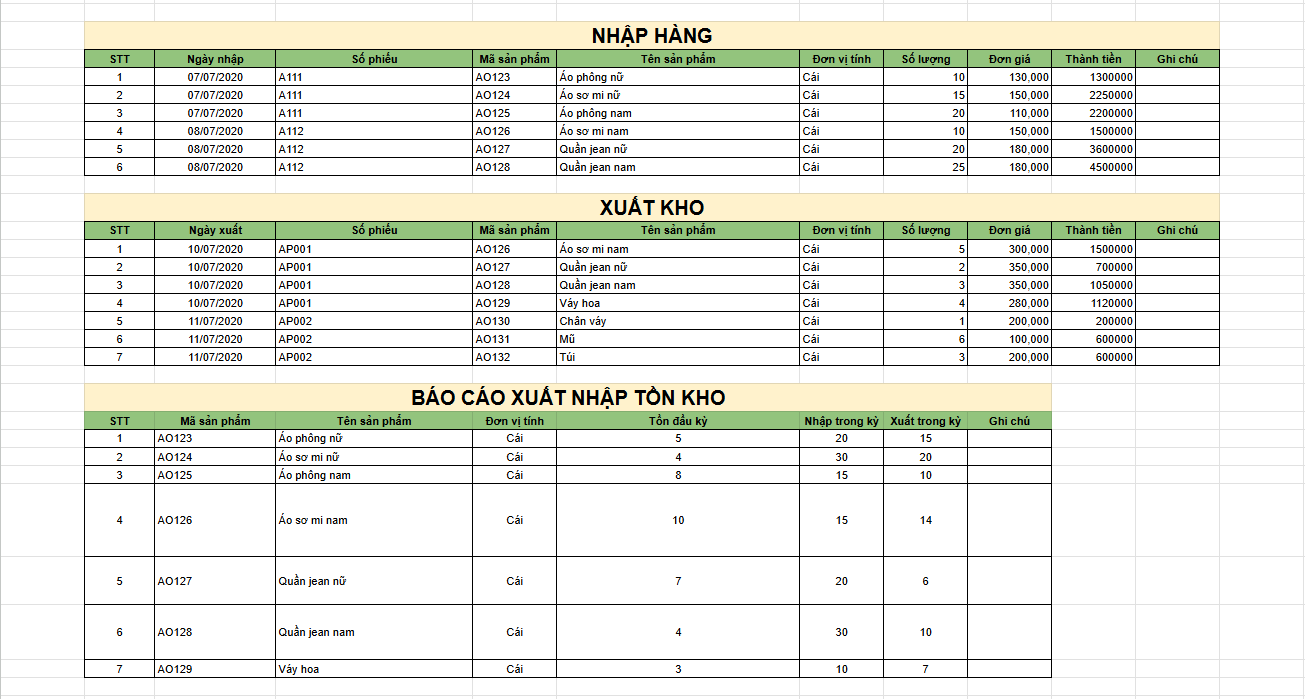
| Download the daily goods import-export-inventory template (Excel) |
To start using these templates, simply download and adjust, adding information fields to suit the specific characteristics of the goods in your warehouse.
A super simple 6-step process to create a daily inventory import-export report file
To create a daily inventory import-export report in Excel, the company’s accountant can follow these steps:
Step 1: Create a business information sheet
The business information sheet will include the following content:
- Set the name box for the start date with the name: ngay1
- Set the name box for the end date with the name: ngay2
- The remaining formulas are placed in the notes section (insert comment) for reference and easy tracking.
Step 2: Create an import/export sheet and set up formulas
- When import/export transactions occur, the accountant will update the information in this sheet.
- Use the function and the “&” character to concatenate the company name, address, and tax code: Set up the formula in cell A1, then drag it down to apply to other cells.
- In the voucher number column, set the array formula in the name box with the name: SOPHIEU
- To collect unlimited data, select the cells using Ctrl + Shift + Down Arrow.
- In the import quantity column, select the cells and set the name box to: SLN
- In the export quantity column, select the cells and set the name box to: SLX
- In the import value column, select the cells and set the name box to: TTN
- In the export value column, select the cells and set the name box to: TTX
Step 3: Create a user directory sheet

In the user directory sheet, the accountant performs the following steps:
- In the Customer ID column, select the cells and set the name box to: MKH
- In the Import/Export sheet, create a customer ID selection list:
- In the Company ID column, use Ctrl + Shift + Down Arrow, then go to Data > Data Validation.
- In the Allow section, select List.
- In Source, enter =MKH to link to the created customer directory.
- To easily search for a customer ID, the accountant just needs to select from the available list.
- Use the VLOOKUP function to create a formula that automatically displays the user’s name, address, and tax code based on the customer ID.
Step 4: Create the summary inventory import-export report
- Summarize data: Summarize the quantity of materials imported and exported during the day, as well as during the month or accounting period.
- Create new material codes: When a new material is added, create its code directly in this summary sheet instead of using a separate sheet for the material code directory, which helps reduce cumbersome steps.
- Set up columns: In the summary sheet, the columns from Material Code to Opening Inventory Value do not need formulas and should be left blank.
- Set name box: In the Material Code column, use Ctrl + Shift + Down Arrow, then set the name box with the name: MVT.
- Create a material list: Switch to the import/export sheet and create a material list to select from when exporting goods. In the Material Code column, use Ctrl + Shift + Down Arrow.
- Use the VLOOKUP function: Use the VLOOKUP function to automatically display the material name and unit of measurement. Later, when another material code is selected, the system will automatically search for and display information from the Summary Inventory Import-Export Report, which also serves as the material directory.
Step 5: Set up formulas for the “imported during the period” and “exported during the period” columns
- Import quantity and import value columns: This section has no formulas; data must be entered manually.
- Unit price column: Calculated with the formula: Value / Import Quantity.
- Export quantity column: This section also has no formulas and requires manual data entry.
- Export value column: Calculated with the formula: Export Quantity x Export Unit Price.
- Warehouse issue price column: Use the VLOOKUP function to look up the value from the summary inventory import-export report.
- Inventory check: To avoid negative inventory when exporting goods, the accountant should create two additional inventory check columns and use the VLOOKUP function to look up data from the summary inventory import-export report.
Step 6: Summarize inventory import, export, and stock levels
- Access the Import-Export Sheet: In the Material Code column, use Ctrl + Shift + Down Arrow, then set the name box to: MNX.
- Use the SUMIF function to summarize the import, export, and stock data for all items, raw materials, and finished products for periodic reporting.
What should you keep in mind for effective inventory management?
To manage inventory successfully, businesses must ensure absolute accuracy in data entry, synchronize table structures, and tightly control calculation functions to avoid discrepancies with actual inventory levels.
Specifically, managers and warehouse accountants need to focus on the following factors:
- Standardize file structure: Establish unified catalogs for item codes, warehouses, and units of measurement from the beginning to prevent data retrieval conflicts.
- Data entry discipline: Establish a process for updating data as soon as transactions occur, avoiding backlogs that can cause confusion and end-of-period errors.
- Master data processing skills: The person in charge must be proficient in advanced lookup functions and debugging skills to ensure that opening, incoming, outgoing, and closing inventory values always match.
- Enhance security and storage: Proactively implement solutions to protect files from viruses and regularly back up data to prevent the loss of important information.
Pros & cons of managing inventory with Excel
Compared to managing inventory with paper ledgers, using Excel is an effective alternative that helps optimize time and effort for employees and managers. The advantages of Excel include:
- User-friendly interface and free to use.
- Supports a wide range of calculation functions with high accuracy.
- Quickly update data and add or remove categories.
- Easily assign viewer and editor permissions.
However, managing inventory with Excel also has some limitations, including:
- Excel is only effective for managing a small quantity of goods and small-scale warehouses.
- Poor security; data can be easily edited or deleted. Recovering lost data can be very difficult or impossible.
- Storing information across multiple Excel files makes synchronized management difficult.
- Requires users to be proficient in advanced Excel skills for more complex management needs.
The trend of switching from Excel to smart inventory management software
For many years, Excel has been a familiar tool for tracking inventory imports, exports, and stock levels. The advantages of Excel are its ease of use, low cost, and suitability for small businesses. However, as business scale expands, the number of items increases, and management needs become more complex, Excel’s major limitations become apparent.
- Prone to errors: With manual data entry, a single incorrect formula or typo can throw off the entire inventory sheet. For example, if an employee forgets to enter 10 cases of milk, Excel will report 50 cases in stock, while there are actually only 40.
- Not updated in real-time: Excel is only accurate when employees enter all data completely. If goods have arrived at the warehouse but haven’t been recorded in the file, the report will not reflect reality. This can lead managers to make decisions to reorder too late, resulting in sudden stockouts.
- Difficult for teamwork: Typically, employees have to send multiple Excel files back and forth. Each person edits their own version, leading to a situation where “everyone has different numbers,” making it hard to know which is the final, correct version.
- No detailed tracking of lots and expiration dates: For items with expiration dates (like milk, pharmaceuticals), Excel lacks a feature to enforce the entry of lot/expiration information. This can easily lead to shipping expired goods, causing losses for the business.
- Not integrated with other departments: Excel is just a standalone file, not connected to accounting or sales. Therefore, every time a financial report is compiled, the accounting department has to re-enter data manually, which is both time-consuming and prone to errors.
In reality, when Excel can no longer meet inventory management demands, businesses often turn to modern technology solutions. The common goal of these solutions is to reduce manual entry errors, update data in real-time, and integrate departments instead of having separate, disconnected files.
For instance, many businesses are starting to implement warehouse management software (WMS) to automate control over imports, exports, and stock levels, or upgrading to an ERP system to connect the warehouse with accounting, sales, and production.
For businesses with a large volume of transactions, technologies like barcode scanning, RFID, and IoT help record goods instantly without manual entry. At a more advanced level, AI and data analytics are gradually being applied to forecast demand, optimize inventory levels, and reduce storage costs.
- Warehouse Management Software (WMS): Helps update import, export, and inventory data as soon as transactions occur, minimizing omissions or delayed entries.
- ERP System: The warehouse no longer operates in isolation but is integrated with accounting, sales, purchasing, and production. When a single transaction occurs, all related departments have the latest data.
- Mobile Application: Employees can scan barcodes directly in the warehouse using their phones, with data updated directly to the system, eliminating the need for re-entry in Excel.
- RFID and IoT Technology: Uses tags and sensors to automatically record goods entering and leaving the warehouse. Businesses can control inventory accurately without manual entry.
- AI Demand Forecasting: The system can analyze past sales data to predict future demand, helping businesses order the right amount of stock, avoiding overstocking or stockouts.
Optimize Inventory Management Efficiency with 1Office
Using Excel for inventory management offers many benefits, helping businesses save costs. However, Excel also has limitations in managing inventory. Accountants often have to manually enter thousands of product codes, with each code stored on separate, independent sheets. This makes compiling accounting reports time-consuming and labor-intensive.
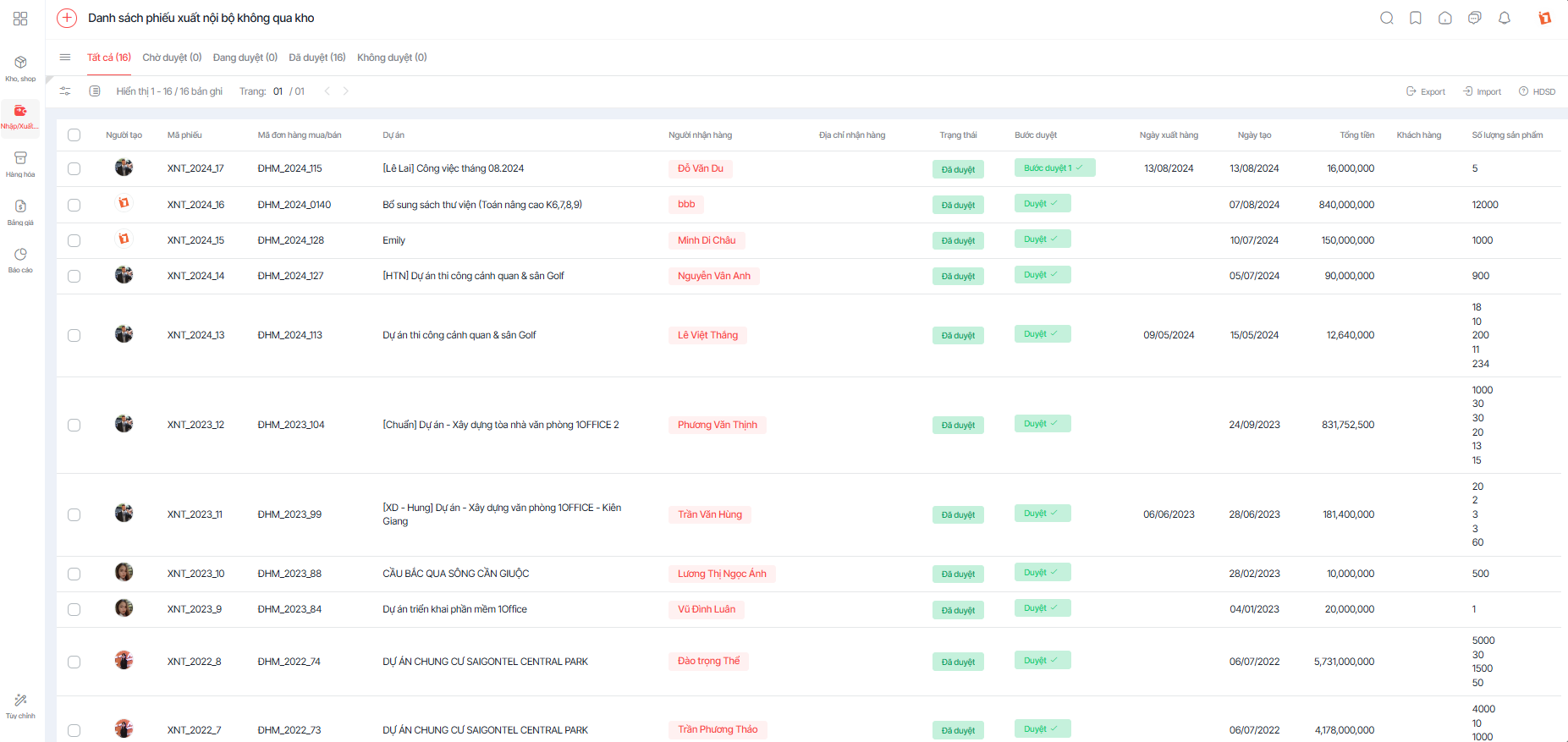
Therefore, most businesses today have switched to using software for more effective warehouse management. Warehouse management software like 1Office provides many useful features, including:
- Supports all import and export warehouse operations.
- Accommodates all inventory costing methods.
- Manages and tracks goods in detail by various attributes such as color, size, serial number, frame number, barcode, and expiration date.
- Easily manages goods by multiple units of measure.
- Notably, the software provides smart reminders and inventory alerts, helping businesses plan for new stock orders or clear out goods nearing their expiration date.
Register for a Demo Account of the Warehouse Management Feature!
Frequently Asked Questions about Daily Inventory Reports
What is the core benefit of a daily inventory report for a business?
It helps managers instantly track inventory fluctuations (Opening – In – Out – Closing) within 24 hours. This allows the business to control losses, detect discrepancies immediately, and make timely purchasing decisions.
Why is the product code (SKU) mandatory information?
The product code is the unique “identifier” that ensures calculation functions in Excel work correctly. Missing or inconsistent product codes will lead to serious errors during consolidation, causing data mismatches between warehouses or days.
How should you handle an item that is imported/exported multiple times in a single day?
You should use an “Import/Export Log” to record every transaction in real-time. Then, use summary functions (like SUMIF) to push the total figures to the end-of-day inventory report, ensuring transparency and easy reconciliation.
How is the opening balance (beginning-of-day inventory) correctly determined?
Today’s opening balance must always equal yesterday’s closing balance. If a business is just starting to track inventory, the initial opening balance must be based on the actual physical count in the warehouse to ensure the source data is accurate.
Is it necessary to track the value (monetary amount) in the daily inventory report?
Depending on management needs, you can track only the quantity. However, recording the value helps accountants easily report on the financial situation and the capital tied up in inventory, supporting the optimization of the company’s budget.
Conclusion
Above is detailed information about the daily inventory report, including its structure, the process for creating an import/export report file, and an accompanying template. We hope these insights will help make your inventory management process more effective and convenient. We wish you success!
















