


 12/05/2026
  431 views
A timesheet is a crucial element in any business or company as it is one of the basic tools for tracking and evaluating employees during their work process. However, not everyone knows how to create a complete timesheet with a scientific and user-friendly interface. In the article below, 1Office will share with you how to create a simple timesheet in Excel.
Mục lục
1. Determine the overall layout of the employee timesheet
Determining the overall layout of the timesheet is the first step you need to take. In other words, you need to visualize what rows, columns, and content the timesheet in Excel will include. Once you have a clear picture of the overall layout and model, it will be very easy to create the sheet using formulas.
Currently, the most popular model that large enterprises often use to set up a timesheet consists of 2 main parts:
Employee list area
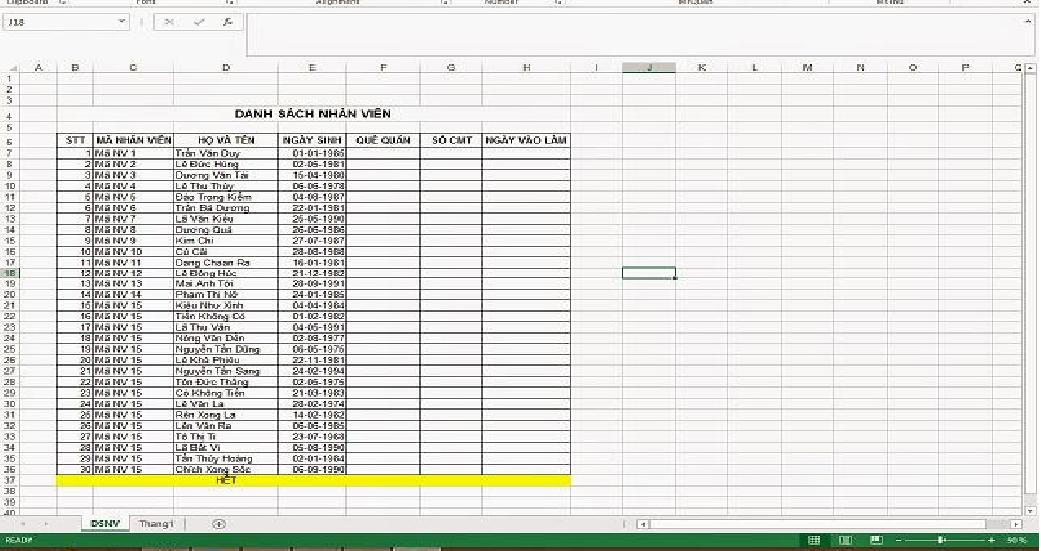
This includes columns such as: Number (No.), Full Name, Employee ID, Date of Birth, Start Date, ID Card Number, etc. Among these, the Employee ID is the most important data to pay attention to during creation to avoid cases of duplicate names and prevent potential confusion during tracking and timekeeping.
Timekeeping area
This is the main area with the days of the month and the attendance status of each employee. The HR department will continuously update the data daily to summarize work hours, which is then used to calculate the month-end salary.
When creating a timesheet, there are also some notes to avoid confusion and errors during the process:
- Use different and consistent timekeeping symbols for each employee throughout a year of timekeeping.
- In the date area, Saturdays and Sundays should be highlighted in a different color for distinction.
- The timesheet file should include 13 sheets; each sheet will correspond to one month, and the remaining sheet will be the list of employees in the department.
DOWNLOAD NOW the latest standard shift timesheet template for HR
2. Master the principles of processing timekeeping data in Excel
As creating timesheets in Excel is common, the process of exporting data from a time clock to Excel and then processing it needs to be done meticulously and carefully. To do this, you need to master the principles of processing timekeeping data in Excel.
-
Principle 1: Check data consistency
Sometimes, you might get caught up in writing formulas, and when errors occur or the results are incorrect, you won’t know where to check. Ensure that the data is always laid out clearly and scientifically, and that the data fields are consistent in terms of data type and format. This will make the subsequent steps easier to perform.
-
Principle 2: Analyze calculation requirements
Timekeeping requirements can be diverse and complex, making it easy to make mistakes if the requirements are not clearly defined. In other words, this is the step where we need to read and analyze to understand the purpose and the required results.
-
Principle 3: Use the correct functions
Choosing the appropriate functions will help save time and simplify procedures. For example, use time functions like Hour, Minute, Date, Day, etc., to process time values from the time clock.
See more:
- TOP 8 easiest-to-use timekeeping apps for mobile in 2026
- [Free Download] 10 most scientific and easy-to-use personal Excel timesheet templates for 2026
3. Guide on how to create a timesheet in Excel
Once you have visualized the overall layout and model, let’s start creating an effective timesheet in Excel!
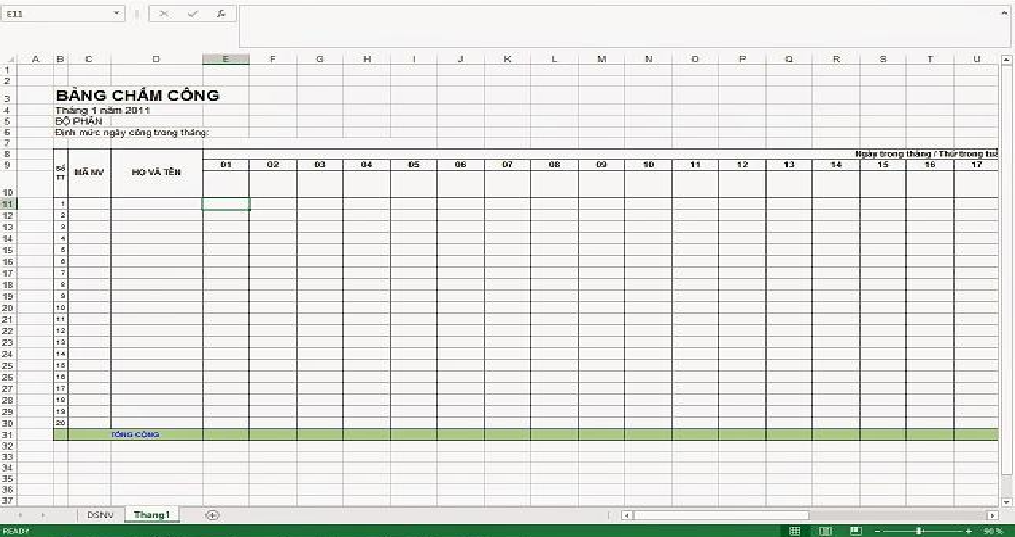
First, you need to draw the complete model of the 13 sheets in the Excel workbook. In the employee sheet, the main content you need to create is the full name and employee ID for each person. Each person will have a corresponding employee ID to avoid cases of duplicate names.
Therefore, when creating a timesheet in Excel, you should leave about 2 to 3 rows at the top of the sheet to create links between the sheets. On the left side of the employee table, you should leave a spare column in case you need to add any additional content.
| >> Read more: A detailed and standard GUIDE to creating an hourly timesheet + 3 Excel templates |
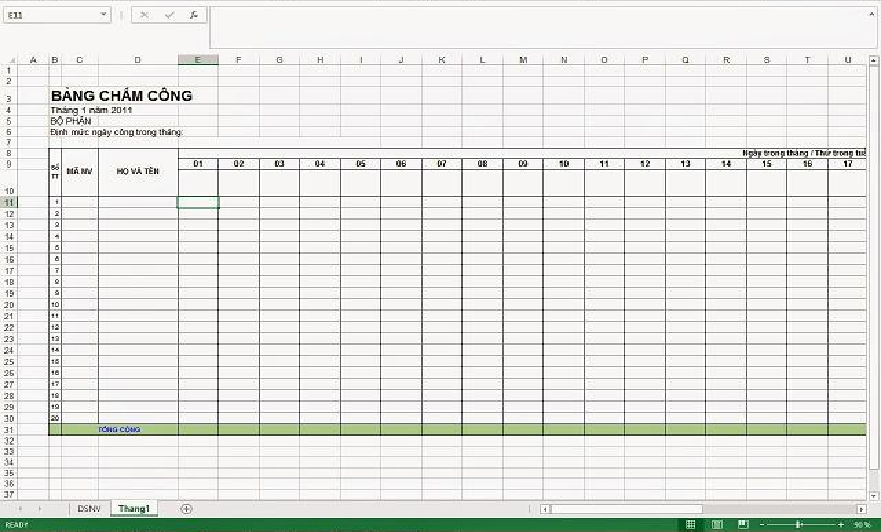
Create a framework for the employee timesheet with the following content:
Header (month, department, total workdays in the month, etc.). The columns will contain content such as: employee ID, full name, days of the month (number of days in a month).
Set up the date in the timesheet
Determine the year, then determine the timekeeping month using the formula: =date($D$1;1;1).
Set up timekeeping symbols for each employee
- Actual workdays
- Half workday (counted as working half a day or half a shift)
- Paid leave days (Meetings, annual leave, business trips, etc.)
- Unpaid leave days
4. How to use formulas to create a timesheet in Excel
When creating a timesheet in Excel, you will definitely need to use the following formulas to make calculations easier and save time:
To calculate the actual workdays for an employee, use the formula: =COUNTIF($E11:$A11;$G$34)
Similarly, in other columns, enter the formulas as follows:
| Half-day work | =COUNTIF($E11:$A11;$G$35) |
| Paid leave | =COUNTIF($E11:$A11;$G$36) |
| Unpaid leave | =COUNTIF($E11:$A11;$G$37) |
| Sick or maternity leave | =COUNTIF($E11:$A11;$G$38) |
The total number of workdays will be calculated based on the timekeeping requirements of each department.
At this point, you should have a clear understanding of how to create a complete timekeeping sheet in Excel. 1Office hopes that the information shared above will be truly helpful to you.
1Office’s timekeeping software fully caters to the flexibility, diversity, and constant changes in a company’s timekeeping and payroll policies. By digitizing forms and automatically connecting with various time clock models, the system reduces the time HR staff spend on data consolidation (leave requests, fingerprint logs).
Moreover, 1Office also regularly updates and provides useful management knowledge to help CEOs/MANAGERS manage their businesses systematically, achieve high efficiency, and double productivity.
If you have any further questions or are interested in the 1Office software solution, please contact 1Office via:
- Hotline: 083 483 8888
- Fanpage: https://www.facebook.com/1officevn/
- YouTube: https://www.youtube.com/channel/UCeTIRNqxaTwk0_kcTw6SxmA
















