


 11/05/2026
  1003 views
Email Marketing is an effective tool for reaching potential customers, maintaining contact with current customers, and boosting sales. However, manually sending emails in a business can be time-consuming and labor-intensive. This 1Office article will introduce you to 5 ways to send bulk emails to help you save time and increase marketing efficiency.
Mục lục
1. A compilation of the 5 simplest ways to send bulk emails
1.1. How to send bulk emails using 1Office
Sending bulk emails is an effective method to save time and effort when you need to contact many customers at once. 1Office software provides you with a powerful tool to execute Email Marketing campaigns easily and effectively.
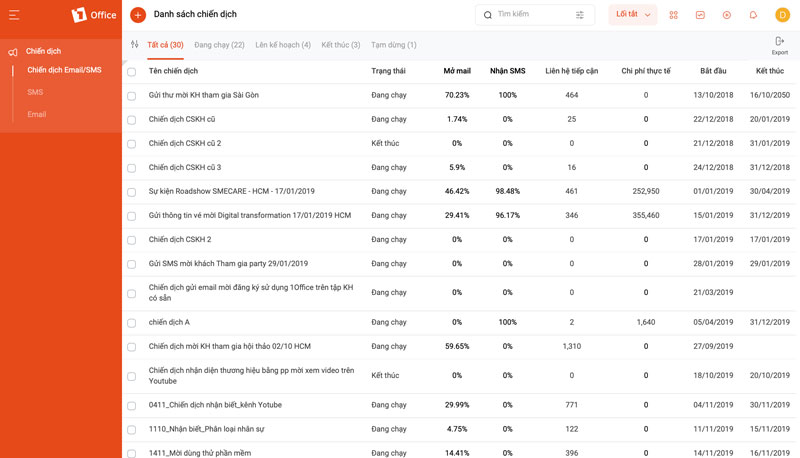
1Office is known as a comprehensive business management software trusted by over 6,000 businesses. The software includes various modules, among which 1Office CRM is the module that provides the bulk email sending feature for audiences such as customers, candidates, or internal employees. Here’s how to set up and use this feature on 1Office:
Step 1: Set up the email sending account
To begin, you need to configure the email sending accounts. Access the settings screen by clicking the arrow icon in the top right corner > System Settings > Email/SMS > Create New. Enter the necessary information such as provider, sender name, sender email, account, and password.
Step 2: Manage emails on the system
After setting up the email sending account, the system allows you to manage and assign permissions for this account. The administrator can check the status and content of sent emails.
Step 3: Send emails using the configured account
Once permissions are granted, users can use the configured account to send emails. For example, to send an email to a customer, select Customer from the menu > Select the customer’s detailed information > Customer Care > Email and send the email. If you have permission for multiple accounts, you need to select the account you want to use.
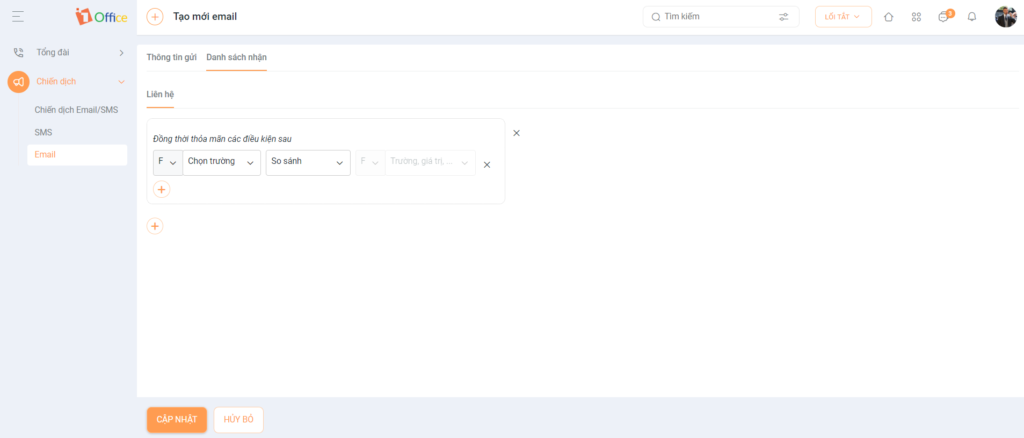
On the screen interface, select the “Recipient List” feature to enter the contact source. Here, you can create a list containing the email addresses of the recipients you want to send bulk emails to.
Step 4: Check email sending history
1Office provides a feature to check email sending history for easy management. Access the history screen via the arrow icon in the top right corner. Select System Settings > History, error report. Here, you can view the status and detailed content of each email.
Sending bulk emails via 1Office is an effective tool that helps save time and increase flexibility. By following the steps above, you can easily organize and manage your email campaigns.
1.2. How to send bulk emails in Gmail
To send bulk mail using Gmail, you need to create a list of contacts before composing the content. Here are the steps to create an email list:
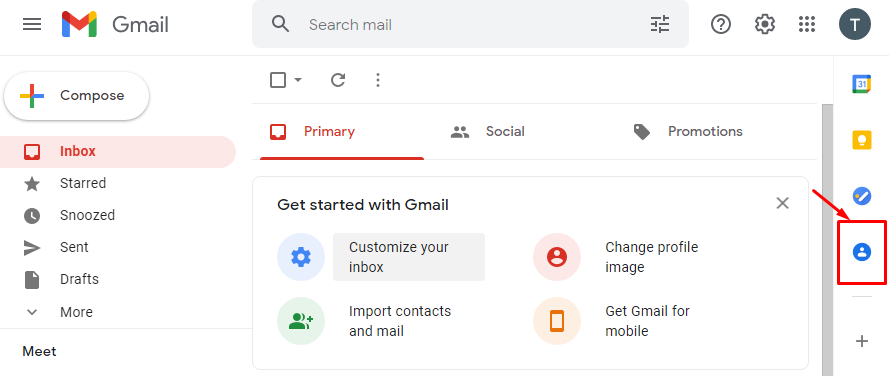
- Step 1: Log in to your Gmail account, then click the Gmail icon on the left side of the screen and select “Contacts”.
- Step 2: In the contacts interface, click “Create contact” and select “Create multiple contacts,” then enter the email addresses of the customers, partners, or anyone else you want to email.
- Step 3: After entering all the email addresses, click “Create” to generate the recipient list.
After creating the contact group list, you can send an email to the people in the group you just created. Do this by selecting Compose > Enter the recipient email group (choose CC or BCC if needed) > Enter the subject and email content > Click Send.
In Gmail, besides sending mail directly to recipients, you can choose between two ways of sending emails: Carbon Copy (Cc) and Blind Carbon Copy (Bcc). Specifically:
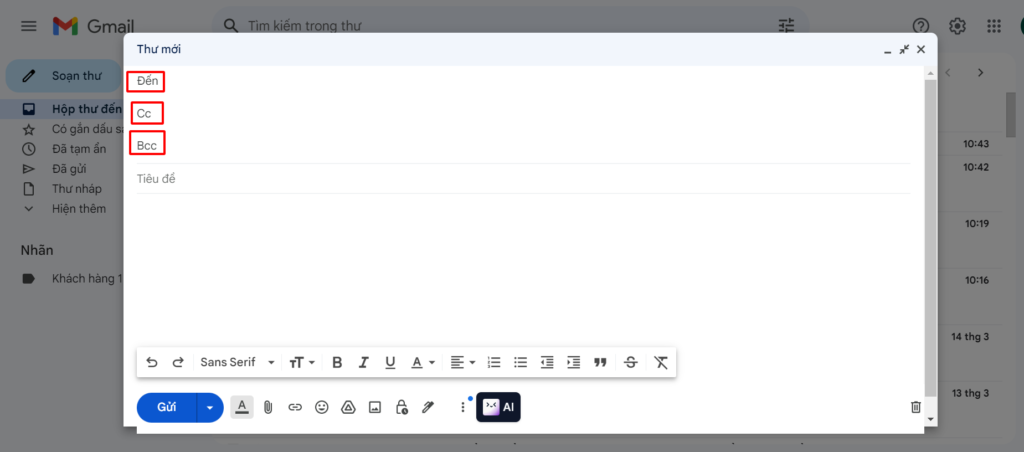
- Sending mail with Carbon Copy (Cc): Allows you to create a copy of the email and send it to multiple people at once. Both the primary and secondary recipients can see the list of all recipients. This method is suitable for group information exchange where recipient privacy is not a concern.
- Sending mail with Blind Carbon Copy (Bcc): Allows you to create a copy of the email and send it to multiple people. Only the primary recipient sees the recipient list; secondary recipients cannot. This is a good option when you need to protect the privacy of the recipients.
In many cases, you can combine sending emails using both Cc and Bcc simultaneously, depending on the recipient, to use this feature appropriately.
1.3. How to send bulk emails in Outlook
Sending bulk emails in Outlook only applies to emails with identical attachments. To send bulk emails using Outlook, you need to combine it with two other Microsoft applications: Word and Excel. Specifically:
- An Outlook account to send emails
- A Word file containing the email content
- An Excel file containing customer emails
Sending bulk mail in Outlook combined with Microsoft Word and Microsoft Excel is done in the following steps:
Step 1: Compose the email content in Microsoft Word: In the prepared Word file, go to the Mailings tab > Select Start Mail Merge > Select Email Messages > Select Select Recipients > Select Use an Existing List. Then, select the Excel file containing the customer emails and information.
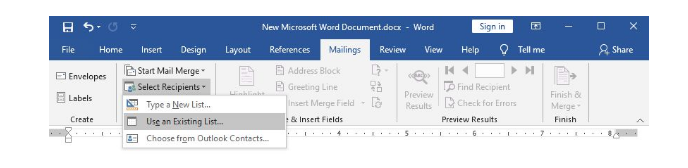
Step 2: Personalize customer data from the Sheet into the Word content: Click on the position that needs personalization, click Insert Merge Field on the menu bar > Select the information field to insert content into (these are the columns in the Excel file).
Step 3: Match Fields: Check that the email columns are used for the Email – Address field in Microsoft Outlook.
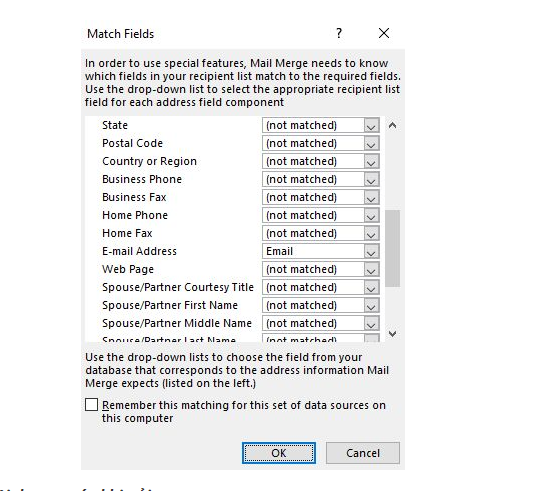
Step 4: Proceed to send bulk mail: To send the mail after drafting, select Finish & Merge, then click on the appropriate options:
- Edit individual document: Change the content for specific individuals
- Print Document: Used for bulk printing
- Send email messages: Send bulk mail
Step 5: A Merge to Email information box will then appear. Continue by following these instructions:
- To: Used for bulk printing to send by post
- Subject line: The subject of the email
- Mail format: Html: Send emails with formatting such as colors, fonts, and image links. Plain text: Send emails without formatting.
Click OK to start sending. Note that while working in Word, you must also have Outlook open simultaneously to be able to send the mail.
1.4. How to send bulk emails using Mail Merge
Mail Merge is an add-on for Google Sheets used for mail merging. This feature allows users to create multiple copies and send them to many people at once. By creating a template and using information fields from a list (including First Name, Last Name, Email Address, File Attachments, etc.), users can create personalized emails and plan to send them at the appropriate time.
To send emails using the Mail Merge feature in Google Sheets, follow these steps:
Step 1: Install Mail Merge from the Google Workspace Marketplace, and allow Mail Merge to access your Google account by selecting “Allow”.
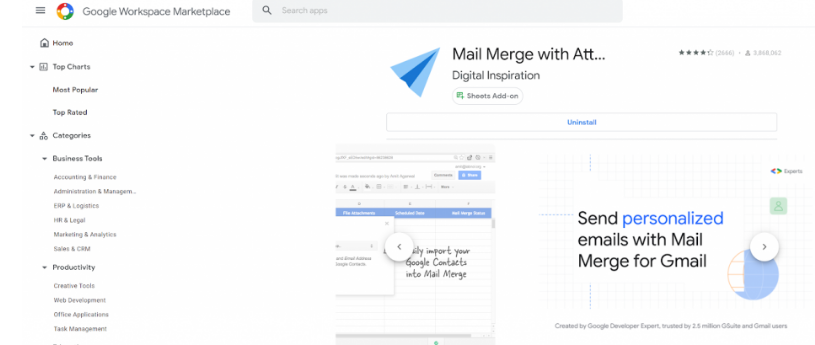
Step 2: Create a Mail Merge template by creating a new spreadsheet in Google Sheets. Then go to Add-ons > Mail Merge with Attachments > Create Merge Template. A blank mail merge template will be created in the untitled sheet, containing required columns like First Name, Last Name, Email Address, and File Attachments.
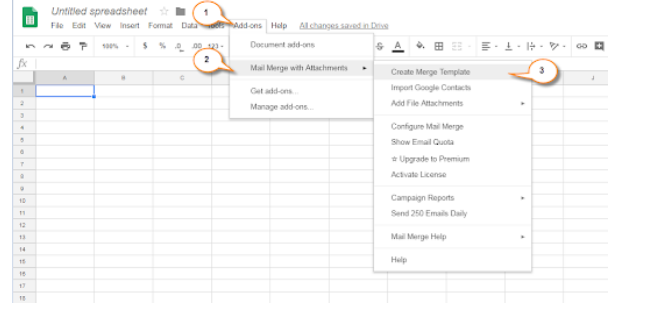
Step 3: Add attachments (if any) and schedule the email sending in the Scheduled Date column.
Step 4: Proceed to create and send the email:
Open a new tab and log in to the Gmail account used for the Mail Merge sheet. Create a new email and enter the subject and body. You can add text formatting and images to the email. To add fields to the email, insert the field name with the {{…}} syntax, for example, {{First Name}}.
Step 5: Send the email: Return to the Mail Merge sheet and go to Add-ons > Mail Merge with Attachments > Configure Mail Merge. In the dialog box, enter the email information such as the sender’s full name, Cc, and Bcc. In the Mail Merge sheet, click on Run Mail Merge, then click Done to start sending the emails.
1.5. How to send bulk emails using Excel
Businesses can use an Excel file to send bulk emails via Outlook and Word. This method is similar to method #3. You will need an Excel file containing customer information, a Word file with the email content, and an Outlook account to send the mail.
Note that the Excel file must have a column for the recipient’s Email Address. Other information columns can be customized according to the content being sent. Then, follow the steps for sending bulk emails as described in Section 1.3.
2. Why should you use a bulk email tool?
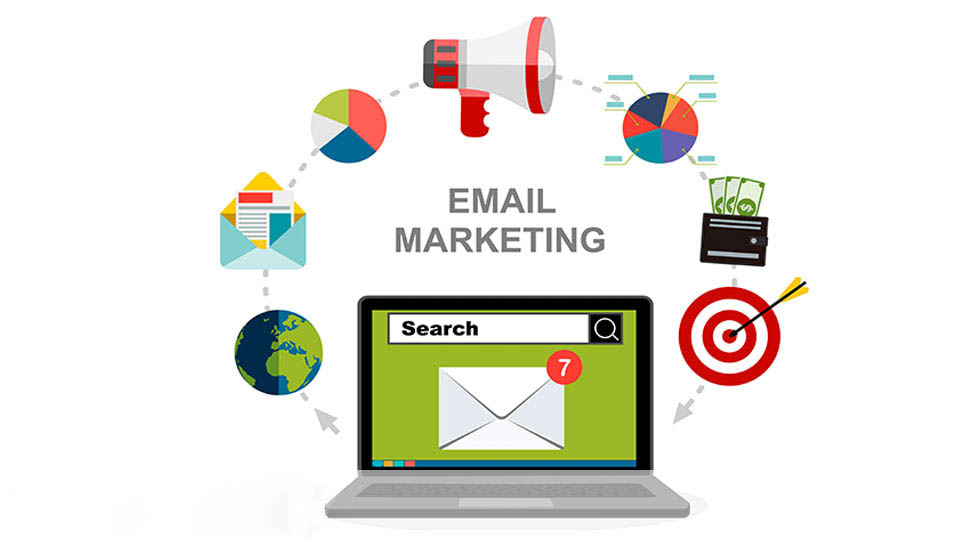
Compared to sending emails manually, which is time-consuming and labor-intensive, using a bulk email tool offers many benefits:
- Send emails to hundreds or thousands of recipients with just a few simple steps.
- Automate the email sending process, eliminating the need to draft and send each email individually.
- Enhance the security of recipient information with various email sending methods.
- Create, manage, and categorize email lists effectively, avoiding cases of missing or omitted recipients.
- Send personalized emails to each recipient to increase open and click-through rates.
- Sending emails regularly helps maintain contact with customers and increases brand awareness.
Thus, using a bulk email tool is an effective way to save time and effort. Businesses should use free and paid bulk email software that suits their individual and business needs.
3. What are the benefits of sending bulk emails for businesses?
Bulk email has long been a familiar tool in business marketing and customer care activities. Not only is it a direct communication channel, but email also helps businesses save costs, expand their reach, and maintain engagement with customers. So, what specific, outstanding benefits does sending bulk emails bring to businesses?
Save on marketing costs: Compared to traditional advertising or digital ads, sending bulk emails is much cheaper. Businesses only need an email management tool to reach thousands of customers at a low cost.
Reach the right customer segment: Emails are sent to a list that has been collected, filtered, and segmented. This helps businesses reach the right people with the right needs, reducing wasted resources.
Increase personalization and customer engagement: Modern email tools allow for inserting names, segmenting audiences, and sending content tailored to each customer group. As a result, emails don’t feel “soulless” but create a sense of familiarity, increasing open and response rates.
Clear performance measurement: Every email campaign has specific metrics: open rate, click-through rate (CTR), and unsubscribe rate. This allows businesses to easily evaluate and optimize their content and strategy.
Support long-term customer care: Email is not just for selling but also for sending news, updates, promotions, and thank-you notes. It is a channel for maintaining long-term relationships, helping customers remember the brand and increasing their loyalty.
4. Risks of sending bulk emails and how to fix them
Sending bulk emails is a cost-effective and efficient method, but if not implemented correctly, businesses can face many risks. These risks not only reduce campaign effectiveness but can also damage brand reputation. So, what risks can businesses face when sending bulk emails, and how can they be overcome?
Emails landing in the Spam folder:
- Risk: Recipients don’t see the email, leading to a sharp drop in open rates.
- Solution: Authenticate emails with SPF/DKIM/DMARC; avoid spam keywords; use a reputable sending address.
High unsubscribe rate:
- Risk: Customers feel bothered, leading them to leave the list.
- Solution: Send at the right frequency; personalize content; segment the list to send emails relevant to their needs.
Poor-quality email list:
- Risk: Many invalid addresses, high bounce rate, affecting domain reputation.
- Solution: Clean the list periodically; collect emails through clear sign-up forms; avoid buying external lists.
Email content lacks value:
- Risk: Recipients ignore it, are not interested, and the brand is considered “spam.”
- Solution: Invest in useful content; create compelling subject lines; have a clear CTA; send content relevant to the customer journey.
Violation of legal regulations:
- Risk: Fines under Decree 91/2020 on anti-spam, affecting business reputation.
- Solution: Only send emails to those who have consented; always include an unsubscribe button; comply with national and international regulations (CAN-SPAM, GDPR).
5. Conclusion
In today’s competitive economic landscape, in addition to using tools like Email Marketing to interact with customers, businesses also need to maintain sustainable relationships and understand customer needs. In particular, the sales team must accurately grasp customer desires to optimize the sales process.
However, to evaluate the effectiveness of customer care, 1CRM is not enough. Businesses need a tool that helps comprehensively control employee workflows and enhance sales performance.
To meet this need, 1Office offers two powerful solutions: 1WORK and 1HRM.
1WORK helps businesses manage tasks, projects, and workflows effectively.
-
Task and project management: Create and assign tasks, track progress and performance results.
-
Track work performance: Evaluate employee and team productivity through performance indicators.
-
Automate workflows: Establish standard processes to ensure work is carried out smoothly and on time.
-
Manage project documents and information: Integrate and store documents, helping teams easily access and collaborate.
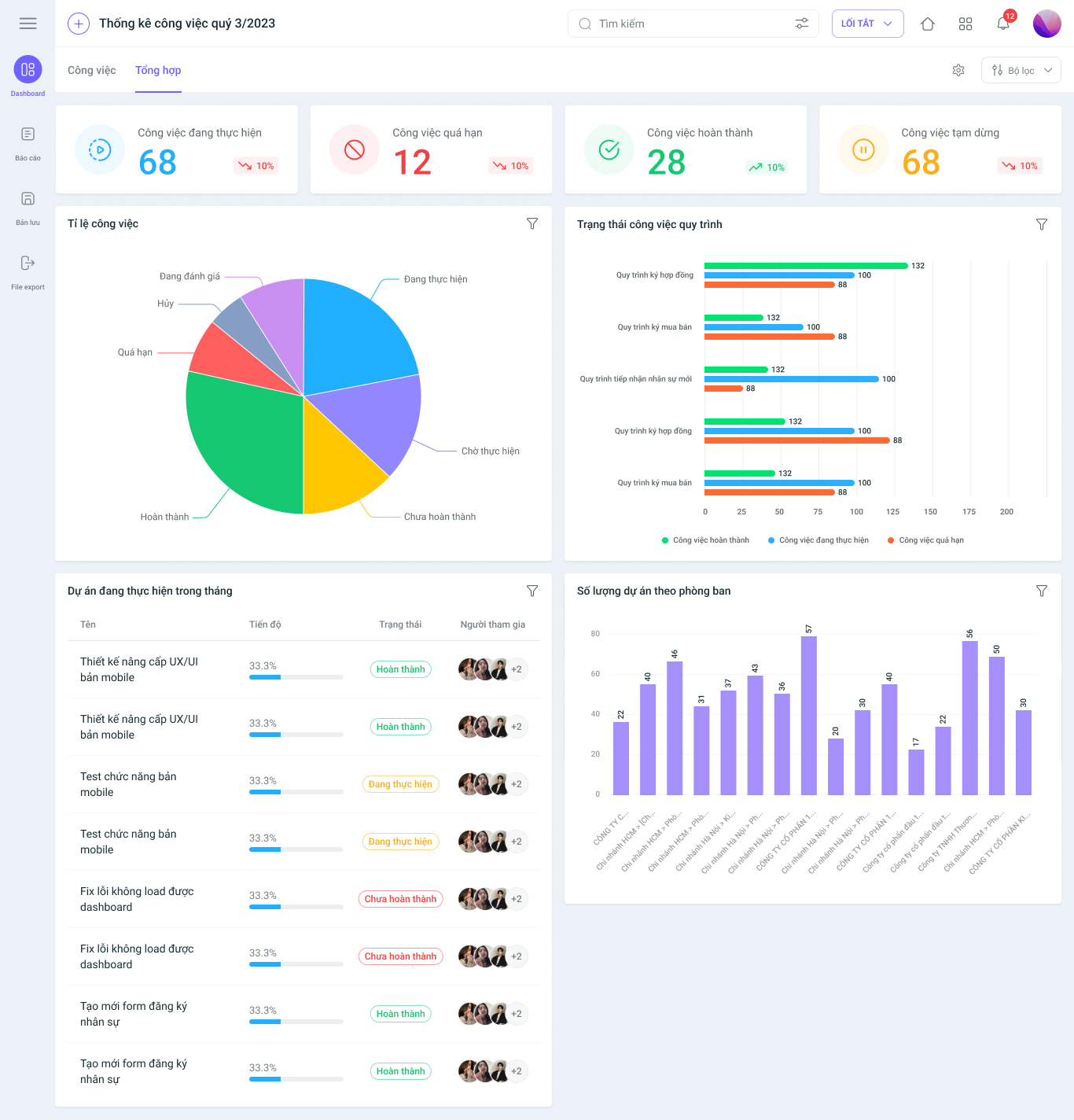
Experience 1WORK – Manage work with ease!
1HRM helps businesses comprehensively optimize employee performance:
-
Employee performance evaluation: Create and track performance indicators, making timely decisions to improve productivity.
-
Training and development programs: Support building training plans, creating courses, and tracking employee development.
-
Motivation and rewards: Provide tools for rewards and recognition of achievements, helping to increase satisfaction and commitment.
-
Employee profile management: Store detailed information, including performance evaluations and training results, helping businesses clearly understand team development.
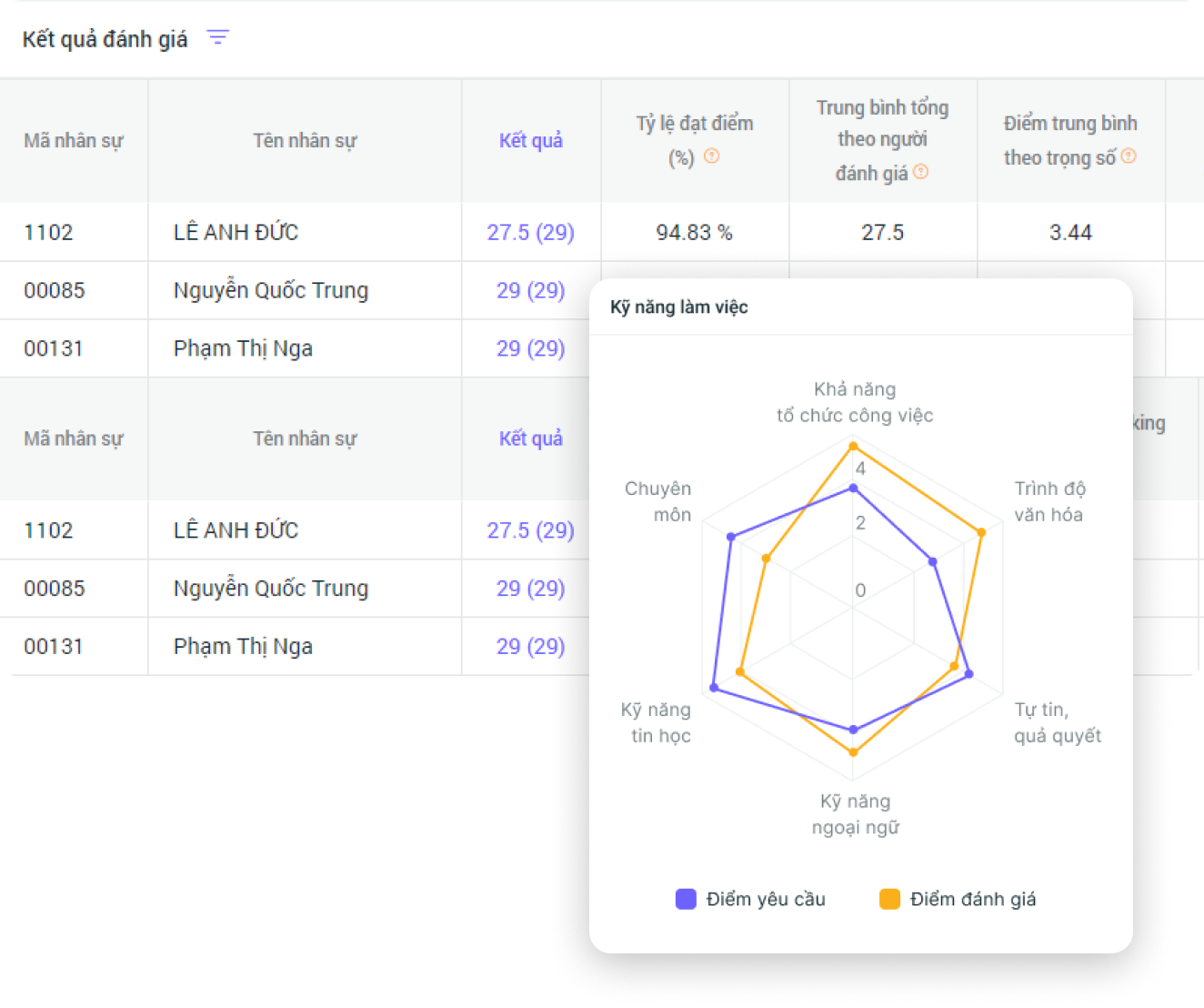
With 1HRM – Transparent evaluations – Outstanding performance!
With 1CRM, 1WORK, and 1HRM, 1Office provides a comprehensive solution that helps businesses not only manage customers but also optimize work processes and enhance employee performance, creating a solid foundation for long-term and sustainable growth.
6. Frequently Asked Questions
Will sending bulk emails land them in spam?
Possibly. If the email list is of poor quality, the content is too promotional, or emails are sent at a high frequency in a short period, they are very likely to go to spam.
Should I send bulk emails with Gmail or specialized software?
Gmail is suitable for a small number of emails and simple needs. If you need to send a large volume, track sending history, and achieve better personalization, specialized software is more appropriate.
When should I use BCC instead of CC for bulk emails?
You should use BCC when sending to many people without wanting them to see the list of other recipients. This method also makes the email more professional and secure.
Can I personalize the recipient’s name in bulk emails?
Yes. Many tools today allow you to insert the recipient’s name, company, or other personal information to make the email look more natural and increase the open rate.
How long should I wait to resend an email if the customer hasn’t responded?
It’s generally recommended to resend after about 3–5 days. This interval is enough for the customer to have time to see the previous email, but not so long that they forget the content you sent.
Contact 1Office today to experience our smart management solutions, optimize work efficiency, and boost your business’s productivity. We are always ready to help you enter the digital era and achieve sustainable growth!
- Hotline: 083 483 8888
- Facebook: https://www.facebook.com/1officevn/
- Youtube: https://www.youtube.com/@1office_toiuutunggiay/videos
















