


 12/05/2026
  338 views
What is Slack software and why is it being used by many businesses as an internal communication tool for all employees? Instead of using email, employees can fully communicate and exchange work information through Slack. So, what is Slack software? How do you download and use its features? How do you manage and secure data via Slack? All will be compiled and answered by 1Office in the article below.
Mục lục
- 1. What is Slack Software? Pricing and Key Features
- 2. Guide to downloading and installing the Slack application
- 3. A Detailed Guide to Using Slack
- 3.1 Create channels for individual and departmental communication
- 3.2 Send and share files and documents
- 3.3 Easily pin and search for messages and files
- 3.4 Storage and connection capabilities with Google Drive, Dropbox, etc.
- 3.5 Create work reminders from Slack Bot
- 3.6 Change text formatting
- 3.7 Customize Themes, Emoji, and Slack Bot
- 3.8 Set up and customize additional notifications
- 3.9 Describe job positions via Team Directory
- 4. Guide to Managing and Securing Data on Slack
- 5. Pros and cons of Slack compared to other internal communication software
- 6. Conclusion
1. What is Slack Software? Pricing and Key Features

1.1 What is Slack software?
Slack software is an information exchange tool, an online teamwork platform that allows users to communicate, share information, documents, and work together on a single platform simply and effectively. Slack software was developed by Slack Technologies, Inc. and was first launched in 2013.
Slack has become a popular internal communication tool for businesses and organizations worldwide, including in Vietnam. It provides many features to manage, search, and transmit information, including group chats, file sharing, integration with other applications, conducting online meetings, and many other features.
1.2 A Summary of 7 Key Features of the Slack Application
Currently, Slack software is being used by many businesses with numerous utilities that provide maximum support for internal communication and departmental work. These include:

- Group chat: Slack allows users to create group chat channels to communicate with colleagues. These channels can be organized by topic or project, helping users easily find necessary information.
- Integration with multiple applications: such as Google Drive, Dropbox, Trello, Asana… This helps users easily share documents and increase storage capacity for files and documents within the business.
- Notifications and information from multiple sources: Slack provides a notification feature so users don’t miss important information. Slack also allows users to customize notifications to ensure they only receive critical information.
- Search: Slack has a powerful search feature, allowing users to search for information in chats, files, and other channels.
- Conduct online meetings: Slack provides an online meeting feature so users can conduct remote meetings.
- High security: Slack offers many security features, including two-factor authentication, data encryption, and access rights management. This ensures that user information is protected and secure.
- Multi-platform support: Slack software is available on various platforms including Windows, Mac, iOS, and Android, allowing users to use it on multiple devices to support a more convenient work communication process.
In summary, Slack provides a range of features to increase team productivity and simplify information exchange and teamwork on a simple and effective platform.
| >> Read more: What is Trello? A Comprehensive Review of Trello for Businesses |
1.3 Detailed Pricing for the Slack App
The pricing for the Slack software is divided into 4 main plans: Free, Pro, Business+, and Enterprise Grid. Each plan has different features and prices, suitable for the needs of various organizations or businesses.
| Plan | Business Size | Cost |
| Free | For individuals or small teams, includes all of Slack’s basic features. | Free |
| Pro | For small teams, with enhanced productivity and security features. | – 12-month plan: 7.25 USD/month
– 1-month plan: 8.75 USD/month |
| Business+ | For businesses looking to expand and enhance employee productivity with advanced management and security features. | – 12-month plan: 12.50 USD/month
– 1-month plan: 15.00 USD/month |
| Enterprise Grid | For large enterprises that require flexibility and high-level security management to meet regulatory and development requirements. | Contact for pricing |
Experience 1Office’s WORKPLACE feature – The best internal network today
2. Guide to downloading and installing the Slack application
To use the Slack application on computers and phones, you need to download and install the app. However, to ensure the application works well, you need to check if your personal or business device meets Slack’s minimum requirements. Slack software download requirements:
- OS X 10.10 or newer, 64-bit processor.
- Windows 10 version 14316.0 or higher.
- Platform: Android 5.0 or higher, iOS 11.0 or higher.
After ensuring your system meets the minimum requirements, you can proceed to download and install the Slack application with the following steps:
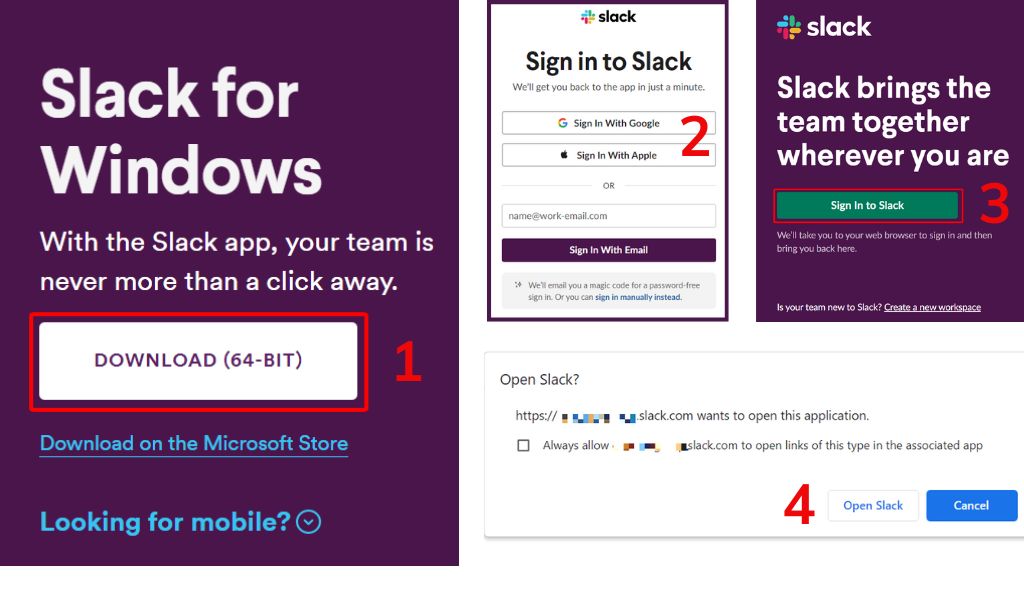
- Step 1: Visit the official Slack software website to download: Here
- Step 2: After the download is complete, open the installation file and register your email
- Step 3: Click “Sign In to Slack” on the application
- Step 4: Select “Open in Slack” to complete the login and start using Slack.
| >> Read more: What is Asana? A Detailed Review of Asana Software for Task Management |
3. A Detailed Guide to Using Slack
3.1 Create channels for individual and departmental communication
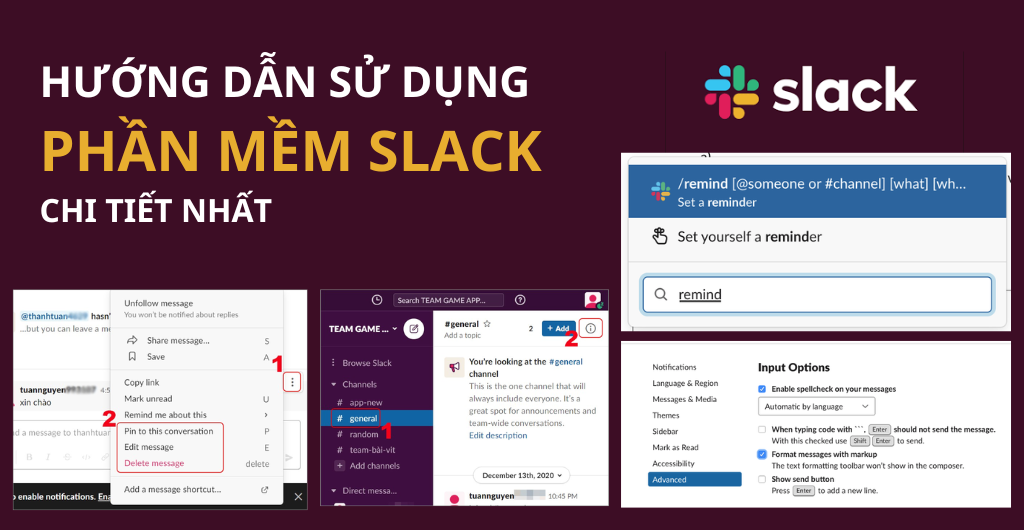
This feature allows users to create private channels for individuals or groups to exchange information and update work progress. Depending on the nature of each department’s work, managers can create channels for conversations to facilitate information exchange and discuss issues relevant to that department.
Slack allows users to send and share files and documents on the platform easily and quickly. Notably, users can send files up to 1GB on the free version and can increase the capacity to 2GB with Slack’s paid versions. To send and share a file, users need to open a conversation and click the paperclip icon in the right corner. Then, find the file you want to send and click “Choose,” and finally send the message by clicking the arrow icon.
3.3 Easily pin and search for messages and files
When a manager needs to emphasize certain work information, Slack supports the message pinning feature to ensure all team members can access the announcement. First, users need to hover over the message they want to pin > Click the three-dot icon next to it > Click Edit Message > Select Pin to this conversation to pin it. Simultaneously, Slack’s search function for users, files, or messages will help employees save time and complete their work more effectively.
3.4 Storage and connection capabilities with Google Drive, Dropbox, etc.
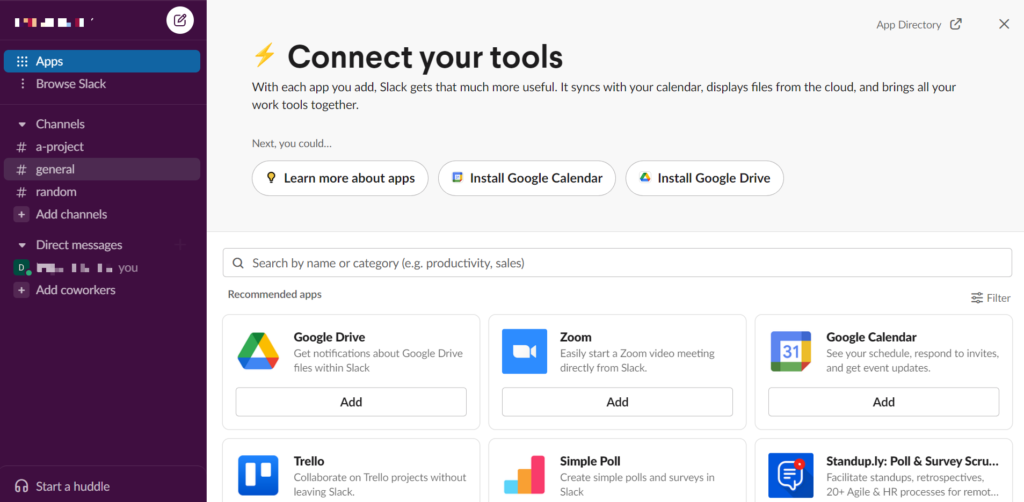
With the free version, Slack allows a maximum of 5GB of storage, and the message history is limited to the 10,000 most recent messages, after which older messages are deleted. This application also integrates with supporting tools like Google Drive, which helps increase storage capacity and makes file recognition easier.
3.5 Create work reminders from Slack Bot
To create work reminders from Slack Bot, you first need to install and activate the bot on Slack. Then, use simple commands or the pre-existing reminder templates from Slack Bot. For example, to create a work reminder, use “/remind [user/channel] [what] [when]“. The reminder will be sent to the specified channel or user and will appear on their screen at the preset time.
3.6 Change text formatting
To change text formatting in Slack, users can use special characters to highlight text with bold, italics, underline, strikethrough, and even insert images. To use special characters, users can use keyboard shortcuts or select from the options available in the interface.
For example: to bold a word, place it between two * asterisks (word). To italicize a word or phrase, place it between two _ underscores (word). Additionally, you can use the ~ character to strikethrough a word or phrase. To insert a link, use the syntax [link name](URL). Slack also supports the use of emoticons and emoji to highlight or express emotions in text.
3.7 Customize Themes, Emoji, and Slack Bot
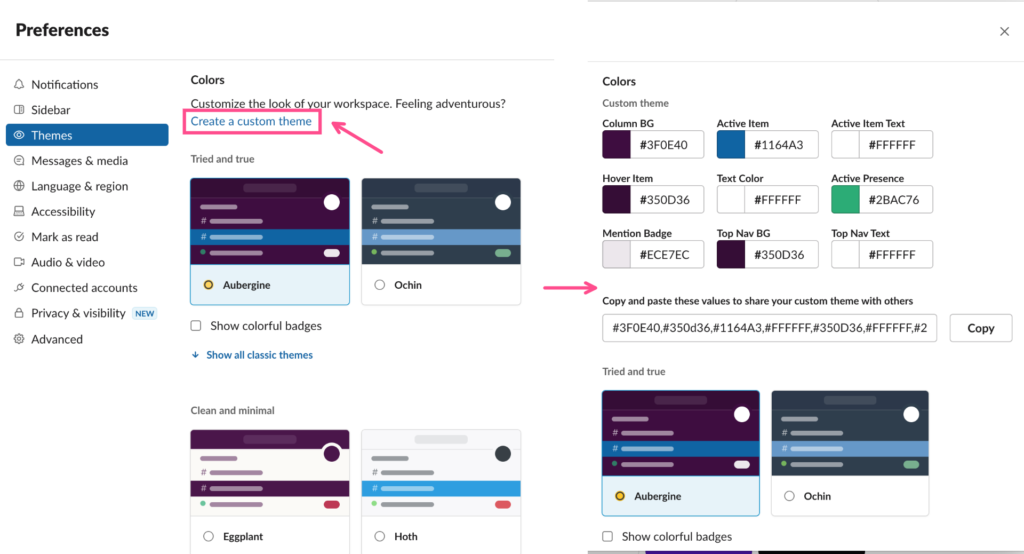
To customize Themes on Slack, you can go to Preferences in the top right corner of the screen and select Themes to change Slack’s interface. To change Emoji, you can go to Customize Slack and click Add Custom Emoji to customize emoticons to your liking. To customize Slack Bot, you can go to the Apps section and search for Slack Bot, then add or remove bots or customize them as you wish.
3.8 Set up and customize additional notifications
Users can set up additional notification keywords on Slack by going to Preferences and selecting Notification Settings. Then, enter the keywords into the “Keywords” section and separate them with commas. When those phrases are mentioned in chat channels, Slack will display a notification so you don’t miss important messages.
3.9 Describe job positions via Team Directory
Team Directory in Slack allows users to view information about team members, including their name, job title, contact information, work location, and the Slack channels they have joined. To access the feature, select the “…” Menu in the top right corner or visit that page. This feature makes it easier to find member information and connect with them, especially when working with large or distributed teams.
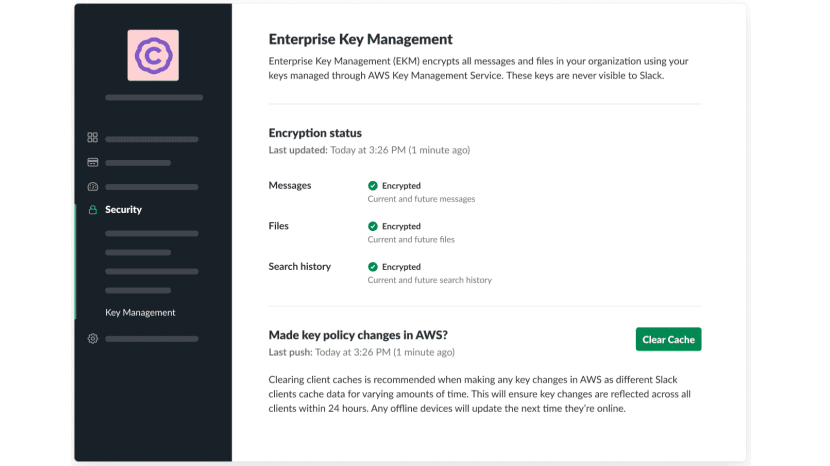
4. Guide to Managing and Securing Data on Slack
4.1 Guide to managing data on Slack
Slack provides many features for data management, including the ability to store, search, and share information. Users can create channels and groups to classify and manage data by topic or project. Furthermore, Slack also offers integration with cloud storage services like Google Drive and Dropbox to enhance data storage and sharing capabilities.
4.2 Guide to securing accounts and personal information
To ensure the safety of personal information and accounts, users should enable two-factor authentication and use strong passwords. Slack also provides access restriction features to manage access rights to channels and data. Additionally, users should regularly update security policies and limit the sharing of personal information on public channels.
4.3 Guide to configuring security settings for businesses
Slack offers many advanced features to support businesses and configure security settings, including the ability to automatically delete data after a certain period and the capability to manage and limit user access rights. To configure security for a business, administrators should learn about Slack’s security features and establish security regulations appropriate for their company.
5. Pros and cons of Slack compared to other internal communication software
5.1 What are the advantages of Slack software?
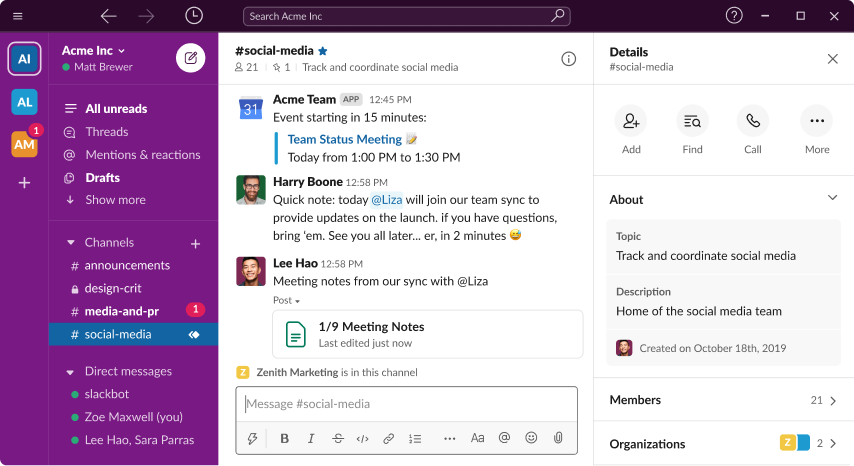
- Provides a friendly and easy-to-use user interface, allowing users to communicate quickly and conveniently.
- Slack allows the creation of private and public channels to manage work and exchange information.
- Integrates many useful applications and tools, helping to increase work productivity.
- Slack can integrate with other platforms and applications such as Google Drive, Trello, and Asana, helping to synchronize information between different tools.
- Slack also provides cloud data storage, helping users easily access and manage documents.
5.2 What are the disadvantages of Slack software?
- Slack does not support free voice or video calls in the basic version; users must pay to use this feature.
- Slack is not a complete project management tool; it only provides basic features for managing work.
- In some cases, Slack can become complicated when using many different features and channels, leading to a loss of focus and reduced work efficiency.
6. Conclusion
Through the article above, you now have a clear understanding of what Slack software is. If you are still looking for software that can effectively meet the needs of work management and internal communication in a business, you can definitely consider the Workplace module of 1Office.
Workplace provides an effective set of tools for employees to work & communicate internally, used by over 6,000 businesses. At the same time, this software can be integrated with other 1Office modules like HRM and CRM (depending on the business’s needs) to offer an All-In-One management solution for businesses. Please contact us via hotline: 083 483 8888 or get a free demo here.
Find more information about 1Office at:
















