


 12/05/2026
  665 views
A work checklist is a popular task management tool in businesses due to its high applicability and ability to double work productivity compared to traditional methods. To help managers and employees improve the quality of their work management, 1Office will provide readers with 8+ of the most common Excel work checklist templates to triple your work efficiency.
Mục lục
- 1. What is a work checklist? How does it differ from a to-do list?
- 2. What are the outstanding benefits of a work checklist?
- 3. Common mistakes when using an Excel checklist
- 4. 8+ Popular Excel Work Checklist Templates
- Template 1: Daily Work Checklist Template
- Template 2: Project Task Checklist
- Template 3: Excel Task Checklist for Sales
- Template 4: Recruitment Checklist Template
- Template 5: Meeting Preparation Checklist Template
- Template 6: 5S Evaluation Excel Checklist Template
- Template 7: Excel Work Checklist Template for a Marketing Campaign
- Template 8: New Employee Training Work Checklist
- 5. How to Use Work Checklists Effectively to Triple Productivity
- 6. Frequently Asked Questions about Work Checklists
- 7. Conclusion
1. What is a work checklist? How does it differ from a to-do list?
A work checklist template is a list of tasks that need to be performed to complete a larger task or a project. This is a useful tool commonly used in work management, helping users track work progress, ensure tasks follow the correct process, are completed on time, are not missed, and achieve set goals effectively. An Excel work checklist can be applied in many areas, from personal tasks to large projects within a business.
Differentiating between a work checklist and a to-do list
A concept that many people often confuse with a work checklist is the to-do list. A to-do list is also a popular tool in work management; however, in essence, a checklist and a to-do list are completely different. The specifics are as follows:
| Work Checklist Template | To-do List | |
| Purpose | Focuses on managing tasks and ensuring the completion of necessary work, especially in large projects. | Focuses on remembering and managing tasks that need to be completed within a specific timeframe, helping users prioritize their work. |
| Usage | Used to identify the tasks that must be performed to complete a mission or a project. | Often used to note down tasks to be done, in order of priority and by date/time. |
| Structure | Tasks in a checklist template are all aimed at achieving a specific common goal, often arranged in a clear sequence to ensure complete task fulfillment. | Includes a list of tasks to be completed, which may be unrelated to each other and are arranged by priority or by date/time. |
In short, to put it simply, a to-do list answers the question “what to do”, while a checklist answers the question “how to do it” to complete a task or project.
2. What are the outstanding benefits of a work checklist?
In practice, creating a checklist is a tool that helps systematize tasks, ensure accurate implementation progress, and optimize performance for both individuals and organizations.
Here are the practical values that this tool brings:
For managers
- Gain a comprehensive and detailed overview of the tasks to be performed in a project to make management decisions
- Allocate personnel to clear work items, assigning the “right person for the right job” suitable for each individual and team
- Control the work progress of employees, keeping track of which tasks have been completed and which have not yet been performed
- Accurately assess employee capabilities through work performance, using job completion results to reward employees appropriately or to provide timely encouragement
For employees
- Proactively manage personal tasks, minimizing forgotten or missed tasks
- Control the workload that needs to be done, thereby creating a reasonable implementation plan.
- Enhance work performance by providing employees with a comprehensive overview of the work items to be performed and their completion progress.
- Organize and arrange work systematically, helping employees orient themselves and focus on the necessary tasks to achieve desired results.
- Create motivation and encourage employees with the sense of satisfaction a checklist provides when a work item is marked as complete.
See more: Task Management What is it? The A-Z process for effective Task Management
3. Common mistakes when using an Excel checklist
Although an Excel checklist is a useful and easy-to-apply tool, many individuals and businesses often encounter some common mistakes during its use:
3.1 Creating a checklist but not updating it
Many people create a checklist just for the sake of it, but fail to maintain regular updates. As a result, the checklist becomes a static file that doesn’t accurately reflect work progress, leading to a “dead checklist” situation.
How to fix it – step by step:
1. Design a set of mandatory update columns
- Add columns: Owner, Deadline, Status, Last updated, Next action, Notes.
- Use a list for Status (Data Validation): Not started / In progress / Waiting / Done
- Last updated: enter the date with each edit, or use a date field with the rule “whoever edits must update”.
2. Set a fixed review schedule
- Daily 10 minutes (team): each owner reports 3 lines: What was done yesterday – What will be done today – Any obstacles. Update directly on the file.
- Weekly 30 minutes (management): filter for Overdue items to resolve them completely.
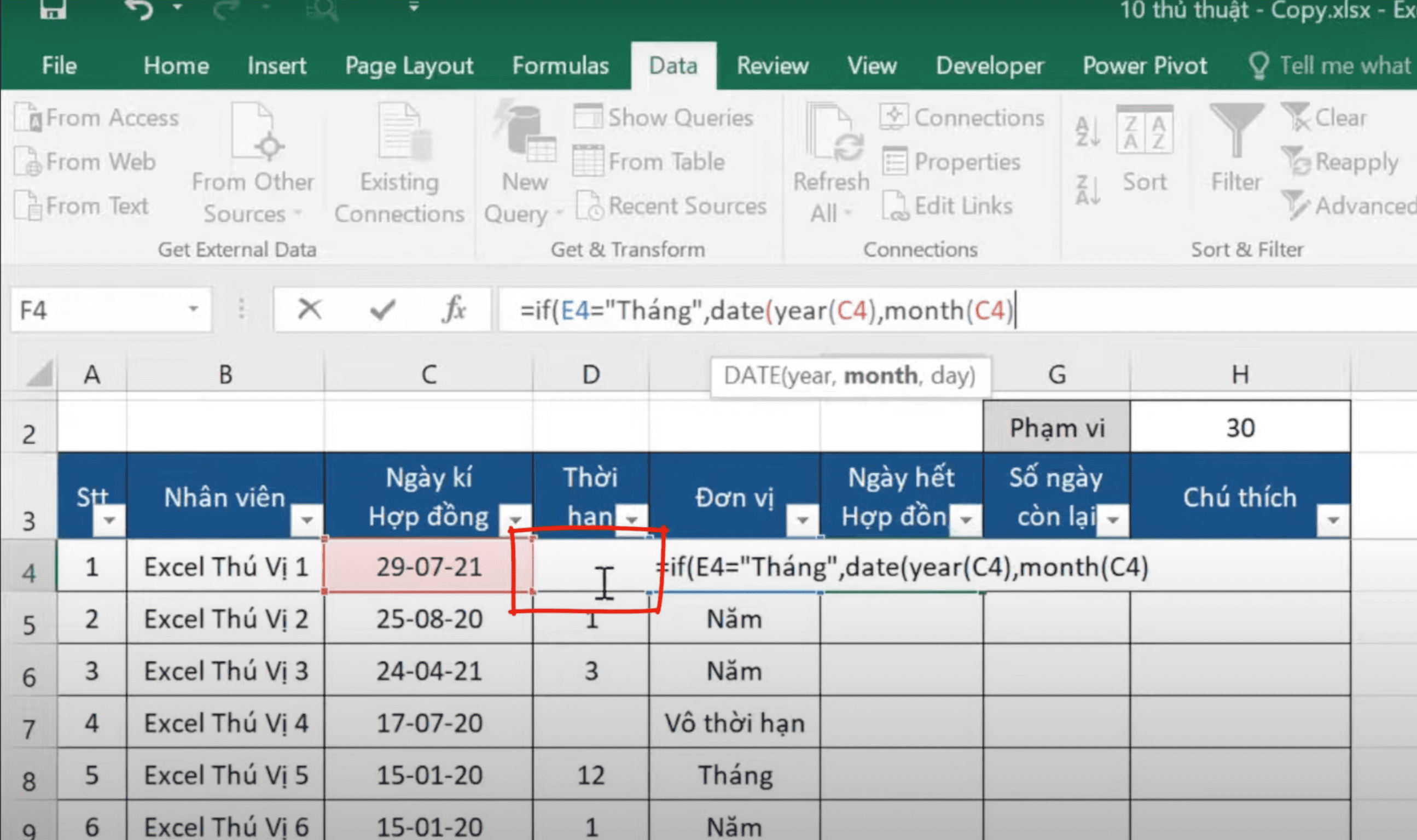
3. Automatic overdue alerts (Excel)
- Create an Overdue? column with the suggested formula:
=IF(AND([@Status]”Done”,[@Deadline]<TODAY()),"Overdue","") - Use Conditional Formatting to highlight rows with “Overdue” in red.
4. Definition of Done
Clearly state the completion criteria directly on the sheet (rows 1–3) so everyone has the same understanding: e.g., “Approved + minutes recorded + handed over”.
5. Light disciplinary process
-
All changes must be updated within 24 hours.
-
Manage and check the Last Updated column weekly; if not updated for >7 days, remind the owner directly.
3.2 Checklist file not synchronized among team members
In a team environment, if each member keeps their own separate checklist (sent via email, Zalo, or saved locally), a series of problems will arise:
-
Inconsistent data: each person updates at a different time → the task list becomes “out of sync,” and no one is sure which is the master version.
-
Prone to confusion and omission: task A might be listed on two people’s checklists, or be missed because no one remembered to add it to the original.
-
Difficult to track responsibility: when an error occurs, it’s unclear who holds the most accurate version for reference.
Solution:
-
Use Google Sheets or save the file on OneDrive/SharePoint, maintaining only a single version as the “single source of truth.”
-
Set access permissions: viewer, editor, and owner to prevent unauthorized edits.
-
Real-time updates: all changes are recorded immediately, visible to the entire team instantly, minimizing discrepancies.
-
Utilize the version history feature: allows for restoration if someone accidentally deletes or enters incorrect data.
3.3 Missing important columns
One of the common mistakes when creating a checklist is only listing the task name without adding other important accompanying information. This turns the checklist into a simple “to-do list,” lacking management capabilities and making it difficult to use in a professional work environment.
For example: If a task is only named “Prepare contract for client A,” no one will know the deadline, its priority level, or its current completion percentage. The consequence is a high risk of missing deadlines, omitting tasks, or not knowing which task to handle first.
Essential columns that cannot be omitted from an Excel checklist include:
-
Deadline: Clearly define the completion time for each task to avoid procrastination.
-
Priority: Helps classify which tasks need to be done immediately and which can be postponed.
-
Progress (% Complete): Allows for tracking progress, especially useful for reporting to superiors or sharing with the team.
-
Owner: Clearly defines responsibility to ensure accountability.
-
Notes: Add important information or reminders that need attention.
Solution: Standardize a checklist template with all necessary columns, then share it with the entire team for consistent use. This not only helps track progress accurately but also increases transparency and collaboration within the team.
4. 8+ Popular Excel Work Checklist Templates
In the workplace, a checklist serves as a control tool to help you track progress, avoid missing tasks, and improve efficiency. Excel is the most popular choice for creating checklists due to its flexibility, ease of customization, and suitability for both individuals and businesses. In this section, we will explore over 8 common Excel work checklist templates to help you manage your work more scientifically and save time.
Template 1: Daily Work Checklist Template
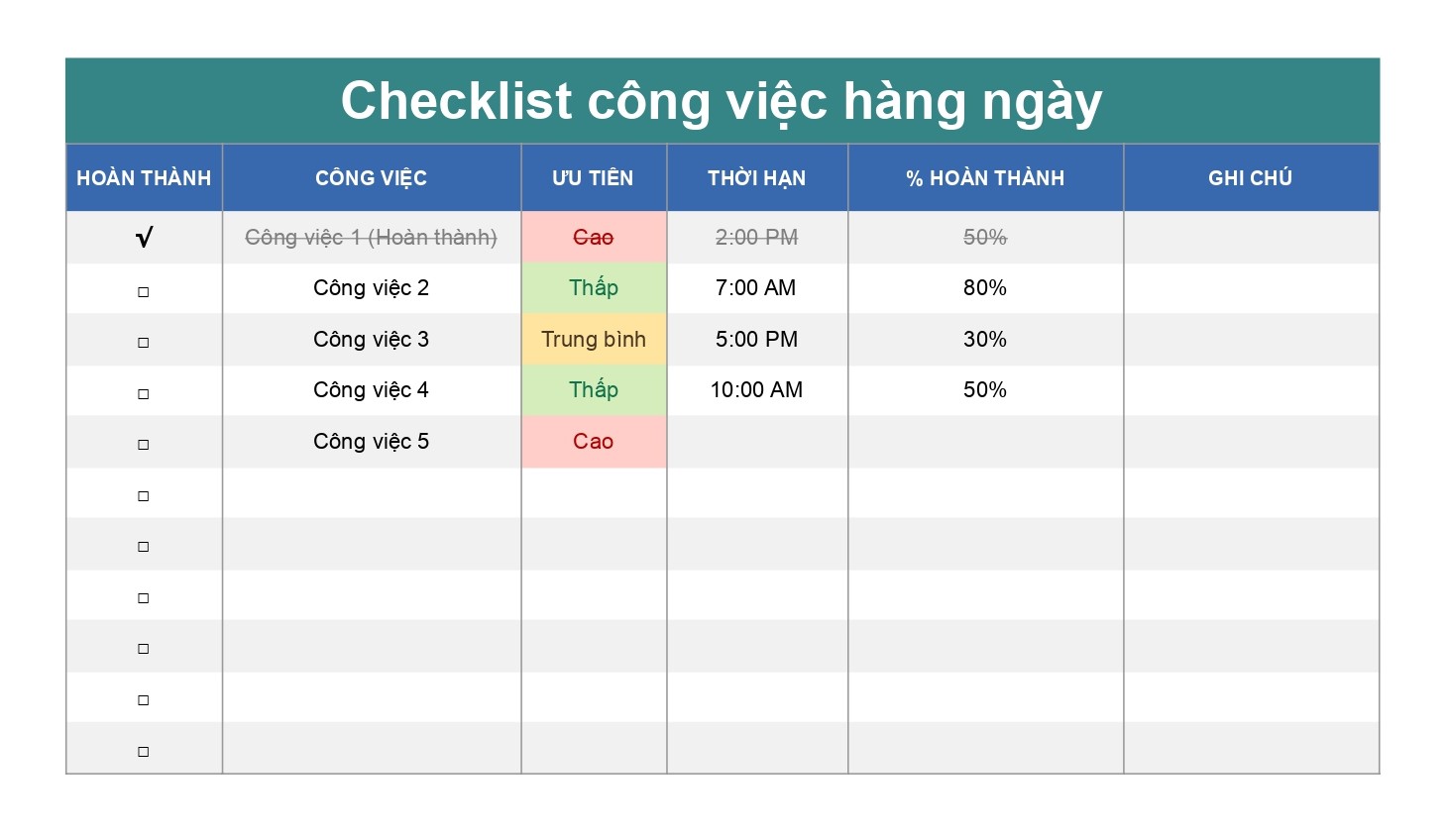
The daily work Excel checklist template is a list of tasks that need to be completed within a day. This checklist helps users manage their work effectively, ensuring no tasks are missed and everything is completed on schedule.
Organizing tasks by priority and setting deadlines helps users focus on resolving important tasks first. Additionally, when a checkbox is ticked, the checklist will automatically strike through completed tasks, allowing focus to shift to the next items.
|
Template 2: Project Task Checklist
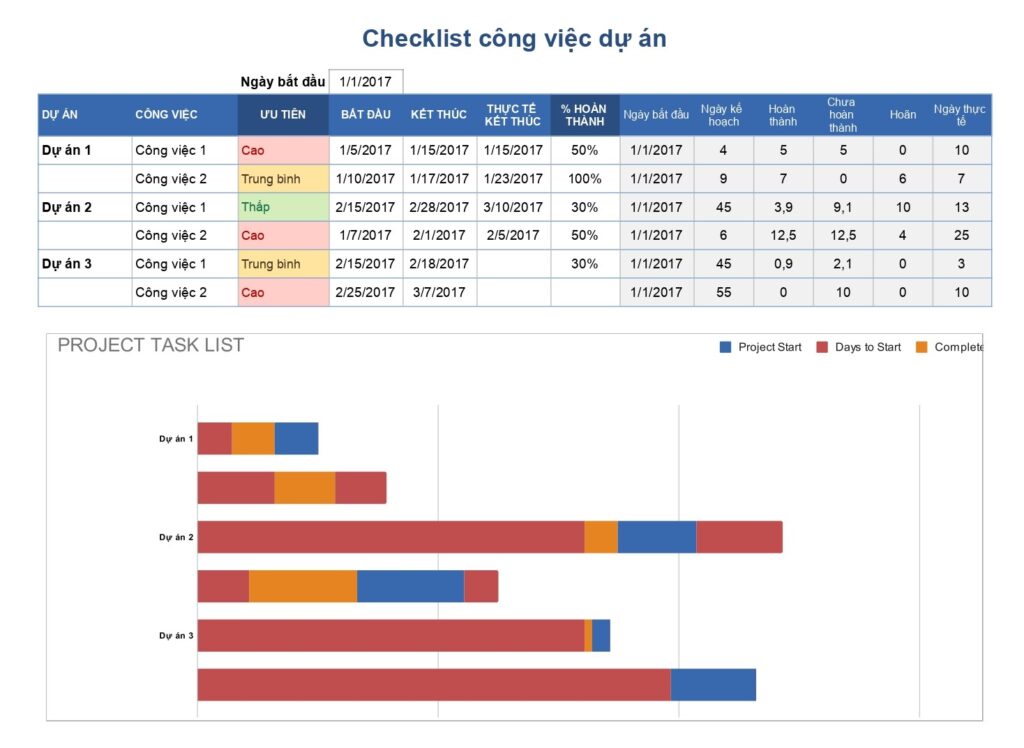
A project task checklist is a tool that helps managers and project team members understand the tasks that need to be done for the project and track work progress.
Due to the complex nature of projects, this Excel task checklist template will include planned and actual completion dates. The purpose of these columns is to compare the actual progress with the initial plan, helping project managers identify bottlenecks during project execution and make necessary adjustments to ensure the project is completed on schedule.
Template 3: Excel Task Checklist for Sales
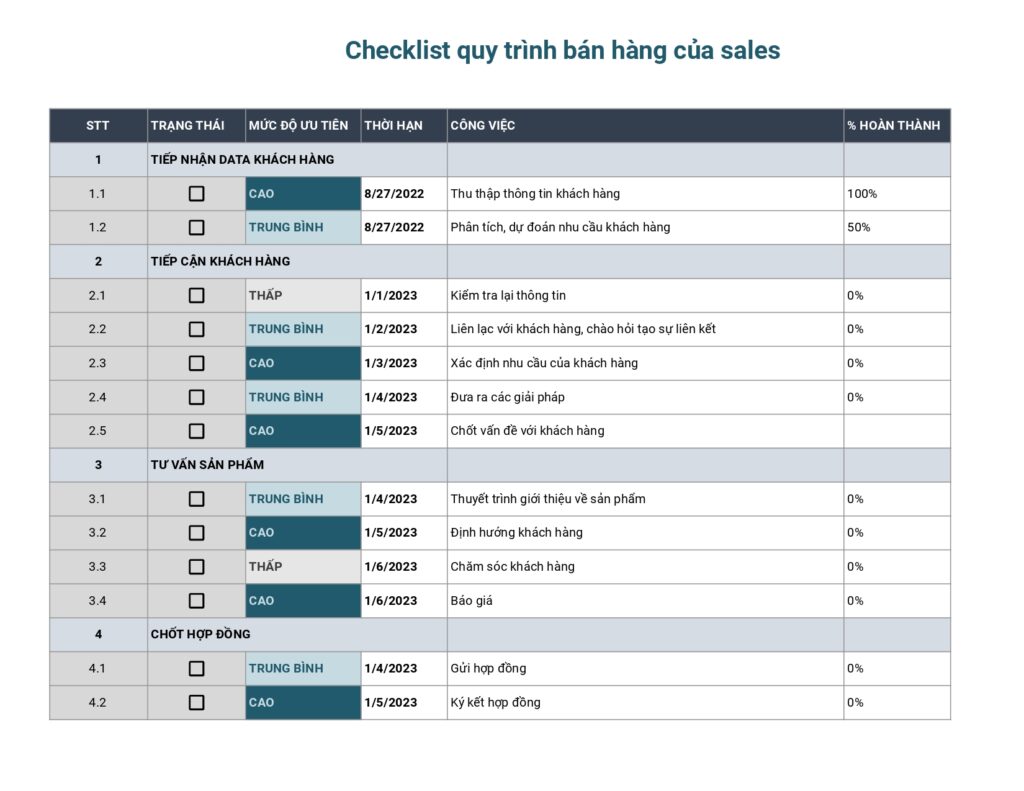
A salesperson’s checklist includes the tasks they need to perform to reach customers and achieve sales targets. Using an Excel task checklist helps sales staff ensure they don’t miss any tasks, increasing efficiency and minimizing risks in the sales process.
Additionally, the Excel sales task checklist template also serves as a reference framework for managers to track the work progress of sales staff, evaluate the effectiveness of sales activities, and make necessary adjustments to boost business performance.
| >> Read more: Work Performance Report Template standard format [Latest Update] |
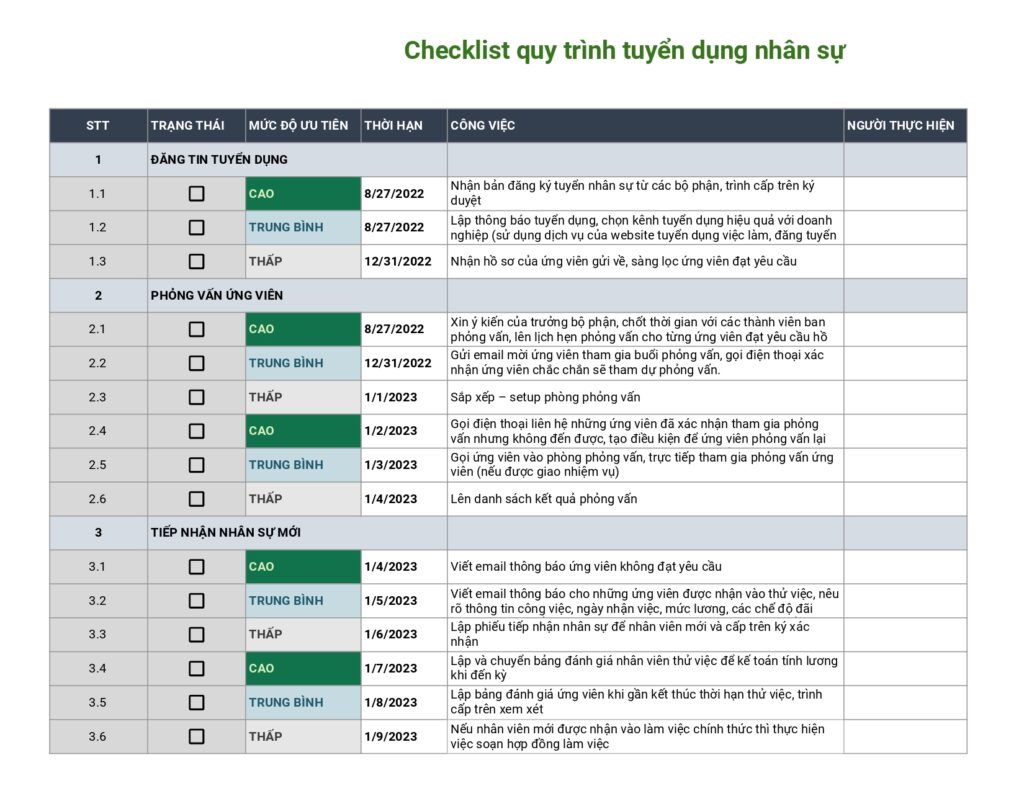
Template 4: Recruitment Checklist Template
The recruitment checklist Excel template will help HR ensure the employee selection process is sequential, complete, and accurate, while minimizing risks and errors during the recruitment process.
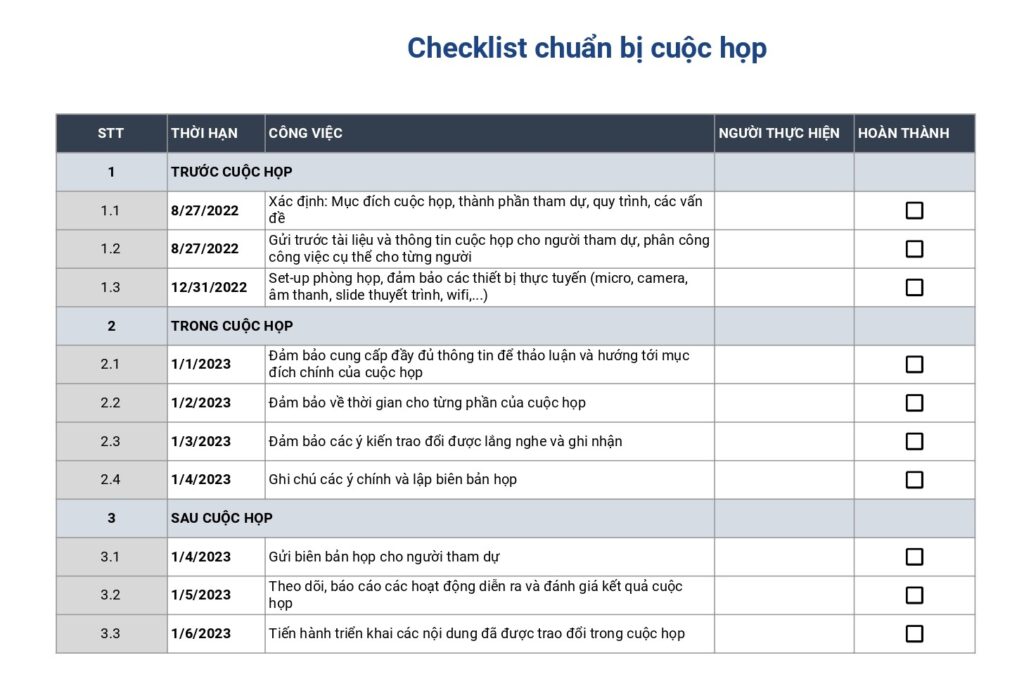
Template 5: Meeting Preparation Checklist Template
The meeting preparation checklist is used to help the organizer thoroughly prepare all necessary documents and content for the meeting, ensuring it runs smoothly and effectively and helping participants focus on the main agenda items.
| >> Learn more: How to create a work plan with 1Office work planning software |
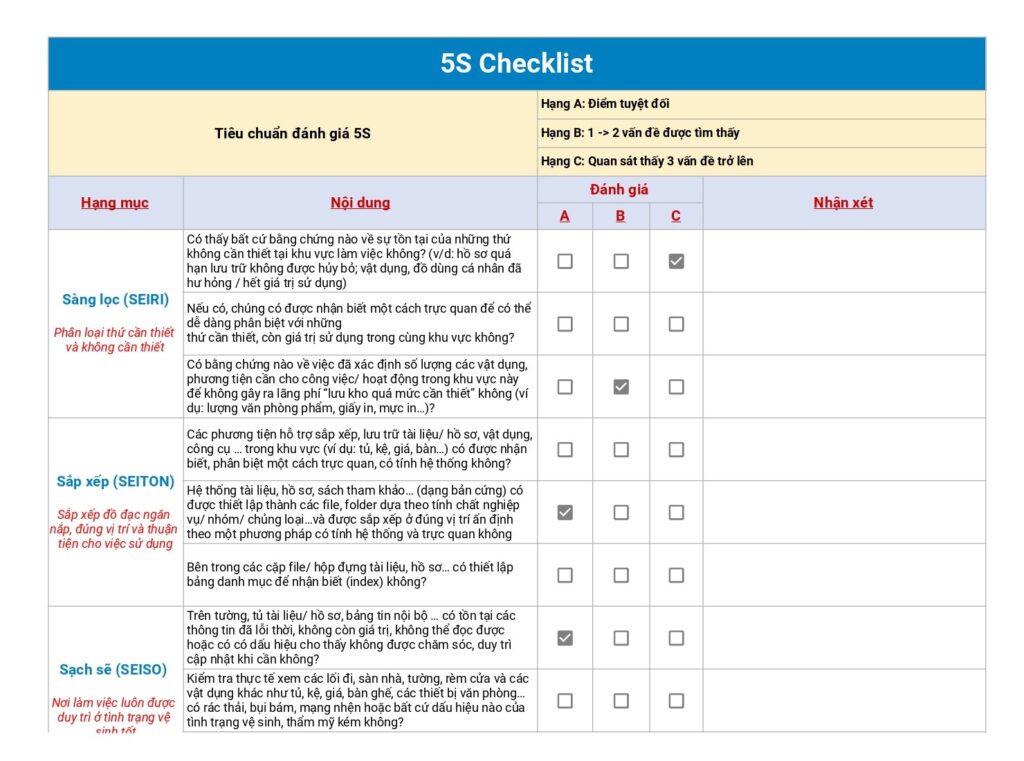
Template 6: 5S Evaluation Excel Checklist Template
A 5S evaluation checklist is used to assess and improve the 5S process within an organization. The 5S process is a production management method focused on increasing productivity and work efficiency by creating a clean, tidy, and convenient work environment.
Using a 5S checklist template helps managers monitor and evaluate employees’ implementation of 5S and ensures that 5S standards are always fully complied with.
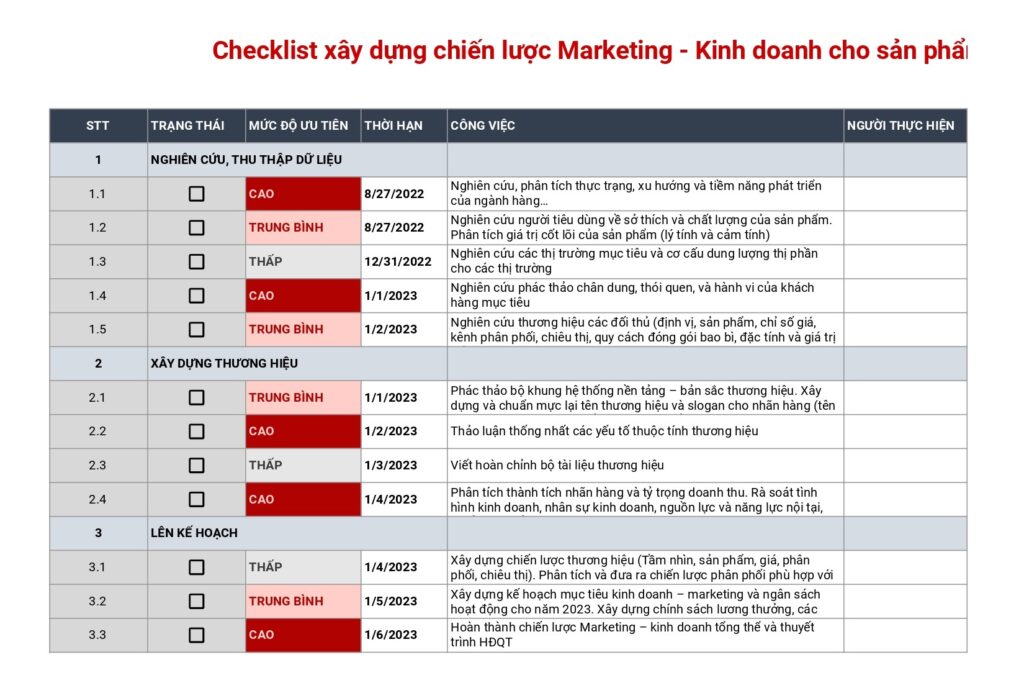
Template 7: Excel Work Checklist Template for a Marketing Campaign
Checklists are widely used in the field of Marketing. A checklist in a marketing campaign serves to list the items that need to be completed to achieve the overall marketing objectives.
Using a work checklist template helps managers and marketing staff ensure that no tasks are missed, increasing efficiency and minimizing risks during the implementation of a marketing campaign.
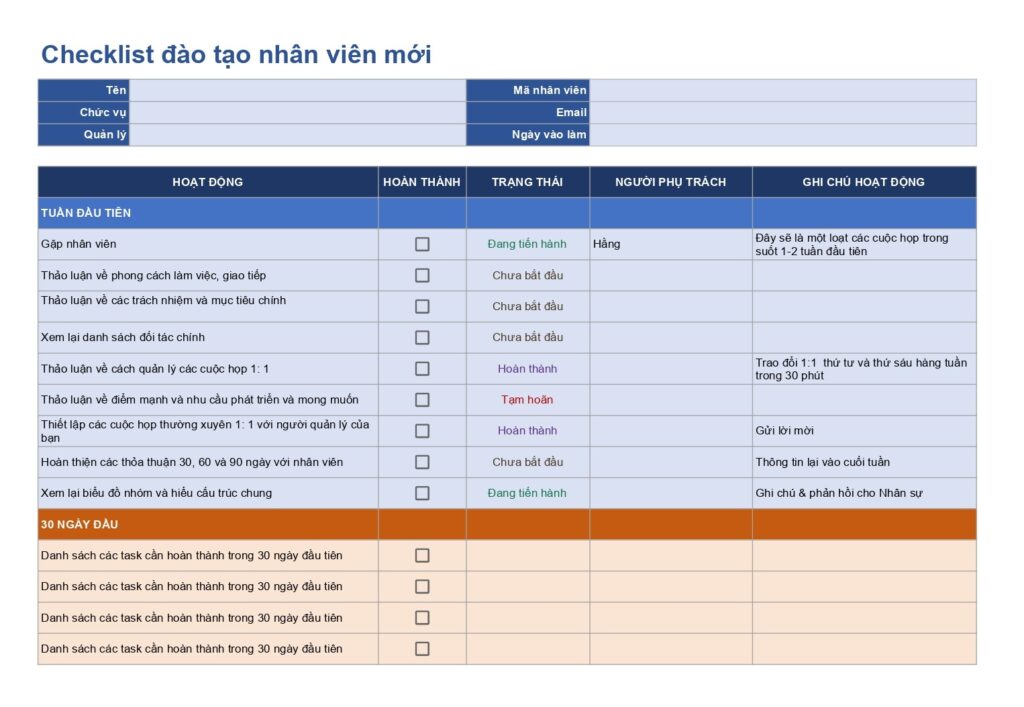
Template 8: New Employee Training Work Checklist
A new employee training checklist is used to help managers ensure the onboarding training process for new personnel is effective, ensuring employees are fully equipped with the knowledge and skills to perform their jobs. It also provides new employees with clear guidance and a roadmap during the training process so they can quickly adapt to the company culture and work environment.
The tasks in the checklist are set according to milestones of 1 week, 30 days, 60 days, and 90 days after a new employee joins. This helps managers easily control the employee’s onboarding process and build a clear, systematic training roadmap.
DOWNLOAD THE FULL SET OF DETAILED EXCEL WORK CHECKLIST TEMPLATES FOR ALL DEPARTMENTS
5. How to Use Work Checklists Effectively to Triple Productivity
A checklist is an effective tool for improving work performance and quality. However, a checklist cannot be fully effective if not used correctly. Here are some great tips you can apply to fully exploit the benefits that a checklist offers:
Identify and Prioritize Important Tasks
Organizing work scientifically and systematically is a prerequisite for effective work management. Therefore, when creating a checklist, users should arrange and highlight important tasks to prioritize them. An effective method you can apply is the Eisenhower matrix. The matrix helps users classify tasks into 4 different types, depending on their level of importance and urgency, including:
- Important and urgent tasks.
- Important but not urgent tasks
- Not important but urgent tasks
- Not important and not urgent tasks
Applying a checklist combined with the Eisenhower matrix will help users manage their time and allocate resources reasonably for tasks, ensuring that no important and urgent tasks are missed.
Set Deadlines for Each Task
In your checklist, you should set a specific deadline for each task. This way, you can assess the feasibility of your work plan, track progress, and ensure tasks are completed on time.
Use Work Management Tools
With the rapid development of technology today, the emergence of software applications has made work management much simpler and more effective. These applications provide a diverse set of tools to help users plan work, create checklists, and organize tasks quickly.
Among them, 1Office is the leading superior work management solution on the market today. With a comprehensive ecosystem and a powerful set of management features, 1Office is an effective tool to help businesses improve work performance:
- Create specific and realistic work plans, shortening the time for task allocation and review
- Easily list and organize parent and child tasks, and display them in list, kanban, or gantt chart views
- Task checklists automatically update with completion percentages, helping managers track progress and promptly follow up with employees
- Smart reminders automatically send due date notifications, helping employees avoid forgetting or missing tasks
6. Frequently Asked Questions about Work Checklists
How is a work checklist different from a to-do list?
A to-do list only enumerates “what to do” (individual tasks). A checklist focuses on “how to do it,” including the sequential steps needed to complete a specific goal or project.
What columns should a professional Excel checklist template include?
For effective management, the Excel file should have 5 core columns:
- Deadline
- Owner
- Priority
- Status/% Completion
- Notes
How to solve the problem of creating a checklist but not updating it?
You should set up an overdue alert formula (automatically highlights in red), schedule a 5-minute daily review, and clearly define completion criteria to help employees build the habit of updating data in real-time.
Why use a centralized management platform instead of sending Excel files via Zalo/Email?
Sending files manually can easily lead to data discrepancies and make it difficult to control the latest version. Using a platform like 1Office helps synchronize data in real-time, ensuring all members access information on a single, unified platform.
What is the most effective method for prioritizing tasks in a checklist?
Combine your checklist with the Eisenhower Matrix. Classifying tasks by “Important” and “Urgent” helps you focus resources on the items that yield the highest results, avoiding wasted time on secondary tasks.
7. Conclusion
In this article, 1Office has provided readers with the most effective and easy-to-apply work checklist templates, along with a technology solution to help optimize work management and triple productivity. For a consultation and a trial of the market-leading work management software, please contact us using the information below:
- Hotline: 083 483 8888
- 1Office Fanpage: https://www.facebook.com/1officevn
- Youtube Channel: https://www.youtube.com/c/1OfficeNềntảngquảnlýtổngthểDoanhNghiệp
















