


 13/05/2026
  95 views
1CA digital signature is a feature for using electronic signatures on the 1Office platform. A digital/electronic signature acts as a signature for an individual or a seal for a business and is legally recognized. Businesses can install 1Office’s 1CA digital signature to use on internal documents, records, and employment contracts.
To sign an employment contract, you need to follow these steps:
- Install Digital Signature
- Sign Employment Contract
1. Install digital signature
To apply digital signatures on 1Office objects, you first need to install it on the system by following these steps:
Integrate digital signature:
- Click the arrow icon in the top right corner of the screen
 click System Settings > select System > select Digital Signature
 - Click the Create New icon
 in the top left corner of the screen
 click System Settings > select System > select Digital Signature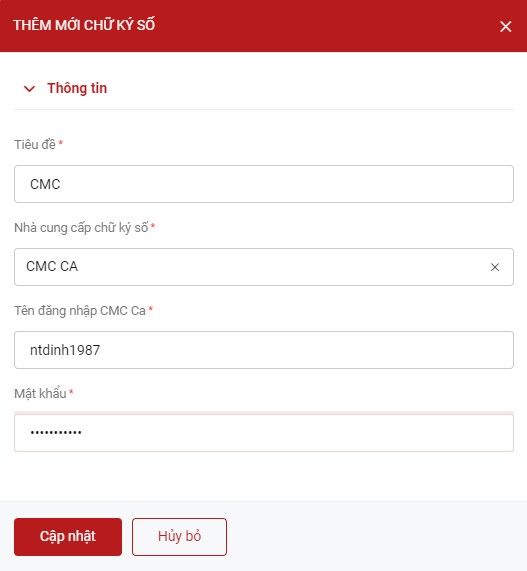
- Enter data to integrate the digital signature:
| No. | Field Name | Description |
| 1 | Title | Set a title for your digital signature |
| 2 | Digital Signature Provider | Select your digital signature provider. 1Office currently integrates with 4 providers: VNPT, CMC, FPT, BKAV. |
| 3 | Username and Password | Enter the login information registered by the provider |
- Click
 to save
 to save
Some fields to note
| No. | Field Name | Description |
| 1 | Set as default | Select a digital signature as the default if you have multiple digital signatures. |
| 2 | Share | After integrating the digital signature, the manager can share this signature with authorized personnel for signing. |
2. Signing an Employment Contract
Once the Digital Signature is set up, users can sign employee employment contracts. The parties who can sign an employment contract are: the manager (employer) and the employee (employee).
Steps for a manager to sign an employment contract:
Step 1. On the contract details screen, select the Digital Signature action.
Step 2. Select the file to sign.
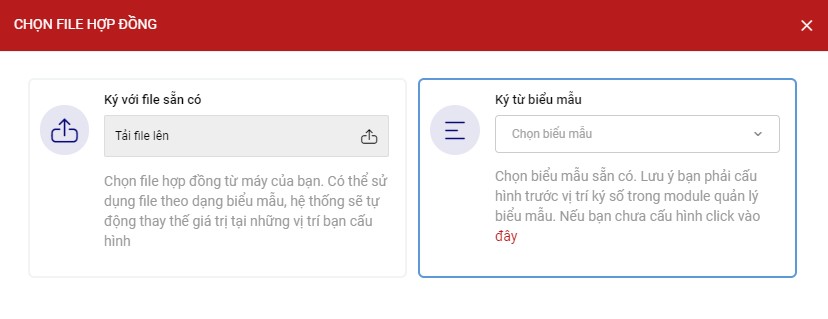
- Sign with an existing file: You can select existing files from your device. The user selects Upload file, then chooses the contract file available on their computer.
- Sign from a template: Allows the user to select a Word template file to sign.
Step 3. After selecting the file -> Click to select the Provider
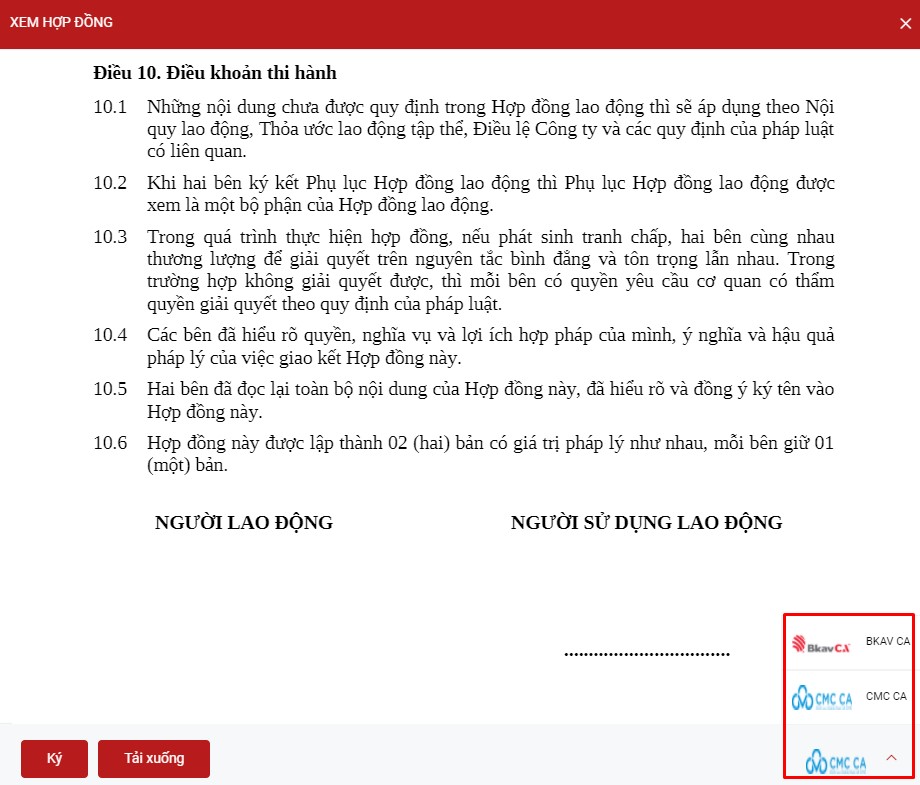
Step 4. Click Sign and complete the signing process on the pop-up that appears.
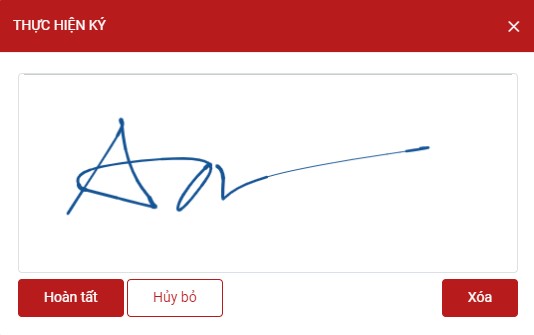
Step 5. Click  to complete the signing.
Note! When signing via the CMC provider: The user must enter the security code required by the provider.
After signing, the signer’s account will receive a successful signing notification. The notification will be sent via email and to the employee’s 1Office account for the employee to sign.
Steps for an employee to sign
After receiving the notification, the employee clicks on the notification content to be directed to the contract details screen. Then, they perform the same steps as the manager. Once the employee has signed, a notification will also be sent back to the manager to inform them that the signing is complete.
Digital Signing in a Workflow
- The manager has full authority over the workflow task, including performing the signing action.
- Followers can only view the workflow and do not have permission to edit or perform digital signing.
- Select the department, user, or position to perform the signing action in the Parameter settings for the Digital Signature node.
To perform digital signing within a workflow in the 1Office Work module, follow these steps:
Create a workflow template using the Digital Signature node:
Step 1. In the Work module, select the  icon > select Workflow Template.
Step 2. Right-click on the Workflow Settings frame > Add digital signature
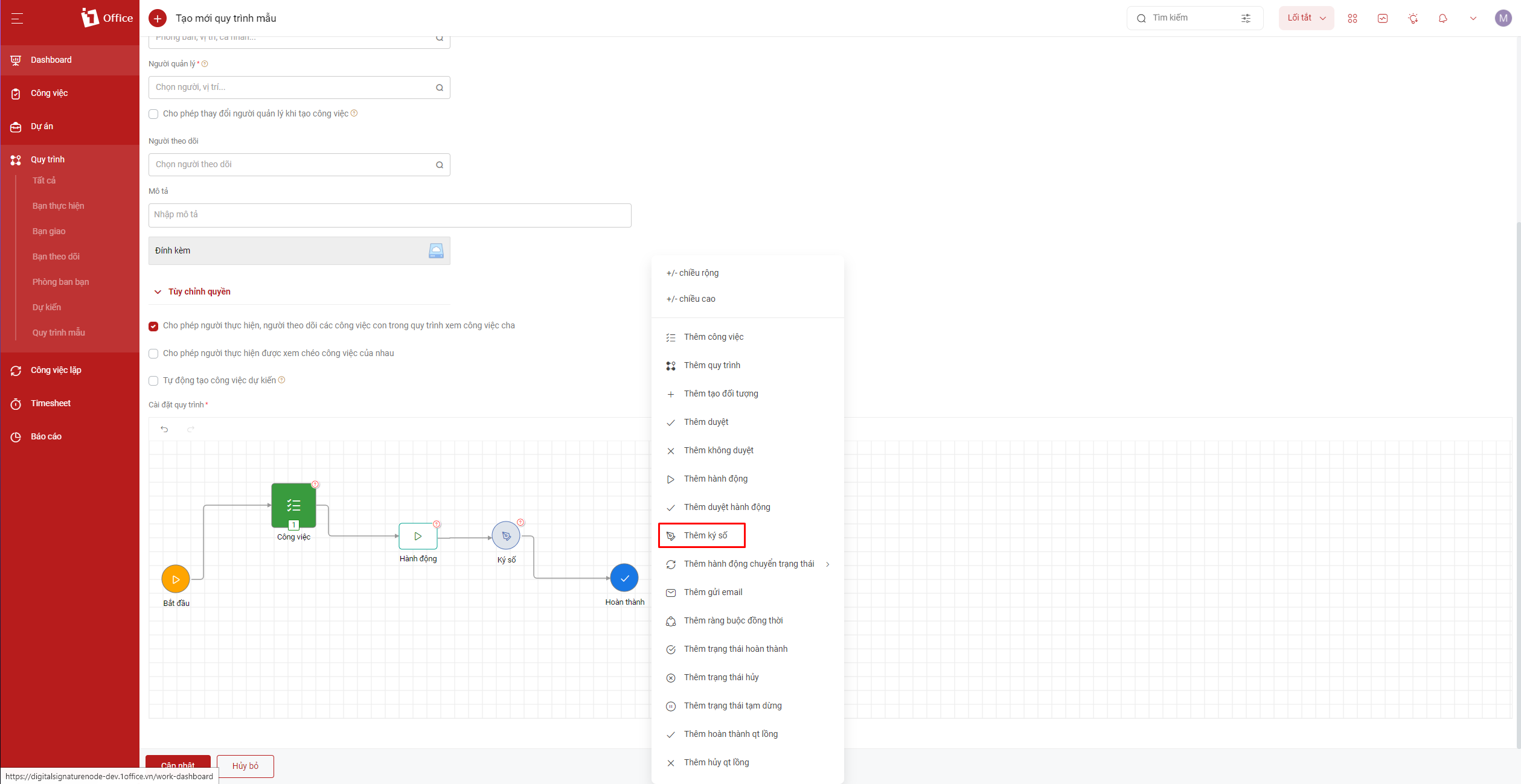
For detailed instructions on how to create a workflow template, please refer to: Guide to creating a workflow template
Note!:
- The Digital Signature node cannot be directly connected to a Task node; it must be connected via an Action node.
- A Digital Signature node can be connected to other Digital Signature nodes.
- The Digital Signature node can be connected to Status nodes.
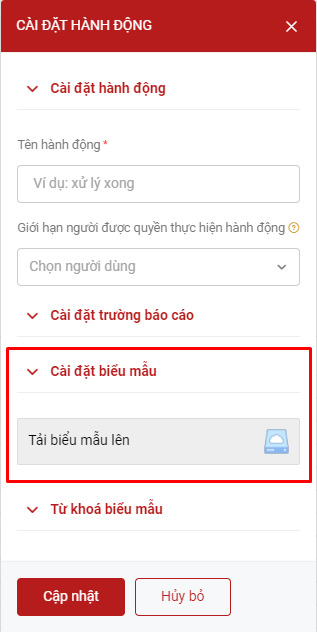
Step 3. Upload the template from the parameter settings of the Action node
- Right-click on the Action node > select Parameter settings
Step 4. Configure parameters for the Digital Signature node
- Right-click on the Digital Signature node > Select Parameter settings
Note!: If the workflow manager has already signed, the assignee can only view the workflow and does not have permission to edit or perform the digital signing.
- In Template Settings > Check Digital Signature > Select the
 icon to configure the template file.
 icon to configure the template file.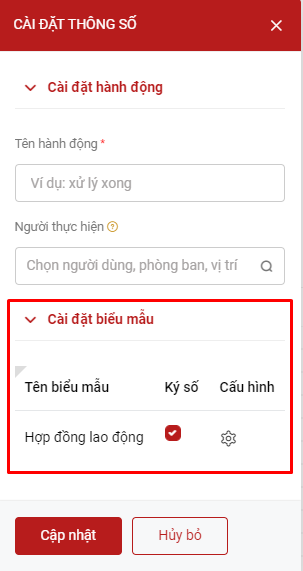
Step 5. Select the  icon to display the signature box > Drag and drop the signature box to your desired position.
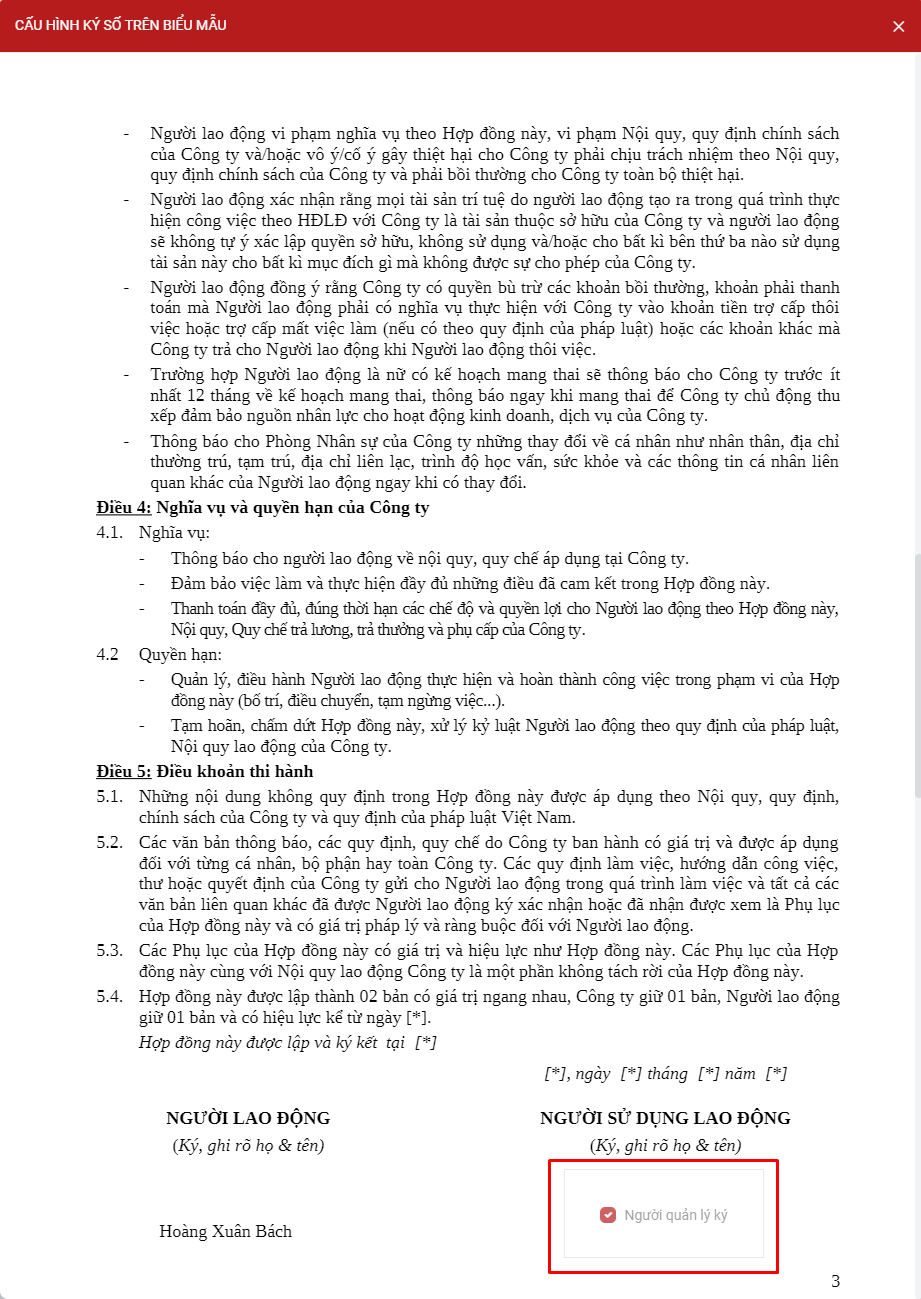
Step 6. After setting up and saving the workflow template > Create a workflow using the newly created template > Select to execute the Digital Signature step.
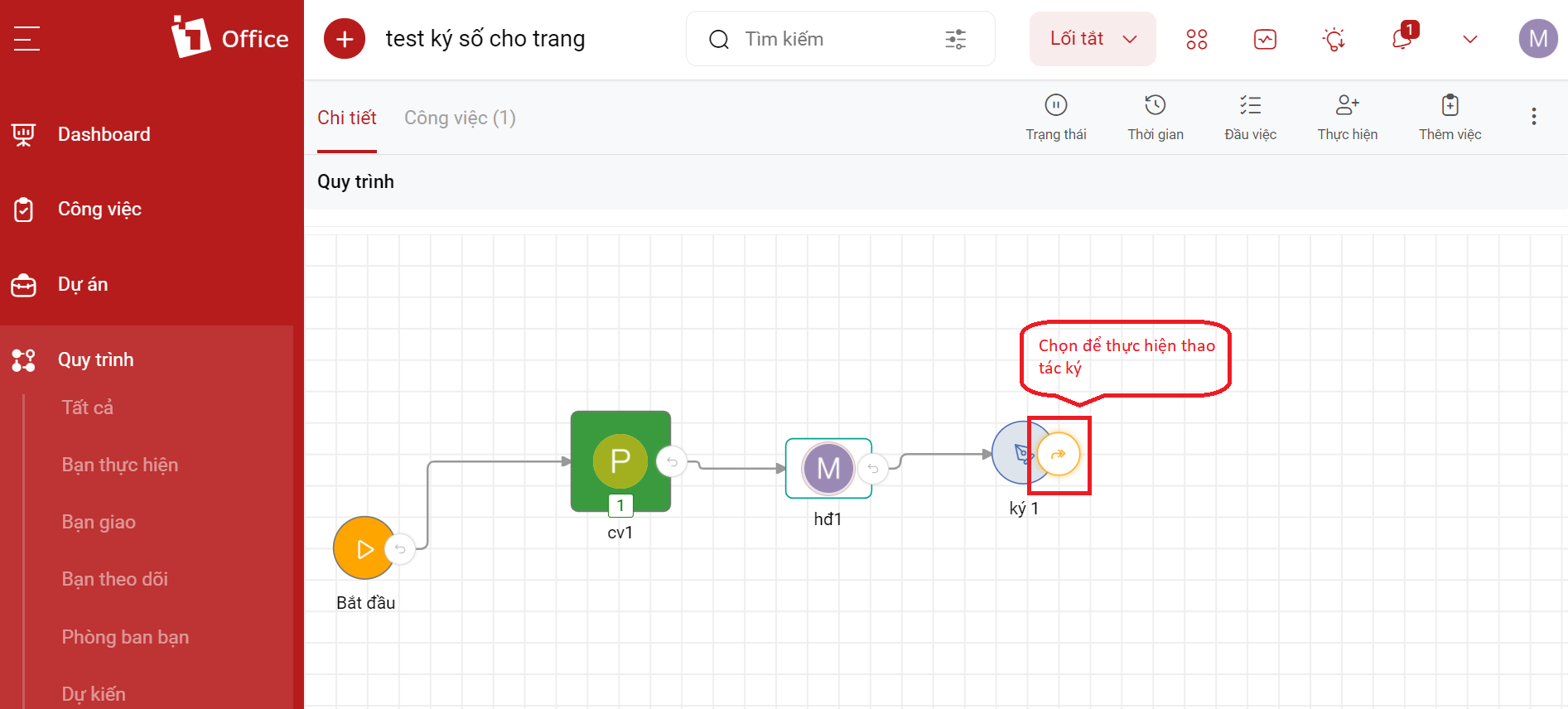
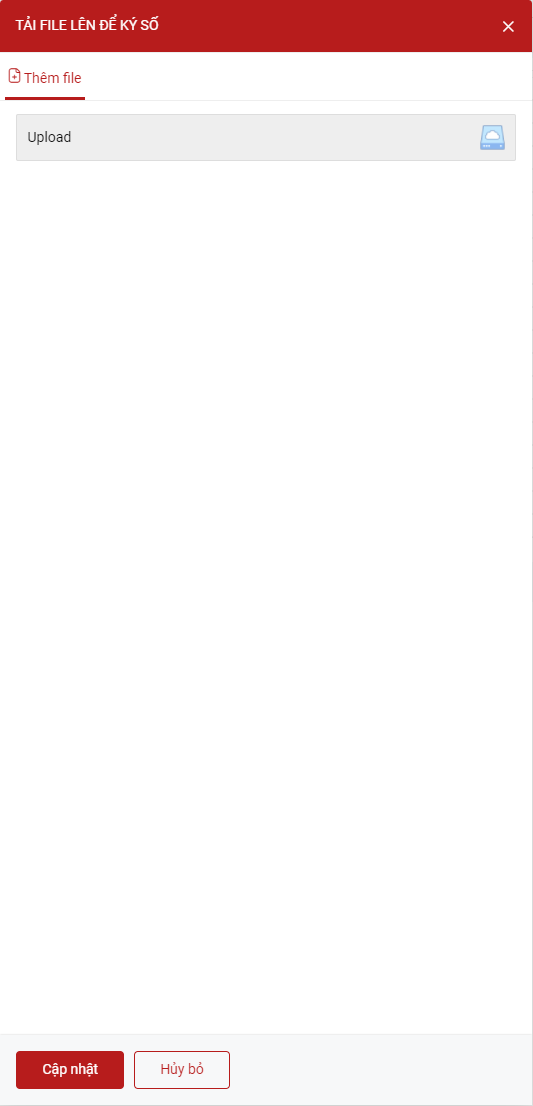
- You can upload a template at this step if you have not already added one in Step 3.
- The Digital Signature Popup appears at the process step > Select Signature Provider
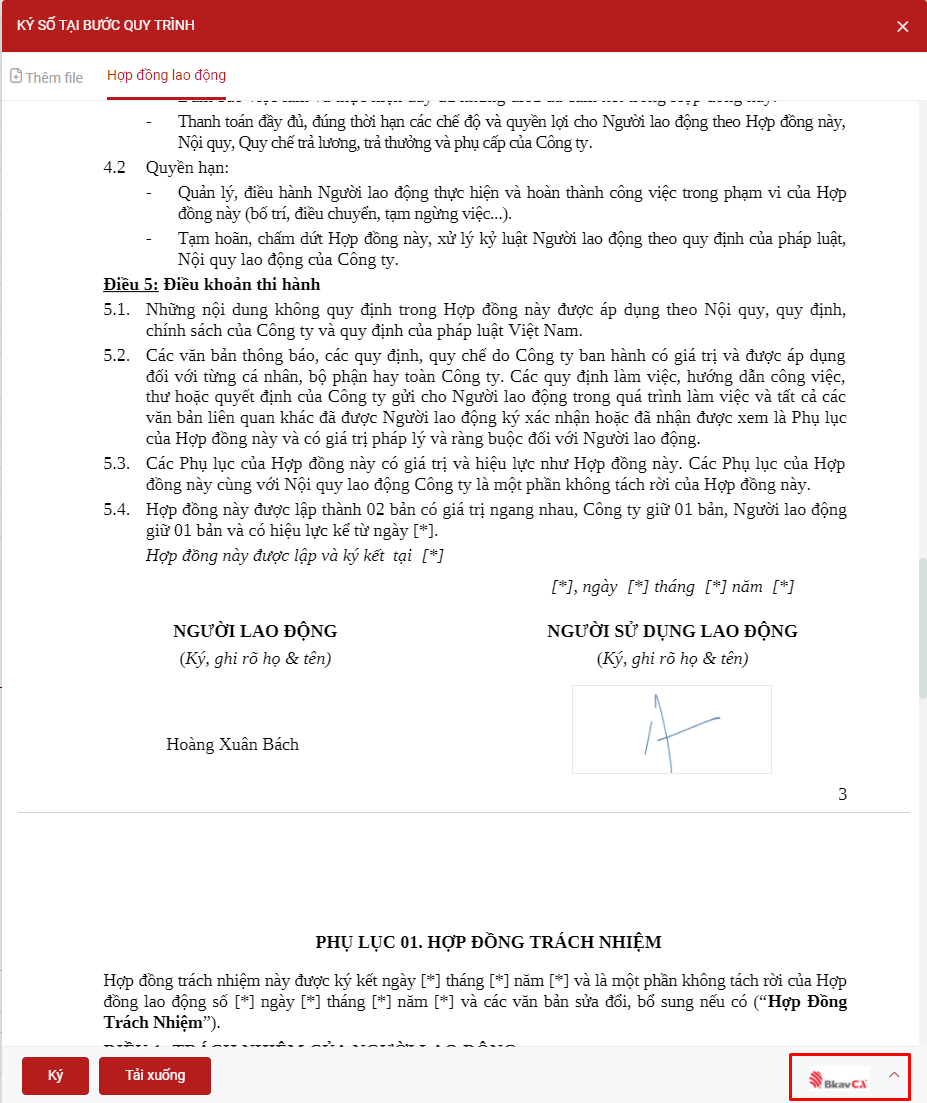
Step 7. Click Sign and perform the signing on the popup that appears
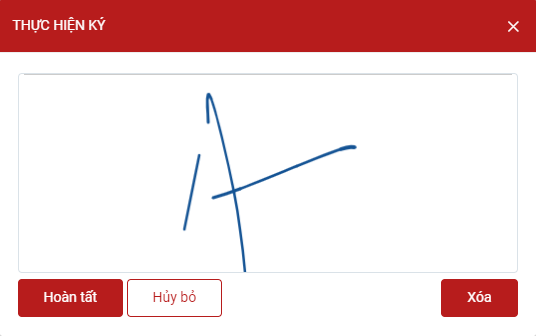
Step 8. Click  to complete the signing.