


 13/05/2026
  214 views
To provide a better user experience, 1Office has added a new feature, “Recurring Task,” to help users save time and be more flexible in their work.
Mục lục
1. Recurring Task
Recurring Task is a feature that allows you to create tasks that need to be repeated on a set date. If you have tasks that repeat frequently, Recurring Task will allow you to repeat that task without having to create it from scratch, helping you save time and effort at work.
These tasks can be part of your daily work that needs to be completed each time, such as: sending daily notes, meeting minutes, invoices at set intervals, and marketing newsletters…
Recurring Task Settings in 1Office acts as an automation system and becomes an indispensable part of your workflow.
2. How to start using recurring task settings?
Recurring Task Settings is a special feature that 1Office applies to Regular Tasks and Process Tasks to maximize task management for your business.
To manage recurring tasks on 1Office, follow these 2 steps:
Step 1: Guide to setting up recurring tasks
Step 2: Managing recurring tasks
Step 1: Guide to setting up recurring tasks
To get recurring task settings to work, you first need to create your recurring task.
Once it is created and ready to go, you must define the expected duration of the recurring task to run it in a loop.
To set up a recurring task, follow these steps:
- Go to the detail screen of the task you want to make recurring (periodic task)
- Select More in the top right corner of the screen > Select Recurring Task Settings
- Enter the necessary information, and the system will automatically display a detailed description of the recurring task settings
- Select Update to save
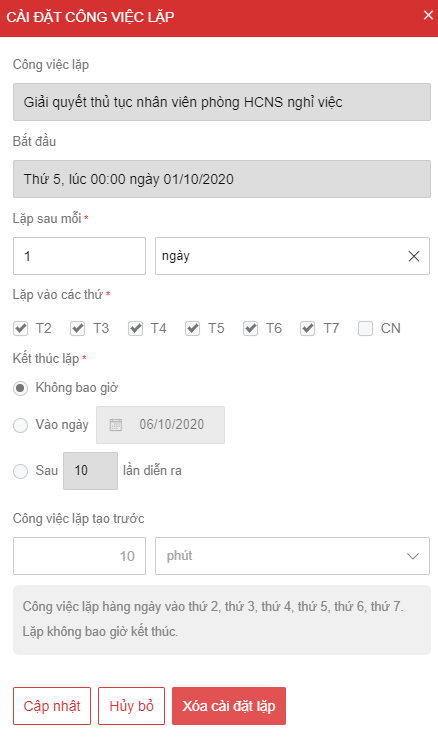
- Fields marked with a red * are required
- If the task has no expected duration, the recurring task setting cannot be applied
Fields to note:
| No. | Field Name | Feature |
| 1 | Recurring Task | Displays the name of the recurring task to be set up. |
| 2 | Start | The expected start time of the recurring task. |
| 3 | Repeat every | Allows selecting the repeat interval and type: Day, week, month, quarter, year. |
| 4 | Repeat on | Allows selecting which days of the week the task repeats on. |
| 5 | End repeat | Allows selecting when the repetition ends: Never, on a specific date, or after a certain number of occurrences. |
| 6 | Create recurring task in advance | Set how far in advance the recurring task is created. |
| 7 | Delete repeat settings | Allows deleting the repeat settings when no longer needed (only displayed if the recurring task has previous repeat settings). |
After completing the recurring task setup, the Recurrence schedule field will be automatically added to the recurring task details screen, with a detailed description of the conditions for generating the recurring task.
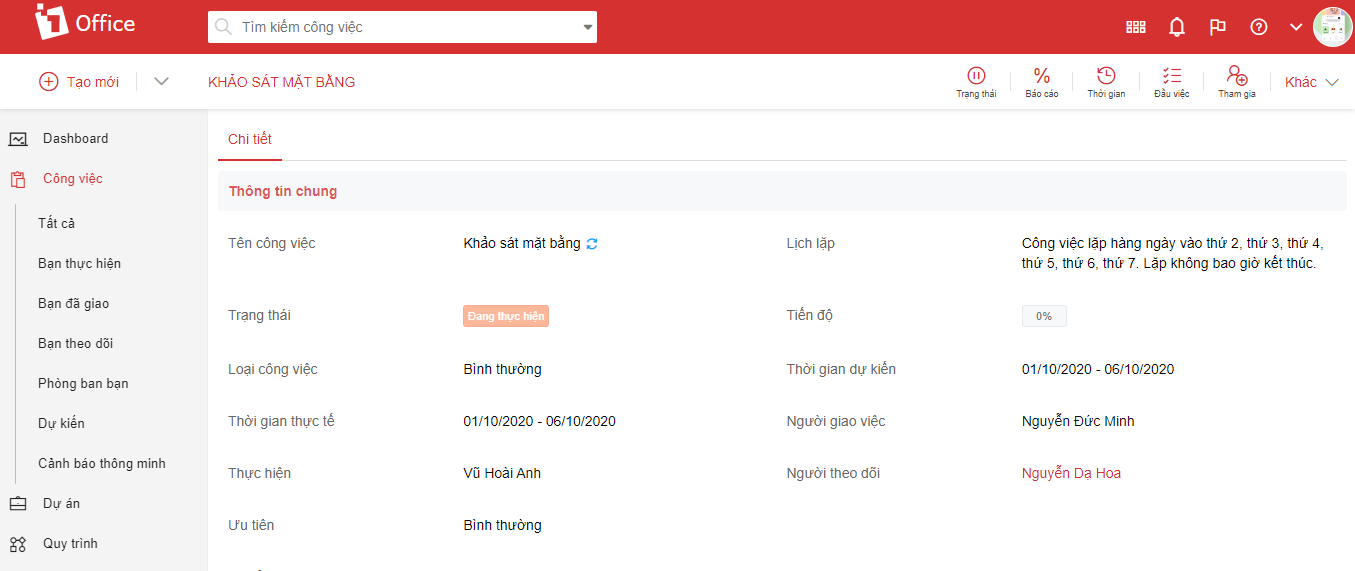
Step 2: Manage recurring tasks
Recurring tasks & Task history
When recurring tasks are generated from a periodic task, the system displays a list of all automatically created recurring tasks on the periodic task details screen.
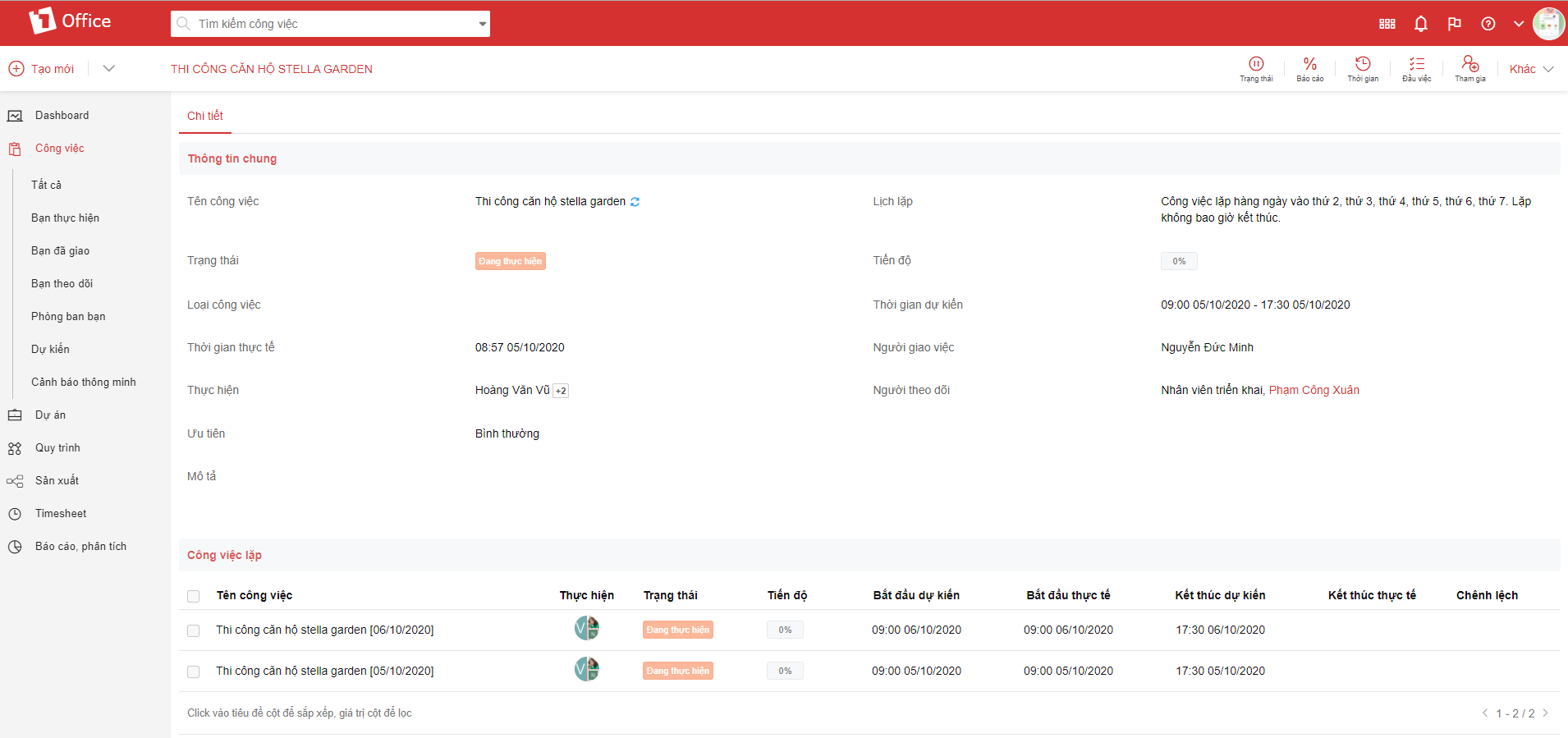
Alternatively, the recurring task will be displayed in detail in the Task history. To access the recurring task history, follow these steps:
- On the periodic task details screen
- Select More in the top right corner > Select Task history
In the Task history popup, the system will save all actions related to the recurring task setup, such as: Setting up a recurring task, automatically generated recurring tasks, Editing the recurring task setup, and Deleting the recurring task setup.
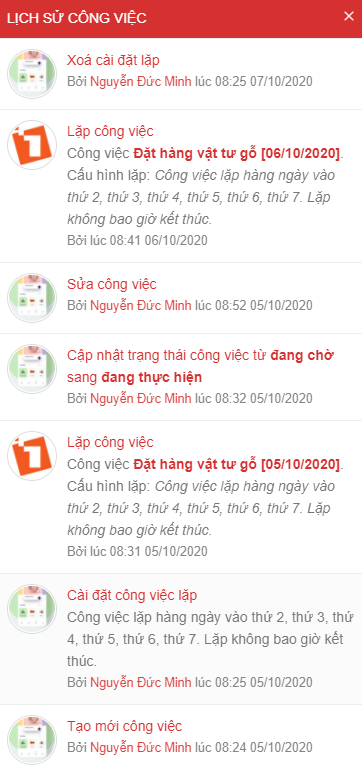
In the Task history popup of the recurring task, the recurring task will save the history of its generation from the periodic task.
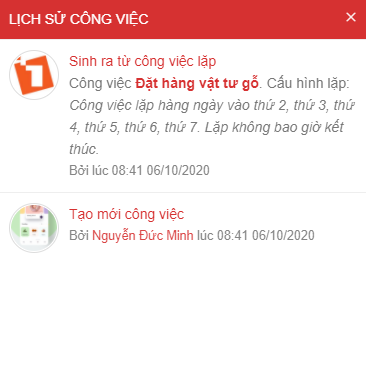
List of recurring tasks
- Go to the Work module > Select the arrow icon next to the Task List section in the top left corner
- Select Recurring tasks
Displays a list of all periodic tasks with Recurring task setup:
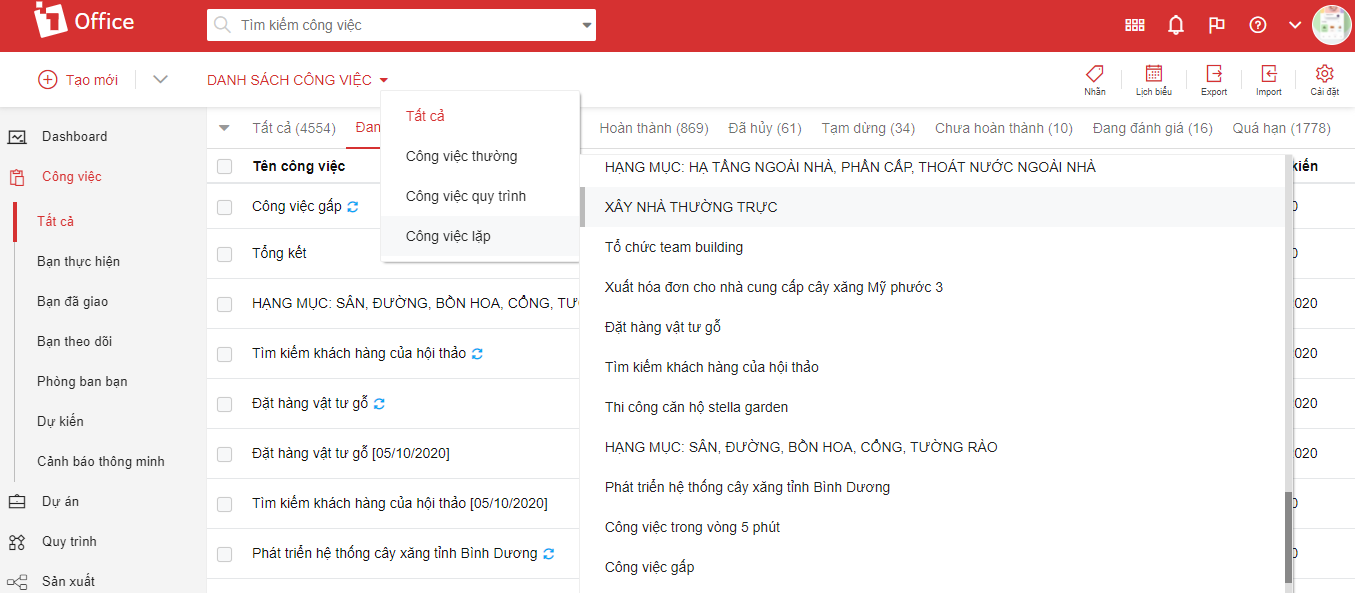
After selecting Recurring tasks, the system will display a list of tasks with recurring setups and tasks that have been repeated:
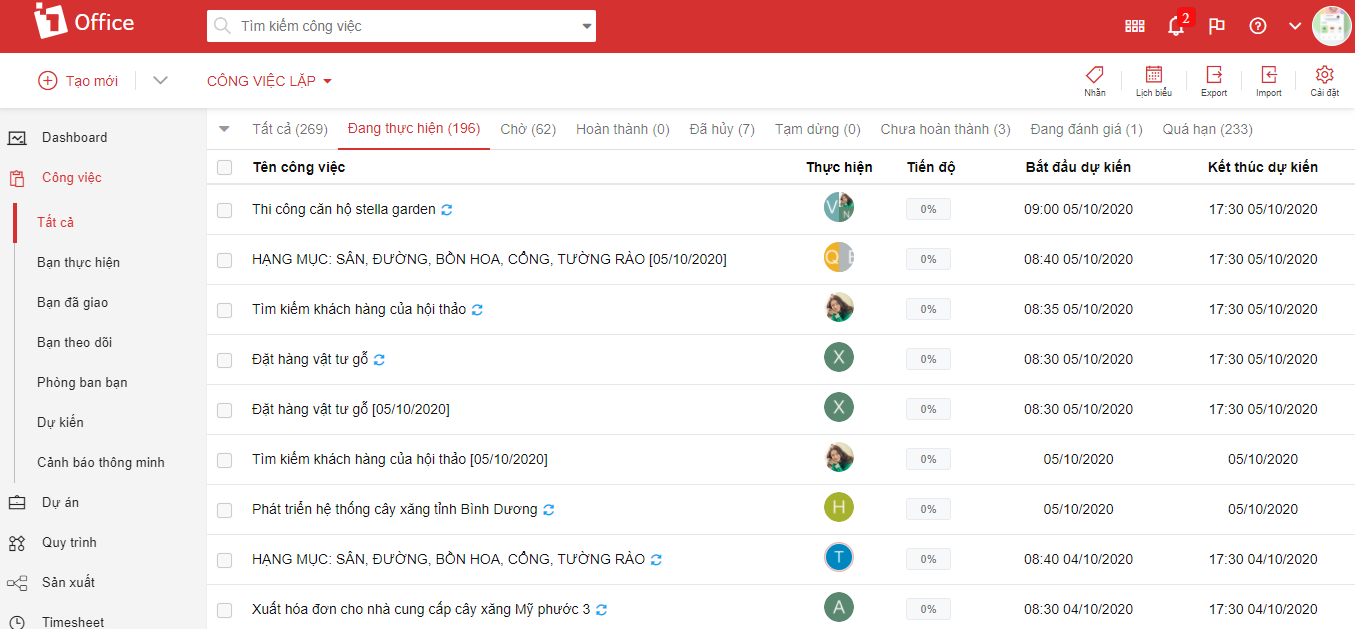
- Regular tasks with a recurrence schedule will have the
icon next to the task name.
- Recurring tasks generated from a periodic task will have [dd/mm/yyyy] next to the task name (dd/mm/yyyy is the date the recurring task was automatically created).
 icon next to the task name.
This is a new feature upgraded by 1Office in October 2020. In addition, we will continue to research, upgrade, and add more new features in the future.
1Office hopes to bring many new experiences to customers who trust and use the 1Office application – The comprehensive business management solution.
















