


 13/05/2026
  216 views
To enhance the user experience, 1Office has added a new “Add milestone” feature in the Project section, helping users manage projects more visually and easily.
1. The Add Milestone Feature
This feature allows managers or users with full permissions in the Work module to create Milestones in a project.
A Milestone is an important “marker” for a Project. These milestones are indicators that mark the beginning or end of a very important phase or event, signifying the development and completion of a Project.
A Milestone focuses on important and very useful points in the Project‘s progress. Its purpose is to break down a large project into manageable phases, making the project management process easier.
2. How to add a milestone in 1Office?
Add Milestone is a feature that 1Office provides during Project execution. Before adding a Milestone, you must create a Project and the tasks within that Project.
To add a Milestone, follow these steps:
- On the Project details screen > Select Add Milestone in the top left corner of the screen
- Enter the necessary information
- Select Update to save
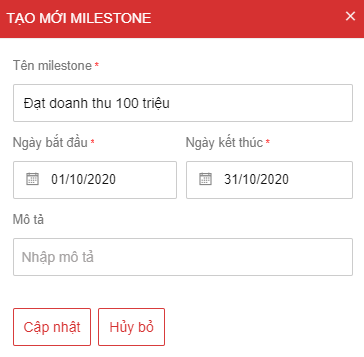
- Information fields with a red * are required
- Milestones with duplicate names cannot be created
- A project can have multiple milestones, and the time ranges of milestones within a Project are not allowed to overlap
Fields to note:
| No. | Field Name | Feature |
| 1 | Milestone name | Enter the milestone name to be displayed on the Gantt Chart |
| 2 | Start date
End date |
Select the start and end time for the milestone |
| 3 | Description | Enter a description for the milestone |
3. Milestone Management
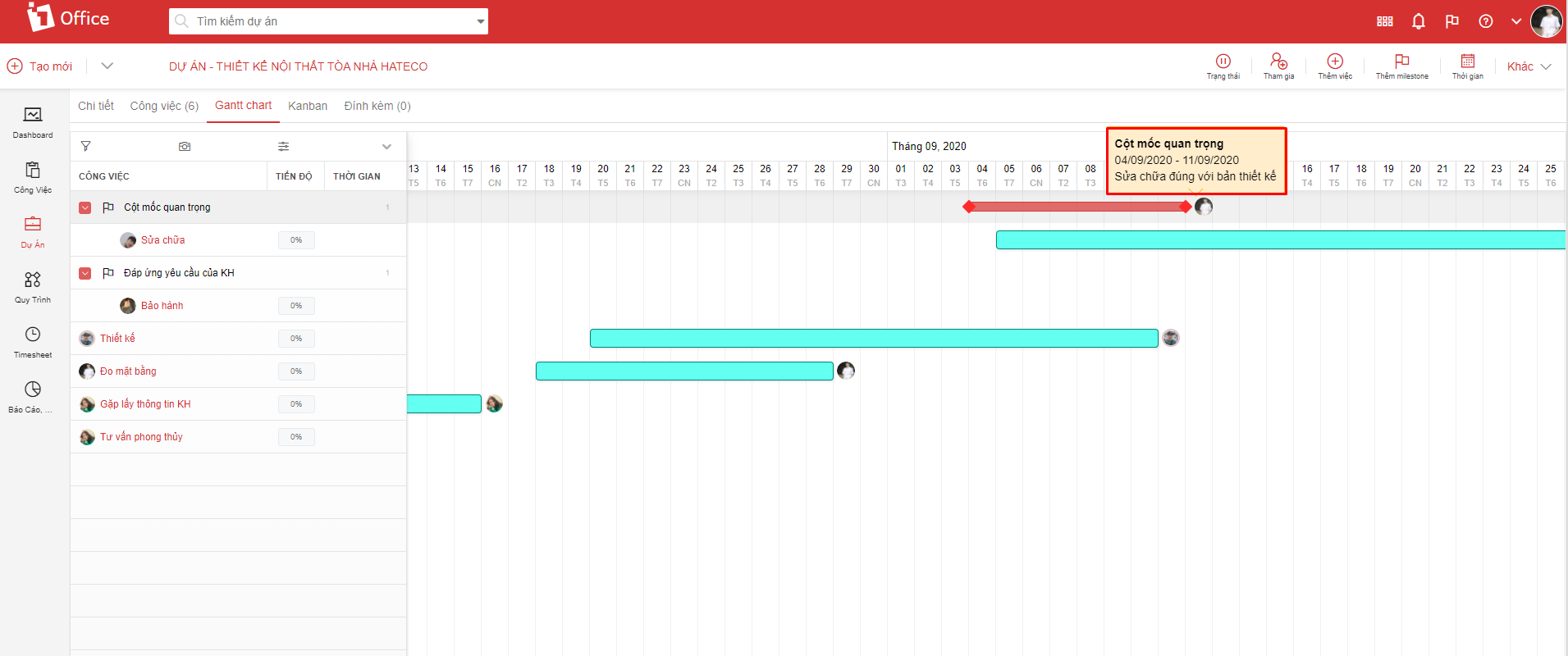
On the project’s Gantt chart screen, the milestone name has a flag icon and is displayed as a horizontal red bar.

Milestones and tasks are displayed in a parent-child relationship if the task’s planned start time is greater than or equal to the milestone’s start time
To change the start and end time of a milestone, 1Office provides 2 ways to do this:
- Move the milestone
- Use the Edit milestone action
Method 1: Move the milestone
On the project’s Gantt chart screen, drag the two ends of the milestone or move the entire milestone bar. The milestone will then display a note showing the time change corresponding to the movement, as follows:
 Method 2: Use the Edit milestone action
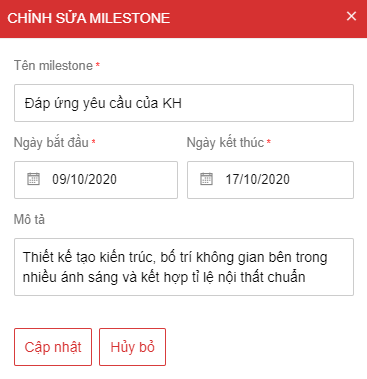
- On the project’s Gantt chart screen > Right-click on the milestone > Select Edit
- Enter the information to be edited
- Select Update to save
Milestone management features:
| No. | Feature Name | Permissions | Description |
| 1 | Edit | Administrator
User with full permissions for the Work module |
Managers and users with full permissions can edit information within the milestone. |
| 2 | Delete | Administrator
User with full permissions for the Work module |
Managers and users with full permissions can delete information within the milestone. The system provides 3 deletion options:
|
4. Milestone History
When a manager creates milestones and performs actions related to them, the system will save all actions in the Project History. To access the project history, follow these steps:
- From the project details screen
- Select More in the top right corner of the screen > Select Project History
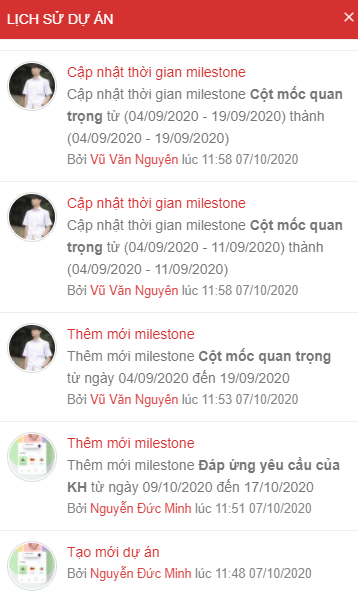
This is a new feature upgraded by 1Office in October 2020. Additionally, we will continue to research, upgrade, and add more new features in the future.
1Office hopes to bring many new experiences to the customers who trust and use the 1Office application – The all-in-one business management solution.
















