






 10/05/2026
  10299 views
An Excel inventory management file is a cost-effective and easy-to-implement solution for small stores or businesses that don’t yet need specialized software. With ready-made templates, you can quickly and accurately track receipts, issues, inventory levels, product quantities, and basic reports.
In this article, 1Office has compiled 7+ free Excel inventory management files, complete with detailed instructions to help you manage your inventory more effectively.
1. Information needed in an Excel inventory management file

An effective Excel inventory management file needs to contain all the basic information, arranged logically and scientifically to ensure that users can easily track and manage it. Below are the necessary sections and information that the file creator needs to understand clearly:
Basic product information
- Product Code: A unique identifier to distinguish each type of item
- Product Name: Helps easily identify the item without further lookup
- Unit of Measure: For example – piece, kg, box, to avoid confusion in quantity management
Inventory Levels
- Quantity In: The quantity of goods received into the warehouse over a period of time
- Quantity Out: The quantity of goods issued from the warehouse during the same period
- Quantity on Hand: Automatically calculated based on the formula: Quantity on Hand = Quantity In – Quantity Out
Shipment information
- Date In: Helps track the product lifecycle
- Date Out: Identifies when the goods were issued from the warehouse
- Expiration Date (if any): Especially important for products with a shelf life, such as food and cosmetics.
Goods value
- Cost Price: The purchase price of the product.
- Selling Price: The expected or actual price when sold
- Total Value: The total value of goods calculated by the formula: Total Value = Cost Price x Quantity In
Goods status
- Status: In stock, out of stock, defective, pending
- Storage Location: Storage area, shelf for easy retrieval
Automated reports
- Inventory Summary: Summarizes the on-hand quantity of all products
- Best-Selling Products: Identifies the products with the highest issue quantity in a specific period.
- Near-Expiry Items: Alerts for items approaching their expiration date
- Sales Statistics: Sales by product code, product group, or other criteria
Receipt – Issue History
- Transaction Date: The date the receipt or issue activity occurred
- Person in Charge: The employee responsible for the transaction
- Transaction Description: Notes on the reason for receipt/issue (e.g., issue for delivery, receipt for replenishment, etc.)
Table of Contents or Dashboard
- A separate sheet serving as a dashboard, containing links to each specific, detailed sheet
- Displays an overview of key metrics: Total inventory, near-expiry items, best-selling products, etc.
2. Collection of 7+ free Excel inventory management file templates
To help you save design time and apply them immediately, here are 7+ Excel inventory management file templates that have been carefully compiled and selected. Each template has a clear layout, automatic calculation formulas, and is easy to customize to the specific needs of each business
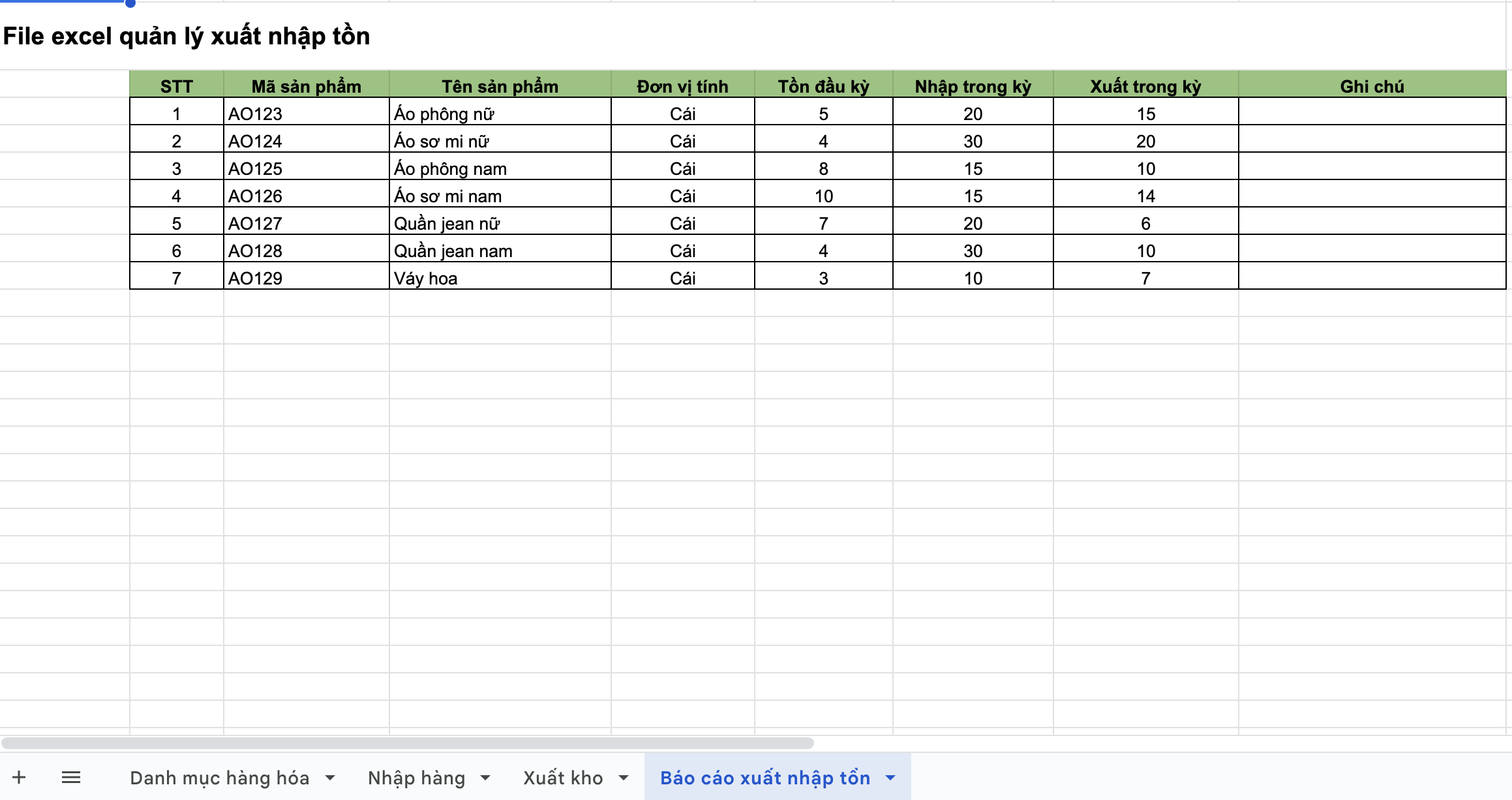
2.1. Basic Excel template for managing goods receipts/issues
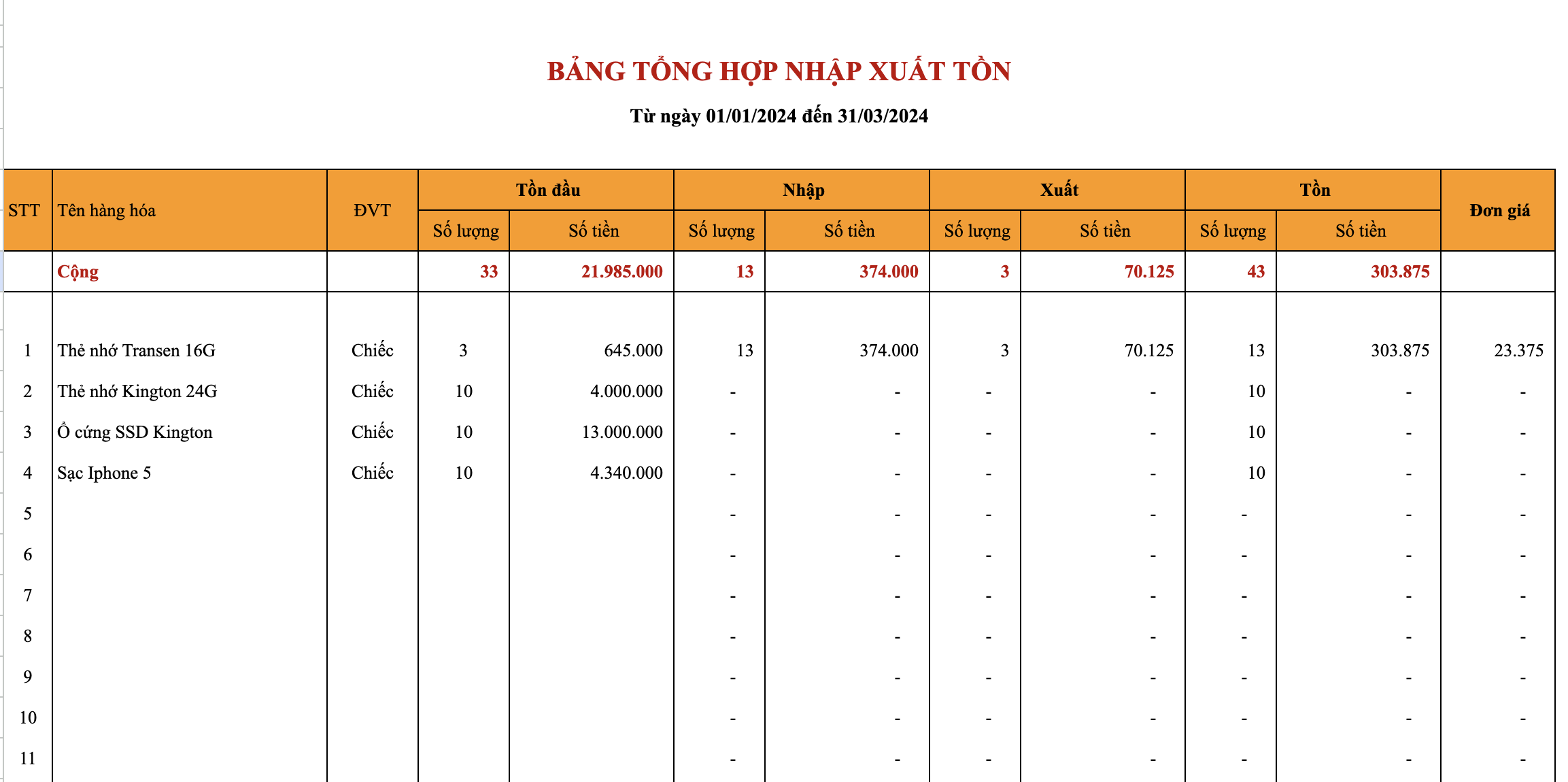
2.2. Detailed Excel Template for Goods Import/Export Management
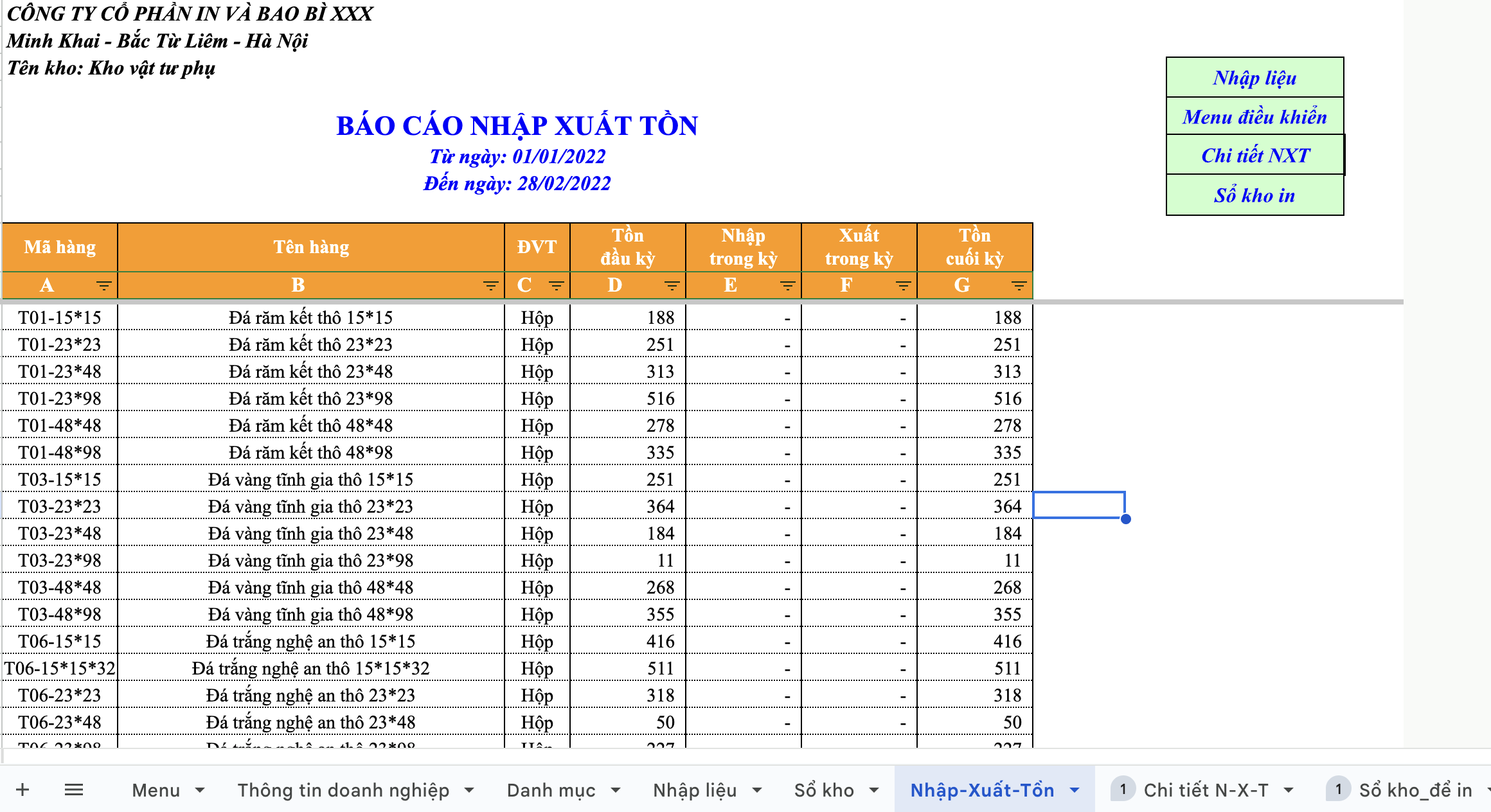
2.3. Excel Template for Materials Import/Export Management
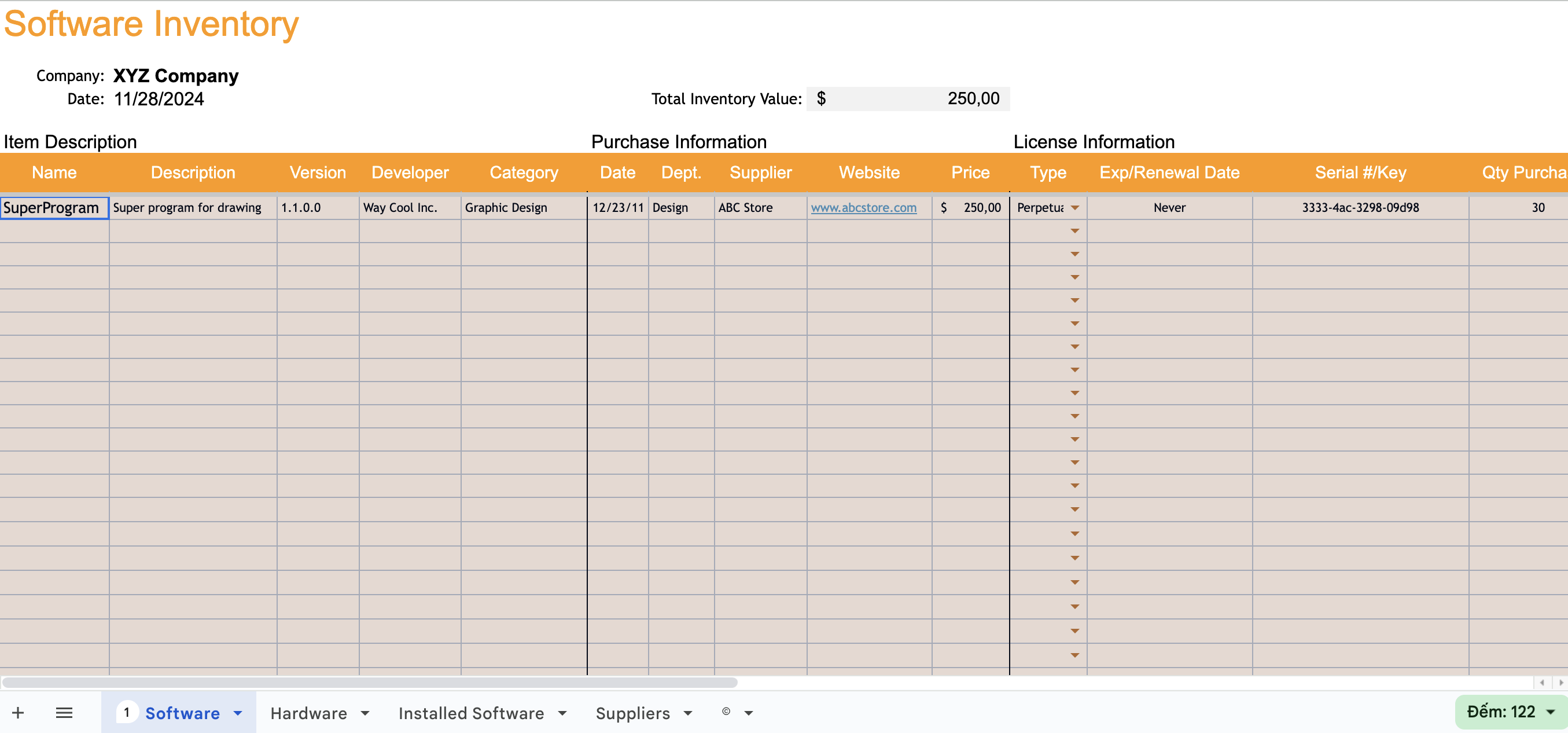
2.4. Excel Template for Hardware/Software Import/Export Management
2.5. Excel Template for Beverage Import/Export Management
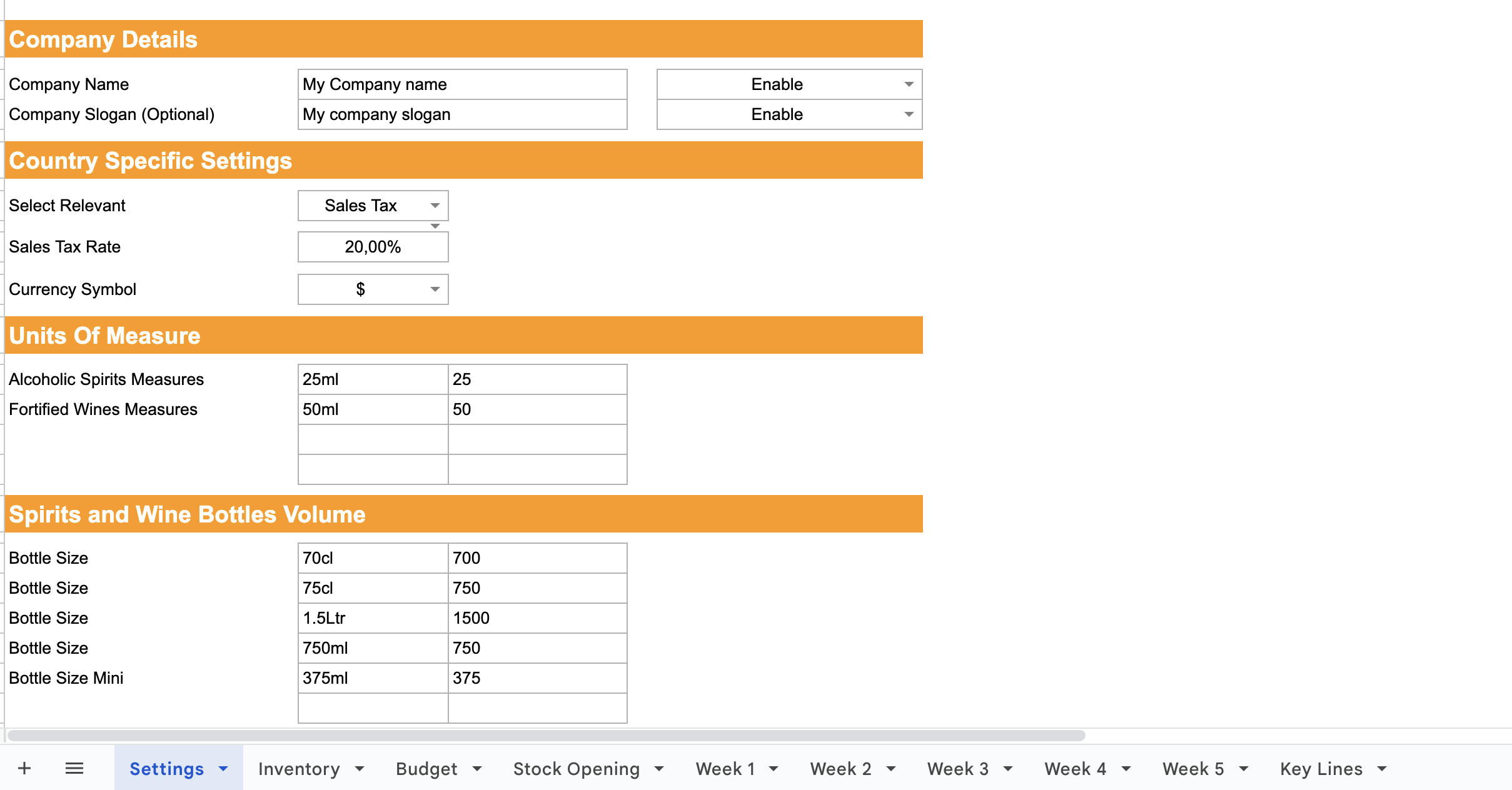
2.6. Excel Template for Inventory Management for Trading, Service & Construction Companies
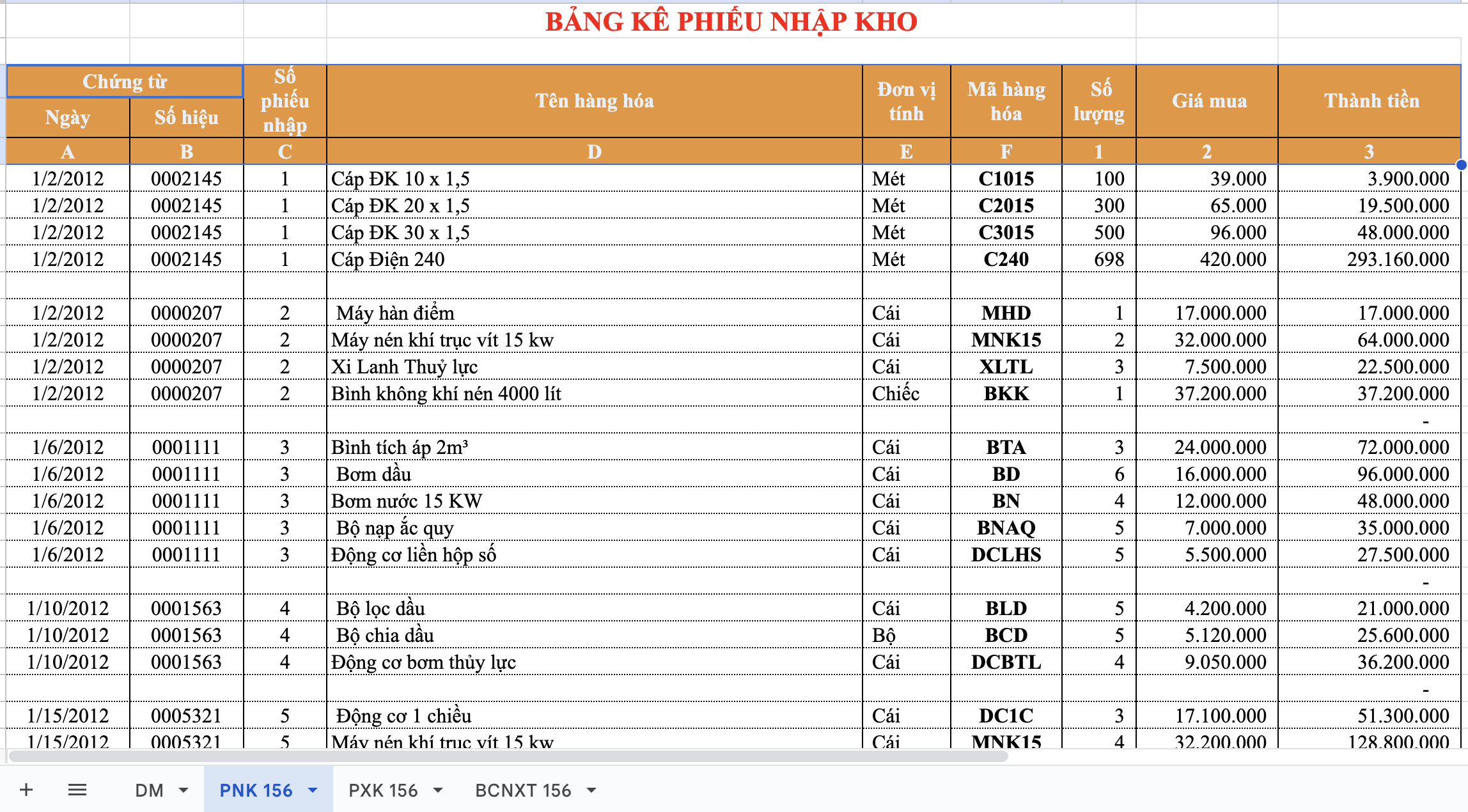
2.7. Excel Template for Inventory Management with Formulas
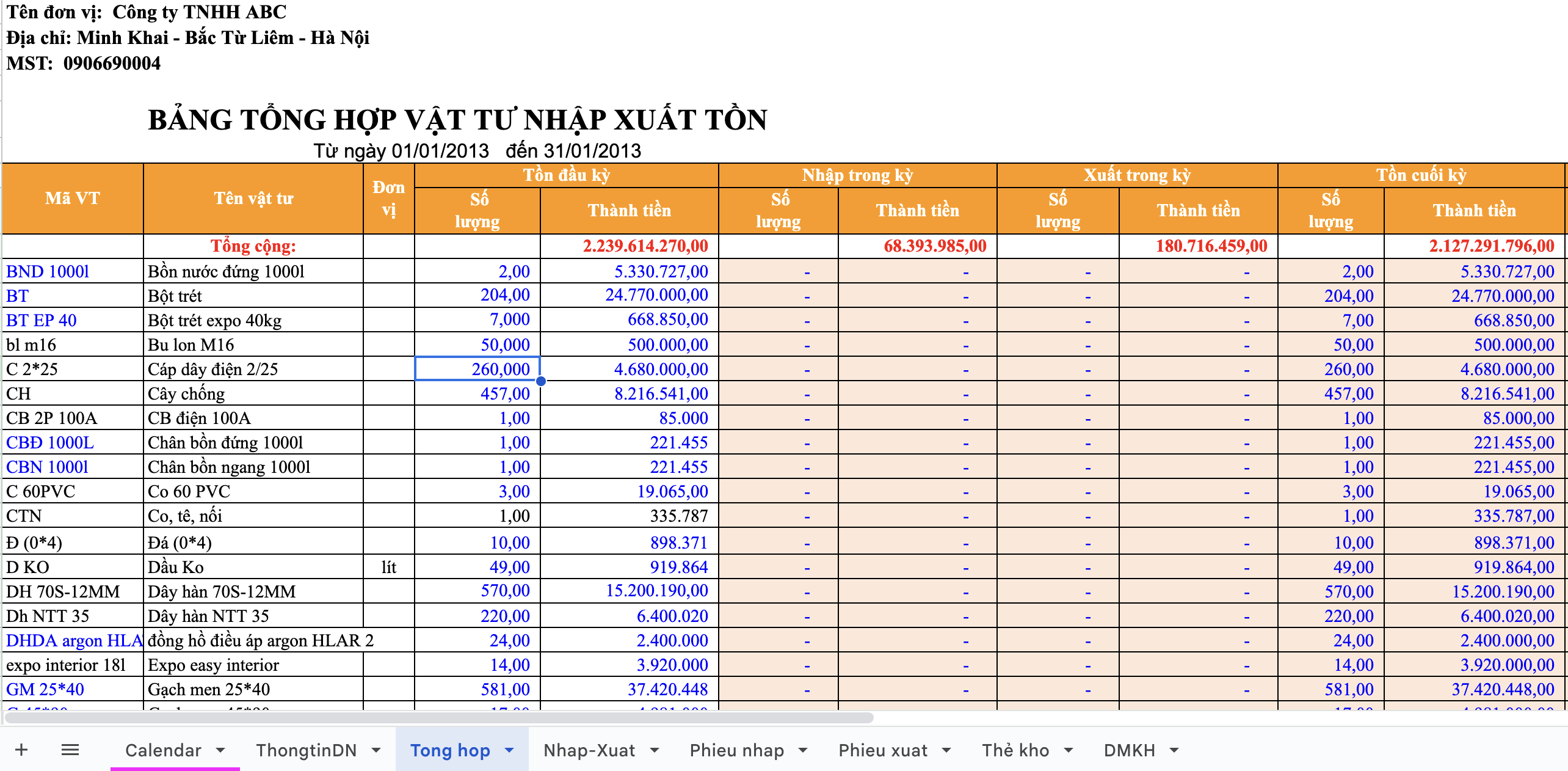
2.8. Excel Template for Warehouse Management with Barcode Integration
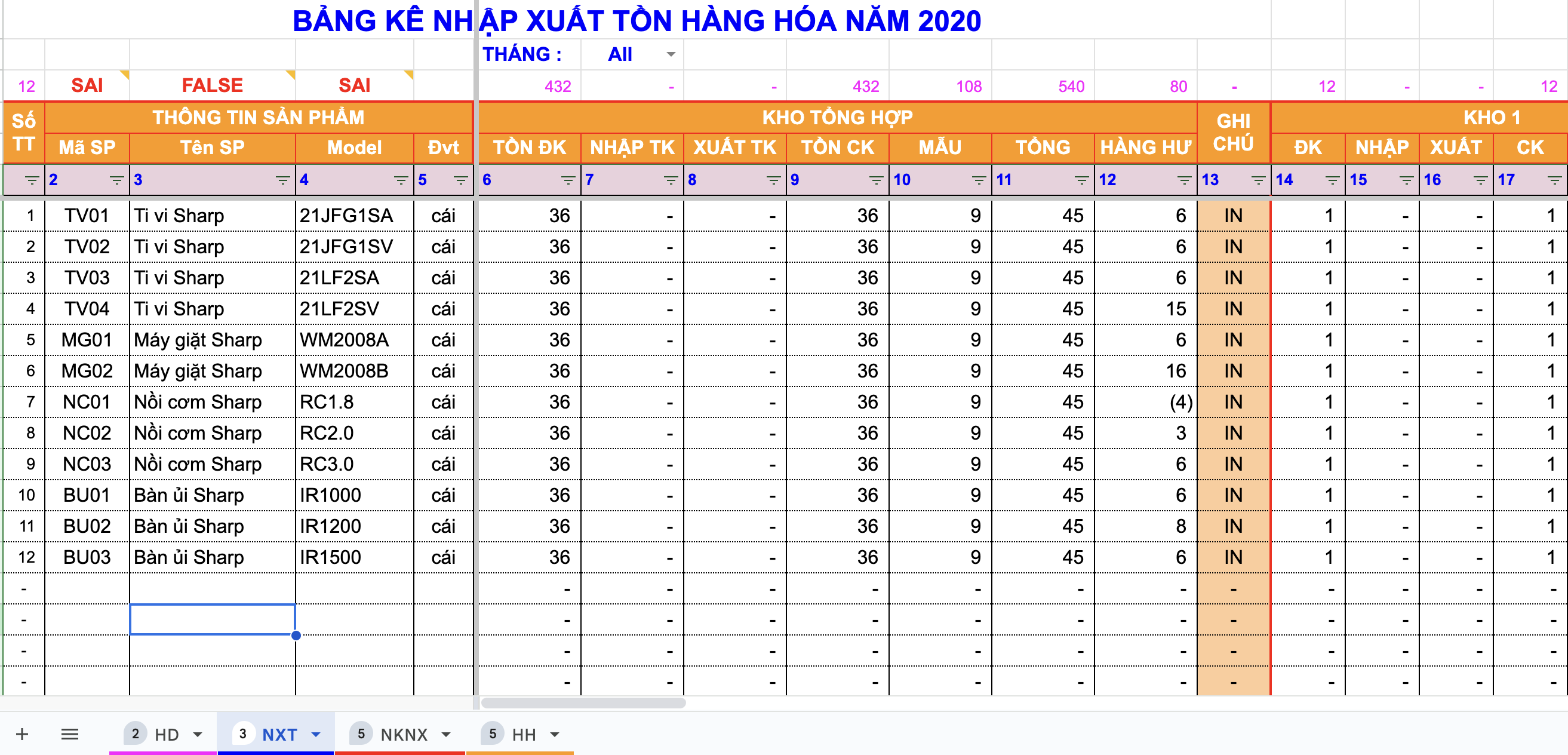
3. Guide to Creating a Warehouse Management File Template in Excel
Depending on the industry and specific characteristics, each business will have a different process for creating a warehouse management file in Excel. Here are 3 basic steps that you and your business can refer to and adjust to fit your company’s needs:
Step 1: Prepare and open the Excel application:
- Open Excel > select File > New to create a blank file
- Name the file according to your needs and purpose, for example: “Inventory Management.xlsx”
Step 2: Create the necessary sheets
- On the toolbar, click Insert > New Sheet
- Create the basic sheets, including:
- Home Sheet: General business information (Company name, file creation and usage time, user guide, etc.)
- Category Sheet: List of goods including (Name, item code, quantity, supplier, etc.)
- Import Sheet: Records details of warehouse import transactions (Import date, quantity, unit price, etc.)
- Export Sheet: Records details of warehouse export transactions (Export date, quantity, unit price, etc.)
- Report Sheet: Summary report on warehouse activities (Import-export-inventory report, sales report, etc.)
Step 3: Collect, synthesize, and enter data for each type of goods
Here are some commonly used formulas in an Excel inventory management file.
Note: Customize information: Flexibly add or remove information columns based on your company’s business sector.
| Function/Formula | Example Formula | Application |
| SUM | =SUM(B2:B10) | Total quantity of goods imported, exported, or in stock. |
| IF | =IF(C2=0,”Out of stock”,”In stock”) | Check inventory status (in stock or out of stock). |
| VLOOKUP | =VLOOKUP(A2,Category!A2:E100,2,FALSE) | Look up product name based on item code. |
| HLOOKUP | =HLOOKUP(“Quantity”,A1:Z10,2,FALSE) | Look up information horizontally (by row). |
| LEFT / RIGHT | =LEFT(A2,3) | Extract supplier code or item code. |
| TEXT | =TEXT(TODAY(),”dd-mm-yyyy”) | Display the current date in a specific format. |
| NOW | =NOW() | Get the current date and time. |
| COUNTIF | =COUNTIF(Import!B:B,”A01″) | Count the import/export quantity of a specific type of good. |
| SUBTOTAL | =SUBTOTAL(9,B2:B20) | Total import or export quantity in a filtered list. |
| CONCATENATE / TEXTJOIN | =TEXTJOIN(“, “,TRUE,A2:C2) | Combine information (e.g., Name + Customer ID). |
4. What to Keep in Mind When Managing Inventory with Excel?
Create a scientific and user-friendly Excel file
- Organize data logically: Divide the file into clear sheets such as product categories, import/export, etc., making it easy for users to follow.
- Name columns and rows clearly: Columns should have titles that provide sufficient information, such as “product name,” “product code,” etc.
- Add colors and formatting: Differentiating data areas will help you avoid information confusion.
Update data regularly and periodically
- Double-check data entry: Ensure accuracy in quantity, price, and product codes.
- Update promptly: Import/export information should be recorded immediately after each transaction to avoid discrepancies.
Utilize Excel functions and formulas
- Automatic calculation functions: Use functions like SUM, COUNTIF, IF, etc., to easily check quantities, inventory status, and more.
- Link data between sheets: Creating formulas to link sheets helps update import/export figures automatically.
Use data filtering and sorting features
- Filter data: Using the Filter feature will help you look up information more quickly.
- Sort information: Using the Sort feature allows you to arrange goods by name, quantity, value, etc.
Ensure data safety, security, and backup
- Set a password for the Excel file: This will protect important data from unauthorized editing or access.
- Back up periodically: Storing the file on multiple devices or platforms like Google Drive or OneDrive helps prevent data loss.
Check, compare, and reconcile data periodically
- Conduct physical inventory counts: Periodically reconcile the figures in the file with the actual goods in the warehouse to promptly correct discrepancies.
- Review data for errors: Check formulas and figures to detect data entry or calculation errors.
>>> See more: Top 7 effective and professional inventory management software
5. What are the pros and cons of managing inventory with Excel?
Managing inventory with an Excel file is a popular solution, especially for small and medium-sized businesses. Here is an analysis of the advantages and limitations of this method:
Advantages of an inventory management file in Excel:
– Low cost
- Free or minimal cost: Most businesses already have Microsoft Excel or Google Sheets without any additional cost.
- No need for additional software investment: No installation or system maintenance costs are incurred.
– Easy to use
- User-friendly: Excel has an intuitive interface that is easy to learn, suitable for everyone, including non-specialists.
- High flexibility: Users can create their own inventory management file according to the specific needs of the business without spending time or money on programming.
– Supports many useful features
- Automatic calculation functions: Functions like Sum, If, and Vlookup help with quick calculations and minimize errors.
- Data filtering and sorting: Supports easy searching, classifying, and summarizing of information.
- Report creation: Allows for the creation of charts and summary tables to visually assess the inventory situation.
– Easy to customize
- Users can add or remove necessary information such as item name, stock quantity, product value, and supplier.
- Excel files can be shared via email or stored on cloud platforms for use anytime, anywhere.
Limitations of an inventory management file in Excel:
– Limitations on capacity and scale:
- Not suitable for large warehouses: With a very large volume of data, an Excel file can run slowly, freeze easily, or become difficult to process.
- Difficult to manage with multiple users: Excel is not designed for simultaneous data processing by multiple users, leading to the risk of data being overwritten or conflicting.
– Low automation capability
- Manual management and data entry can easily lead to errors and mistakes
- No automatic alerts: Cannot automatically notify when inventory levels are critically low or nearing expiration.
– Security difficulties
- Vulnerable to unauthorized edits: Excel files lack strong protection mechanisms, leading to a high risk of data loss or alteration.
- Risk of data loss: Excel files are easily deleted or lost when stored on personal devices
– Time-consuming data entry and verification:
- Manual data entry: Requires frequent manual updates, which can easily lead to confusion or errors.
- Complex reconciliation: Checking and correcting errors in large files can be very time-consuming for the user.
– Lack of integration capabilities:
- Cannot connect with other software: Excel cannot integrate with inventory management systems or other management software, making data synchronization difficult.
6. Common errors when using Excel for inventory management and how to fix them
Although Excel is a popular and easy-to-use tool, users often encounter many errors during inventory management that can lead to incorrect data, inaccurate reports, or even complete data loss. Understanding the causes and how to fix them helps businesses maintain stability and prevent data loss.
Some common errors when managing inventory with Excel include:
-
Incorrect or missing data: Due to manual operations, users often enter the wrong quantity, item code, or unit price, leading to discrepancies in inventory calculations.
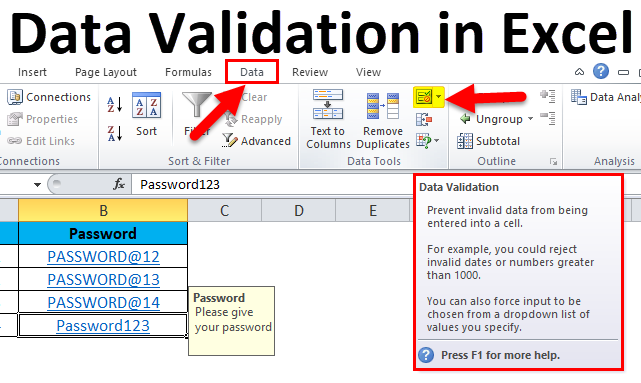
How to fix: Use the Data Validation feature to restrict the type of data entered; format cells as numbers or dates; and set up automatic checking rules (conditional formatting) to detect errors immediately upon entry.
-
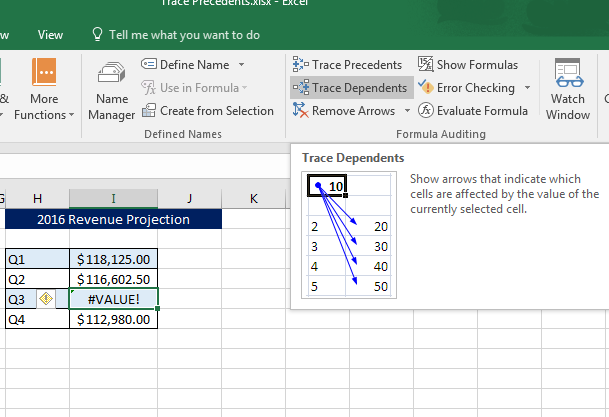
Incorrect formulas: #VALUE!, #REF! errors, or incorrect SUM and VLOOKUP formulas are common problems.
How to fix: Double-check the referenced data range and avoid deleting linked rows/columns. You can use the Trace Precedents tool to check the data source of a formula.
-
Data not synchronized between sheets: When managing multiple sheets like “Goods Received,” “Goods Issued,” and “Inventory,” data can easily become inconsistent if not linked correctly.
How to fix: Create a central summary sheet and link data using formulas or Power Query; use Named Ranges for data areas to avoid errors when adding new rows. -
Slow or large Excel file: When the dataset is large (over a few thousand rows), the file can easily lag or cause the application to freeze.
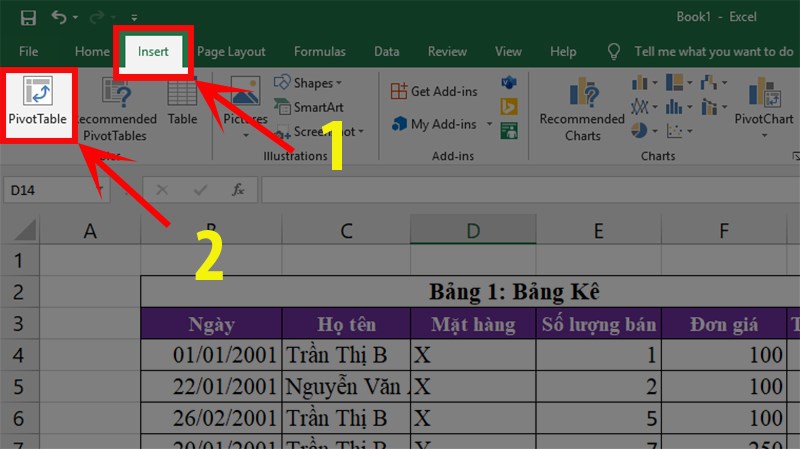
How to fix: Remove unnecessary formatting, reduce complex formulas, or split the file into smaller tables. You can use PivotTables to summarize data quickly without consuming many resources.
-
Data loss or overwriting errors: When multiple people work on the same file, it’s very easy to overwrite each other’s changes.
How to fix: Use OneDrive or Google Sheets for storage and sharing, and enable the automatic version history feature to restore data when needed. -
No regular backups: This is a leading cause of businesses losing all their data when a file becomes corrupted.
How to fix: Establish a weekly or monthly backup process, and store files on both a local computer and the cloud.
7. Frequently Asked Questions (FAQ)
When using Excel files for inventory management, many people—especially new warehouse staff or small business owners—often have questions about data entry, inventory calculation, or data security. The FAQ (Frequently Asked Questions) section below will help you answer the most common issues, from technical operations to practical experience.
This will help you use the file more effectively, minimize errors, and optimize your inventory management process, even without in-depth Excel expertise.
7.1. How can I ensure data accuracy when entering information into Excel?
To ensure accuracy when entering data into an Excel file, the file creator can apply the following methods:
- Use the Data Validation feature: Limit the type of data that can be entered into each cell (e.g., only allowing numbers, dates, or a predefined list).
- Set up error-checking formulas: Apply automatic formulas like IF or COUNTIF to alert you to data errors.
- Apply Conditional Formatting: Highlight unusual values to easily spot errors.
- Create Drop-down Lists: Allow users to select data instead of manually typing, which reduces errors.
- Cross-check: Compare the entered data with original documents or related sheets.
7.2. Can inventory quantities be calculated automatically in an Excel file?
The answer is yes. Excel supports automatic inventory calculation through formulas and features:
- SUMIF Formula: Calculate the total quantity of goods received and issued for each item to determine the current inventory:
+ Total In: =SUMIF(B:B,”In”, C:C)
+ Total Out: =SUMIF(B:B,”Out”,C:C)
+ Inventory: = Total In – Total Out
- Create a PivotTable: To automatically summarize and analyze inventory data by criteria such as time, product type, or supplier.
- Use VBA or Macros: To automatically update and calculate when data changes.
However, for large volumes of data or complex warehouse systems, managing inventory with Excel can be difficult and inadequate.
7.3. Is there a way to secure an Excel inventory management file?
To increase the security of an Excel file, you can apply several methods, such as:
- Set a password for the file: Use the “Protect Workbook” feature in Excel to restrict access.
- Set editing permissions: Protect the file, individual sheets, or cells with a password to allow only certain users to edit and access them.
- Hide sensitive data: Hide columns or rows containing important information and protect them from being edited.
- Store the file on a secure platform: Such as OneDrive, Google Drive, or other storage services with data encryption.
- Use a digital signature: To ensure the integrity and authenticate the origin of the file.
However, Excel file security has its limits, especially when the file is shared via email or other insecure channels.
7.4. Should I use an Excel file or specialized software for inventory management?
The choice between using an Excel file and specialized software for inventory management depends on your management needs, business scale, and operational complexity.
However, if your Excel files frequently experience the following issues:
- Large data volumes, causing the Excel file to slow down or crash
- A need for advanced automation features like low-stock alerts or integration with a sales system
- Multiple employees needing simultaneous access, causing the file to lag, error out, or not update in real-time
Then, switching from Excel to specialized software is necessary. Check out 1Office inventory management software for smart, accurate, and unlimited warehouse management.
Today, the market offers many solutions for effective inventory management. Among them, 1Office software, with its Import-Export-Inventory Management feature, is a comprehensive solution that helps businesses optimize warehouse management with outstanding features such as:
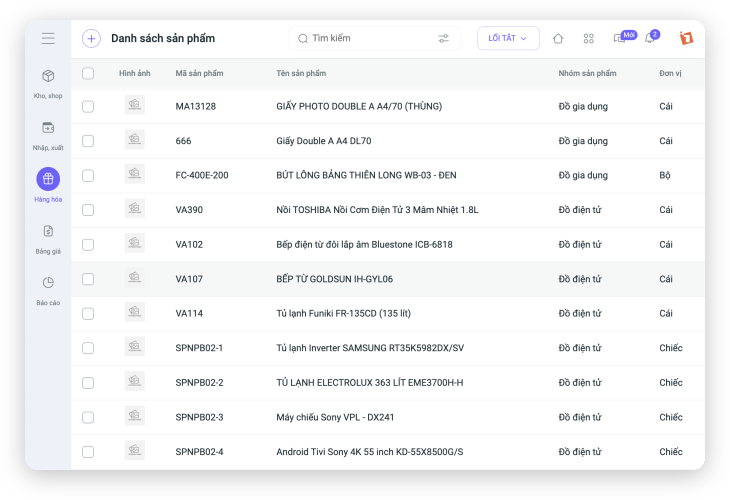
- Visually manage and track the entire warehouse, automatically update inventory levels for imports and exports, ensuring accurate stock counts
- Build a detailed and specific product catalog with integrated Serial/IMEI numbers for convenient product information retrieval
- Manage every product attribute and piece of information in detail and with clarity
- Build and manage a list of warehouses based on the actual physical storage network
- Record and store all transaction histories related to the warehouse, such as goods issued, received, and transferred
- Automatically update inventory during sales and purchasing processes, helping to reduce error rates
- Provide complete data and inventory statistics with detailed lists for each stock-taking period