12/05/2026
  235 views
Dear valued customers,

1Office would like to sincerely thank you for trusting and using our services. With the desire to improve product quality and provide you with a better experience, we are constantly researching and developing new features and utilities.
In this upgrade, we are pleased to introduce the all-new internal CHAT feature. By integrating this internal CHAT feature, we hope to create a significant change in how you interact and work on the 1Office software.
Estimated upgrade time: 18:00, August 31, 2023
Key advantages of the Chat feature in 1Office:
1- Create chat groups for departments, positions, or job titles: Allows creating chat groups for specific departments, positions, or job titles. The system will automatically add relevant personnel to the chat group.
2- Create related objects directly in the Chat box: You can create new related objects within the chat window (task and schedule objects), providing quick access to your work.
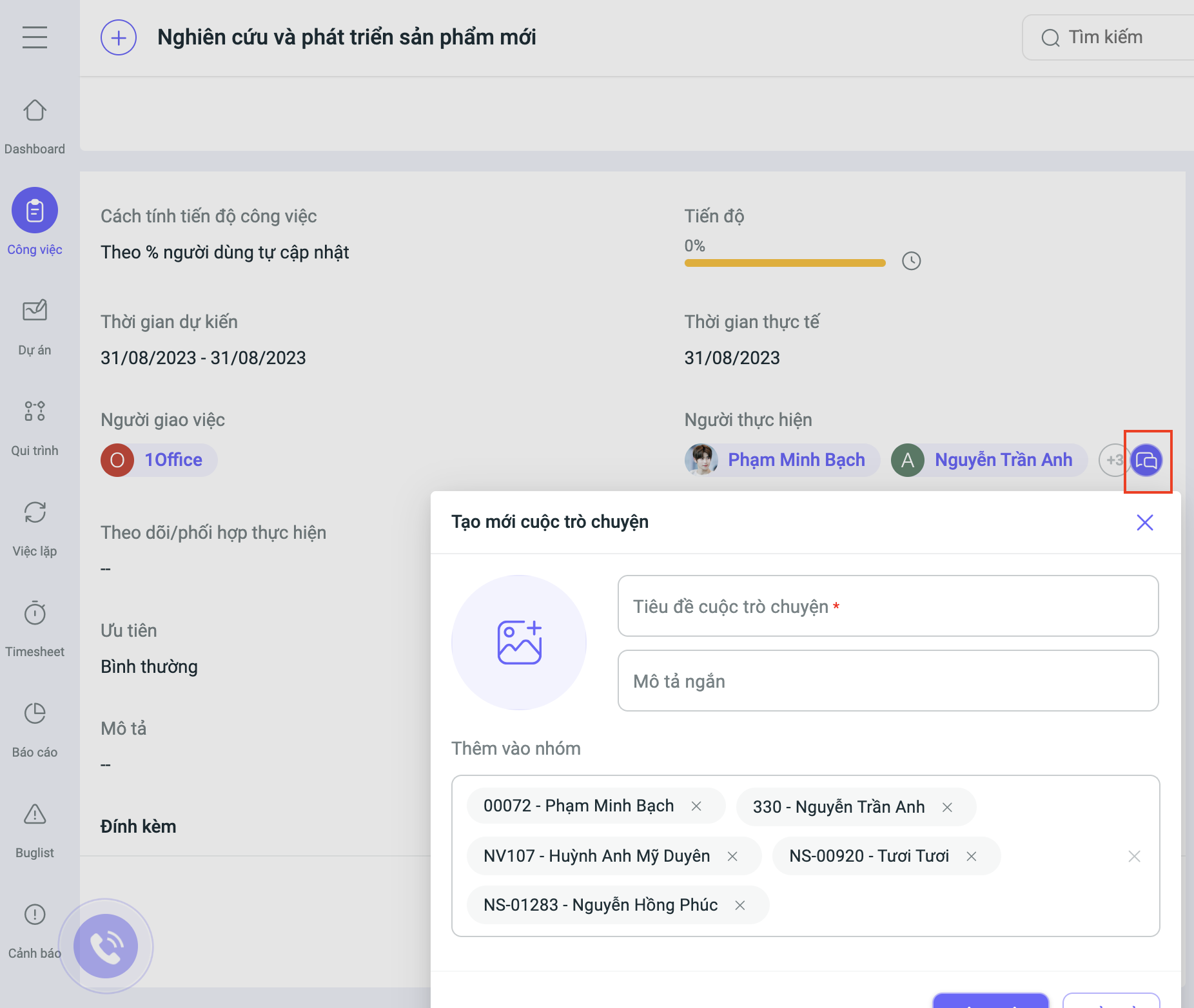
3- Quickly create chat groups from the personnel list pop-up: Easily add personnel related to a task into a group without having to search for each person individually.
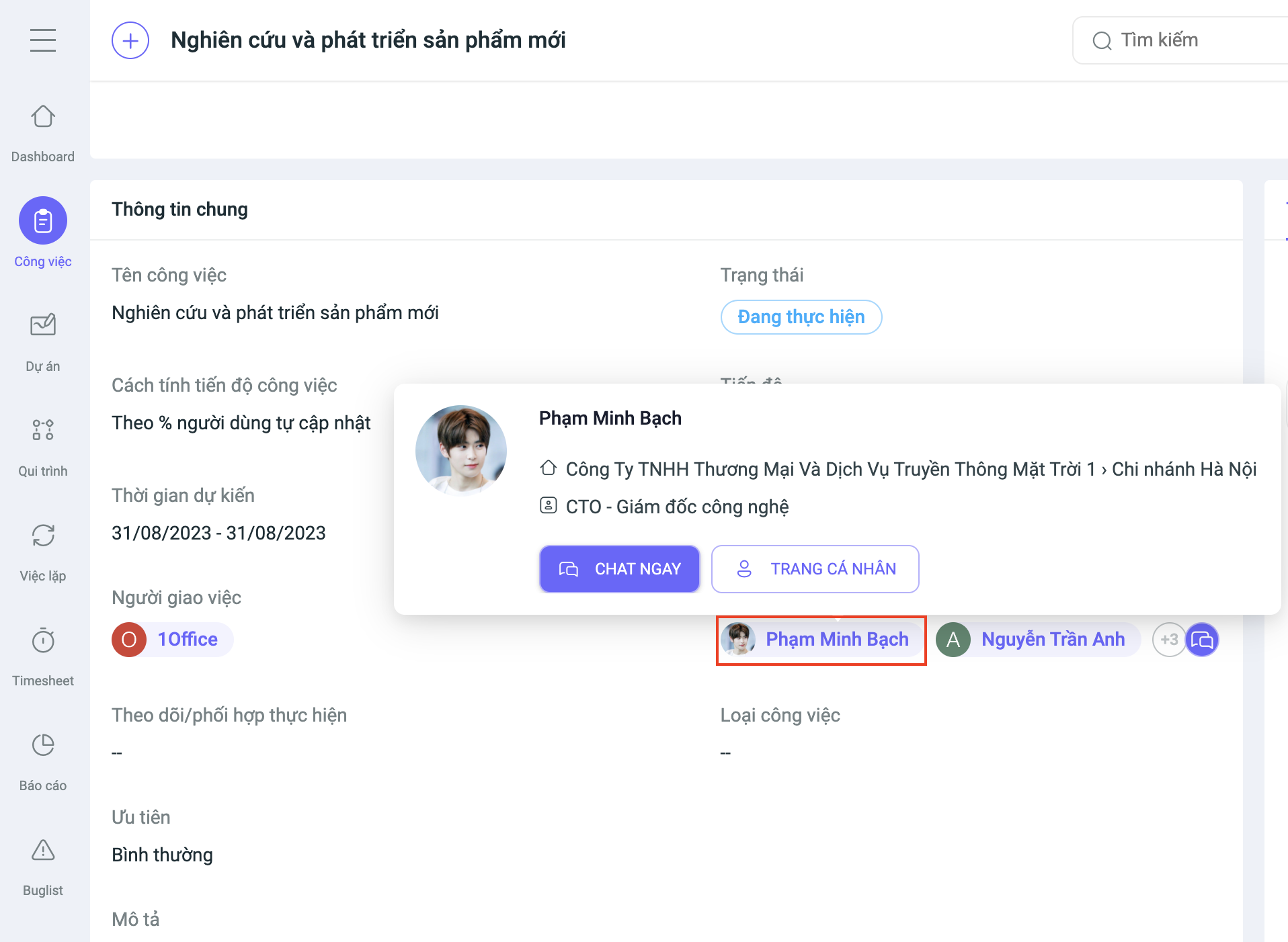
4- Chat directly with personnel via their Avatar: Interact quickly by clicking on an avatar, eliminating the step of searching for contact information.
5- Absolute security with Chat content encryption: The content encryption feature ensures privacy and safety when sharing important information.
6- Chat bubbles: Allows you to read and reply to messages without leaving your current screen. A bubble will appear when a new message is received, and you can click on it to conveniently view and reply to the message.
Below are instructions on how to use the Chat feature on 1Office:
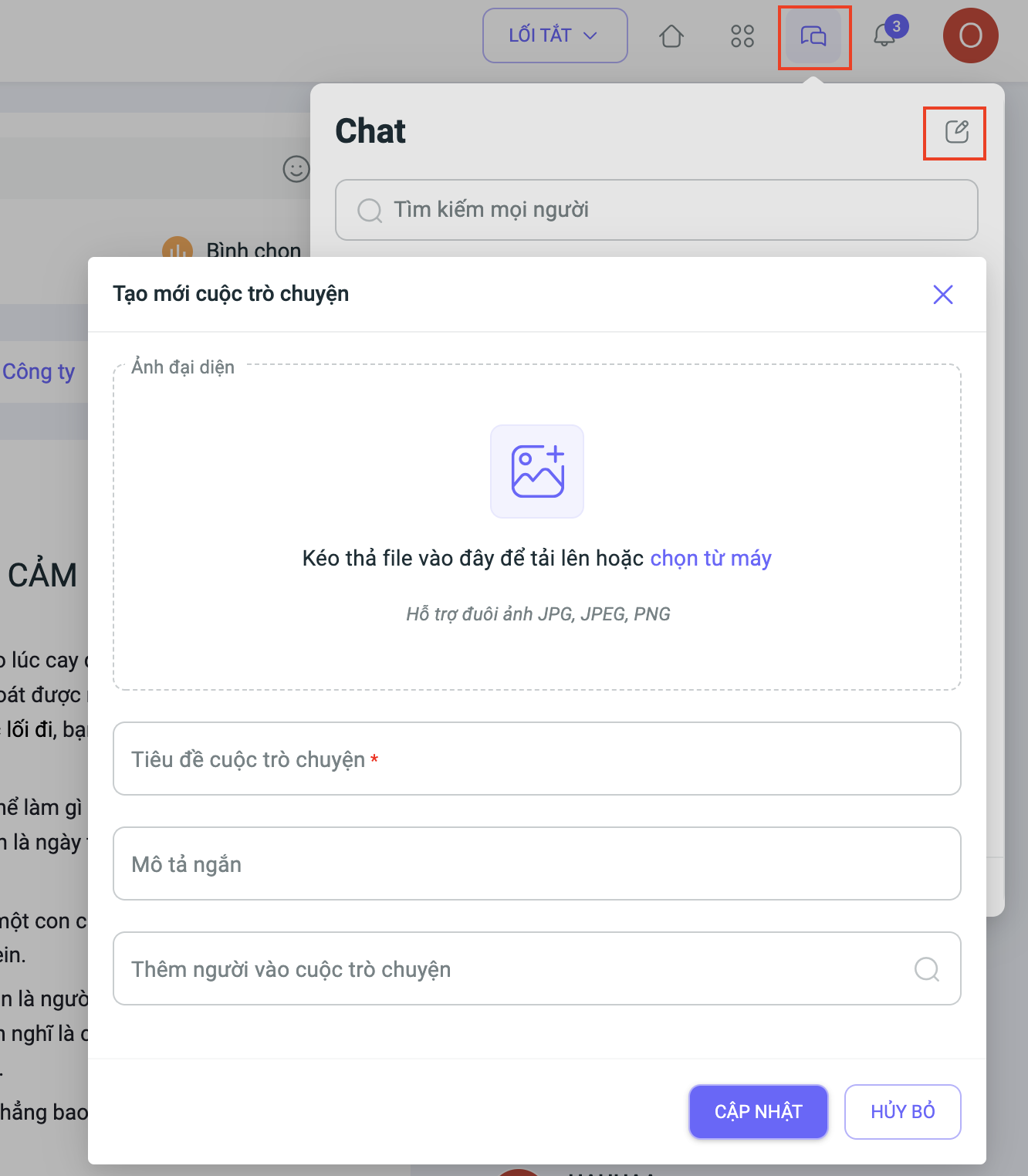
Step 1: Create a new conversation
Step 2: Perform actions in the Chat pop-up
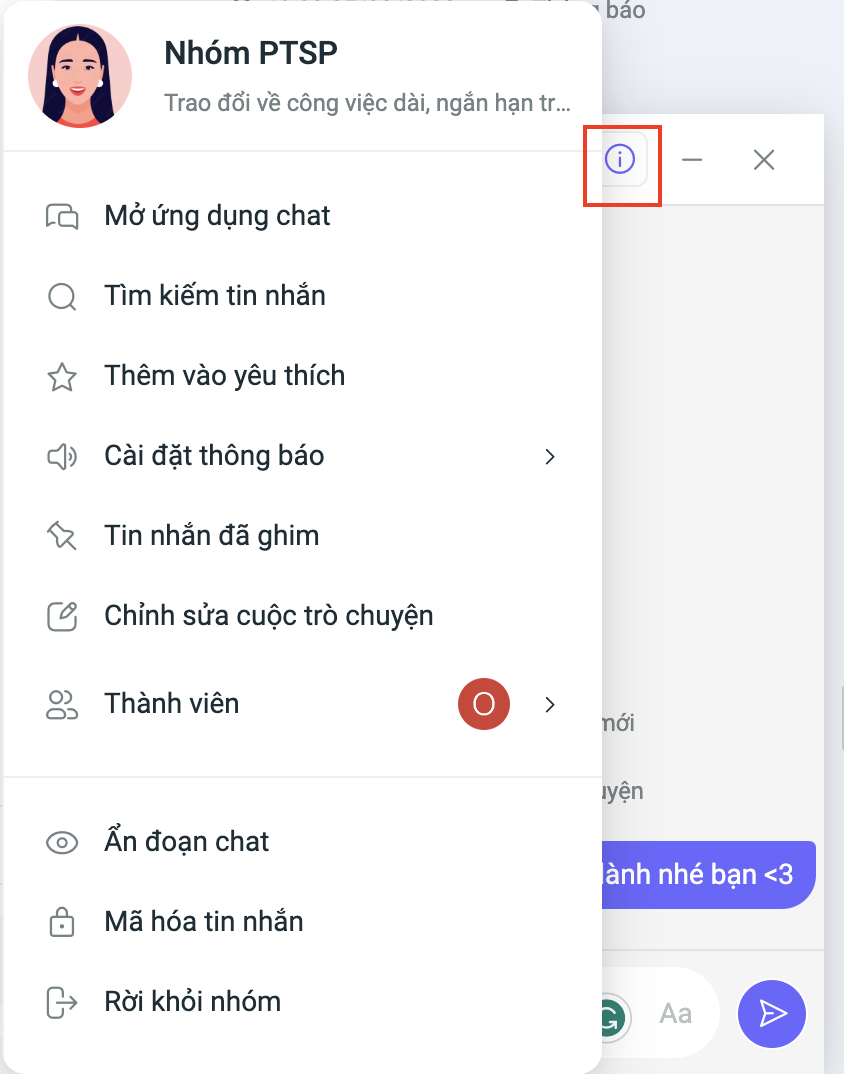
In the Chat pop-up, you can perform the following actions:
| No. | Action | Description |
| 1 | Open chat application | View and manage all conversations. |
| 2 | Search messages | Quickly find old messages (Condition: Messages are not encrypted) |
| 3 | Add to favorites | Mark important conversations |
| 4 | Notification settings | Customize turning message notifications On/Off. |
| 5 | Pinned messages | Mark important messages within a conversation |
| 6 | Edit conversation | Change conversation information |
| 7 | Members | Manage the member list (Add, edit, or remove members) |
| 8 | Hide conversation | Hide a specific conversation |
| 9 | Encrypt messages | Secure message content (When this setting is enabled, messages cannot be searched because they are encrypted) |
| 10 | Leave group | Leave the conversation |
Step 3: View all conversations
When you select to view all conversations, the system will automatically redirect you to the page displaying the complete list of conversations. Here, you can easily track and manage all existing conversations within the application.
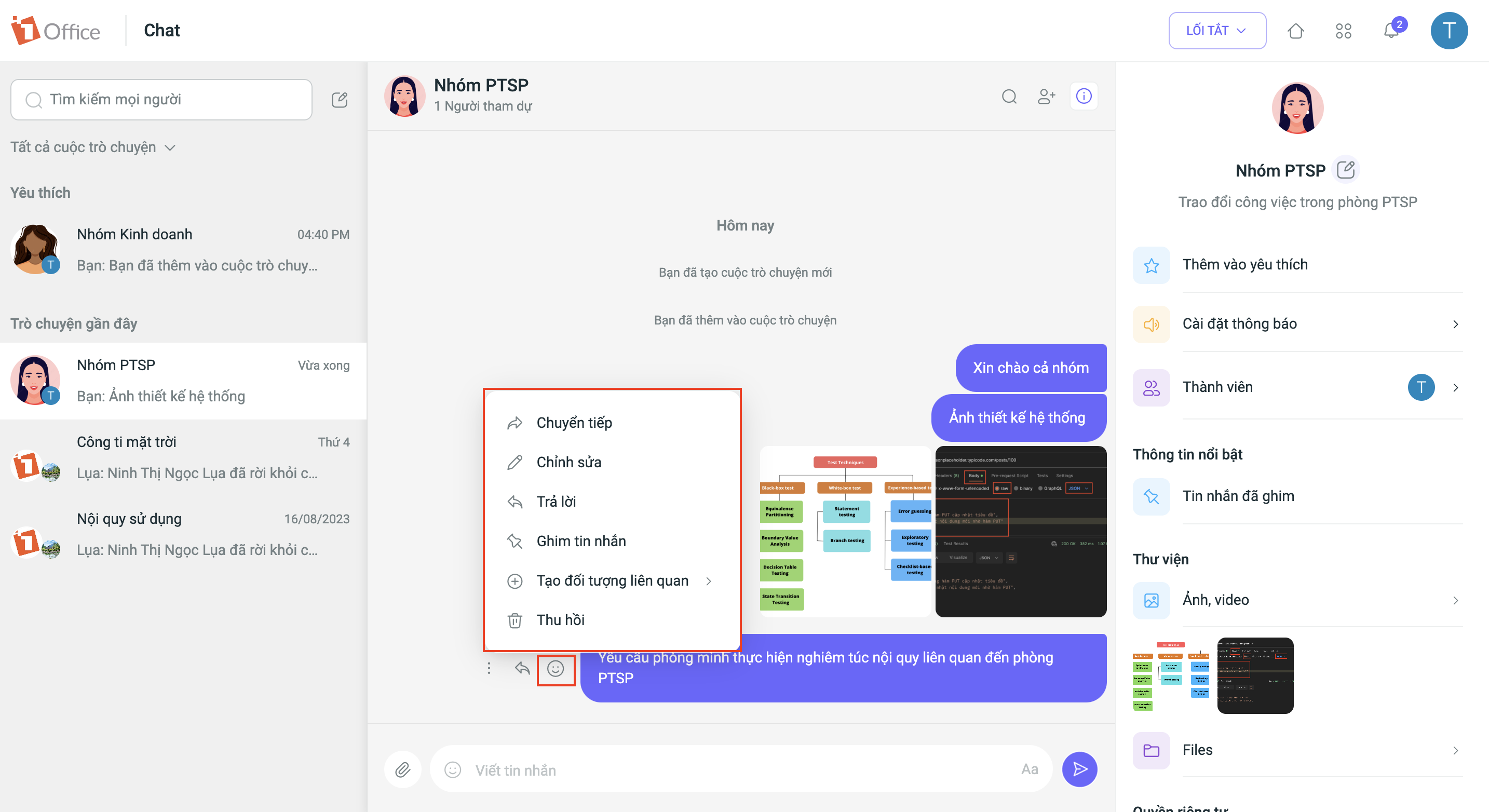
*Note: You can directly add related objects for Tasks and Schedules right within the conversation. This allows you to access these objects quickly and conveniently.
Additionally, we provide a feature to quickly create group chats from the employee list and to chat directly by hovering over an avatar, creating convenience and effective interaction.
The feature update process is performed periodically and will not affect any customer data. After this period, the system will resume normal operations. We kindly ask our valued customers to take note of the update schedule to avoid any disruption to your business operations. For any questions or support requests related to the software, please contact 1Office using the information below:
- Customer Service Hotline: 1900 3313
- Email: support@1office.vn
- Live chat on the software
- Ticket
Sincerely,
The 1Office Product Development Team.