


 10/05/2026
  1710 views
Canva AI is a suite of artificial intelligence tools integrated into Canva, helping users create designs, images, videos, and content faster without needing advanced design skills. With features like Magic Design, Magic Write, Magic Media, and Magic Edit, Canva AI helps turn ideas into visual products in just a few steps. This article will help you understand what Canva AI is, how to use it, its pricing, and important considerations when applying it to your work.
Mục lục
- 1. What is Canva AI? An Overview of Canva’s Artificial Intelligence
- 2. Outstanding Benefits of Applying Canva AI in Design
- 3. Canva’s Outstanding “Magic Studio” AI Features
- 3.1. Magic Design (Automatic Design from Descriptions)
- 3.2. Magic Write (AI Content Writing Assistant)
- 3.3. Magic Media (Generate Images & Videos from Text)
- 3.4. Magic Edit (Edit Objects in Photos)
- 3.5. Magic Eraser (Remove Unwanted Objects)
- 3.6. Magic Grab (Isolate & Move Subjects)
- 3.7. Magic Expand (AI Image Expander)
- 3.8. Magic Switch (Convert Design Format)
- 3.9. Magic Morph (Transform Text & Shapes into 3D Effects)
- 3.10. Magic Animate (Create Animations Automatically)
- 3.11. Beat Sync (Sync Music and Video)
- 3.12. Background Generator (AI Background Creation)
- 4. Canva AI (Magic Studio) Pricing
- 5. Who is Canva AI For?
- 6. Detailed Guide on How to Use Basic Canva AI for Beginners
- 7. Tips & Tricks to Optimize Efficiency When Using Canva AI
- 7.1 Writing Effective Prompts
- 7.2 Combine Multiple AI Tools
- 7.3 Leverage Canva’s Huge Resource Library
- 7.4 Always Review and Edit
- 7.5 Stay Updated on New Features
- 8. Limitations of Canva AI & Solutions
- 8.1 Limitations in Realism/Complexity
- 8.2 Usage Limits (for the free version)
- 8.3 Sometimes the results are not as expected
1. What is Canva AI? An Overview of Canva’s Artificial Intelligence
Canva AI is a suite of artificial intelligence (AI) tools and features integrated directly into the online graphic design platform Canva – one of the world’s most popular design tools with over 200 million monthly users (as of 2025).
Canva AI is not a standalone product but an ecosystem of generative AI features that automate and enhance the creative process. From creating images, videos, and text to smart editing, Canva AI uses advanced AI models (such as Magic Media, which is based on Stable Diffusion, DALL-E, and proprietary models) to help users turn ideas into professional designs in just a few seconds.

1.1 The Role and Main Goals of Canva AI
The core role of Canva AI is to democratize graphic design, enabling everyone – even those without professional skills – to create beautiful, effective content tailored to their personal or business needs.
Main goals:
- Accelerate creativity: Reduce design time from hours to just a few minutes.
- Enhance quality: Provide smart suggestions and generate high-quality content that non-professional users would find difficult to achieve manually.
- Expand accessibility: Support users at all levels, from students, teachers, and marketers to small businesses and design professionals.
Canva AI is particularly well-suited for the “no-code/low-code design” trend, helping users focus on ideas rather than technical skills.
1.2 Introduction to Magic Studio
Magic Studio is the collective name for Canva’s entire suite of powerful AI tools, officially launched in October 2023 and continuously upgraded throughout 2024-2025. It is the “heart” of Canva AI, comprising a range of features such as:
- Magic Design (create complete designs from ideas or images).
- Magic Media (generate images and videos from text).
- Magic Edit (smart photo editing: add/remove objects, change backgrounds).
- Magic Write (automatic text generation, content suggestions).
- Magic Animate (add motion effects).
- Magic Expand (expand images).
By 2025, Magic Studio was upgraded with more advanced AI integrations (such as support for longer videos, AI voiceovers, and personalized style customization), making Canva one of the most comprehensive AI design platforms in the world. With Magic Studio, Canva is not just a design tool but has become a true “AI creative assistant,” competing directly with specialized tools like Midjourney, Adobe Firefly, and Kling AI, but is much easier for general users to use.
2. Outstanding Benefits of Applying Canva AI in Design
Canva AI (through Magic Studio) is not just a support tool but a true “creative assistant,” helping users overcome technical barriers and elevate the quality of their designs. Here are the most significant benefits of applying Canva AI in daily work.

2.1 Save Time and Effort
Canva AI automates complex tasks that previously took hours to complete manually.
- Example: With Magic Design, you just need to upload an image or enter a brief idea, and the AI will automatically generate dozens of complete templates (posters, presentations, Instagram stories) in just a few seconds.
- Specific benefits: Magic Edit helps add/remove objects, change backgrounds, or edit photos without needing Photoshop; Magic Write automatically creates compelling headlines and content – reducing design time by up to 80% according to Canva user feedback in 2025.
2.2 Enhance Creativity
Canva AI is not limited to “following commands” but also suggests and expands on ideas for users to explore new styles.
- Example: Magic Media creates images/videos from text with hundreds of styles (realistic, watercolor, cartoon); Magic Expand naturally extends the image frame.
- Specific Benefit: Users can experiment with countless variations without worrying about “running out of ideas,” helping to create more diverse content tailored to each target audience.
2.3 Easy to Use for Everyone
This is the biggest advantage of Canva AI – an intuitive drag-and-drop interface that requires no specialized skills.
- Example: New users just need to select a template and enter a prompt in Vietnamese, and the AI will automatically adjust the layout and colors harmoniously.
- Specific Benefit: Suitable for students, teachers, office workers, and small businesses – anyone can create beautiful designs without needing to take a long-term design course.
2.4 Create Professional Designs
Canva AI ensures consistency and high quality, making the final product look as if it were created by a professional designer.
- Example: Magic Animate adds smooth motion effects; Brand Kit combines with AI to automatically apply the brand’s logo and colors for consistency.
- Specific Benefit: Designs always adhere to aesthetic principles (balance, beautiful typography), increasing the credibility and professionalism of documents, presentations, or social media content.
2.5 Optimize Marketing and Business Efficiency
Canva AI helps businesses and marketers quickly create eye-catching content, thereby increasing engagement and conversions.
- Example: Create short ad videos from text (Magic Media), personalized promotional banners, or engaging data infographics.
- Specific Benefit: Reduce the cost of hiring designers/agencies, react quickly to trends (TikTok/Reels trends), and increase engagement by up to 40-50% according to a 2025 Canva case study – especially effective for small and medium-sized businesses and startups.
In summary, Canva AI not only saves time but also opens up unlimited creative opportunities, helping everyone – from individuals to businesses – to have professional designs without a large investment in tools or skills. This is why Magic Studio has become the “secret weapon” for millions of users worldwide in the digital content era!
3. Canva’s Outstanding “Magic Studio” AI Features
Magic Studio is the intelligent “virtual assistant” integrated with Canva’s most advanced AI, turning the design platform into a comprehensive creative studio. Launched in 2023 and significantly upgraded in 2024-2025 (with support for longer videos, AI voiceovers, and brand personalization), Magic Studio helps users create professional content with just a few clicks.
Important Note: Many of Magic Studio’s most powerful features (like unlimited generations, high-quality video, Magic Expand) are exclusive to the Canva Pro plan (or Education/Nonprofit if eligible). Free accounts can still access some basic features but with limitations on usage and quality.
3.1. Magic Design (Automatic Design from Descriptions)
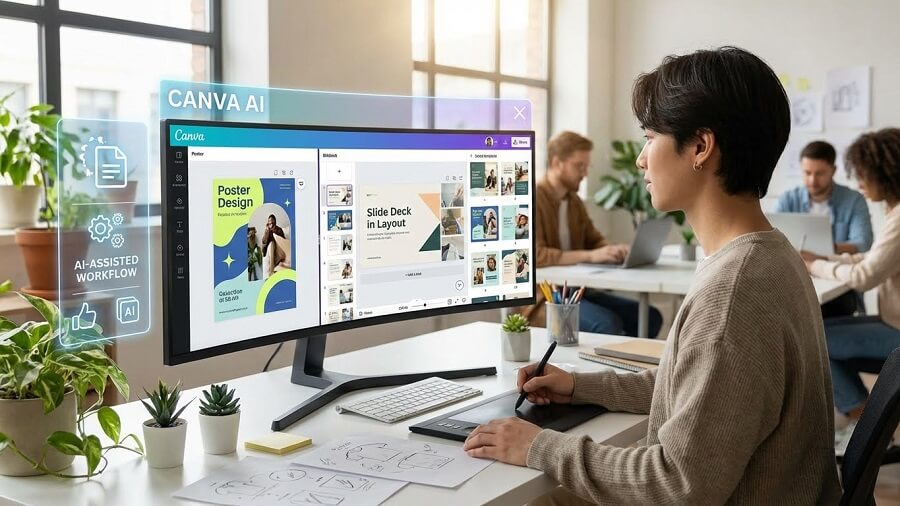
Function: Automatically generates a series of complete design templates (posters, presentations, Instagram stories, invitations, etc.) from just a keyword or an uploaded image.
How to use:
- Access Magic Design from the left sidebar or the Canva homepage.
- Enter a brief description (e.g., “rock music event poster,” “kids’ birthday invitation”).
- Upload a reference image if desired (the AI will extract colors and style from the image).
- Select the aspect ratio (Instagram Post, Presentation, etc.).
- Canva AI will suggest 8-20 templates; click to edit further.
Pro Tip: Use specific keywords like “minimalist, vibrant colors, modern typography” for more accurate results. Combine with Brand Kit (Pro) to automatically apply your brand’s logo/colors.
3.2. Magic Write (AI Content Writing Assistant)
Function: Automatically generate text (captions, titles, product descriptions, presentation outlines, marketing emails) directly within Canva Docs or your design.
How to use:
- Open Canva Docs or add a text box to your design.
- Click the Magic Write icon (lightning bolt) or press “/”.
- Enter your prompt (e.g., “Write an Instagram caption for a new coffee product, with a youthful style”).
- Select the length/tone (if available); the AI will generate the content.
- Edit and insert it directly.
Pro tip: Activate Brand Voice (Pro) to have the AI write in your pre-defined brand tone (professional, humorous, friendly, etc.). Combine it with Magic Design to quickly create complete presentation slides.
3.3. Magic Media (Generate Images & Videos from Text)
Function: Turn text descriptions into unique images or videos (text-to-image/video).
How to use:
- Go to Apps > Magic Media (or the sidebar).
- Select Text to Image or Text to Video.
- Enter a detailed description (e.g., “anime girl sitting under a cherry blossom tree, Studio Ghibli style”, “romantic autumn landscape with falling yellow leaves”).
- Choose a style (realistic, illustration, film) and aspect ratio.
- Click Generate – the results will appear instantly to be inserted into your design.
Pro tip: Add quality keywords like “highly detailed, 4K, cinematic lighting” for better images/videos. For videos (Pro), experiment with length and motion effects.
3.4. Magic Edit (Edit Objects in Photos)
Function: Intelligently add, replace, or edit details/objects in a photo (add/replace objects, adjust style).
How to use:
- Upload a photo to your design.
- Select the photo > Edit Image > Magic Edit.
- Use the brush to paint over the area you want to change.
- Enter a description (e.g., “replace with a bouquet of red roses”, “add sunglasses”).
- The AI will generate variants; choose and apply one.
Pro tip: Works best with simple objects; use high-resolution photos to avoid artifacts.
3.5. Magic Eraser (Remove Unwanted Objects)
Function: Cleanly remove unwanted people/objects/backgrounds and automatically fill the space naturally.
How to use:
- Upload a photo > Edit Image > Magic Eraser.
- Use the brush (adjust brush size) to paint over the object you want to remove.
- The AI will automatically remove it and fill in a suitable background.
- Apply and continue editing.
Pro tip: Adjust the brush size precisely (small for details, large for wide areas). Combine with Magic Edit to add new content to the erased area.
Magic Studio turns Canva into the most powerful “all-in-one” AI tool for everyday users. With the Pro plan, you’ll unlock unlimited use and the highest quality – ideal for elevating your creativity without needing specialized skills!
3.6. Magic Grab (Isolate & Move Subjects)
Function: Magic Grab automatically detects and isolates the main subject (person, object, animal, etc.) from the background, turning it into a separate layer that can be moved, resized, rotated, or edited independently – just like working with a smart sticker.
How to use:
- Upload a photo to your Canva design.
- Select the photo > Edit Image > Magic Grab.
- The AI will automatically highlight the subject; click to isolate it.
- Drag and drop the subject to a new position, resize it, or change its layer.
Pro tip: It’s very useful for reusing the same subject (like a model or product) on different backgrounds or layouts – for example, placing a coffee product in various ad scenes without needing a reshoot.
3.7. Magic Expand (AI Image Expander)
Function: Uses AI to naturally expand the image frame, automatically generating additional suitable background content based on the original image, helping to change the aspect ratio without cropping the main content.
How to use:
- Select an image > Edit Image > Magic Expand.
- Drag the frame to expand the desired area or choose a preset ratio (full page, 16:9, 9:16).
- AI automatically fills the empty space with suitable content.
- Preview and apply.
Pro tip: Ideal for adjusting images for different platforms (from an Instagram Post to a Story, or a Pinterest Pin) while keeping the main subject intact – especially effective for landscape or product photos.
3.8. Magic Switch (Convert Design Format)
Function: Automatically converts the current design to another format (from an Instagram post to a presentation, email header, LinkedIn post, etc.) while preserving the content and style.
How to use:
- Complete the initial design.
- Click Magic Switch (usually in the top toolbar).
- Select the target format from the list (hundreds of templates).
- Canva automatically creates a new version with an optimized layout and size.
Pro tip: Maintain brand consistency across multiple media channels – a huge time-saver for marketers implementing multi-platform strategies.
3.9. Magic Morph (Transform Text & Shapes into 3D Effects)
Function: Transforms flat text or shapes into 3D elements with depth effects, shadows, and unique textures, creating a prominent and modern feel.
How to use:
- Select the text or shape in your design.
- Go to Effects > Magic Morph.
- Choose a morph style (3D extrusion, liquid, glass, neon, etc.).
- Customize the depth, perspective, and color.
Pro tip: Use for titles, logos, or graphic elements that need to stand out – especially effective in posters, banners, or intro videos.
3.10. Magic Animate (Create Animations Automatically)
Function: Automatically adds smooth animations to elements in your design (text, images, shapes), turning static slides into dynamic presentations or short videos.
How to use:
- Select one or more elements in the design.
- Click Animate > Magic Animate.
- Choose an animation style (fade, rise, pan, zoom, typewriter, etc.).
- Preview and adjust the timing and delay.
Pro tip: Combine with Beat Sync to synchronize effects with the music’s beat in a video – quickly create viral content for Reels/TikTok.
3.11. Beat Sync (Sync Music and Video)
Function: Automatically synchronizes transitions, effects, and video timing with the rhythm of the selected music track.
How to use:
- Create a video in Canva Video or upload one.
- Add music from the library or upload your own.
- Click Beat Sync in the video editor.
- AI automatically cuts scenes and adds transitions according to the beat.
Pro tip: Choose music with a clear rhythm (upbeat for ads, slow for emotional content) for maximum effectiveness – ideal for video marketing or social content.
3.12. Background Generator (AI Background Creation)
Function: Creates unique backgrounds from text descriptions, replacing old backgrounds or generating entirely new ones that fit the design.
How to use:
- Select the design frame or image that needs a new background.
- Go to Background > Background Generator.
- Enter a description (e.g., “autumn mountain landscape, warm tones”, “abstract blue gradient background”).
- Choose from the AI-generated suggestions and apply.
Pro tip: Provide a detailed description including a style (“minimalist”, “vintage”, “cyberpunk”) to ensure the background perfectly matches your brand or design concept.
Canva’s Magic Studio is truly a “magical” AI toolkit that helps anyone create professional designs without advanced skills. With the Pro plan, you’ll unlock its full power – try it now to experience the difference!
4. Canva AI (Magic Studio) Pricing
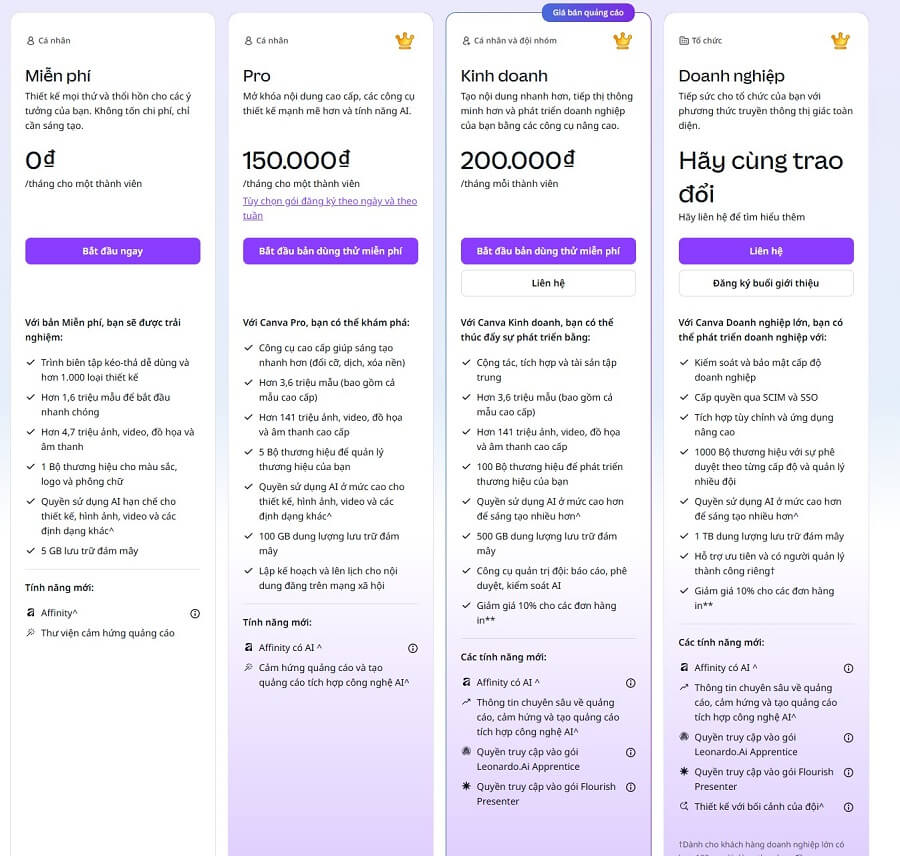
Canva AI (including the entire Magic Studio) does not have a separate plan, but is integrated into the general Canva plans. The free plan allows you to use some basic AI features (with usage limits), while the Pro plan unlocks unlimited use and the highest quality.
| Package | Audience | Price | Short Description |
| Free | Individuals | 0 VND / month / member |
|
| Canva Pro | Individuals | 150,000 VND / month / member |
|
| Canva Business | Individuals & teams | 200,000 VND / month / member |
Leonardo AI Apprentic Flourish Presenter AI-powered insights & ad inspiration |
| Canva Enterprise | Large organizations | Contact us |
|
5. Who is Canva AI For?
Canva AI (via Magic Studio) is designed to democratize graphic design, helping everyone – with or without professional experience – create beautiful, professional content in just a few minutes. With its user-friendly interface and smart AI features, Canva AI targets a diverse range of users, from individuals to businesses. Below are the main user groups and the reasons why they should use Canva AI.
5.1 Non-Designers
- Why it’s a good fit: This is Canva AI’s core target audience. People who have never studied design can still create beautiful posters, invitations, CVs, social media cover photos, or personal documents without needing complex software.
- Practical applications: Students creating presentation slides, individuals designing birthday cards, profile pictures – Magic Design and Magic Media help get it done in just a few seconds.
5.2 Content Creators
- Why it’s a good fit: Need to produce diverse and eye-catching content quickly to maintain a consistent posting schedule.
- Practical applications: Creating YouTube thumbnails, Instagram stories, short Reels/TikTok videos with Magic Animate and Beat Sync; Magic Write suggests engaging captions – helping to increase engagement without spending a lot of time.
5.3 Small Business Owners & Marketers
- Why it’s a good fit: Limited budget, need to create professional marketing materials without hiring a full-time designer.
- Practical applications: Designing logos, ad banners, brochures, email marketing, product introduction videos. The Brand Kit combined with AI helps maintain brand consistency; Magic Switch quickly converts formats for multi-platform use.
5.4 Teachers & Students
- Why it’s a good fit: Need visual, engaging materials to enhance teaching and learning effectiveness.
- Practical applications: Teachers create infographics, animated lessons (Magic Animate), mind maps; students create reports, group projects with illustrations from Magic Media – especially useful in online education.
5.5 Freelancers
- Why it’s a good fit: Need to increase productivity, deliver products quickly and with high quality to compete for clients.
- Practical applications: Creating mock-ups, proposals, social media kits for clients; Magic Edit/Eraser for quick photo editing; team collaboration (Pro) supports remote work with clients.
Canva AI is truly for everyone who wants to create without technical barriers – from complete beginners to experts needing to optimize their time. With a free plan sufficient for basic use and a Pro plan that unlocks unlimited features, Canva AI is the ideal choice for anyone looking to elevate their content without significant cost or effort. If you belong to one of the groups above, try Magic Studio today – you’ll be surprised by what you can create!
6. Detailed Guide on How to Use Basic Canva AI for Beginners
Canva AI (Magic Studio) is very accessible with a user-friendly interface. You can get started completely for free. Below is a step-by-step guide for beginners (updated for the Canva 2025 interface).
6.1 Step 1: Sign Up/Log In to Your Canva Account
- Visit the official website: https://www.canva.com (or download the Canva app on iOS/Android).
- Click the “Sign Up” or “Log In” button in the top right corner.
- Choose a method:
- Google: Quickly log in with your Google account (recommended, secure, and convenient).
- Facebook: Use your Facebook account.
- Email: Enter your email address, create a strong password, and confirm via the code sent to your email.
- Apple or Microsoft (if using a corresponding device).
- Complete: You will be taken to the Canva homepage immediately with a free account. No credit card required.
Note: The free account is sufficient for basic AI features (with usage limits). Upgrade to Canva Pro (~200,000 VND/month or cheaper when paid annually) for unlimited generations, higher quality, and more exclusive features.
6.2 Step 2: Accessing AI Tools in Canva
After logging in, you will see the main interface with a sidebar on the left and a workspace in the middle of the screen.
- How to find “Magic Studio” or “AI Apps”:
- Left sidebar: Click “Apps” or “Magic Studio” (if displayed directly).
- Top search bar: Type “Magic” → tools like Magic Design, Magic Media, and Magic Edit will appear.
- Homepage: Scroll down to the “Discover Magic Studio” section or click the lightning bolt (Magic) icon in the corner.
- Differences between Free and Pro:
- Free: Access to most AI features (Magic Design, basic Magic Write, Magic Media limited to 50-100 times/month), with watermarks on some exports.
- Pro: Unlimited generations, high-quality video, full Magic Expand/Morph, advanced Brand Kit, unlimited background removal, full commercial license.
6.3 Step 3: Practice with a Specific Example
Let’s try the 2 most popular features to get familiar.
Example 1: Creating an Image with Magic Media from A to Z
- From the homepage, click “Create a design” → choose any size (e.g., Instagram Post).
- Left sidebar → “Apps” → find and select “Magic Media” (or type “Magic Media” into the search bar).
- Select “Text to Image”.
- Enter a detailed prompt in Vietnamese or English (e.g., “A young woman wearing a traditional Vietnamese ao dai standing by Hoan Kiem Lake at sunset, realistic photo style, highly detailed”).
- Choose a style (Realistic, Illustration, Film…) and aspect ratio if needed.
- Click “Generate image” → wait 5-10 seconds, and the AI will provide 4-8 variants.
- Select your preferred image → drag and drop it into the design → customize further (add text, effects).
Example 2: Editing a Photo with Magic Edit
- Upload a photo to the design (drag and drop or from the library).
- Click on the photo → “Edit Image” → select “Magic Edit”.
- Use the Brush tool to paint over the area you want to change (e.g., paint over the sky to change it).
- Enter a prompt describing the change (e.g., “replace with a night sky full of stars and a full moon”).
- Adjust the brush size and AI strength if needed.
- Click “Generate” → choose the best variant → apply.
Tips for Beginners:
- Start with short prompts, then add details (lighting, style, emotion).
- You can use Vietnamese, but English often yields more accurate results for complex styles.
- Save your design frequently (Save button in the top corner).
After just 10-15 minutes of practice, you’ll become proficient with Canva AI. Get started for free today – Magic Studio will surprise you with the creative possibilities it offers!

7. Tips & Tricks to Optimize Efficiency When Using Canva AI
Canva AI (Magic Studio) is a powerful tool, but to get the best results, you need to know how to “master” it. Here are practical tips and tricks to help you harness the full power of Canva AI, from writing prompts to combining features (updated 2025).
7.1 Writing Effective Prompts
Prompts are the “key” that determines the output quality of Magic Media, Magic Write, or Magic Design.
- Golden rule: Be clear, detailed, and structured.
- Start with the main subject → detailed description → style → emotion/mood → quality.
- Good example: “A young woman wearing a traditional Vietnamese ao dai standing by Hoan Kiem Lake at sunset, realistic photo style, warm lighting, high detail, romantic feeling”.
- Poor example: “Girl by the lake” → vague results.
- Advanced tips:
- Add quality keywords: “highly detailed, 4K, cinematic lighting, vibrant colors”.
- Specify the style: “in the style of Studio Ghibli”, “minimalist”, “vintage”.
- Use English for more accurate results (Canva supports Vietnamese well, but English offers a wider variety of styles).
- Experiment with multiple variants: Generate 4-8 times with slightly different prompts to choose the best one.
7.2 Combine Multiple AI Tools
Canva AI is most powerful when used in “combos” – leveraging the output of one feature as the input for another.
- Practical example:
- Use Magic Media to create an image of “a cute cat sitting on a wooden table”.
- Use Magic Grab to separate the cat from the background.
- Use Magic Expand to extend the background into a cozy living room scene.
- Use Magic Morph to transform the cat into a striking 3D effect.
- Finally, use Magic Animate to add an animation (cat wagging its tail) and Beat Sync to synchronize it with background music.
- Benefit: Create complex designs in just a few minutes, instead of hours of manual editing.
7.3 Leverage Canva’s Huge Resource Library
Canva has a massive free library (millions of images, videos, templates, fonts, background music) – combine it with AI to enrich your designs.
- Tips:
- After the AI generates an image/video, drag and drop elements from the library (stickers, frames, icons) to finalize it.
- Use the Brand Kit (Pro) to automatically apply your brand’s logo, colors, and fonts to every AI-generated design.
- Combine Magic Write with existing templates to create a complete presentation in just 5-10 minutes.
7.4 Always Review and Edit
AI is a great assistant but it’s not perfect – always take the time to make refinements.
- Reason: AI can generate incorrect details (e.g., extra hands, mismatched colors) or may not fully match your intent.
- Tips:
- After generating, zoom in to check the details.
- Use manual editing tools (layers, align, color picker) to finalize.
- Save multiple versions for comparison.
7.5 Stay Updated on New Features
Canva continuously releases new AI features (monthly), so check regularly to avoid missing out.
- How to stay updated:
- Follow the Canva blog (canva.com/learn) or in-app announcements.
- Join the Canva Vietnam community on Facebook or the “Canva Vietnam” group to learn tips from other users.
- Enable notifications in your account to receive updates on new Magic Studio features (like longer videos, advanced AI voiceovers 2025).
Canva AI not only helps you design faster but also sparks creativity. By applying the tips above, you’ll go from a beginner to a “pro” in just a few weeks. Start with the free plan, experiment freely, and upgrade to Pro when you need unlimited access – you’ll get hooked on the power of Magic Studio instantly!

8. Limitations of Canva AI & Solutions
Although Canva AI (Magic Studio) is one of the easiest and most powerful AI design tools available today, like all generative AI technologies, it still has some limitations. Understanding these points will help you use it more effectively and avoid disappointment. Below are the common limitations and practical solutions (updated 2025).
8.1 Limitations in Realism/Complexity
Some complex image or video generation tasks (such as highly detailed scenes, accurate physical movements, or specific artistic styles) may not achieve perfect realism, resulting in artifacts (image errors like extra hands, blurry backgrounds) or not matching the intended idea 100%.
- Solution:
- Manual editing: Use Canva’s built-in editing tools (layers, masks, color adjustments) to fine-tune after AI generation.
- Use higher-quality source images: Upload a good reference photo (high resolution, clear) as a basis for Magic Media or Magic Edit – the AI will use it to generate more accurate results.
- Combine multiple generations: Try several variants and select the best parts to combine (e.g., use Magic Grab to separate a good subject from the first generation and a background from the second).
8.2 Usage Limits (for the free version)
Free accounts have a limited number of uses for AI features (around 50-100 times/month depending on the feature, like Magic Media or Magic Design), and some outputs may have watermarks or lower quality.
- Solution:
- Upgrade to Canva Pro: Starting from ~200,000 VND/month (or cheaper with an annual plan), you get unlimited generations, the highest quality, no watermarks, and a full commercial license – a worthwhile investment if you use it frequently.
- Maximize the free plan: Plan your usage (generate main ideas first), and save templates for reuse without needing the AI again.
8.3 Sometimes the results are not as expected
The AI might misunderstand prompts (especially vague or complex Vietnamese prompts), producing skewed results, mismatched colors, or incorrect details.
- Solution:
- Try again with a different prompt: Write a more detailed prompt, add quality keywords (“highly detailed, realistic, vibrant colors”), and use negative prompts if available (in Magic Media Pro).
- Adjust with more detail: Use Magic Edit/Magic Grab to fix specific errors after generation.
- Combine other tools: Use Magic Design as a base, then adjust with Magic Morph/Animate; or combine it with the Canva library (stock images/videos) to compensate for the AI’s imperfections.
- Learn from the community: Look at sample prompts from the Canva Community or Canva Vietnam groups to improve your prompt-writing skills.
Canva AI’s limitations mainly stem from the nature of generative technology (which isn’t 100% perfect) and the restrictions of the free account. However, with manual editing, optimized prompts, and a Pro upgrade, you can completely overcome these to achieve professional results. Canva AI remains the most “user-friendly” tool for the average user – think of the AI as an assistant, not a complete replacement for your creativity!
















