


 10/05/2026
  2935 views
Google AI Studio is a tool that helps users test, build prompts, and develop AI applications with Gemini directly in their browser. If you want to know what Google AI Studio is, whether it’s free, and when to use it, this article will help you understand its features, pricing, and basic usage.
Mục lục
- What is Google AI Studio?
- Key Features of Google AI Studio
- Google AI Studio Pricing
- A Detailed Guide to Using Google AI Studio for Beginners
- 1. Preparation and Access (Prerequisites)
- 2. Main Interface and Basic Components
- 3. Step 1: Creating Your First Prompt (Basic Prompting)
- 4. Step 2: Experimenting with Multimodal Features
- 5. Step 3: Generating Code and Building Applications (Code Generation)
- 6. Step 4: Customizing and Deploying (Tuning & Deployment)
- 7. Pro Tips & Troubleshooting
- Practical Applications of Google AI Studio
- 1. Content Creation & Generative Media
- 2. Software Development & Vibe Coding
- 3. Data Analysis & Research
- 4. Education & Personalized Learning
- 5. Enterprise Applications and Integration (Enterprise & Integration)
- Summary Table of Practical Applications
What is Google AI Studio?
Google AI Studio is a web-based integrated development environment (IDE) provided by Google, helping users—from developers to beginners—easily test, build, and deploy generative AI models without complex software installation. Officially launched in 2023 as part of the Google AI for Developers ecosystem, it focuses on harnessing the power of Gemini—Google’s new generation of multimodal AI models (including Gemini 1.5, Gemini 2.0, and Gemini 3, launching in October 2025). By November 2025, Google AI Studio had become the leading tool for AI projects, with over 10 million active users, thanks to its user-friendly interface and Google Cloud integration (offering free GPU/TPU support for testing).
Unlike simple chatbots like Google Bard (now Gemini), AI Studio is a comprehensive development environment that allows you to quickly create prototypes, fine-tune prompts, and export source code to languages like Python, Java, or C++ for integration into real-world applications. It is ideal for tasks such as content creation, data analysis, AI-assisted programming, or building intelligent agents, with a context window of up to 1 million tokens (for processing long documents).
Key Features of Google AI Studio
- Easy to Get Started: No complex code required—simply write freeform prompts or use ready-made templates (chat, code generation, image analysis). Multimodal support: Combine text, images, videos, and source code.
- Powerful Testing Tools: Adjust parameters like Temperature (creativity), Max Outputs (number of responses), Safety Settings (filter sensitive content), and integrate tools like function calling, code execution, and grounding (based on real-world data).
- Cloud Integration: Connect with Google Cloud (BigQuery, Vertex AI) to train large models and process big data without resource constraints.
- Collaboration and Deployment: Share projects in real-time and export the Gemini API to deploy on web, mobile apps, or IoT. A full-featured free version is available, with upgrades via Google Cloud for large-scale projects.
- 2025 Updates: Support for Gemini 3 (the most advanced model), a longer context window, and integration of AI agents for workflow automation.
Key Features of Google AI Studio
Google AI Studio is Google’s web-based AI development platform, designed to help users—from developers to creators—quickly test, build, and deploy generative AI applications. With deep integration into the Gemini family of models (including Gemini 2.5 Pro, Gemini 2.5 Flash, and new models like Gemini 3 launching in October 2025), this platform stands out for its user-friendly interface, multimodal support, and seamless transition from prototype to production via the Gemini API. By November 2025, Google AI Studio had received a major update at Google I/O 2025, focusing on agentic tools, native code generation, and generative media, enabling the creation of AI applications from simple ideas in just a few minutes. Below are its most prominent features, clearly categorized for easy reference.

1. Model Selection and Access to Advanced Models
- Flexible Model Selection: Users can choose from Gemini models like Gemini 2.5 Pro (optimized for coding and reasoning), Gemini 2.5 Flash (high-speed for video/audio), Gemma 3n (an open multimodal model that runs on-device), and generative media models like Imagen 4 (text-to-image), Veo 3 (video with synchronized audio), and Lyria RealTime (real-time interactive music generation). Adjust parameters like Temperature (creativity), Max Outputs (number of responses), and Safety Settings (filter sensitive content).
- Large Context Window: Supports up to 1 million tokens, ideal for processing long documents or complex conversations.
2. Prompt Engineering and Advanced Testing
- Freeform Prompts and Templates: Create freeform prompts or use ready-made templates (chat, code generation, image analysis). Supports structured prompts for structured data (e.g., extracting information from reports).
- Saved System Instructions and Prompt Gallery: Save system instructions for reuse, create templates, and access a gallery with 35+ prompt examples (from blog writing to image analysis).
- Real-time Streaming: Share your screen, camera, or both to chat with the AI in real-time, for example, to analyze a live video feed.
3. Multimodal Capabilities and Generative Media
- Multimodal Support: Process text, images, video, audio, and source code in a continuous stream. For example: Create videos with Veo 3 (including dialogue and background audio), edit images with Gemini 2.5 Flash Image (blending images, maintaining character consistency), or create interactive music with Lyria RealTime.
- Native Audio Output and Affective Dialog: The model responds according to the user’s tone of voice, supporting multi-voice speech synthesis.
4. Native Code Generation and Build Tools
- Code Editor Integration with Gemini 2.5 Pro: Automatically generate source code from prompts (text, image, video), supporting OpenAI-compatible function calling and structured output. The Build tab allows for rapid web app prototyping.
- Vibe Coding and Showcase Examples: Turn ideas into complete AI apps, with starter apps for inspiration.
5. API Integration and Deployment
- Advanced API Key Management: Easily group projects, rename keys, and track quotas. Integrate the Gemini API for deployment on the web, mobile apps, or IoT.
- Grounding with Google Search: Retrieve real-time web information with citations, supporting agentic tools for automation.
- Google Cloud Integration: Connect to BigQuery, Vertex AI for large model training, with free GPU/TPU for experimentation.
Summary of Key Features
| Feature | Key Description | Practical Application | Latest Update (2025) |
| Model Selection | Select Gemini 2.5 Pro/Flash, Gemma, Imagen/Veo/Lyria | Coding, video generation | Gemini 3 supports 20% deeper reasoning |
| Prompt Engineering | Freeform/structured prompts, saved instructions, gallery of 35+ examples | Content creation, data analysis | Real-time streaming for camera/screen |
| Multimodal | Text + image/video/audio, blending/editing | Create interactive music, audio-synced video | Veo 3 with background audio and dialogue |
| Code Generation | Native editor with Gemini, Build tab for web apps | Prototype apps from prompts | Vibe Coding: Idea → app in minutes |
| API & Deployment | Key management, grounding search, Cloud integration | Deploy IoT, autonomous agents | Live API for real-time audio output |
Google AI Studio Pricing
Google AI Studio is Google’s free AI development platform for experimenting and building prompts with Gemini models (like Gemini 3 Pro, Gemini 2.5). According to information updated as of December 2025 from Google’s official documentation, Google AI Studio is completely free to use, including the web interface, prompt testing, and basic features like generating text, images, and videos (with Veo). You don’t need a credit card to get started, and there are no fixed costs for using the platform.
Limits and Notes
Although it’s free, Google AI Studio has some limits to manage load:
- Rate limits: Approximately 5-30 requests/minute depending on the model (e.g., 50 messages/day for some users), with no rollover (non-cumulative).
- Advanced features: Video generation (Veo) or advanced models may be limited, and large-scale customization is not supported.
If you enable Cloud Billing (a Google Cloud billing account), the project moves to the Paid Tier without making AI Studio itself costly, but API calls (if you integrate code) will be charged per token. For example:
- Gemini 3 Pro: Free for AI Studio; API: $2/1M input tokens (prompt ≤200K), $4/1M (prompt >200K); output $1/1M tokens.
- Gemini 2.5: $1/1M input (≤200K), $2/1M (>200K).
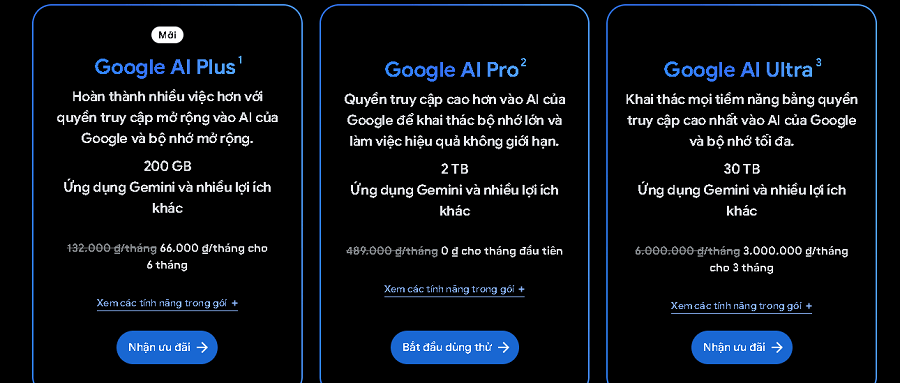
If you need higher limits or deep integration (like Vertex AI for enterprises), there are separate subscription plans:
- Google AI Pro: $19.99/month (or $0 for the first month), includes higher access to the Gemini app, video generation (Veo 3), and 2TB of Google One storage.
- Google AI Ultra: $249.99/month (50% off for the first 3 months), with the highest limits, Deep Research, and 30TB of storage.
- Vertex AI (enterprise): Pay-as-you-go, charged per token or per hour of use (e.g., $1.25/1M input tokens for some models), with committed use discount options.
Recommendations
- Start for free: Visit aistudio.google.com to try it now, no complex registration required.
- When to upgrade?: If you exceed rate limits or need a production API, enable billing to move to Tier 1 (which significantly increases your quota).
- Comparison: Cheaper than ChatGPT Plus ($20/month) for individuals, but Vertex AI is more flexible for businesses.
For the most accurate updates, check ai.google.dev/gemini-api/docs/pricing.
A Detailed Guide to Using Google AI Studio for Beginners
Google AI Studio is Google’s free, web-based AI development platform that helps you—even as a beginner—easily experiment, build, and deploy generative AI applications with Gemini models (like Gemini 2.5 Pro, Gemini 3). With its user-friendly interface and no complex coding required, you can create chatbots, analyze images/videos, and generate code or content in just a few minutes. As of 2025, AI Studio has received major updates, including support for agentic tools (automation), a context window of up to 1 million tokens, and generative media integration (video/music creation). This guide is based on the latest official documentation and tutorials to help you from A to Z without getting lost. Let’s get started!
1. Preparation and Access (Prerequisites)
- Create a Google Account: If you don’t have one, sign up for free at accounts.google.com. You’ll need a Gmail account to log in.
- Access the Platform: Open a browser (Chrome is recommended) and go to aistudio.google.com. Click “Sign in” and select your Google account. No additional installation is needed—everything runs in the cloud.
- System Requirements: A computer with a stable internet connection. Free quota: 1 million tokens/chat, 1500 chats/day (sufficient for beginners).
- Note: If you encounter an “Access Denied” error, check if you are in a supported region (most countries) and ensure JavaScript is enabled.

2. Main Interface and Basic Components
- After logging in, you will see the dashboard with the main sections:
- Recent Prompts: History of previous prompts (chats) – useful for reviewing and editing.
- New Prompt: Button to create a new prompt (choose a template like Chat, Code, Image).
- Model Selector: Choose a model (Gemini 2.5 Flash for high speed, Gemini 2.5 Pro for deep reasoning).
- Settings Panel: Adjust Temperature (0-1: low for accuracy, high for creativity), Max Outputs (number of responses), and Safety (filter sensitive content).
- Tip: Start with the “Chat” template to get familiar – it’s like chatting with Gemini.
3. Step 1: Creating Your First Prompt (Basic Prompting)
- Click “New Prompt” > Select “Freeform” or a template (e.g., “Chat” for conversation).
- Enter a simple prompt: “Write a short poem about autumn in Vietnamese.” (Supports multiple languages, including Vietnamese).
- Click “Run” (or press Enter). The result will appear immediately, with a “Regenerate” option to try again.
- Save the prompt: Click “Save” to add it to your history, or “Share” to send a link to friends.
- Example Result: The AI will generate a poem, and you can continue the chat: “Add more details about the golden leaves.”
4. Step 2: Experimenting with Multimodal Features
- Upload a file: Click the “Attach” icon (looks like a paperclip) > Select an image, video, audio, or document (PDF, DOC).
- Prompt with a file: Upload a picture of a cat > “Describe this animal and create a funny caption.” The AI will analyze the image and respond.
- With video: Upload a short clip > “Summarize the content of this video.” (Supports Veo 3 for creating video from text).
- Tip: Use “Stream Realtime” to share your screen/camera – ideal for personalized tutorials.
5. Step 3: Generating Code and Building Applications (Code Generation)
- Select the “Code” template > Prompt: “Write Python code to calculate the sum of two numbers.”
- The AI generates code > Click “Get Code” to copy it (supports Python, Java, C++).
- Test the code: Use the built-in editor to run a test (if supported).
- Advanced Example: “Create a simple web app that displays the weather” > Use the “Build Tab” for rapid prototyping.
6. Step 4: Customizing and Deploying (Tuning & Deployment)
- System Instructions: Add system instructions (e.g., “You are a chef specializing in Vietnamese cuisine”) to guide the AI long-term.
- Tuning: Click “Tune & Test” > Upload data to fine-tune the model (basic tuning is free).
- API Key: Click “Get API Key” > Copy it to integrate into your app (supports Gemini API).
- Collaboration: Share the project via a link, or connect to Google Cloud for large projects (free GPU/TPU).
- Note: The free quota is limited – upgrade via Google Cloud if you need more.
7. Pro Tips & Troubleshooting
- Prompt Engineering: Make your prompts clear and specific (e.g., “Explain step-by-step, using bullet points”). Use the gallery of 35+ examples to learn.
- Common Errors: “Quota exceeded” – Wait for the daily reset. “Strange output” – Lower the Temperature to 0.5.
- Practical Applications: Create blog posts, summarize YouTube videos, or personalize learning (upload notes > “Create a study plan”).
- Tip: Watch video tutorials on YouTube (search for “Google AI Studio tutorial 2025”) for visual learning.
Summary of Key Steps
| Step | Brief Description | Estimated Time | Tools Used |
| 1. Access | Log in to Gmail > Go to aistudio.google.com | 1 minute | Browser |
| 2. Create Prompt | Select template > Enter command > Run | 2-5 minutes | Freeform/Chat |
| 3. Multimodal | Upload file > Prompt with image/video | 3 minutes | Attach icon |
| 4. Generate Code | Template Code > Get Code | 5 minutes | Editor built-in |
| 5. Deploy | Tune > Get API Key > Share | 10 minutes | API panel |
Practical Applications of Google AI Studio
Google AI Studio is Google’s web-based AI development platform, designed not only for developers but also for general users, to quickly build and deploy generative AI applications. With deep integration into the Gemini model (like Gemini 3.0 Pro, launched in October 2025), the platform supports everything from simple prototypes to large-scale applications, leveraging a context window of up to 1 million tokens and tools like Veo 3 (for creating videos with synchronized audio) and Imagen 4 (for generating high-resolution images). By 2025, AI Studio has been widely used in over 10 million projects, focusing on “democratizing AI”—turning ideas into real products without complex code. The practical applications are diverse, ranging from individual to enterprise use, based on data from case studies and updates at Google I/O 2025. Below are the most prominent areas, with specific examples.

1. Content Creation & Generative Media
- Description: Use Imagen 4 to create studio-quality images (supports natural language editing, image blending), Veo 3 for videos with synchronized audio (dialogue, background sound), and Lyria RealTime for real-time interactive music. Ideal for marketers, designers, or creators.
- Practical application:
- Creating ad videos: A marketing agency uses Veo 3 to generate a time-lapse video of a city from a text description, saving 70% of production time compared to manual shooting.
- Designing social media content: Generate abstract images (like a robot repairing a spaceship) or podcast intros with natural audio for blog posts or TikTok.
- Music composition: Musicians interact with Lyria RealTime to create music inspired in real-time, for use in games or short films.
2. Software Development & Vibe Coding
- Description: Native code generation with Gemini 2.5 Pro/3.0, supporting prompt-to-code (idea description → complete code), debugging, and API integration. “Vibe Coding” allows building apps from natural language descriptions, with a Build tab for web/mobile prototyping.
- Practical application:
- Rapid app development: Developers use it to create frontend/backend (e.g., a weather app with Google Maps grounding), export Python/JS code, and deploy via the Gemini API—reducing development time from weeks to hours.
- Debugging and testing: In VS Code, integrate Gemini 3.0 to solve coding issues with 35% higher accuracy, for real-world projects like automation workflows.
- Agent building: Create AI agents for business processes, such as customer support chatbots with function calling.
3. Data Analysis & Research
- Description: Grounding with Google Search/Maps to retrieve real-world data, processing long documents (books, reports), and multimodal analysis (images/videos). Supports NotebookLM for research.
- Practical application:
- SEO data analysis: Teams use it to handle 10-15 chat sessions daily, analyzing data trends at no cost (saving $1176/month for a team of 7).
- Medical research: Use MedGemma to analyze medical images (X-rays) and build preliminary diagnostic apps for medical developers.
- Document summarization: Upload PDFs/YouTube videos to summarize and extract insights, for business reports or academic study.
4. Education & Personalized Learning
- Description: LearnLM for educational content, creating quizzes/to-do apps, and voice-first experiences with Stream Realtime.
- Practical application:
- Creating interactive lessons: Teachers use it to generate fun quizzes or study plans based on uploaded notes, personalized for students.
- Programming tutorials: Beginners learn to code via prompts like “Write Python code step-by-step,” with explanations and a test sandbox.
- Foreign language learning: Create listening/speaking exercises with audio output, for use in mobile apps.
5. Enterprise Applications and Integration (Enterprise & Integration)
- Description: Integrate Vertex AI for large-scale operations, AI Agent Builder for automation, and grounding Maps for location-based apps.
- Practical applications:
- Build enterprise chatbots: Create agents for customer service on WhatsApp, processing queries with internal data.
- AR/VR applications: Integrate Gemini into Android XR glasses for real-time guidance (directions, sports stats).
- Process management: Automate workflows such as analyzing BigQuery data for financial reports.
Summary Table of Practical Applications
| Field | Main Application | Main Support Tools | Practical Benefits |
| Content Creation | Create advertising videos, abstract images | Veo 3, Imagen 4, Lyria RealTime | Save 70% of production time |
| Software Development | Prototype app, debug code, agent building | Gemini 3.0, Vibe Coding, Build Tab | Reduce time from weeks to hours |
| Data Analysis | Summarize reports, analyze SEO/medical data | Grounding Search/Maps, MedGemma | Save $1000+/month for the team |
| Education | Create quizzes, interactive lessons | LearnLM, Stream Realtime | Personalize learning for students |
| Business | Customer chatbots, AR/VR apps | Vertex AI, AI Agent Builder | Automate business processes |
















