


 13/05/2026
  214 views
To help users get a more intuitive and comprehensive view of the 1Office total business management solution – especially the process task management module, 1Office has improved a series of useful features.
-
Mục lục
Process Task Upgrades
-
Template Process Settings
Add attachments to each process Node.
In practice, every process has multiple steps. At each step, many issues can arise that require attention. Understanding this, the 1Office product development team has added a feature to attach documents to each process Node (the steps within a process task), allowing users to easily attach relevant documents and notes for implementation.
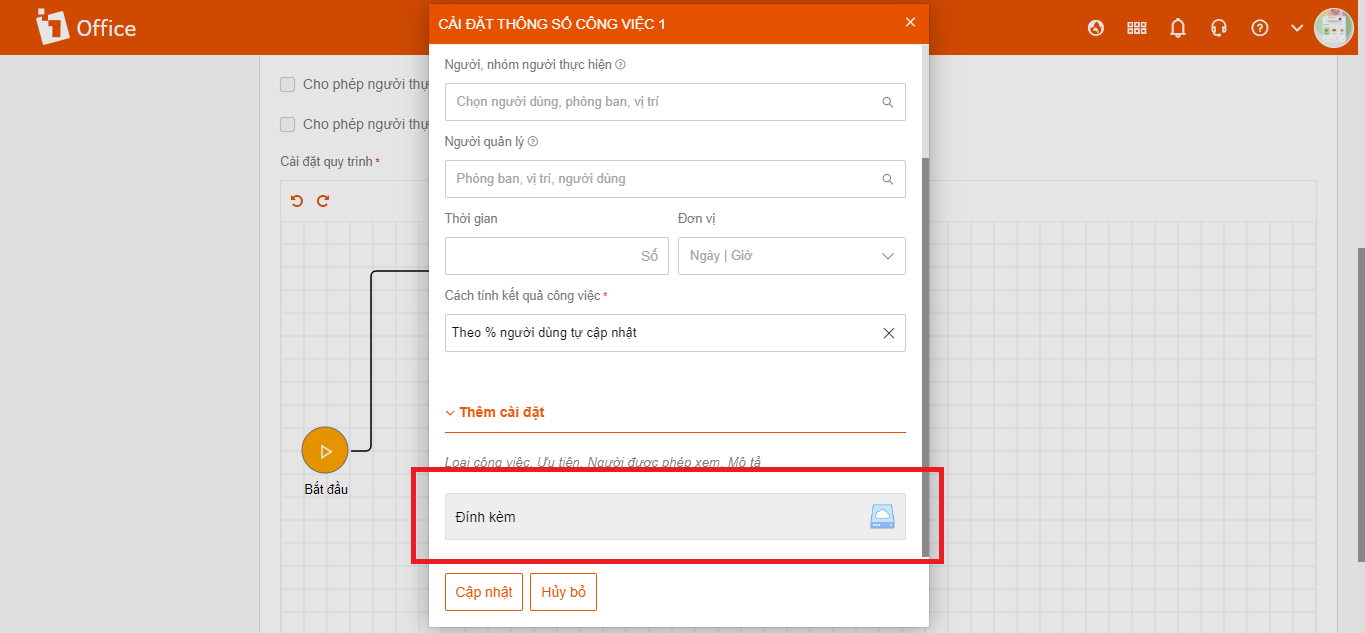
Adding attachments to Nodes in a process task
Add Checkbox: Allow – Do not allow viewing each other’s tasks.
Each business has different security conventions. A process will have many steps, with each step handled by a person, department, or division. To ensure security at each step, 1Office has developed a new feature: Allow or disallow viewing each other’s tasks.
In the settings for a Node (the steps in a process task), there will be an option to select “Allow viewing Node”. If you want users to only be able to see the tasks in the steps they are assigned to, and not the tasks in other steps, then select “Do not allow viewing Node”.
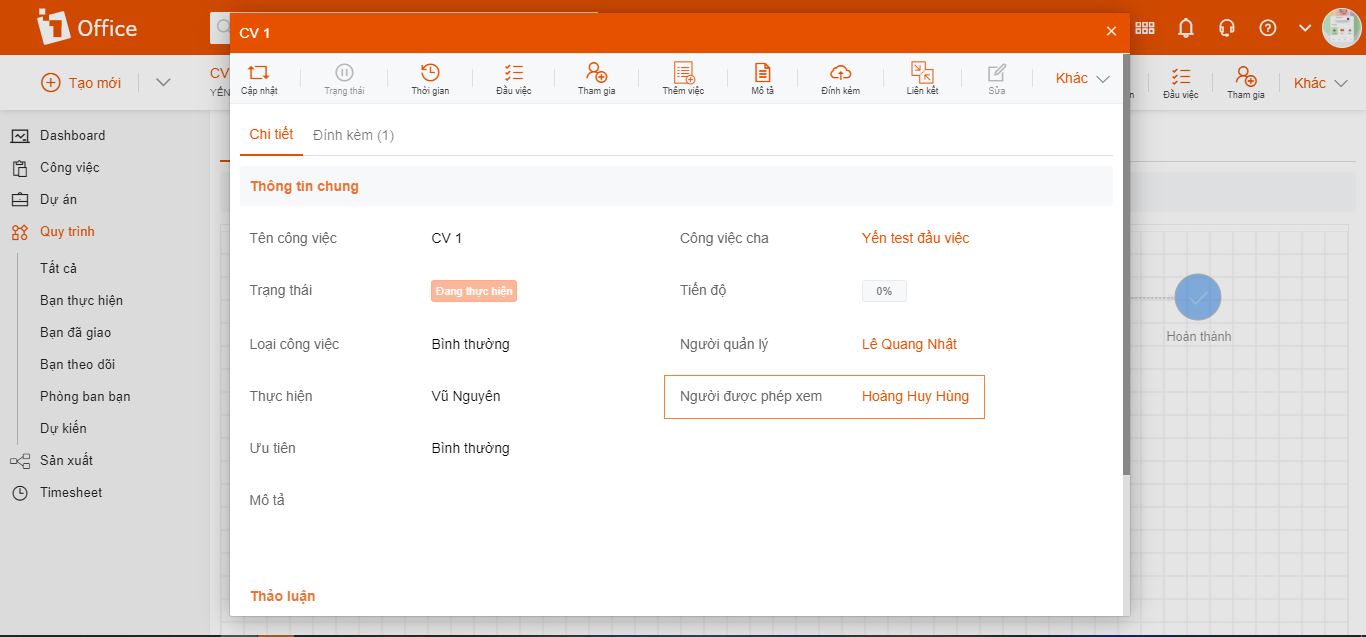
Users can customize who is allowed to view the steps
If you do not select “Allow viewing Node”, the system will default to allowing all users participating in the process to see the details of all steps in the process.
2. Process Tasks
To support creating and tracking related objects directly within a task, 1Office has added related actions to the list view. This also makes it easier for managers to monitor tasks.
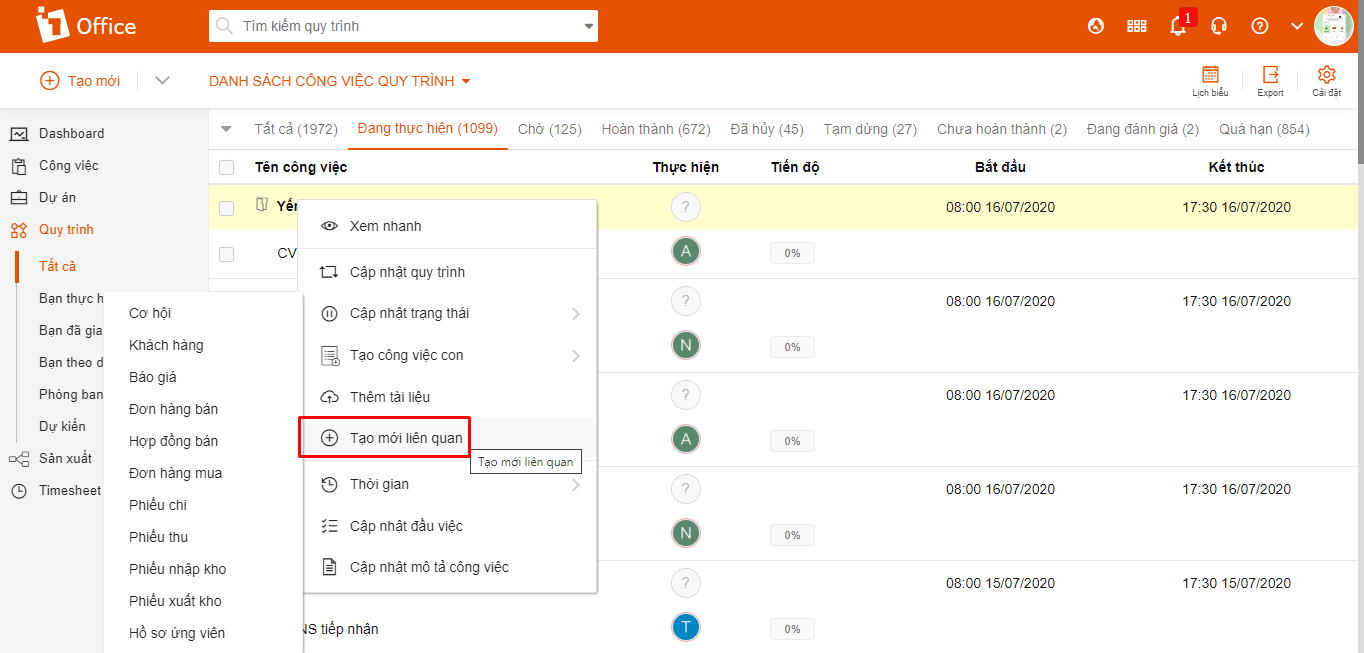
Adding related actions for easier task monitoring by managers
II. Regular Task Upgrades
1. Adding Task Statuses
To better match the task statuses of businesses, 1Office has added several new statuses: Pending, In Progress, Under Review, Completed, Incomplete, Paused, Canceled, Overdue.
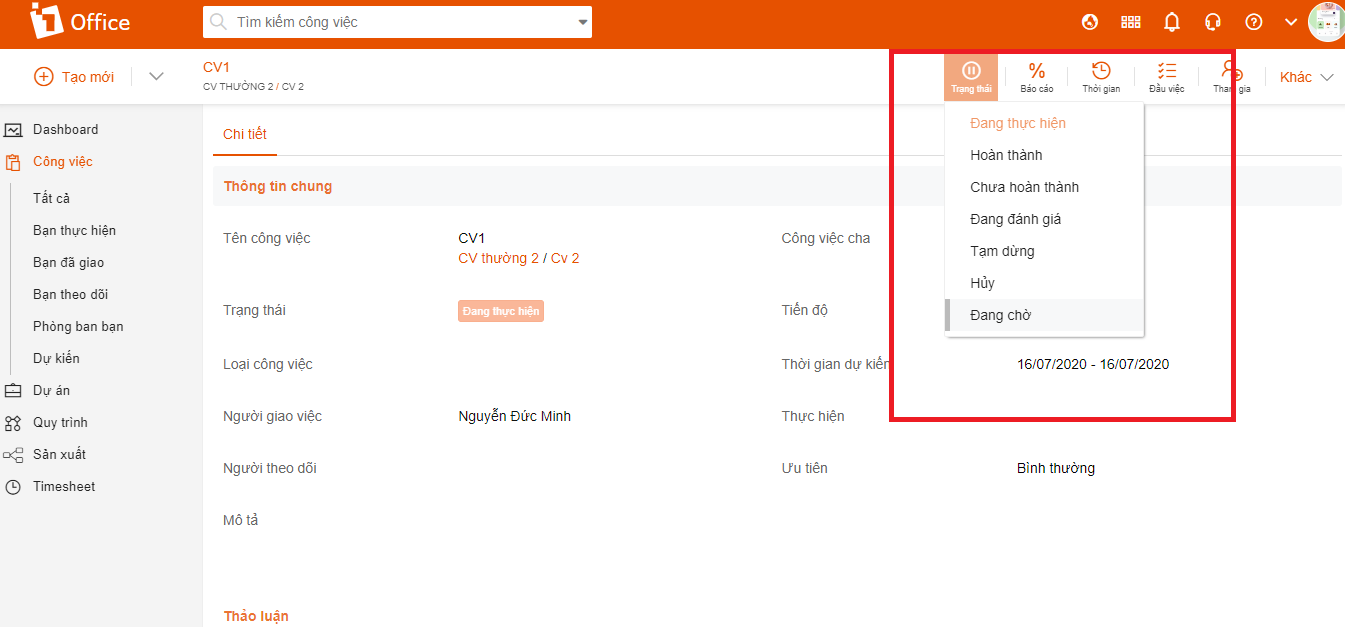
Adding task statuses
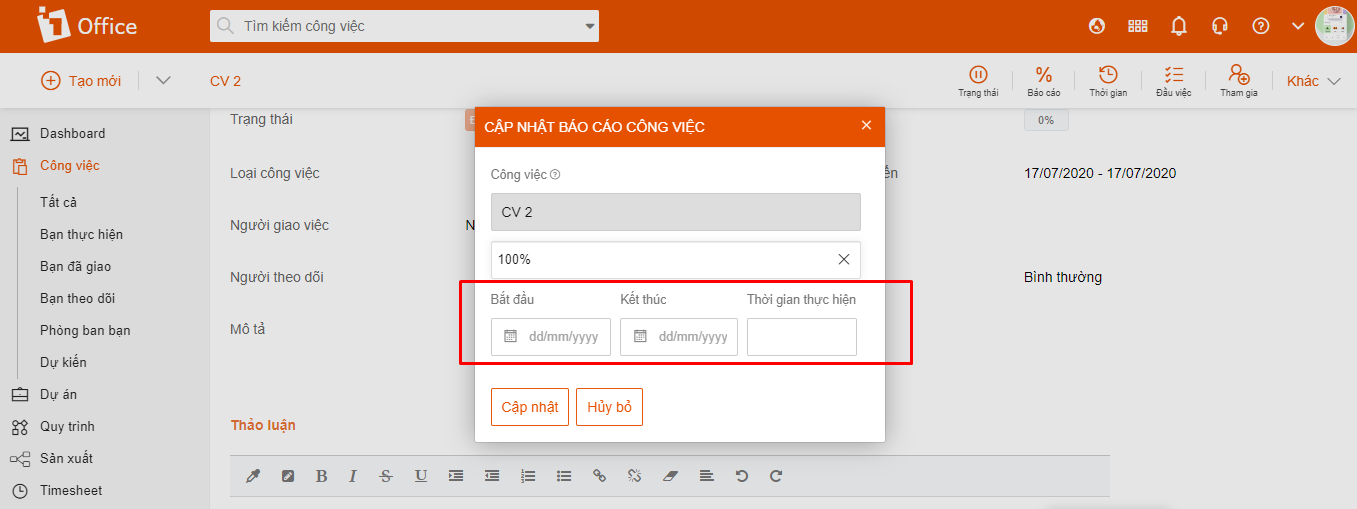
When the assignee reports the task as completed, the system will display two fields: Actual Start and Actual End. For managers, when updating the task status, the system will not display these two fields.
2. Regular Task Settings
For regular tasks, the system allows you to configure whether a task’s status changes to Under Review or Completed after the assignee reports it as 100% finished.
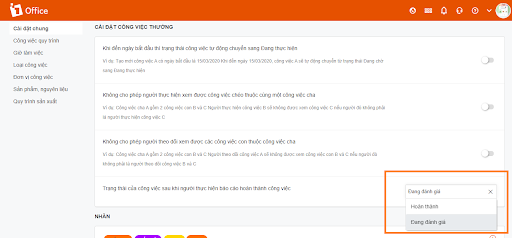
Additionally, the system has removed the setting where a task automatically changes to Completed when the assignee finishes it, because in practice, the assignee only has the authority to report task progress.
3. Consolidating Actions on the List View
Instead of having separate actions for: Update Status, Time, Update Sub-tasks, and Update Task Description, 1Office has consolidated them into a single action for easier viewing.
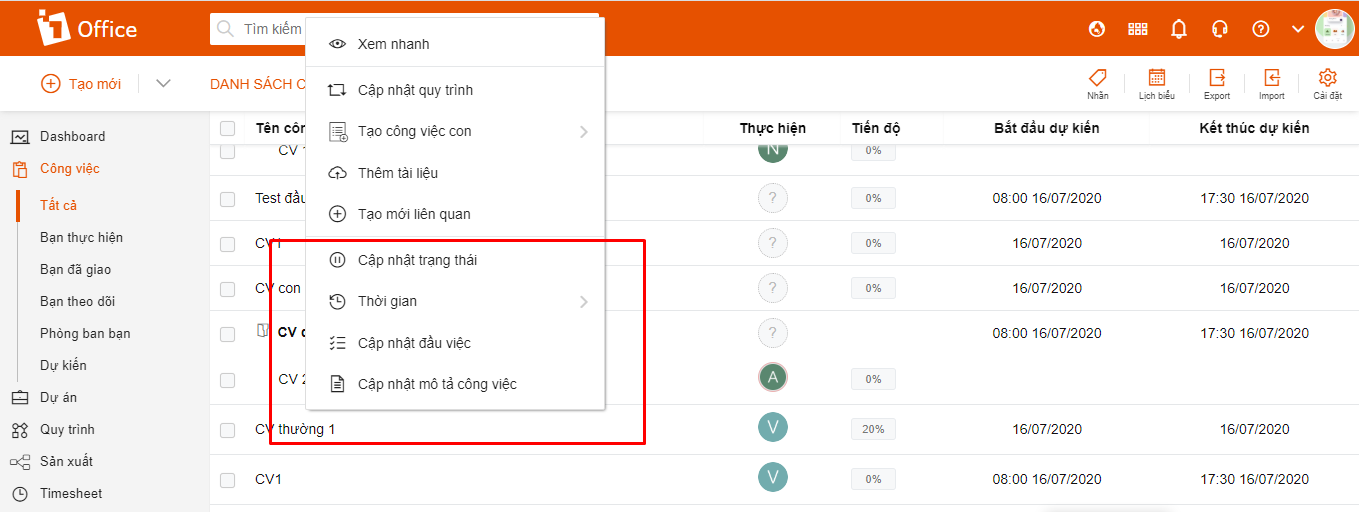
Combine 4 actions on the list screen
4. Add labels to tasks
To facilitate faster filtering and searching of tasks, 1Office has added a feature to add labels to tasks.
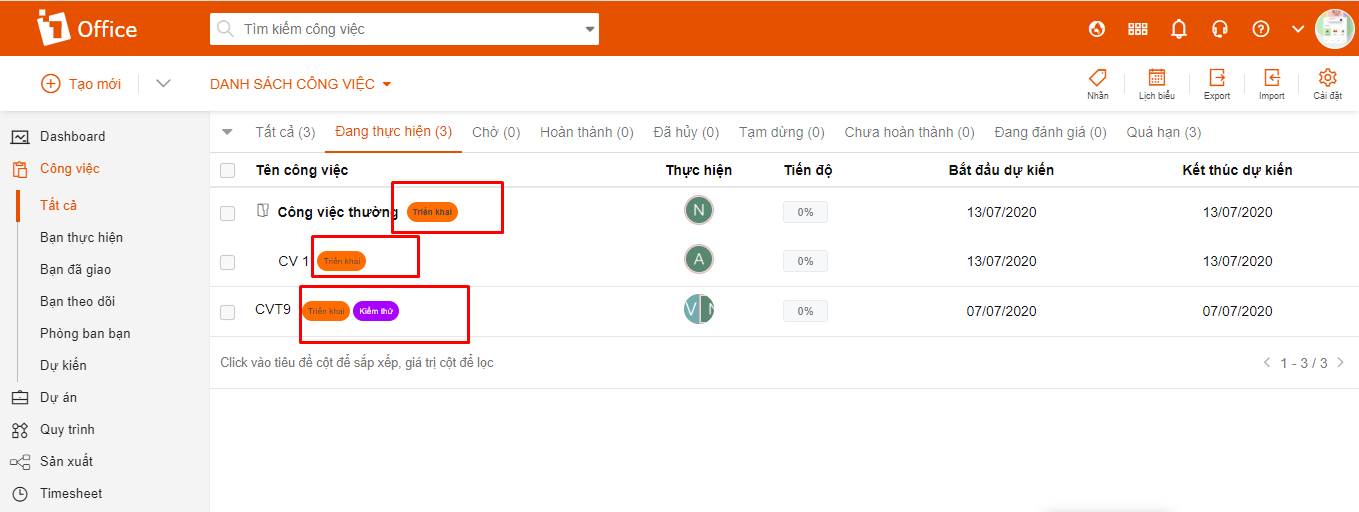
Add labels to tasks
5. Dashboard screen for regular tasks and workflows
To help managers get an intuitive and comprehensive overview of tasks and workflows, 1Office has upgraded the Dashboard screen:
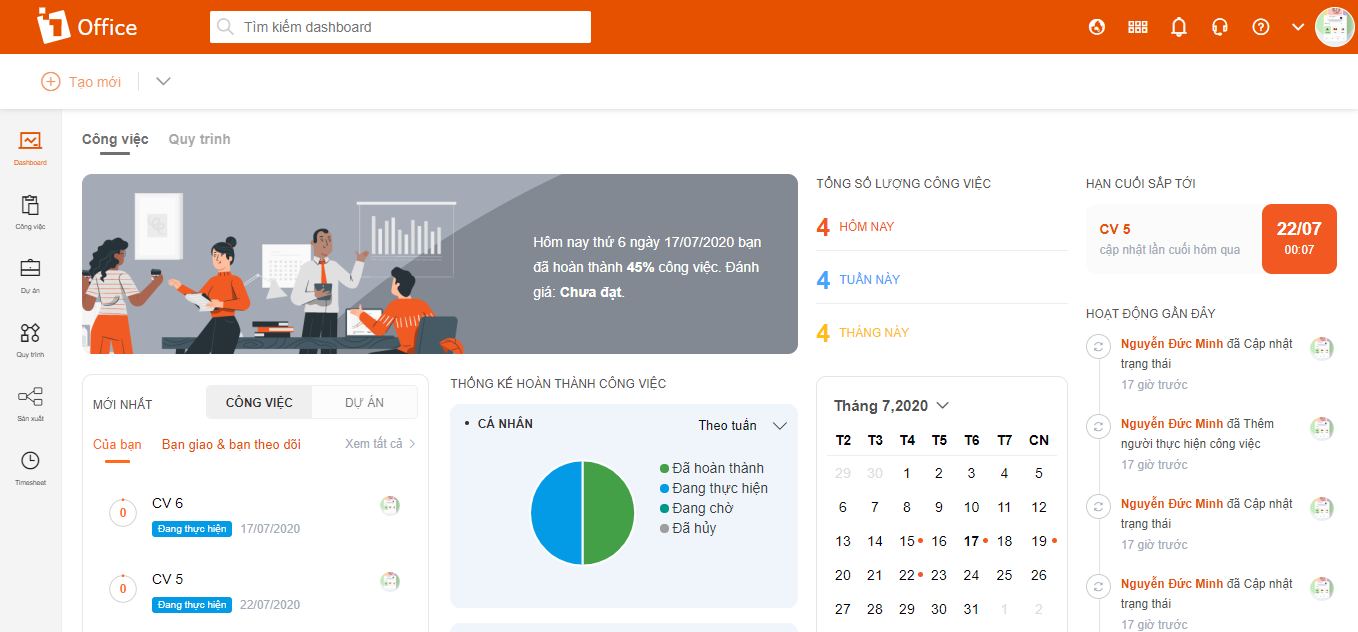
Intuitive and easy-to-understand Dashboard screen
1Office customers, quickly update and experience the new features to manage tasks and workflows more intuitively and professionally!
















