

 13/05/2026
  280 views
Finding software to assist businesses with online and remote work is always a problem that managers need to solve. In this article, let’s explore an overview of Microsoft Teams and some tips to help you use the software more simply and easily.
Mục lục
What is Microsoft Teams?
Microsoft Teams is currently a popular online meeting support tool used by many businesses today. At present, there are certainly quite a few team collaboration software options to choose from. But one particularly useful solution stands out: Microsoft Teams. And it’s completely free with Microsoft 365.
In fact, the structure of this software consists of 3 parts:
- Teams: Includes a collection of people working on the same project or in the same department, etc.
- Channels: These are conversations created for the purpose of discussing work among members of the same project. Some key features include: Chat, video calls, sharing information, common data, etc.
- Tabs: Tools that help people exchange information with each other.
Key functions of MS Teams
It is built with key functions such as:
- Chat – Built with the main feature of messaging a specific person, helping employees in the business discuss work and projects.
- Teams – Create teams and channels to bring everyone on the same project together to work in a virtual space.
- Calendar – Schedule online meetings to connect with everyone. This Calendar feature is synchronized with your Outlook calendar.
- Apps – Find familiar apps and discover new ones to simplify, customize, and manage the way you work.
How to use Microsoft Teams to enhance team communication efficiency
1. Keyboard shortcuts
Our first tip for readers is the keyboard shortcuts for the most common commands. Knowing and using these shortcuts when using any application can help users optimize their working time and help businesses improve labor productivity.
Here are some essential shortcuts to get you started:
- Go to Search: Ctrl + E
- Turn off camera: Ctrl + Shift + O
- Mute: Ctrl + Shift + M
- Blur background: Ctrl + Shift + P
- Zoom: Ctrl + = to zoom in or Ctrl + – to zoom out
- Go to your files: Ctrl + 6
2. Advanced search through your conversations
On-demand keyword-based search is always an important feature of any software. Furthermore, search becomes an indispensable feature as your volume of information grows, making it impossible to oversee all your projects and tasks.
Search based on the integrated Keyword Query Language (KQL) for more advanced searches is always one of the main and primary features that software developers want to upgrade to meet consumer needs.
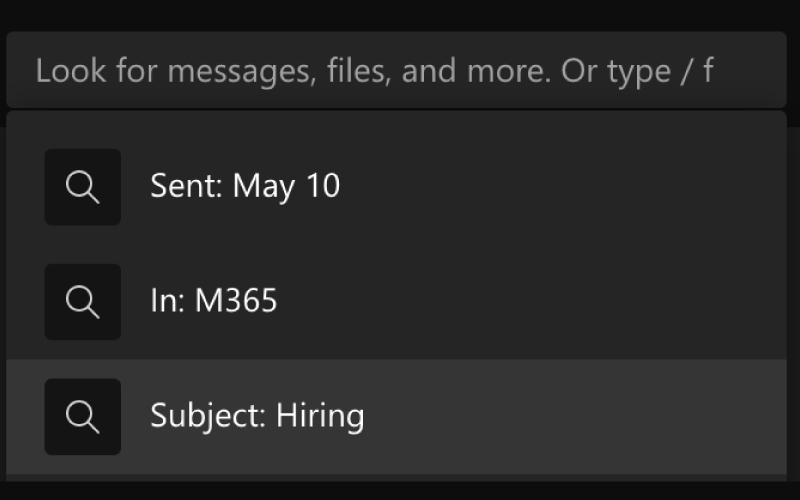
Below are the keywords that Teams supports to enhance your search capabilities (remember not to add a space between the colon and the search term):
“From:” Enter the name of the person to search for
“In:” Channel or group chat name
“Subject:” Keyword from the message or a subject line
“Sent:” The date the message was sent
3. Translate text passages
Microsoft has included a message translation feature to serve users’ work processes. Users just need to hover over a message in a foreign language, click the three dots ( … ), and then select Translate.
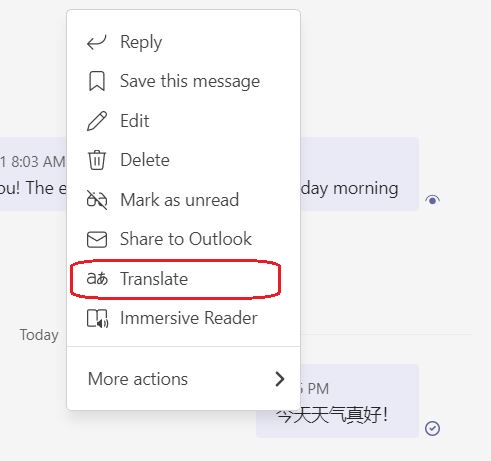
In addition, MS Teams also supports translation for video calls. You can add subtitles to share content in up to 6 languages. Any attendee can turn on live captions by clicking Turn on live captions in the bottom-right corner of their screen.
4. Save messages
If you receive an important message but don’t have time right now, you can save it and come back to it later.
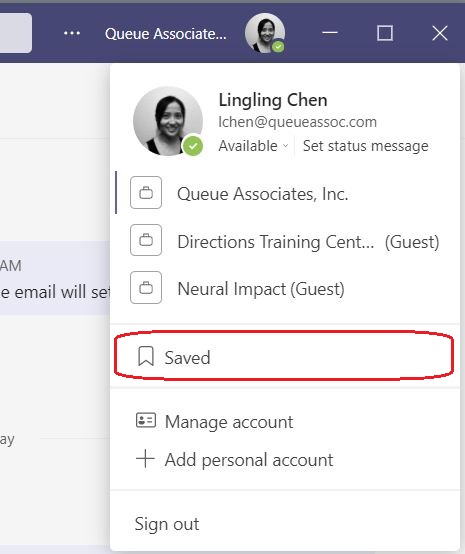
To do this: Hover over the message and click the ellipsis (…), then click Save this message. To see your saved messages, click on your profile picture, select Saved, and all your saved messages will appear in the left pane. You can unsave these messages by clicking the bookmark icon at the top right of each message.
| Learn more: What you need to know about digital signatures and e-invoices for businesses |
5. Download meeting recordings
You can enable meeting recording in the Team settings before the meeting starts.
How to do it: Select the ellipsis ( … ) to open more actions, then select Start recording. After the meeting ends, the recording will be immediately available in the meeting event on the calendar.
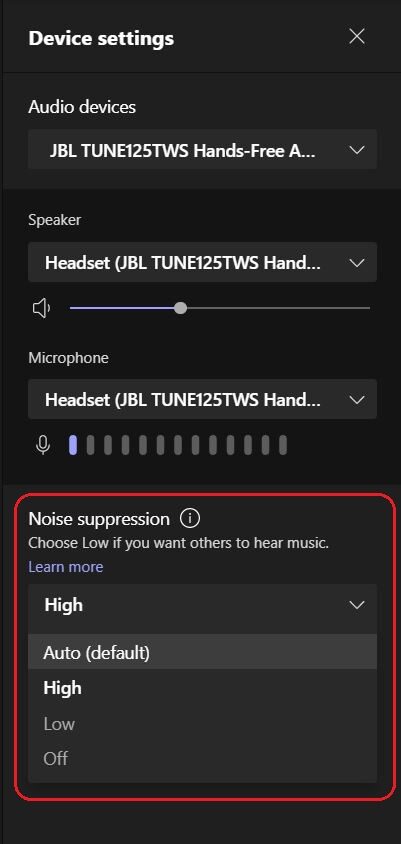
6. Noise suppression
How to do it: Select More options, then select Device settings. Under Noise suppression, choose an option.
7. Urgent chat notifications
To send an Urgent Message Notification in MS Teams, look below the text composition box and select Urgent or Important to add one of these words to the message and get the recipient’s attention.
Mark a message as urgent, and after you send it, the recipient will be notified every 2 minutes for the next 20 minutes.
Every team that uses Microsoft Teams will have a site in SharePoint Online, which will contain a default document library folder. All files shared across all conversations will automatically be saved to this folder. Permissions and security options can also be customized for sensitive information.
9. Conduct a poll directly in MS Teams
How to do it:
Click the Forms icon below the message box to create and send a poll in Microsoft Teams. You can then create your poll. Enter your question and the answer options.
To allow multiple answers, click on Multiple answers. There are also checkboxes for Share results automatically after voting and Keep responses anonymous. Check that you are satisfied with it, click Send, and view the results.
10. Ask T-Bot for help
T-Bot is a dedicated help bot built specifically for Microsoft Teams.
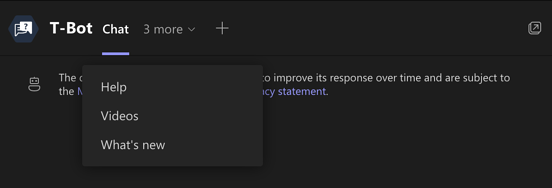
How to do it: After clicking on Chat, you will see T-Bot as shown in the image we provided above. Next, you can start typing a question (or keyword) to get an answer. If you just want to browse, you will also find answers in the Help, FAQs, Videos, and What’s New tabs.
| Learn more: Workplace – The internal communication platform for businesses |
Disadvantages of MS Teams
Despite some major improvements, Microsoft Teams still lacks some features that users consider crucial, such as:
- Document sharing is heavily dependent on Outlook: To share documents, users must use Outlook; there is no separate group calendar, so you have to go to the Outlook Calendar to view your schedule.
- The complicated and confusing folder arrangement makes it difficult for users to keep track.
- Some Skype features have not yet been added to Teams for video meetings, causing certain obstacles.
- Group privacy is not prioritized, as many people can join multiple groups or invite others to join without permission.
- Work progress is not clearly displayed and can only be tracked through reports via employee messages.
- There is no feature to clearly show the workflow progress, making it difficult for employees to grasp information.
1Office’s Internal Communication Platform: Workplace
Designed to function like a miniature social network, this is where businesses can connect employees, enhancing solidarity and teamwork.
<iframe title="
Some of Workplace’s key features include:
- Displays all internal information; all employee activities and announcements are updated and shown on the platform.
- A tool that helps employees stay updated on the company’s new policies and regulations.
- Clear workflow, with tasks and responsible individuals clearly displayed on the platform for easy tracking.
- The Digital Signature function is simple and easy to use anytime, anywhere, making the process of approving requests and signing contracts faster than ever.
Through this article, we hope the information provided by 1Office brings valuable insights to your business. If you need any further information or consultation, please contact us for a free consultation. We thank you for your time!
For more detailed information, please visit:
Hotline: 083 483 8888
Fanpage: https://www.facebook.com/1officevn/
Youtube: https://www.youtube.com/channel/UCeTIRNqxaTwk0_kcTw6SxmA