


 09/05/2026
  22346 views
Google Sheet là công cụ quen thuộc giúp cá nhân và đội nhóm nhỏ theo dõi công việc, deadline, người phụ trách và trạng thái thực hiện một cách đơn giản. Tuy nhiên, nếu không có cấu trúc bảng rõ ràng, việc quản lý task dễ bị rối, khó cập nhật tiến độ và khó kiểm soát trách nhiệm giữa các thành viên. Bài viết này sẽ hướng dẫn cách quản lý công việc bằng Google Sheet, kèm mẫu bảng và các lưu ý để áp dụng hiệu quả hơn.
Mục lục
- 1. Mẫu quản lý công việc Google Sheet là gì?
- 2. Tại sao nên dùng Google Sheet để quản lý công việc?
- 2.1. Miễn phí, dễ tiếp cận
- 2.2. Hỗ trợ làm việc nhóm hiệu quả
- 2.3. Truy cập mọi lúc, mọi nơi trên nhiều thiết bị
- 2.4. Tự động lưu, hạn chế rủi ro mất dữ liệu
- 2.5. Chia sẻ nhanh và phân quyền linh hoạt
- 2.6. Theo dõi tiến độ công việc minh bạch
- 2.7. Dễ tự động hóa quy trình làm việc
- 2.8. Kết nối tốt với nhiều công cụ khác
- 2.9. Phù hợp với nhiều quy mô doanh nghiệp
- 2.10. Linh hoạt, dễ tùy chỉnh theo nhu cầu
- 3. Các tính năng nổi bật của Google Sheet trong quản lý công việc
- 4. Effective tips for managing work with Google Sheets
- 5. [FREE DOWNLOAD] 9+ Most Professional Google Sheets Task Management Templates
- 6. Advantages and Disadvantages of Managing Tasks with Google Sheets
- 7. Task Management in the 4.0 Era with 1Office Software
- 8. Frequently Asked Questions about Google Sheet Task Management Templates
1. Mẫu quản lý công việc Google Sheet là gì?
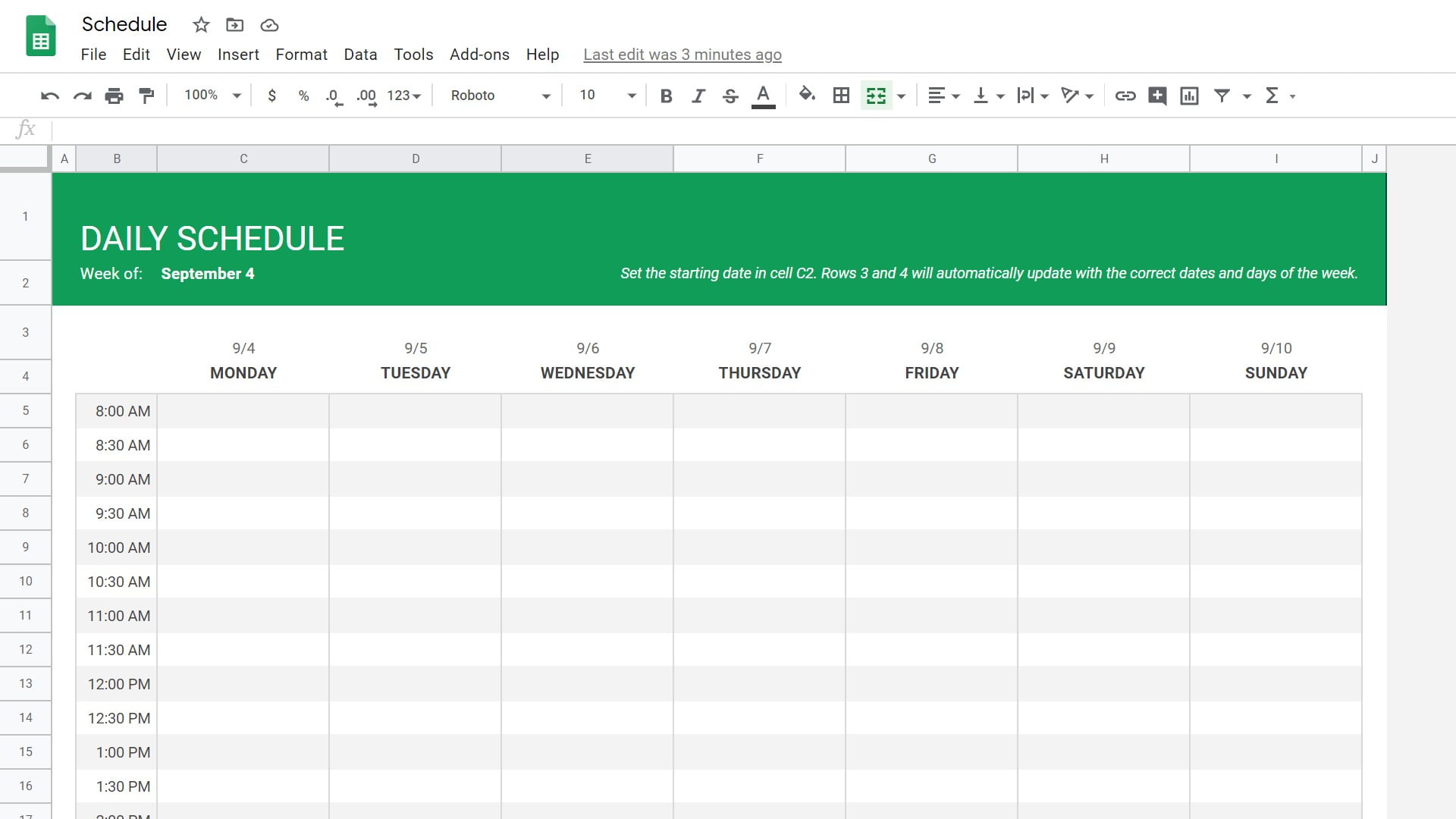
Mẫu quản lý công việc Google Sheet (Google Sheet Task Management Template) là bảng mẫu có cấu trúc sẵn, được tạo trên Google Sheet để giúp cá nhân hoặc nhóm:
- Theo dõi công việc
- Giao nhiệm vụ
- Theo dõi tiến độ
- Quản lý deadline
- Quản lý trạng thái công việc
- Nhận xét, trao đổi ngay trên bảng
- Tổng hợp báo cáo công việc
Một mẫu quản lý công việc thường gồm:
- Thông tin công việc Tên công việc, mô tả, dự án
- Người phụ trách Người thực hiện, người theo dõi
- Thời gian Ngày bắt đầu, deadline, ngày hoàn thành
- Trạng thái To do, In Progress, Done…
- Mức ưu tiên Thấp – Trung bình – Cao
- Ghi chú Lưu ý, file đính kèm, trao đổi nội bộ
2. Tại sao nên dùng Google Sheet để quản lý công việc?
Google Sheet là một trong những công cụ quản lý công việc được nhiều cá nhân và doanh nghiệp lựa chọn nhờ tính linh hoạt, dễ sử dụng và khả năng cộng tác hiệu quả. Dưới đây là những lý do bạn nên dùng Google Sheet để theo dõi và quản lý công việc hằng ngày.
2.1. Miễn phí, dễ tiếp cận
Chỉ cần có tài khoản Gmail, bạn đã có thể sử dụng Google Sheet ngay mà không cần cài đặt phần mềm hay mua license. Đây là giải pháp tiết kiệm chi phí, đặc biệt phù hợp với cá nhân, startup và doanh nghiệp nhỏ.
2.2. Hỗ trợ làm việc nhóm hiệu quả
Google Sheet có khả năng cộng tác trực tuyến rất mạnh. Nhiều người có thể cùng chỉnh sửa trên một file trong cùng thời điểm mà không gây xung đột dữ liệu. Ngoài ra, người dùng còn có thể giao việc trực tiếp bằng comment, gắn thẻ thành viên bằng @tag và theo dõi lịch sử chỉnh sửa theo thời gian thực. Nhờ đó, team luôn làm việc trên cùng một phiên bản dữ liệu, không lo lỗi file cũ hay trùng lặp thông tin.
2.3. Truy cập mọi lúc, mọi nơi trên nhiều thiết bị
Bạn có thể sử dụng Google Sheet trên laptop, điện thoại hoặc máy tính bảng một cách thuận tiện. Mọi thay đổi đều được đồng bộ gần như ngay lập tức, giúp bạn dễ dàng cập nhật công việc dù đang ở văn phòng, ở nhà hay đang di chuyển.
2.4. Tự động lưu, hạn chế rủi ro mất dữ liệu
Một trong những ưu điểm lớn của Google Sheet là khả năng auto-save sau mỗi thao tác. Nhờ đó, dữ liệu luôn được lưu lại tự động mà không cần bấm lưu thủ công. Ngay cả khi mất điện, tắt máy đột ngột hoặc kết nối mạng bị gián đoạn, thông tin vẫn được bảo toàn ở mức rất cao.
2.5. Chia sẻ nhanh và phân quyền linh hoạt
Google Sheet cho phép chia sẻ file chỉ bằng một đường link. Bạn cũng có thể phân quyền rõ ràng cho từng người dùng như: chỉ xem, nhận xét hoặc chỉnh sửa. Với những bảng tính quan trọng, bạn còn có thể khóa vùng dữ liệu hoặc công thức để tránh bị sửa nhầm.
2.6. Theo dõi tiến độ công việc minh bạch
Chỉ cần nhìn vào một bảng Google Sheet được thiết kế hợp lý, bạn có thể nhanh chóng nắm được ai đang phụ trách công việc nào, đầu việc nào đang bị trễ hạn, dự án đang ở giai đoạn nào và mức độ ưu tiên của từng nhiệm vụ ra sao. Đây là lý do Google Sheet đặc biệt phù hợp với các team marketing, vận hành, sale, thiết kế hay quản lý dự án.
2.7. Dễ tự động hóa quy trình làm việc
Google Sheet hỗ trợ nhiều tính năng giúp tự động hóa việc quản lý công việc. Chẳng hạn, bạn có thể dùng Data Validation để tạo danh sách trạng thái dạng dropdown, dùng Conditional Formatting để tự động đổi màu theo tiến độ, dùng Pivot Table để tổng hợp báo cáo, hoặc dùng Apps Script để gửi email nhắc deadline và xây dựng các tác vụ tự động.
Ví dụ, khi công việc sắp đến hạn, hệ thống có thể tự động gửi email nhắc việc. Hoặc khi trạng thái được chuyển sang “Done”, dòng dữ liệu có thể tự đổi sang màu xanh để dễ theo dõi.
2.8. Kết nối tốt với nhiều công cụ khác
Google Sheet có khả năng tích hợp với nhiều nền tảng phổ biến như Google Form, Google Calendar, Looker Studio, Slack, Notion, Trello, CRM, ERP hoặc API nội bộ của doanh nghiệp. Nhờ đó, doanh nghiệp có thể xây dựng một hệ thống quản lý công việc liên thông, tiết kiệm thời gian nhập liệu và tăng hiệu quả vận hành.
2.9. Phù hợp với nhiều quy mô doanh nghiệp
Không chỉ phù hợp với cá nhân, Google Sheet còn có thể đáp ứng nhu cầu quản lý công việc của team từ 2 đến 20 người, doanh nghiệp quy mô 50 đến 200 nhân sự hoặc các dự án có sự phối hợp giữa nhiều phòng ban. Khi được xây dựng đúng cách, Google Sheet hoàn toàn có thể trở thành một công cụ quản lý công việc hiệu quả trong nhiều mô hình tổ chức.
2.10. Linh hoạt, dễ tùy chỉnh theo nhu cầu
Google Sheet không giới hạn bạn trong những mẫu cố định. Bạn có thể chủ động thêm cột, thêm màu sắc, tạo dropdown trạng thái, chèn công thức thống kê hoặc thiết kế dashboard theo nhu cầu riêng. Chính sự linh hoạt này giúp Google Sheet trở thành công cụ rất phù hợp cho quản lý teamwork, đặc biệt khi doanh nghiệp cần tùy biến theo quy trình nội bộ.
3. Các tính năng nổi bật của Google Sheet trong quản lý công việc
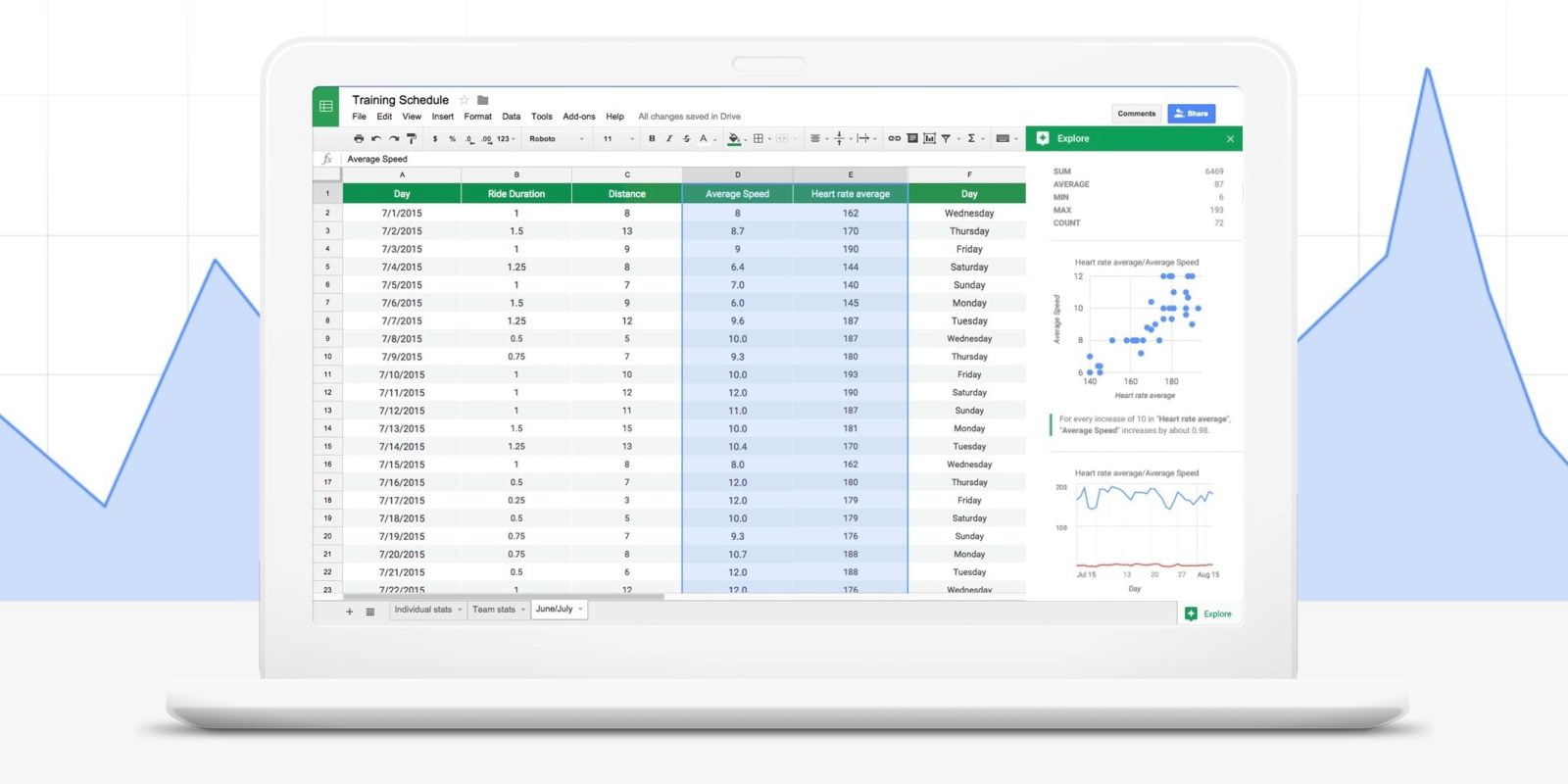
Google Sheet là phần mềm bảng tính trực tuyến được phát triển bởi Google, cho phép người dùng tổ chức và xử lý một lượng lớn thông tin dữ liệu với nhiều mục đích khác nhau. Nhờ tính phổ biến và hữu dụng, Google Sheet được sử dụng bởi hàng triệu người dùng trên toàn cầu, từ các cá nhân muốn tổ chức, sắp xếp công việc, lịch trình một cách khoa học cho đến những tổ chức lớn ứng dụng để lập kế hoạch dự án.
3.1. Tạo bảng tính online
Cũng giống như Excel hay các phần mềm bảng tính khác, Google Sheet cho phép người dùng tạo lập bảng tính để nhập và xử lý dữ liệu phục vụ cho quản lý công việc. Tuy nhiên, Google Sheet là ứng dụng bảng tính được phát triển trên nền điện toán đám mây, nghĩa là người dùng có thể tạo bảng tính online và làm việc trực tuyến mọi lúc mọi nơi trên bất kỳ thiết bị nào. Các nhóm có thể cộng tác và làm việc với nhau ở bất cứ đâu theo thời gian thực.
3.2. Lưu trữ tài liệu tự động
Một điểm mạnh lớn nhất của Google Sheet so với các phần mềm bảng tính tại chỗ khác là Google hỗ trợ lưu trữ tài liệu tự động mà không cần sử dụng đến thao tác lưu (Ctrl + S). Mọi chỉnh sửa, thay đổi nhỏ nhất của người dùng trên trang tính đều được Google Sheet tự động lưu lại. Từ đó giảm thiểu nguy cơ mất dữ liệu và gián đoạn trong quản lý công việc khi người dùng quên lưu trang tính.
3.3. Công cụ đa dạng
Với hơn 400 chức năng bảng tính, google sheet cung cấp bộ công cụ toàn diện giúp bạn thực hiện đa dạng các tác vụ từ cơ bản đến nâng cao. Các tính năng phổ biến như hàm tính toán, bảng biểu,… rất dễ dàng thao tác, cho phép người dùng xử lý dữ liệu một cách nhanh chóng, thuận tiện. Nhờ vậy mà Google Sheet đáp ứng được đa dạng các nghiệp vụ khác nhau trong tổ chức như hoạch định ngân sách, theo dõi tiến độ, lập kế hoạch công việc, tạo báo cáo,…
3.4. Hệ thống cộng tác nhóm làm việc
Google Sheet được ví như một hệ thống quản lý công việc cộng tác bởi công cụ này cho phép các thành viên chia sẻ và cùng nhau chỉnh sửa bảng tính trong thời gian thực. Thay vì phải gửi tài liệu qua email cho nhiều người, một tài liệu chuyên biệt có thể được mở và chỉnh sửa đồng thời bởi nhiều người dùng trong cùng một thời điểm. Bất kỳ thay đổi nào mà cộng tác viên thực hiện đều được ghi lại và có thể theo dõi thông qua Lịch sử sửa đổi.
Bên cạnh đó, Google Sheet cũng cung cấp tính năng trò chuyện trực tiếp trên trang tính, cho phép các cộng tác viên thảo luận và đưa ra những đề xuất sửa đổi.
| Read more: Multitask – Is It the Solution to the Productivity Problem? |
4. Effective tips for managing work with Google Sheets
Google Sheets allows users to collaborate and work together on a work spreadsheet by sharing the file with other members. Managers just need to grant access and send the link to their team so they can perform tasks directly on the spreadsheet. To share a Google Sheet file, follow these steps:
On the spreadsheet’s menu bar, select “File” => Select “Share” => Select “Share with others” => Choose who you want to share the file with by entering the recipient’s email or selecting “Share with anyone with the link” => Set the sharing permissions by choosing one of 3 options:
- Viewer: Allows other members to view and understand the work plan, but not make any edits.
- Commenter: Allows other members or senior leaders to comment and suggest changes to improve the plan.
- Editor: Allows members to work and edit directly on the spreadsheet.
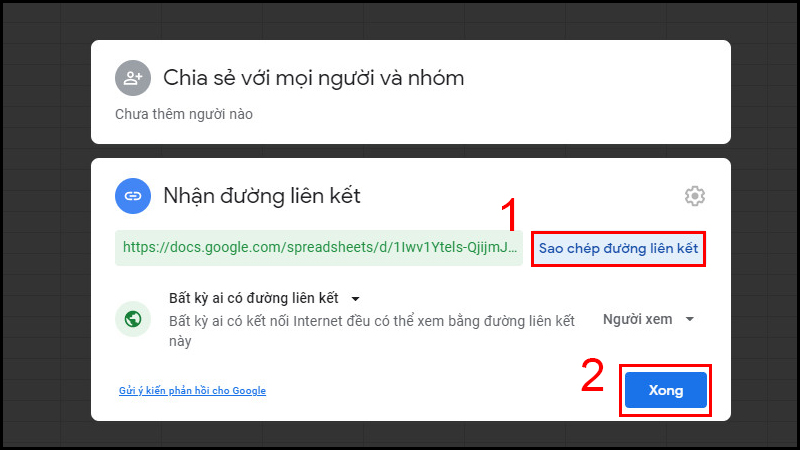
After setting the sharing permissions, select “Copy link” to send the file to the people you want to share it with.
Assign tasks directly on Google Sheets
With the “Comment” feature, managers don’t need to send files or message employees separately; they can assign tasks directly on the spreadsheet by:
Select the cell containing the task to be performed => Select Comment => Type “@” to tag the recipient’s email address => Check the “Assign to…” box => Add a comment
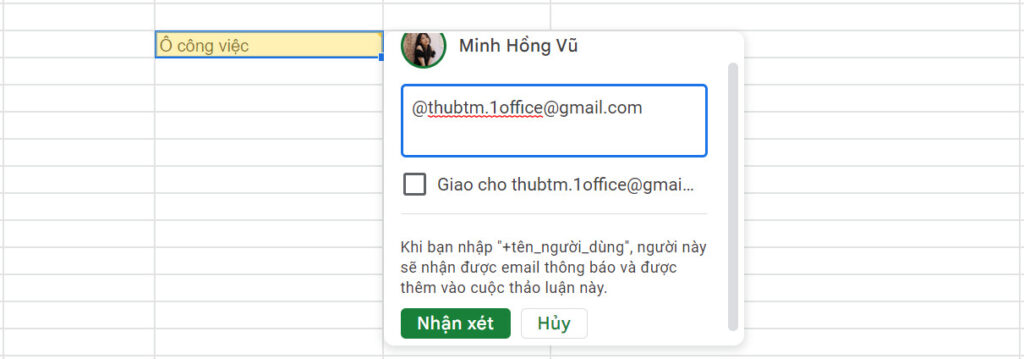
After the comment is added, an automatic email will be sent directly to the person responsible for the task. The employee will receive a notification about the task and be added to the spreadsheet immediately.
| See also: An Effective Employee Work Management Process to Double Productivity |
Create a drop-down list in Google Sheets
When managing tasks with Google Sheets, some columns will have repetitive information, such as Assignee, Task Status, etc. For these cells, we will use a drop-down list to enter information instead of performing time-consuming, repetitive manual data entry.
To create a drop-down list, you need to follow these steps:
Select the cell range for data entry => Select “Data” => Select “Data validation” => For Criteria, select “List of items,” then enter the options in the adjacent box, with each option separated by a comma “,” => Save
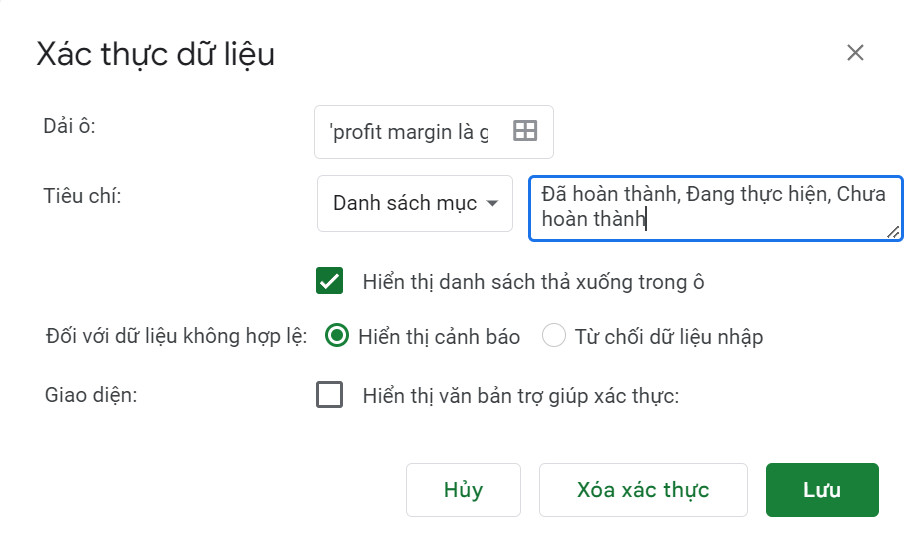
With a drop-down list, team members just need to click on the list and select an option from the predefined list to enter data into the cell.
| DOWNLOAD NOW: 12+ Professional Excel Project Management Templates 2025 for All Project Types |
Filter data in Google Sheets
An important operation when managing tasks with Google Sheets is filtering which tasks are completed and which are not to facilitate tracking and handling of work. To filter cells containing the data you need in Google Sheets, you will need to use the Filter feature:
Select the row to filter data => On the taskbar, select “Data” => Select “Create a filter” => Click the Filter icon in the first cell of the column => Select the field to filter
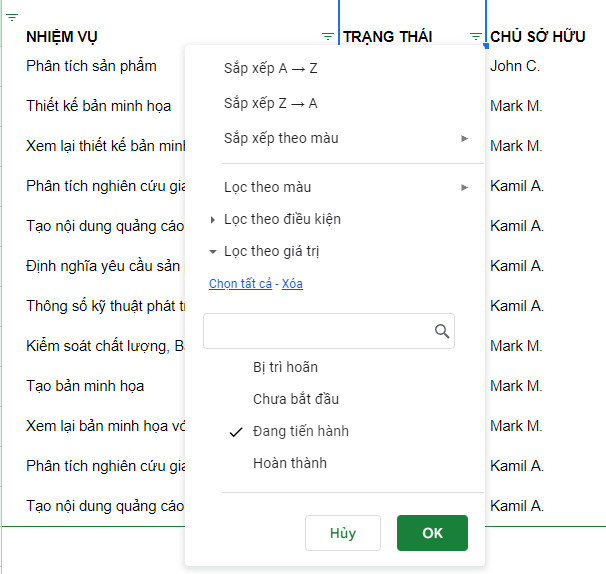
Additionally, users can set up filter modes such as “Sort A-Z”, “Filter by color”, and “Filter by condition”.
Create checkboxes in Google Sheets
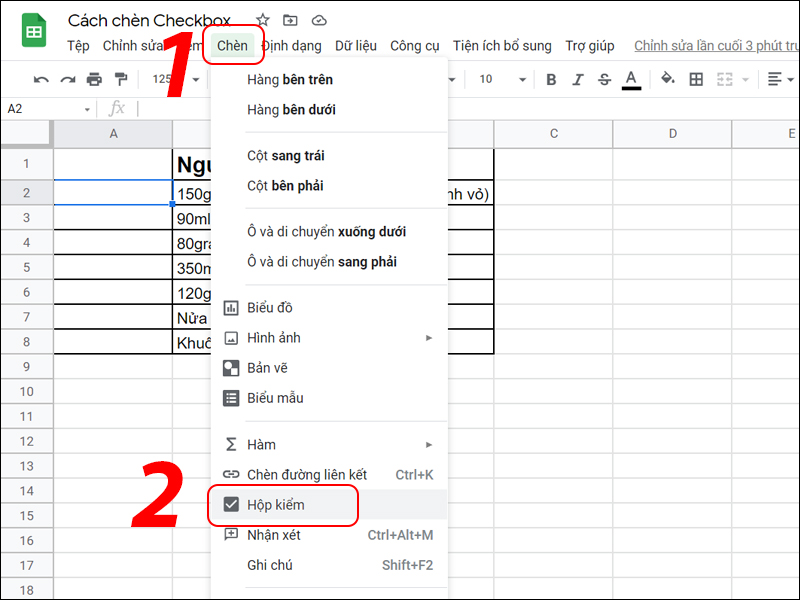
Checkboxes in Google Sheets are used to mark completed tasks, helping managers and team members quickly and easily grasp the progress by looking at the sheet. To create a checkbox, in the desired cell, select “Checkbox”, then drag down to the cells below to create a list of checkboxes. When a task is finished, the employee just needs to tick the checkbox to mark the task as completed.
Manage task progress with Google Sheets
Kanban is one of the most widely used models for managing task progress with Google Sheets. Kanban cards visualize the workflow through stages like To Do, In Progress, Done, etc., helping users track and update task progress quickly and easily.
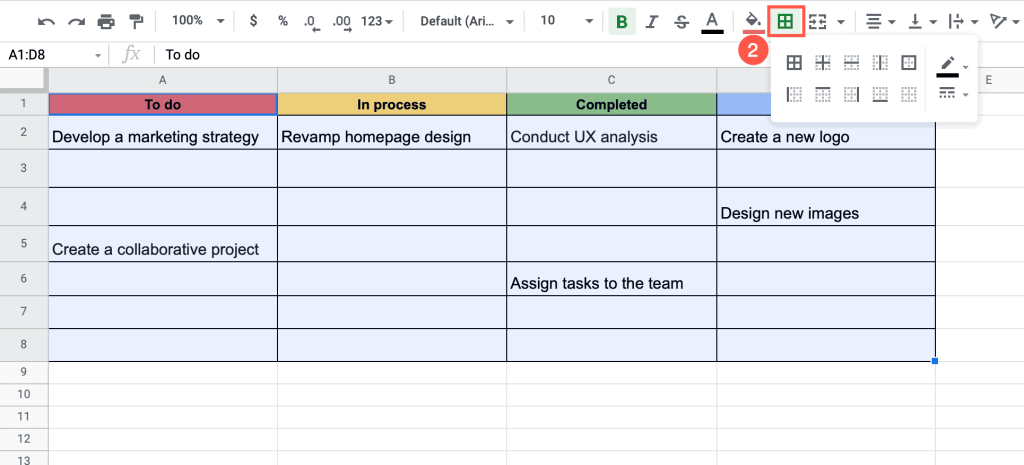
- To build a Kanban board for task management in Google Sheets, you first need to create a table with 3 columns with the corresponding headers: To Do – In Progress – Done.
- Then, team members will update their tasks in the corresponding columns for tracking.
- When a task moves to the next stage, the user simply needs to drag and drop the task to the next column to update its progress.
- Additionally, you can set up the COUNT function at the top of each column to see the number of tasks in each stage.
Download the Gantt chart task management template
5. [FREE DOWNLOAD] 9+ Most Professional Google Sheets Task Management Templates
To help make task management smoother and more effective, 1Office provides managers with the most professional and well-structured set of Google Sheets task management templates. With a variety of templates such as Gantt chart, Timeline, and Kanban, this Google Sheets task management template set will surely be a powerful assistant for managers and team members to plan, track progress, and evaluate work performance in the best way.
DOWNLOAD 9 FREE GOOGLE SHEETS TASK MANAGEMENT TEMPLATES HERE
6. Advantages and Disadvantages of Managing Tasks with Google Sheets
| Pros | Cons |
|
|
It can be said that managing tasks with Google Sheets is only a temporary and supportive solution for a business’s operational activities. If a business wants to organize and manage tasks systematically and link them with other modules like HR, finance, sales, etc., then Google Sheets is not a comprehensive solution.
7. Task Management in the 4.0 Era with 1Office Software
In the digital technology era, task management has become easier and more professional than ever with the help of specialized task management software. In the current market, 1Office is a leading task management solution favored and trusted by users, recognized as the best platform for overall task and process management today. 1Office offers outstanding features such as:
- Task planning: Option to add components to tasks such as parent and child tasks, start and end dates, and performance criteria
- Assign specific, detailed tasks to each individual and department. Tasks will be automatically updated in the assignee’s schedule
- Task management and monitoring: Apply two methods, Kanban and Gantt Chart, to help you easily update task statuses and track progress in detail
- Work performance reporting: Automatically updates the percentage of completed tasks and creates visual reports in a Dashboard format, supporting accurate employee performance evaluation.
This article from 1Office has provided readers with an effective method for managing tasks with Google Sheets, including a sample Excel task management file. It also presents a superior technology solution for task management as an alternative to Google Sheets. For a free consultation and a trial of the 1Office software, please contact us using the information below.
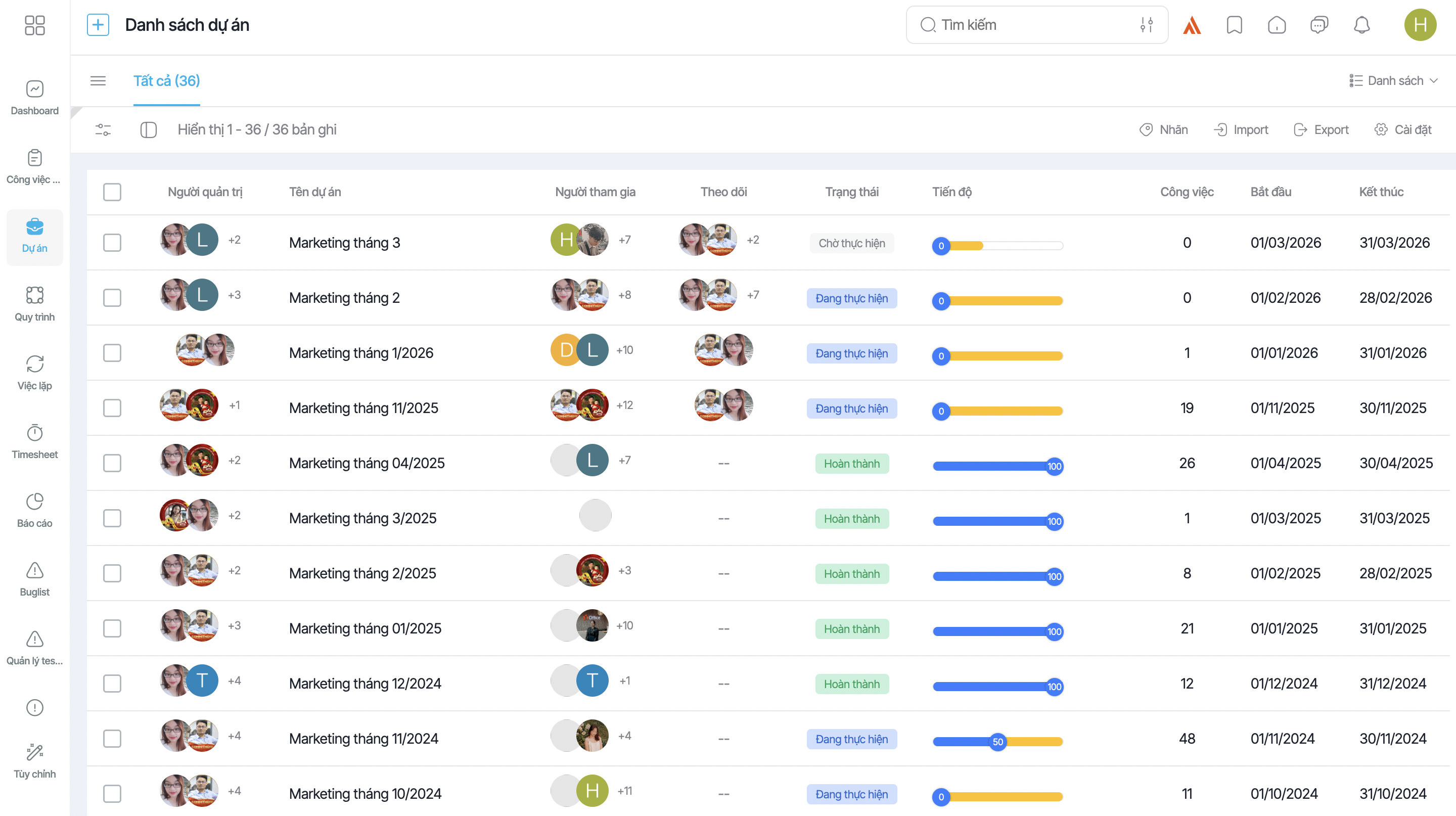
See more: Task progress management software 1Office – The best solution for task assignment and evaluation
8. Frequently Asked Questions about Google Sheet Task Management Templates
Can I lose data using Google Sheets?
No. Google Sheets automatically saves after every action and stores data on Google Drive, helping to prevent data loss from power outages, system crashes, or browser closures.
Can I set view/edit permissions in Google Sheets?
Yes. You can set permissions for:
- View only
- Comment only
- Edit
You can also lock important columns to prevent accidental edits.
Can I track task progress using colors?
Yes. Google Sheets supports Conditional Formatting, which allows colors to change automatically based on status:
- Overdue → red
- In progress → yellow
- Completed → green
Can I use Google Sheets on my phone?
Yes. Just install the Google Sheets app on iOS or Android to view and update tasks anytime.
Can a Google Sheet task management template automatically send deadline reminder emails?
Yes. Combined with Google Apps Script, the sheet can:
- Send automatic emails when a deadline is approaching
- Send daily/weekly reports
- Create notifications for overdue tasks
Can the task management template connect to Google Forms?
Yes. When a user fills out a Google Form (e.g., a task report form), the data is automatically populated into the Google Sheet.
Can I customize the template for my specific needs?
Absolutely. You can add columns, colors, filters, dropdowns, or formulas. Google Sheets is more flexible than Excel for teamwork management.
Is Google Sheets suitable for managing large projects?
Yes, but for very large projects (over 20,000 rows of data), you should combine it with:
- Google Data Studio (for dashboards)
- CRM / PM tools
Hopefully, through this article, you have gained a clearer understanding of how to use Google Sheets for task management, from tracking tasks and monitoring progress to coordinating among team members. With its advantages of being easy to use, flexible, and cost-effective, Google Sheets remains a suitable choice for individuals, small teams, or businesses in the early stages of standardizing their work processes.
However, as the workload grows, and there’s a need for systematic task assignment, automatic deadline reminders, real-time performance tracking, and inter-departmental connectivity on a single system, Google Sheets will struggle to meet all requirements. At this point, businesses should consider switching to a more specialized task management platform like 1Office.
Not only does it support task assignment, progress tracking, and automatic reminders, 1Office also helps businesses standardize processes, enhance internal coordination, and improve work efficiency on a comprehensive scale. This is a suitable solution for businesses that want to move beyond manual task management to professional work administration.
Register for a free feature Demo!
For more details, please see:
- Hotline: 083 483 8888
- Facebook: https://www.facebook.com/1officevn/
- Youtube: https://www.youtube.com/@1office-chuyendoisodn
- Zalo OA: https://zalo.me/3883877516951440238
















