11/05/2026
  20926 views
Tracking the workflow and progress of employees is something every manager focuses on in each project. Therefore, creating a work progress schedule plays an important role, a task that every business carefully considers and implements to enhance work management efficiency. In this article, 1Office will share with you how to create a work progress schedule in Excel in a very simple, detailed, and easy-to-apply way.
Mục lục
- I. Why do businesses need to create a progress tracking sheet in Excel?
- II. What does a work schedule in Excel consist of?
- III. Checklist Before Handing Over the Progress Schedule to Your Manager/Client
- IV. Tips for Keeping Your Excel Progress Schedule “Clean” and Easy to Follow
- V. How to create a simple, easy-to-apply work progress sheet in Excel
- VI. How to Create a Work Schedule in Excel
- VI. Frequently Asked Questions about Creating Schedules in Excel
- VII. Conclusion
I. Why do businesses need to create a progress tracking sheet in Excel?
The purpose of creating a work progress schedule is to increase management efficiency and get a clear grasp of the situation. And Excel has always been a useful tool, consistently chosen by businesses for data processing, calculations, and more.
Therefore, tracking progress with Excel greatly supports managers by allowing them to store information, closely monitor workflows, and help employees adhere to the plans previously set by the company. Specifically, creating a work progress schedule in Excel offers the following benefits to businesses:
- Helps track and manage work progress easily
When setting up a production progress tracking sheet in Excel, managers can easily use it to evaluate and monitor all operational activities.
Additionally, through the process of working in Excel, managers can identify and make necessary adjustments when errors occur.

- Simplifies the process of dividing and systemizing work
Tracking production progress via Excel helps businesses divide and list tasks more effectively. Work-related metrics are also stored for tracking.
Although this data still requires manual checking and entry, it has generally become much more convenient than the previous method of doing it manually on paper.
- Excel’s interface is user-friendly, simple, and easy to use
Essentially, Excel is a spreadsheet composed of rows and columns that allows users to input, export data, and perform quick, accurate calculations using its algorithms.
The interface of this software is considered simple, user-friendly, and easy for today’s businesses to use. Thanks to this, planning and tracking production progress also become simpler and more professional.
| Read more: The Secret to Implementing a Work Management System to Increase Productivity by 200% |
II. What does a work schedule in Excel consist of?
To effectively manage progress in Excel, your spreadsheet must act as a clear “roadmap,” helping managers instantly grasp: Who is doing what, when it will be completed, and what the current results are.
Specifically, a standard tracking sheet should include the following important information fields:
- Functional area: HR & Admin, Sales, Marketing, etc.
- Tasks corresponding to each department
- Task classification by priority level, from normal to important
- Deadlines for tasks
- Task status
Therefore, based on these key components, the next step is to organize the information on the spreadsheet logically and clearly to minimize potential data entry errors.
| Read more: The Most Effective Tips for Managing Work with Google Sheets for Businesses |
III. Checklist Before Handing Over the Progress Schedule to Your Manager/Client
A work progress schedule not only reflects the project’s status but also demonstrates the professionalism of its creator. Before sending it to your manager or client, you should check it carefully against the following checklist:
-
Ensure Complete Information
-
All main and sub-tasks, deadlines, and persons in charge are clearly recorded.
-
Include a brief description column so viewers don’t have to ask repetitive questions.
-
-
Check Formulas and Data
-
Ensure all formulas (if any) run correctly, avoiding display errors like #N/A, #VALUE!.
-
Date figures and progress percentages must be in the correct format.
-
-
Summarize Overall Progress
-
Add a separate sheet or section to display the “overall project completion %” and key milestones.
-
This helps managers/clients quickly grasp the situation without having to read every line.
-
-
Easy-to-Read Formatting
-
Use consistent colors for task statuses (completed – in progress – overdue).
-
Align the table neatly and avoid using too many different fonts or font sizes.
-
-
Security & Sharing
-
If there is sensitive information, lock the sheet or set editing permissions when sharing online.
-
Name the file clearly: “Project-X-Progress_Sept-2025.xlsx” so the recipient can easily store it.
-
IV. Tips for Keeping Your Excel Progress Schedule “Clean” and Easy to Follow
A cluttered progress schedule will make it difficult for viewers to follow and easy to miss important information. To make your Excel sheet both intuitive and organized, you can apply the following tips:
-
Use Smart Color Coding
-
Green: Completed.
-
Yellow: In progress.
-
Red: Overdue.
-
-
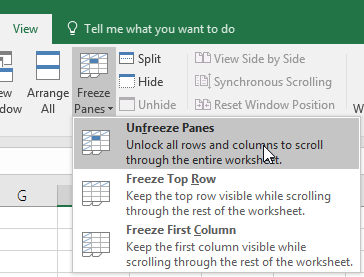
Use the Freeze Panes Feature
-
Keep the header row (task name, deadline, person in charge columns) fixed for easy tracking when scrolling through a long list.
-
-
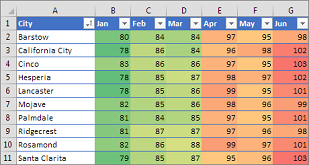
Use Conditional Formatting
-
Automatically change colors when a deadline is approaching or a task is overdue.
-
Helps to quickly identify issues instead of having to scan every line.
-
-
Keep the Sheet Lean
-
Don’t cram in too many columns or redundant data.
-
Only include information that is truly necessary for tracking progress.
-
-
Create a data filter (Filter)
-
Helps filter by person in charge, status, or deadline.
-
Useful when multiple people are tracking the board.
-
-
Periodically clean up
-
After each project phase, delete duplicate data and update the status of completed tasks to prevent the board from becoming overloaded.
-
V. How to create a simple, easy-to-apply work progress sheet in Excel
After determining the necessary content for the work progress tracking sheet, businesses can proceed with the following steps to create a work progress sheet in Excel:
Step 1: Enter the title and necessary information
| Enter table title | WORK PROGRESS TRACKING TABLE FOR [DEPARTMENT NAME]… |
| Add notes | For easy recording and tracking in the columns, businesses should note the meaning of the classification letters A, B, C, D at the top. |
| Fill in column names | Each column corresponds to a main content item of the tracking table. |
| Adjustments | Align text and adjust column widths appropriately. |
| Apply alternating row colors for easy tracking | Select the entire table => Design => Table Styles => Banded Rows (applies alternating colors to rows). |
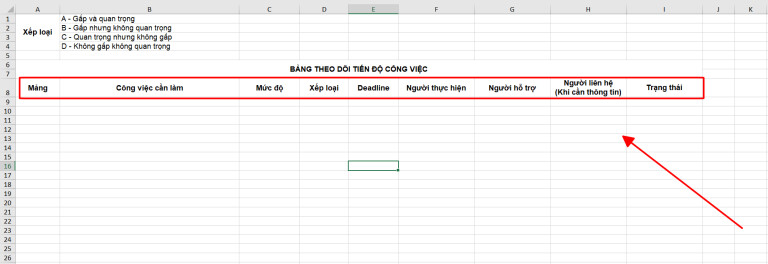
Step 2: Format the content for the table
- Use Data Validation to create a Dropdown List
A dropdown list is a feature that saves you from manually typing each line of information, especially for repetitive content such as: Area of operation, Level, Ranking, etc.
- Automatically highlight in red when a deadline is approaching
Countless tasks with many different deadlines can cause you to miss or overlook a deadline. Additionally, the lack of reminders for upcoming deadlines can lead to work piling up, causing you to rush through tasks, which in turn reduces work efficiency.
To remedy this, you can set up automatic red highlighting for tasks with approaching deadlines when creating a work progress schedule in Excel.
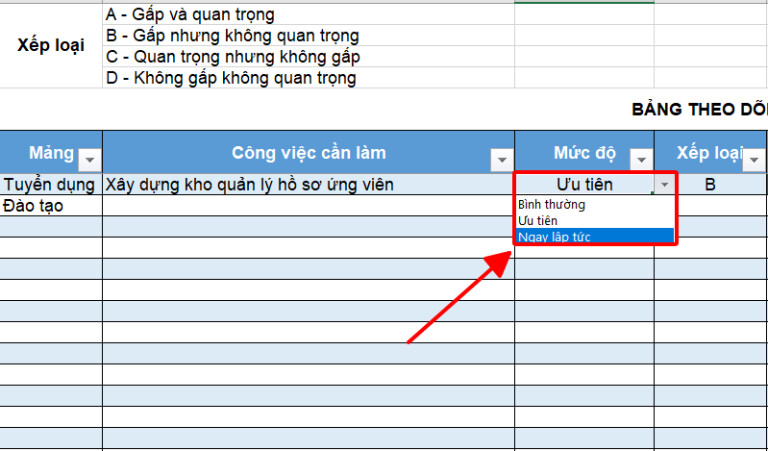
For example:
If you want to highlight a task in red 5 days before its deadline:
- Select the cell containing the task completion deadline and change its format to a date format.
- Go to the Home tab => Conditional Formatting => New Rules
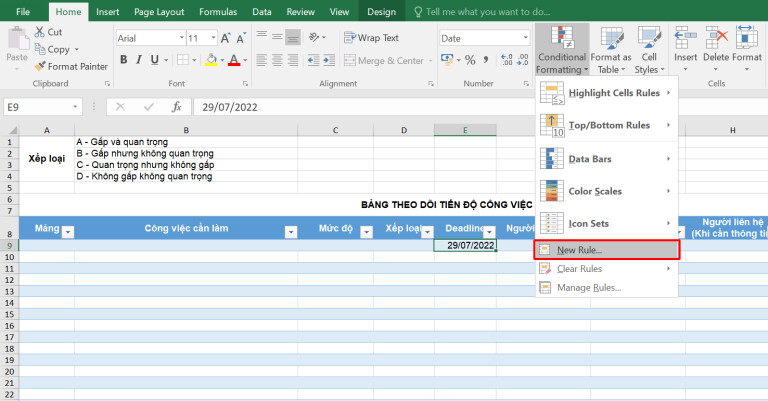
- In the Select a Rule Type dialog box, choose “Format only cells that contain”
- In the “Format only cells with” dialog box, set the options as follows: Cell Value and Less than
- =TODAY()+5: The TODAY function retrieves today’s date, then adds 5 days. This means that when the date value in the cell is less than 5 days from the current date, the cell will automatically be highlighted in red.
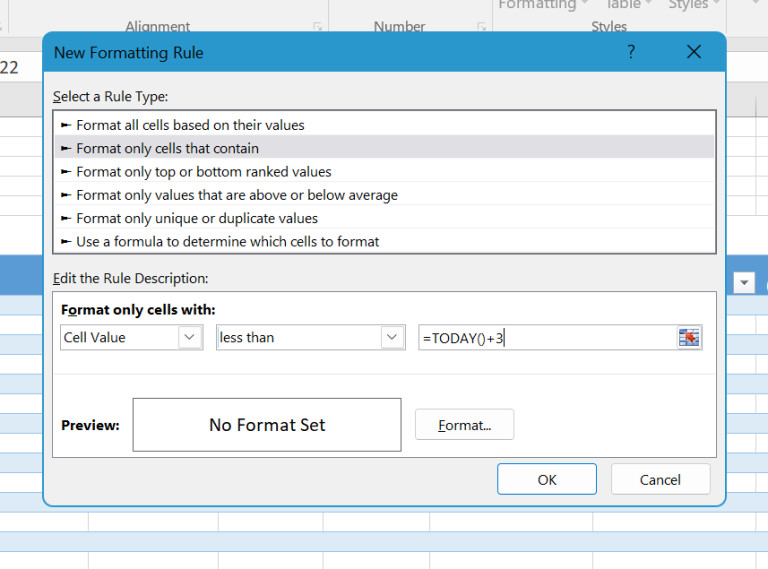
- Select Format to change the formatting for the highlighted cell.
- Change the font color to white under the Font section + change the cell color to red under Fill.
- Select OK => OK to apply the settings.
Step 3: Freeze the header row of the tracking sheet
To make tracking easier, we will freeze the header row. Here’s how:
- Select the row immediately below the header row.
- Go to the View tab, select Freeze Panes => Freeze Panes.
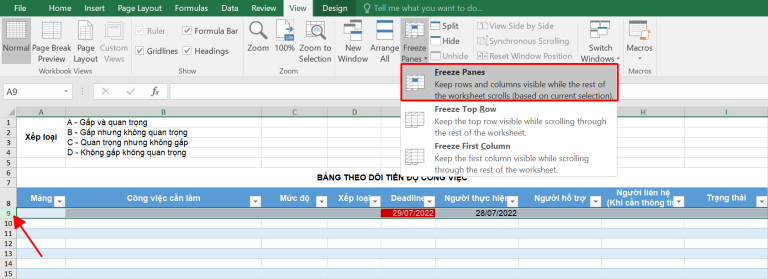
With the steps above, you can now create a sheet to manage and track work progress
| Read more: What is a Gantt Chart? Application in Project and Task Management |
VI. How to Create a Work Schedule in Excel
Businesses can’t just create a work schedule in Excel with the information shown in the example above. Before having the information to manage work progress, managers need to take preparatory steps to build a foundation for the information that will be included in the Excel work schedule.
Step 1 – Understand the Major Tasks to Be Done
The first thing to do when creating a progress tracking sheet is to define the tasks you need to complete. In other words, you need to have a clear understanding of your destination.
Then, break down the jobs and tasks specifically and clearly according to each milestone. The content of the tracking sheet should be built with a reasonable timeline that closely aligns with the project requirements.
Step 2 – Pay Attention to Arranging Tasks in the Proper Order
You need to clarify the relationships between tasks and then allocate execution time for each one. This will help you easily identify which tasks can be done in parallel or completed together, allowing you to focus resources on critical stages.
Step 3 – Plan Business Resources to Perform the Work
The resources for a project will include basic elements such as labor, maximum budget, fixed costs, time, machinery, equipment, etc.
These resources need to be listed and prepared before creating the schedule. Additionally, you must have a clear understanding of how many resources the project requires and the maximum quantity that can be provided to serve each specific task.
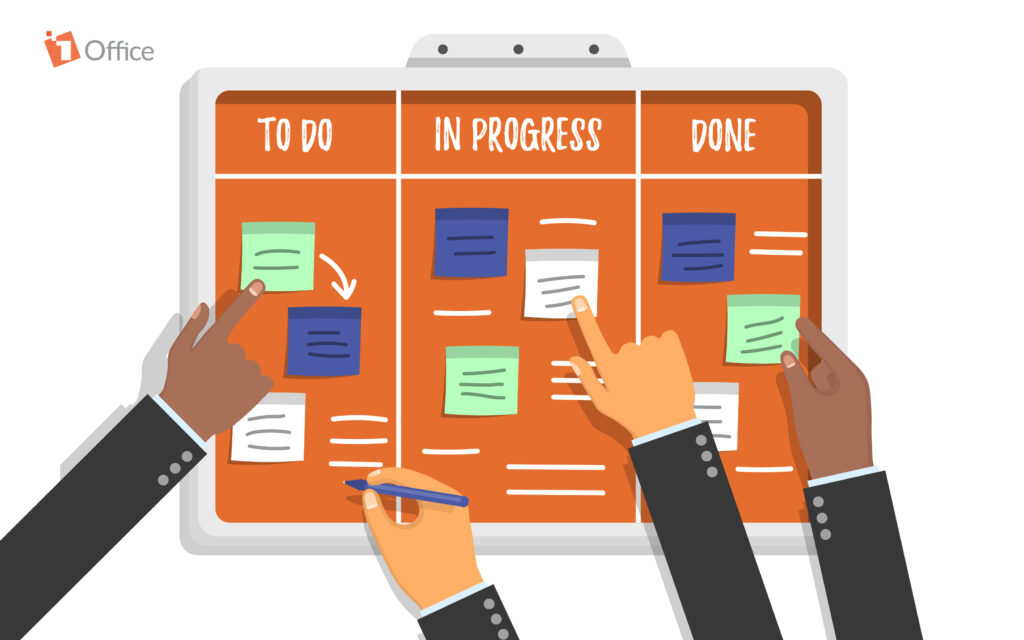
Step 4 – Schedule Task Execution Time with the PERT Model
Once you have arranged and divided the work, determine the implementation time to ensure the project runs as planned. To schedule time for tasks most effectively, you should refer to the PERT model for analysis.
A PERT chart (also known as a PERT Network) is a tool used in building and managing plans/projects.
A PERT chart consists of circles/squares of various colors to represent the main objectives in a project. Each circle is defined as a step. Corresponding to each step is an execution deadline.
And the formula for scheduling time with PERT is (Pessimistic time + 4 x Most likely time + Optimistic time) / 6. Based on this formula, businesses can effectively plan the time for task execution.
Manage work progress professionally for businesses and teams with:
>> 1Office Work Progress Management Software – The Best Solution for Task Assignment and Evaluation
Step 5 – Create the Work Schedule in Excel
After completing the steps of arranging and identifying the necessary elements of a project, you should organize everything into a complete execution plan.
Now, proceed to create a work schedule in Excel as instructed above.
VI. Frequently Asked Questions about Creating Schedules in Excel
What information should a standard Excel schedule contain?
It needs 5 core pieces of information: Task name, person in charge, priority level, deadline, and execution status.
How to make Excel automatically turn red when a deadline is approaching?
Use the Conditional Formatting feature combined with the =TODAY() function. Set up a rule for the cell to automatically change color when the current date gets close to the completion date.
What’s a way to enter work status quickly and without errors?
Use Data Validation to create a dropdown list. This method helps you quickly select statuses like “Done” or “In Progress” without manual typing.
How to manage the schedule when there are too many tasks?
Use the Freeze Panes feature to fix the headers and Filter to quickly sort by the person in charge or priority level, keeping the sheet neat and easy to follow.
When should you replace Excel with specialized management software?
When the number of personnel increases and projects become more complex, Excel’s weaknesses in security and real-time collaboration become apparent. At this point, switching to digital solutions like 1Office 1Work is necessary to automate scheduling reminders, generate smart reports, and optimize team productivity.
Sign up for a free feature demo!
VII. Conclusion
In the article above, we have shared with you how to create a work schedule in Excel, as well as the necessary steps to create an effective progress tracking sheet for your business. However, today, with the development of technology and the popularity of the 4.0 digitalization trend, businesses often turn to software solutions to optimize work progress tracking and management activities. And the Work Management feature module of 1Office has been the preferred choice for over 5,000 businesses in recent times.
With outstanding features such as planning support, close monitoring of work progress, automatic deadline reminders, and project result evaluation, 1Office has accompanied more than 450,000 customers, solving the problem of optimizing work progress management in the most effective way.