


 11/05/2026
  993 views
Project management with Excel is a simple yet effective solution chosen by many businesses to track progress and control tasks. With available templates, you can easily plan, assign tasks, and monitor project performance. In this article, 1Office will guide you on how to manage projects effectively with Excel, and also compile 12+ detailed, latest templates for you to download and apply immediately.
Mục lục
- 1. The benefits of managing projects with Excel
- 2. How to manage projects with Excel
- 3. What important metrics should be tracked in project management?
- 4. FREE DOWNLOAD: 12+ Professional and Effective Excel Project Management Templates
- 4.1. Excel Project Progress Management Template
- 4.2. Excel File for Project Cost Management
- 4.3. Template for Managing Work Item Volume by Project
- 4.4. Project Performance Management Template
- 4.5. Project Status Report Template
- 4.6. Marketing Project Management Excel File Template
- 4.7. Excel File for Construction Project Management
- 5. Tips for Optimizing Excel Project Management Files to Avoid Errors and Data Loss
- 6. Is managing projects with Excel still effective for businesses in the Industry 4.0 era?
- 7. 1Office – Project Management Software 4.0 – The Alternative to Traditional Excel Files
- 8. Frequently Asked Questions
1. The benefits of managing projects with Excel
Project management with Excel is the activity of controlling the status, costs, and resources of tasks performed on an Excel spreadsheet, which helps ensure the quality of project work and completion on schedule.
Project management is one of the most important tasks, directly affecting the results and quality of a project. Therefore, the process from the planning stage to the final stage of the project requires a scientific approach and absolute accuracy to minimize risks for the business. Thus, Excel is used by managers as an effective tool to implement an efficient project management process.
Managing projects with Excel helps businesses:
- Plan projects scientifically with all necessary data fields and information regarding time, cost, progress, and project resources.
- Create a unified workflow for the project team, where all members are assigned tasks with completion times in a single file.
- Compile statistics and calculate factors such as completion percentage, workload, and project costs by setting up functions in Excel.
- Track project progress effectively with Excel, closely monitoring the project implementation process from start to finish.
>> Read more: TOP 10 Best Project Management Software to Effectively Monitor Project Progress
2. How to manage projects with Excel
Step 1. Prepare necessary data
To build a professional and systematic project management spreadsheet in Excel, the manager first needs to gather all necessary data related to the project. Create a table that includes the following items:
- Tasks
- Start date
- End date
- Duration
- Person in charge
- Status
- Cost
- Materials
Step 2. Build charts
After having the necessary data, the person responsible for project management will proceed to build visual charts to conveniently track and evaluate the project’s status.
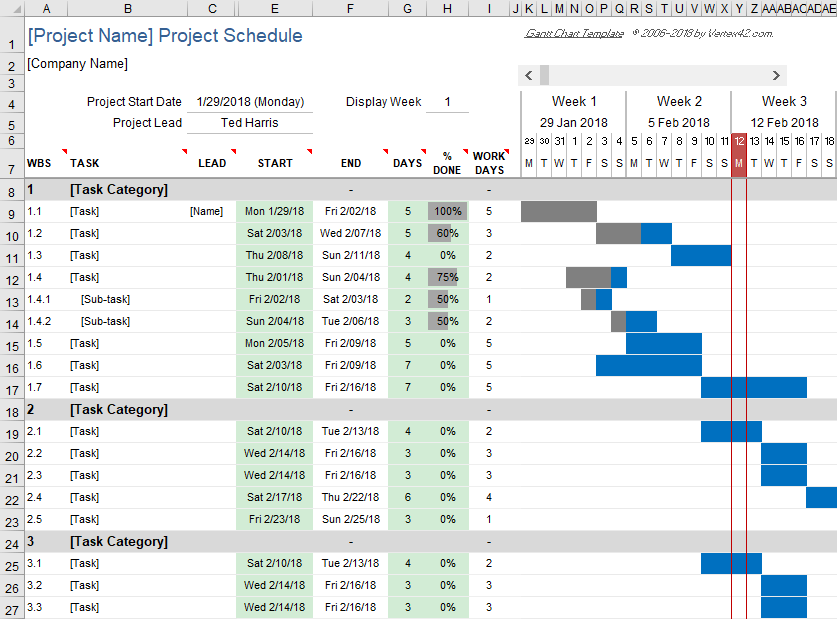
Depending on the tracking and evaluation purpose, there will be different types of charts, among which the most popular chart used for managing project progress in Excel is the Gantt Chart.
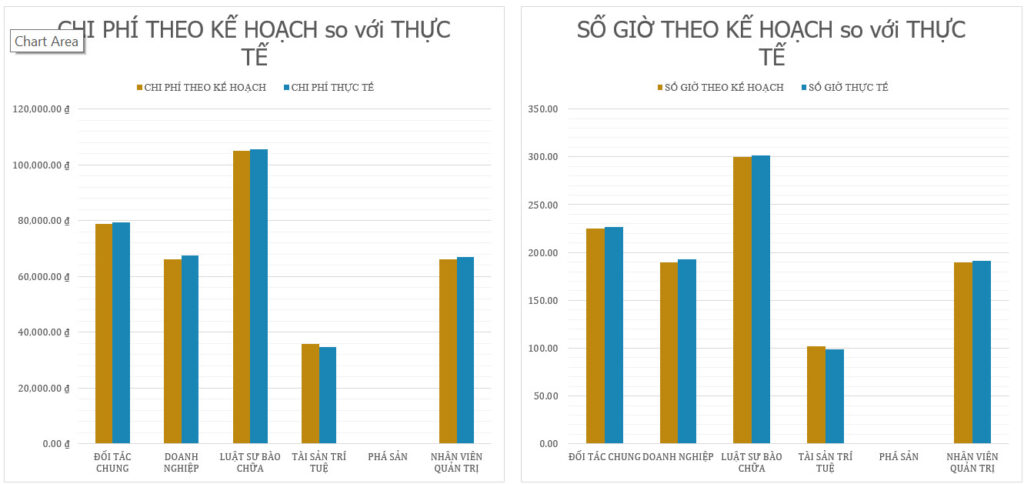
In addition, column charts, pie charts, and line charts are also commonly used for reporting on project costs and performance.
To create a chart in Excel, on the toolbar, you select
>> Read now: TOP 8 best free asset management software for businesses
Step 3. Set up calculation functions
Additionally, to facilitate the tracking and statistics of metrics, you can set up calculation functions in Excel. Some common functions used for project tracking management are:
- WORKDAY function – Calculate the work completion time
- NETWORKDAYS function – Calculate the number of working days
- COUNTIF function – Count the number of tasks
Step 4. Monitor and evaluate
After having a complete project management Excel file, your remaining task is to monitor and continuously update work progress. Based on the planned and actual data in the project progress tracking Excel file, managers can fully assess the project’s implementation status and know whether tasks are on schedule.
3. What important metrics should be tracked in project management?
Task Completion Rate
-
Concept: Shows what percentage of the project has been completed compared to the total initial workload.
-
How to measure: Number of completed tasks / Total number of tasks × 100%.
-
Example: If the project has 50 items and 35 are currently finished → Completion rate = 70%.
-
Significance: This is the most intuitive metric for assessing progress. It helps managers know if the project is on schedule or at risk of delay.
Schedule Variance (SV)
-
Concept: Measures the difference between the actual progress and the planned progress.
-
Formula: SV = EV – PV (EV: Earned Value of work actually completed, PV: Planned Value of work scheduled).
-
Example: If the plan was to complete 60% of the work after 2 months but only 50% has been achieved, SV = -10% → the project is behind schedule.
-
Significance: This metric helps detect schedule delays early to adjust personnel, resources, or the timeline.
Cost Variance (CV)
-
Concept: Compares the actual cost incurred with the budgeted cost.
-
Formula: CV = EV – AC (AC: Actual Cost).
-
Example: The budgeted cost is 500 million, the actual cost is 600 million, and the earned value of the work is 520 million → CV = -80 million (over budget).
-
Significance: Helps managers control the budget and avoid unplanned spending.
Resource Utilization
-
Concept: The extent to which personnel, equipment, and materials are used in the project.
-
How to measure: Actual time employees worked on the project / Planned allocated time.
-
Example: An employee is allocated 40 hours/week for the project but actually works 25 hours → Utilization rate is 62.5%.
-
Significance: Avoids wasting resources and helps identify situations of overload or idleness.
Productivity
-
Concept: Measures the work output relative to the resource input.
-
How to measure: Amount of work completed / Number of hours worked or cost.
-
Example: Team A completes 10 items in 5 days, while Team B completes 12 items in 7 days → Team A has higher productivity.
-
Significance: Helps evaluate team performance and identify suboptimal processes.
Quality Metrics
-
Concept: Evaluates the quality of work and project deliverables instead of just focusing on quantity.
-
Example: Percentage of software bugs, percentage of returned products, number of failed acceptance tests.
-
Significance: Ensures the final product meets customer requirements and internal quality standards. A project that is on time but of poor quality is still a failure.
Risk Index
-
Concept: Measures the probability of a risk occurring and its level of impact on the project.
-
Measurement: Risk Score = Probability × Impact (on a scale).
-
Example: The risk of an employee resigning has a 40% probability and a high impact (8/10) → Risk Score = 3.2.
-
Significance: Helps in planning timely responses to mitigate potential risks.
Stakeholder Satisfaction
-
Concept: Measures the satisfaction of stakeholders such as customers, management, and sponsors.
-
Method: CSAT (Customer Satisfaction) surveys, NPS (Net Promoter Score), or direct interviews.
-
Example: 80% of surveyed customers are satisfied with the project’s progress and product quality → high satisfaction index.
-
Significance: A project not only needs to be completed but must also satisfy stakeholders to achieve long-term value.
Project ROI (Return on Investment)
-
Concept: Measures the financial benefit a project generates compared to the costs incurred.
-
Formula: ROI = (Profit – Cost) / Cost × 100%.
-
Example: A marketing project costs 200 million, generates 600 million in revenue, and 200 million in profit → ROI = 100%.
-
Significance: This is the ultimate indicator of whether a project is financially successful.

4. FREE DOWNLOAD: 12+ Professional and Effective Excel Project Management Templates
Since building a project plan file from scratch consumes a lot of time and resources, managers today often prefer to use Excel project management templates. These Excel project management templates allow users to enter data into pre-configured spreadsheets and customize them to fit the nature and requirements of each project.
To help CEOs, administrators, and contractors track and manage projects effectively, 1Office provides you with this set of Excel project management templates featuring 12+ diverse and detailed samples below.
4.1. Excel Project Progress Management Template
Gantt Chart Format
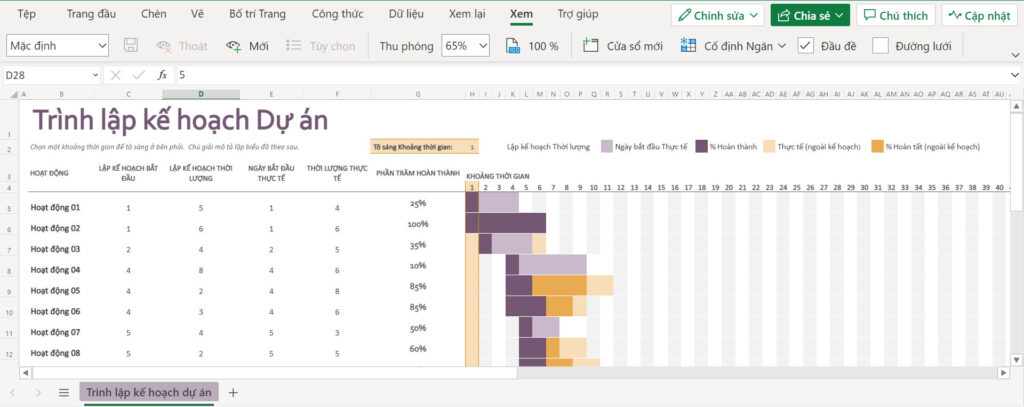
The Gantt chart is the most popular model used in project management, from simple to professional levels. A Gantt chart helps users visually track the project’s progress over time. Using a Gantt chart for project management in Excel helps managers easily grasp information about tasks and their execution times.
| Download 2 Excel project progress management templates in Gantt Chart format HERE |
Timeline View
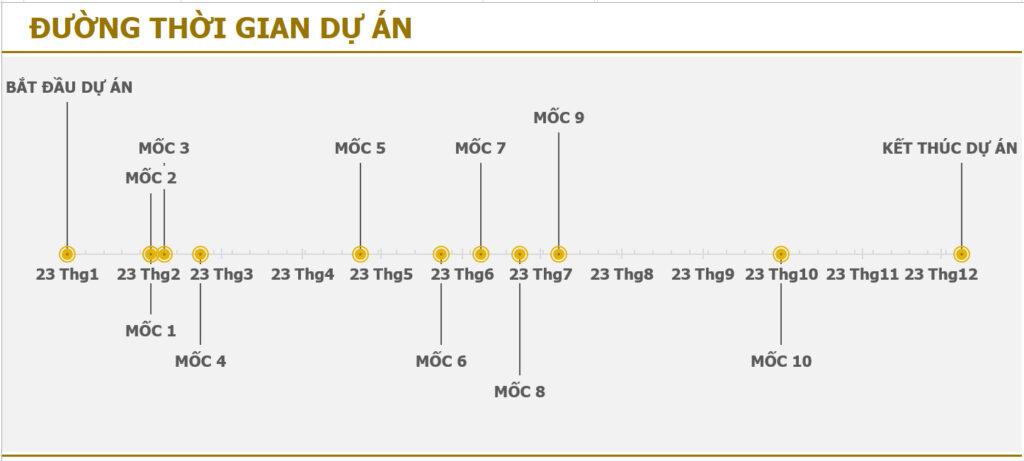
In the Timeline view, tasks and important milestones are displayed on a single line, helping managers easily track project progress over time.
| Download 2 Excel Project Progress Management Templates in Timeline format HERE |
Kanban View
A project management template using the Kanban model helps visualize your team’s workflow. Kanban cards allow users to easily and quickly see which tasks need to be done, which are in progress, and which have been completed.
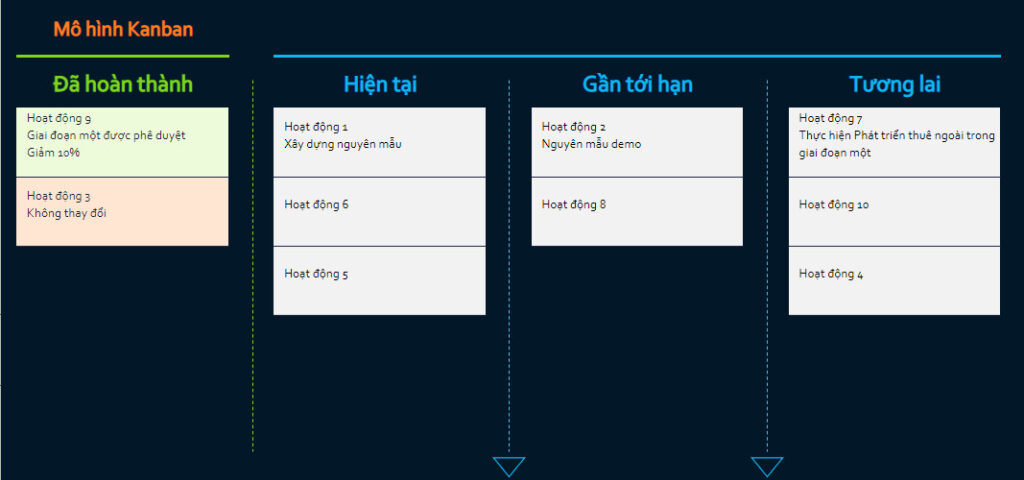
| Download the Excel Project Progress Management Template in Kanban format HERE |
4.2. Excel File for Project Cost Management
Cost is one of the top concerns in project management. The Excel file for project cost management below will help you manage the project’s cash flow and effectively track all revenue and expenses.
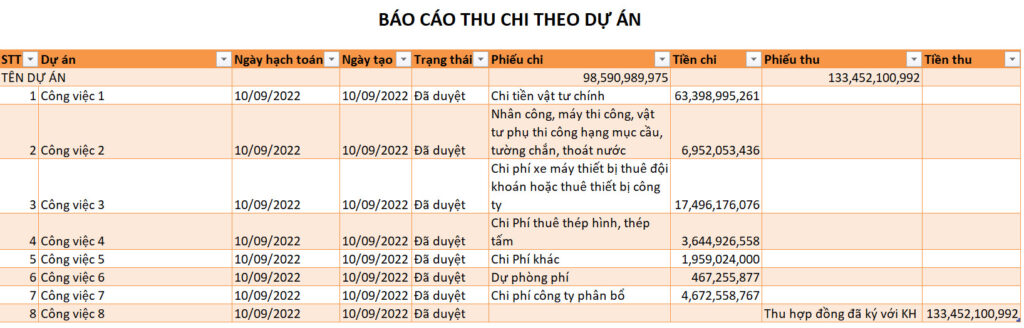
| Download the Project Cost Management Excel File HERE |
4.3. Template for Managing Work Item Volume by Project
The template for managing work item volume by project allows users to update the volume of work items based on the average completion percentage of tasks, making it easy to quantify the remaining work to be done.
| Download the Project Work Item Volume Management Template HERE |
4.4. Project Performance Management Template
The project performance management template provides managers with key performance indicators such as:
- Cost Performance Index
- Schedule Performance Index
- Estimate at Completion
- Estimate to Complete
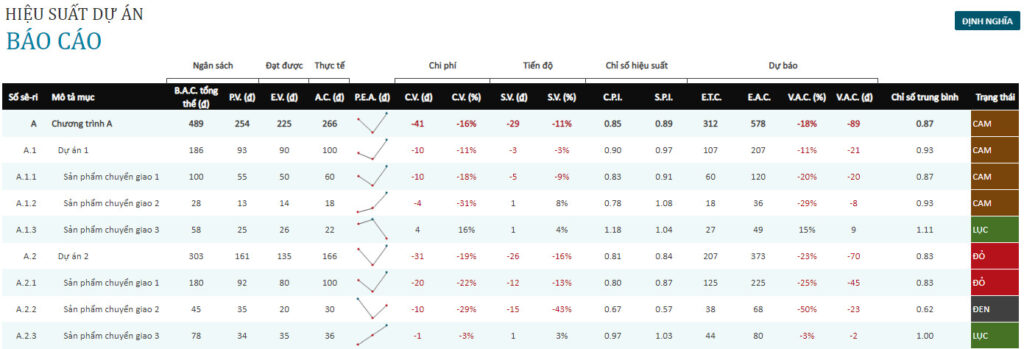
| Download Project Performance Management Template HERE |
4.5. Project Status Report Template
A project status report template allows managers to update the completion percentage and assign status tags to tasks, such as: Completed, In Progress, Canceled, To Do, etc.
| Download the Project Status Report Template HERE |
4.6. Marketing Project Management Excel File Template
Marketing projects play a foundational role in helping businesses grow and boost revenue. Therefore, the project management template must be well-structured and detailed to support the most effective Marketing campaign.
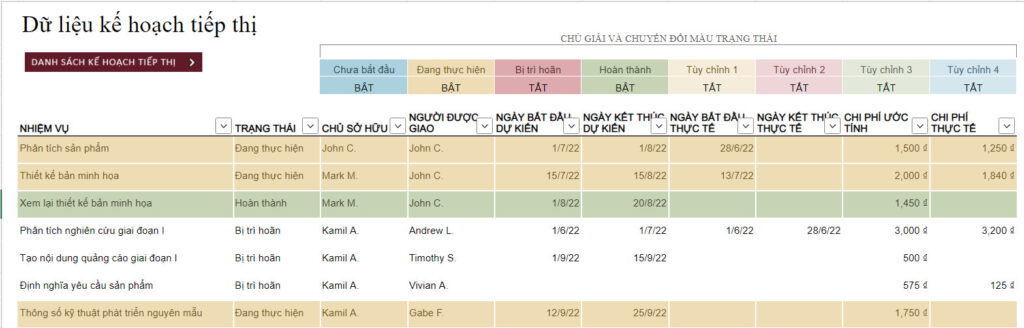
| Download the Marketing Project Management Excel File Template HERE |
4.7. Excel File for Construction Project Management
Construction projects are typically large, consuming significant resources and budget. Therefore, they must be closely monitored using a construction project management Excel file.
| Download the construction project management Excel file HERE |
5. Tips for Optimizing Excel Project Management Files to Avoid Errors and Data Loss
When using Excel for project management, many businesses encounter issues such as files becoming too large, running slowly, or even losing important data due to incorrect operations. To mitigate these risks, you can apply the following tips:
-
Keep the spreadsheet structure tidy
Avoid creating too many duplicate sheets or redundant data columns. Group information by project, progress, personnel, etc., to make tracking easier and prevent confusion. - Limit the file size
For large-scale projects, you should separate data by phase or work group instead of consolidating everything into a single file. This helps Excel run more stably and makes backups easier. -
Name sheets and columns clearly
A well-organized file with easy-to-understand names will help others (and yourself later) avoid confusion when updating and tracking the project. -
Back up regularly and use cloud versions
Store the Excel file on OneDrive, Google Drive, or your company’s internal system. This helps you avoid data loss and allows you to restore a previous version if the file becomes corrupted. -
Set editing permissions
If multiple people are accessing the file, set it to View Only mode for those who do not need to make edits. This limits errors and data conflicts. -
Use Data Validation
This feature helps restrict incorrect data entry (e.g., dates, task statuses, priority levels). When data is accurate from the start, the risk of future errors is reduced.
6. Is managing projects with Excel still effective for businesses in the Industry 4.0 era?
Technological development means that businesses have an increasing number of options to manage and track project progress. However, many CEOs and managers still rely on Excel spreadsheets for project management due to their convenience and usefulness in planning and tracking work progress. But is Excel the most optimal solution for business project management? Let’s take an objective look at this tool through the following evaluation table:
| Project Management with Excel | |
| Advantages | Limitations |
|
|
From the table above, it can be seen that Excel is an effective tool for supporting project management, suitable for simple, small-scale projects. However, for large-scale and complex projects, Excel’s features are not sufficient to cover and delve into all aspects of the project, making tracking and management difficult. This is because Excel is fundamentally a spreadsheet software, not a program specialized for managing work projects.
7. 1Office – Project Management Software 4.0 – The Alternative to Traditional Excel Files
In the Industry 4.0 era, the rise of technology and software has ushered in a digital age for project management. In today’s market, 1Office is a leading project management solution favored and trusted by users, recognized as the best platform for overall work and process management available. 1Office provides outstanding features such as
Set up a new project: Option to add project components such as tasks, start – end dates, and performance criteria
- Create projects and allocate resources by helping users create detailed plans for each individual and department. Additionally, you can duplicate the work structure from an old project and then modify it into a new one.
- Manage and monitor projects: Apply both Kanban and Gantt Chart methods to project monitoring, helping you easily update work status, track details, and continuously monitor any issues arising in the project to stay on top of progress.
- Project progress reporting: The project progress reporting feature in 1Office software not only provides you with specific numbers but also formats them into various models and charts, such as: Kanban, Gantt Chart, Grid view, etc.
This article from 1Office has provided readers with an effective method for managing projects with Excel, including a sample project management Excel file. It also presents a superior technology solution for project management as an alternative to traditional Excel files. For a free consultation and a trial of the 1Office sales management software, please contact us using the information below.
















