13/05/2026
  207 views
1Office always strives to improve product and service quality and bring high efficiency to work. To achieve this, we continue to upgrade new features, including: Recurring tasks, custom forms, task import, milestones, and task export in projects.
I. NEW VERSION:
Interface:
- Module menu icons have been moved to the left menu.
- The left menu can be collapsed, unlike the fixed menu in the old version.
- On object list screens, a Shortcut has been added: Allows users to view the list using pre-existing filters or set up their own.
- Added a department manager and the ability to view the employee list in a tree diagram format.
Search Filter:
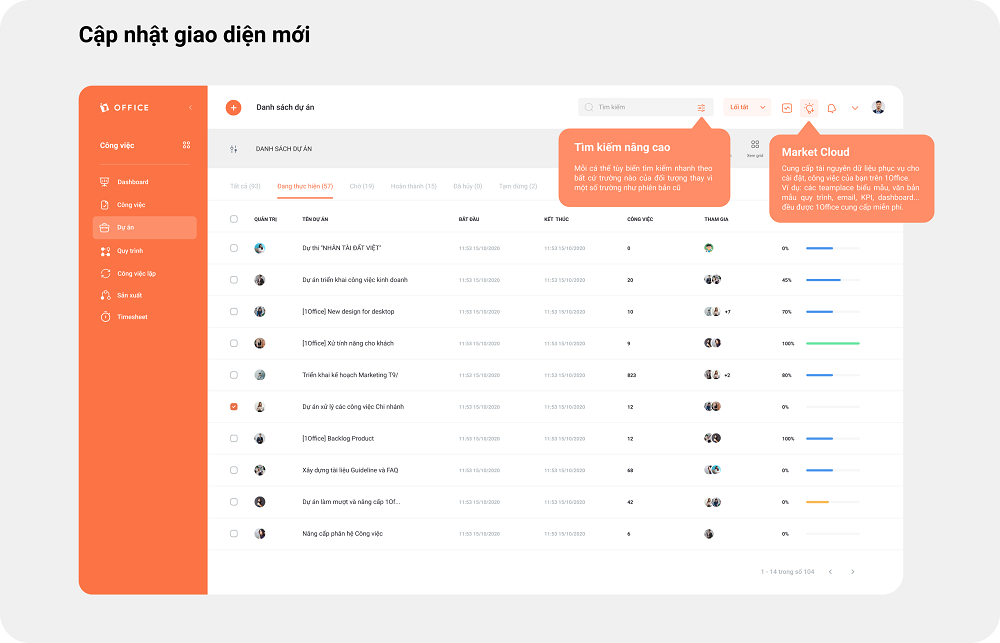
- Advanced automatic search feature:
Added an advanced automatic search feature across all modules. With this new filter, you can search for records based on desired conditions very quickly with just one action. The search form is organized simply, is easy to understand, and suggests search data to help you easily visualize the actions needed to find the desired data.
You can search by:
- Single criterion
- Double criteria
- Groups of conditions
Select the desired search conditions and click Update, and the system will display a complete list of records that match the search conditions entered.
- Personal custom filter feature:
Users can choose to perform a quick search using single conditions in the advanced automatic search form or create a personal custom filter via the utility shortcut. Here, users can customize the filter and set filtering conditions according to their needs.
Create a new filter:
- Filter name
- Filter conditions
With this new feature, you can set search conditions by single criterion, double criteria, or group multiple criteria within the same search filter.
Resource Library:
The Resource Library is a completely new module that functions like Google Play or a Chrome Extension. It contains sample templates. Users can view demo images or descriptions, and if they suit their specific work needs, they can select ‘Install’ to download them. The downloaded resource will then be updated to the corresponding object in the software.
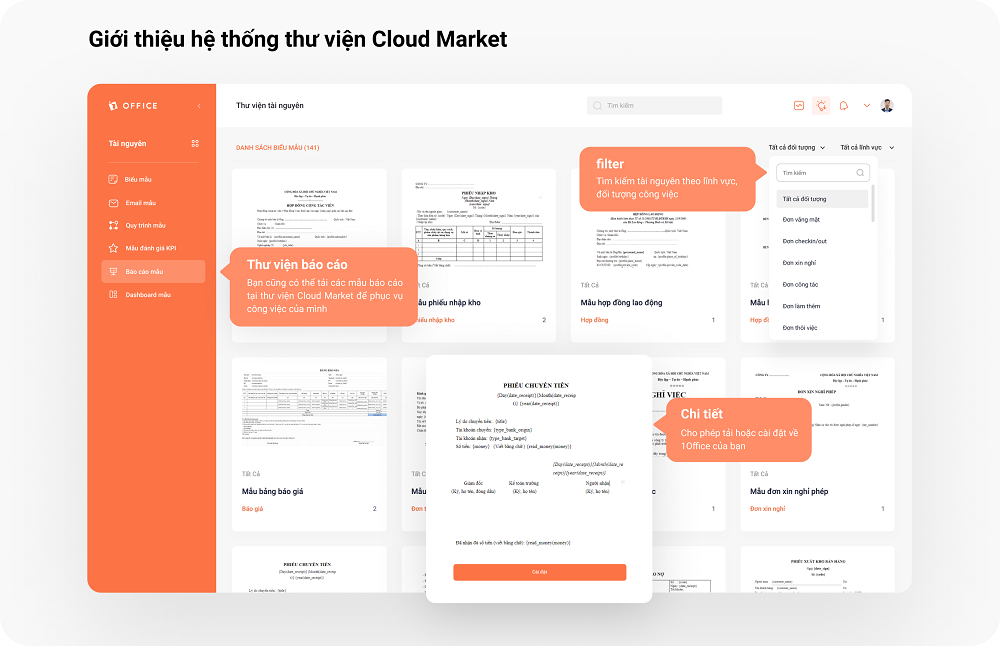
The library provides sample templates for the following objects:
- Forms: Includes forms for Employee Profiles, Orders, Contracts, etc.
- Email Templates: Includes email templates for internal staff, candidates, customers, etc.
- Workflow Templates: Provides common business workflows for Recruitment, Sales, and Task Management.
- KPI Evaluation Templates: Provides KPI evaluation templates along with evaluation criteria.
- Report Templates: Includes pre-built report templates for: HR, Recruitment, Sales, and Inventory.
II. WORKFLOWS
Added a feature to customize forms in process templates
Currently, 1Office provides customers with a workflow feature, allowing businesses to create tasks based on pre-configured process templates. These templates include fixed data fields for general customer information. However, as each business has unique work requirements, there is a need to display specific information fields tailored to their operations. To address this, 1Office has added the Customize forms in process templates feature, allowing businesses to configure the display fields for their tasks.
Features
- Allows customizing report forms for process templates or for the statuses/actions of tasks within the process template.
- Allows configuring the display form in each process through the following fields:
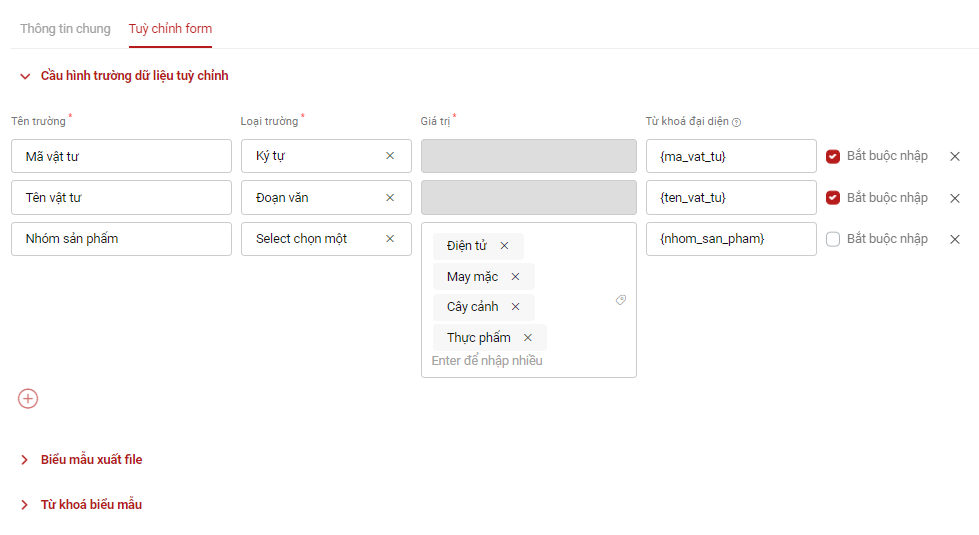
- Displays the fields configured in the custom form for data entry when selecting a process template.
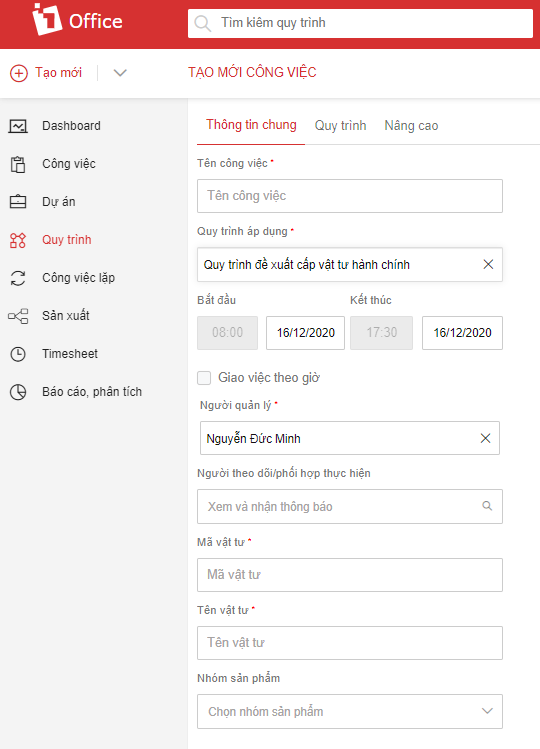
- For actions with customized forms, when proceeding to the next step of that action, the system will display a report popup containing the fields set up in the action.
- Allows exporting forms at the status/action level or directly from the workflow task.
Detailed instructions on using the process can be found at: https://1office.vn/support_feature/cong-viec-quy-trinh/#cai-dat-quy-trinh
Added Process Node
- Currently, 1Office’s process management is a software for managing and automating business workflows. With process templates, customers can easily design work processes that connect different departments to suit the actual needs of the business.
- In practice, a workflow is a collection of many other processes. To shorten time, reduce manual tasks prone to errors, ensure deadlines are met, and automate task assignment, 1Office has added a process node – which automatically transitions to another process upon completion of a task in the previous process.
Features
- In the process template, an additional workflow task node is generated.
- The process node must be connected from an action node or a completed/paused/canceled node.
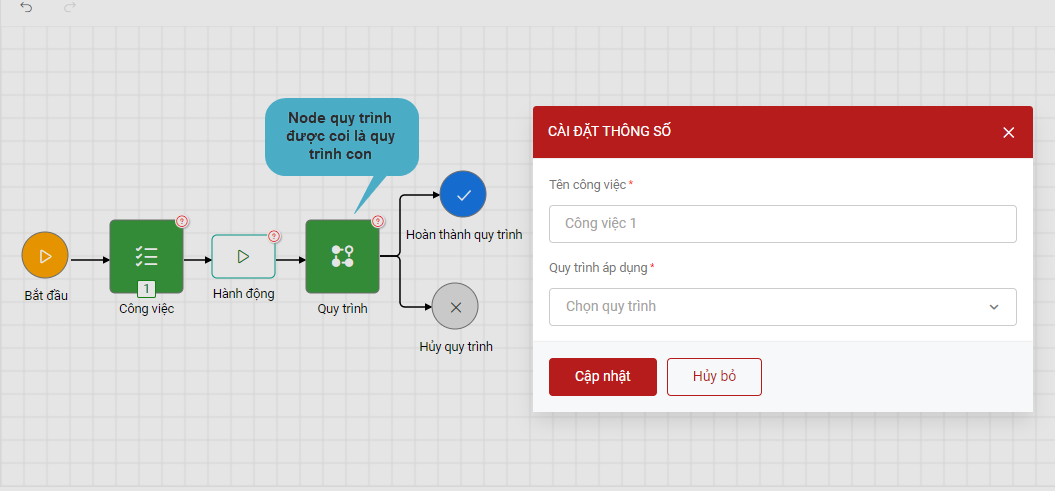
- An action node or a completed/paused/canceled node can only connect to one process node.
- The output of a process node only has two statuses: completed and canceled. This means the next step can only be executed if the workflow task created from the process node has a completed/canceled status.
- Allows setting parameters for the process node through 2 fields:
+ Task name: enter the display name for the process node
+ Applicable process: Select the process to be generated
Added Report Approval Node
- Report Approval is a function that allows the person performing a task to report the completion results to the task manager.
- Based on the information reported by the employee, the manager can understand the task’s outcome and use it as a basis to decide whether the task is completed or not.
- Report Approval is a very useful feature for businesses, especially those with production processes that require regular reporting on outputs for each task.
Features
- In the process template, an additional report approval node is generated
- The report approval node must be connected from an action node
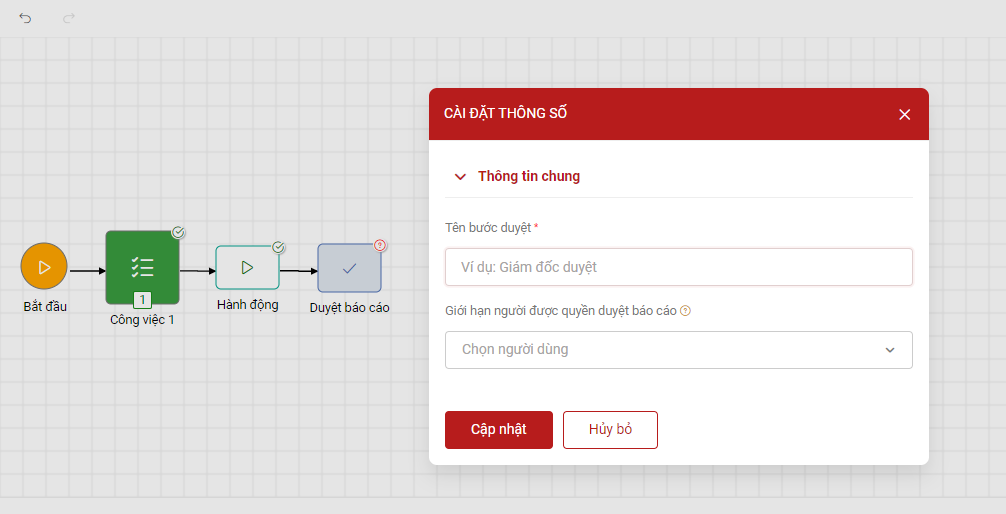
- The report approval node can connect to task nodes, report approval nodes, concurrent constraints, and completed/paused/canceled statuses
- The input/output of the report approval node can only connect to one other node
- Allows setting parameters for the report approval node through 2 fields:
+ Approval step name: enter the name of the report approval node to be displayed
+ Limit report approvers: by default, the list of limited approvers includes all previous task managers and is selectable (similar to the action node)
- When the manager proceeds to the next step to complete this report approval node, the system displays a popup to record comments and shows the result form of the previous action step (if the previous action had a report form configured) and allows editing the results.
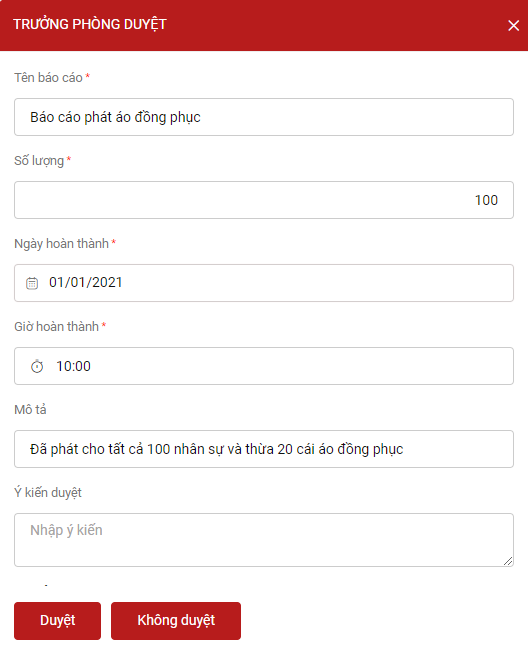
- Allows the manager to Approve or Reject this node:
- If the report approval node is completed, an icon is automatically added to this node. When clicking the icon, the detailed content previously entered by the manager is displayed
- The person who completes the previous task is the one who creates the next process task
- Executing a process node is like executing a normal process task
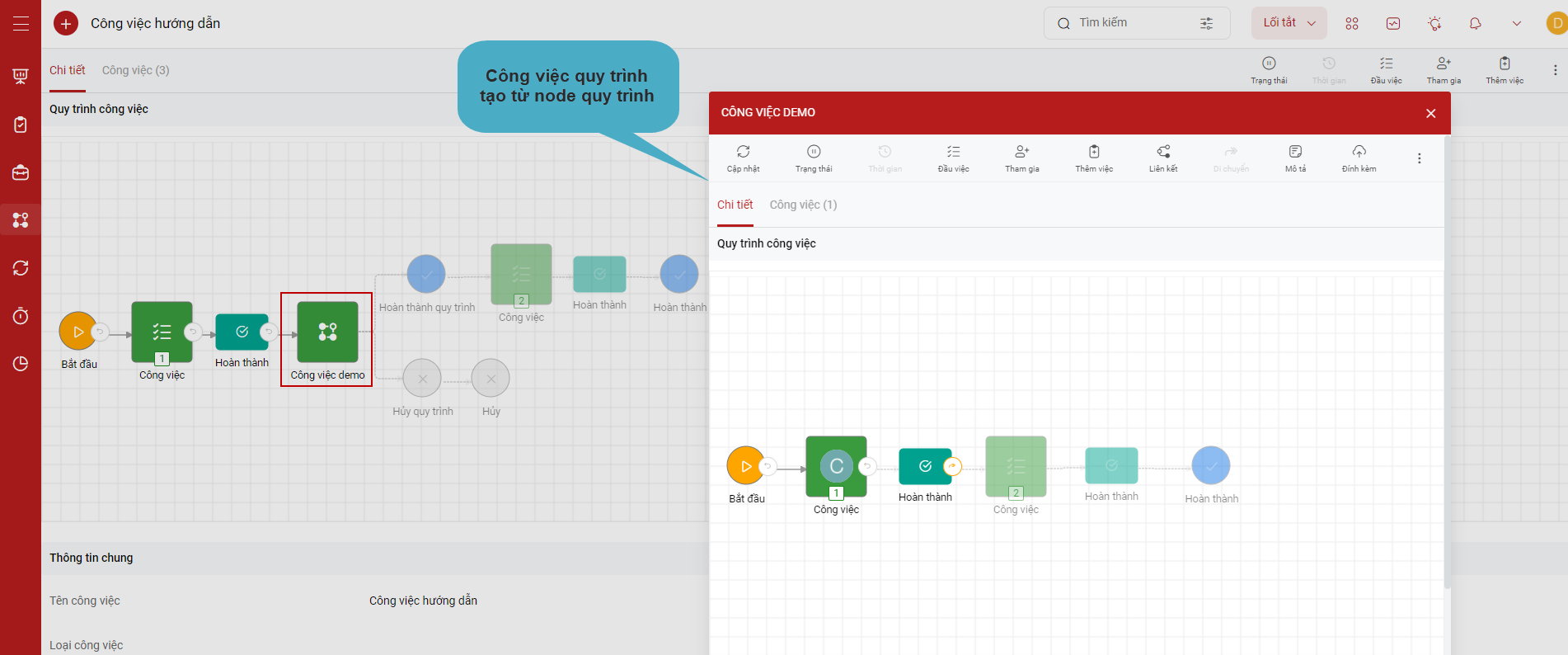
- Changing the status or undoing a process task created from a process node is not allowed after the task has been completed
Upgrades to other features in process templates
Moving process templates and adding the ‘List of personnel with permission to create new process templates’ feature
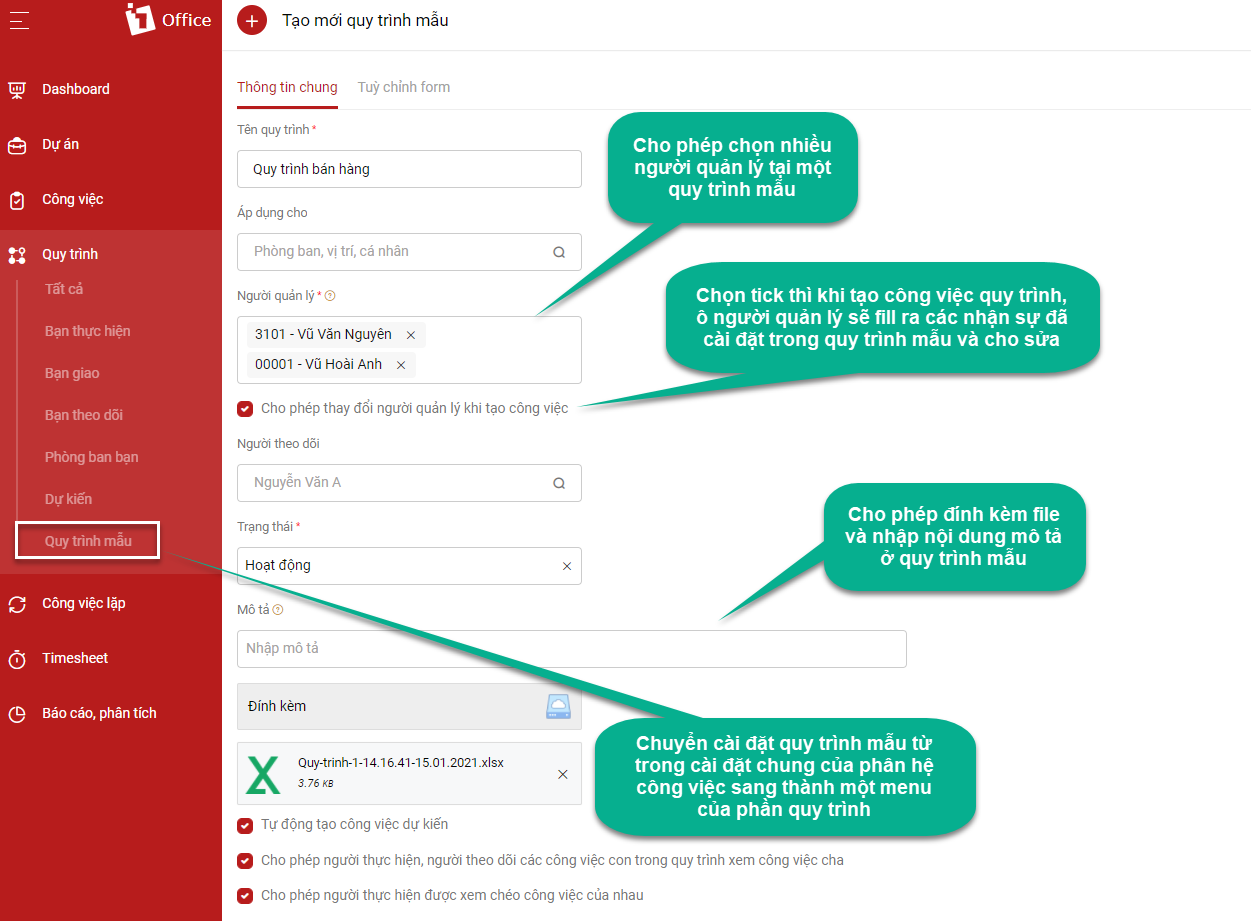
- Recognizing that process setup is a crucial and frequently used feature for creating process tasks, 1Office has decided to move the process template setup from the general settings of the task module to a dedicated menu in the process section
- In addition to personnel with full management rights in the task module, users can select other personnel who can also create new process templates suitable for their own departments
Upgrading the manager role in new process template creation
- Due to the nature of business processes where each task may have one or more managers simultaneously, 1Office allows selecting multiple managers in a process template to help users optimize their work.
- Added a checkbox ‘Allow changing manager when creating a task’. If not checked, when creating a process task, the manager field will be pre-filled with the personnel set in the process template and will not be editable.
Adding attachments and descriptions to process templates
- Allows attaching files and includes a Description field when creating a new process template
- When creating a new task from a process template, the system automatically fills the description content and attached files from the template into the task
III. RECURRING TASKS
Recurring tasks:
- Remove the recurring setting task in task details; instead, allow creating new recurring tasks, which are separated into their own object (like process tasks, projects…)
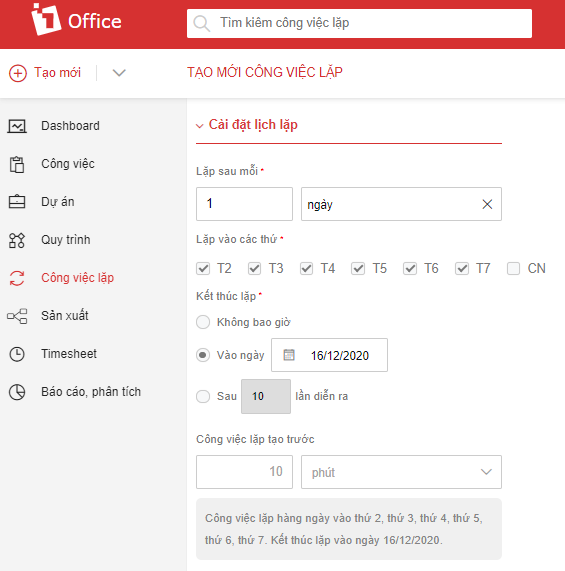
- Users can create recurring tasks by setting a recurring schedule (configuring the recurring schedule) and setting up the task (setting up the task that will be generated from the recurring task).
- Fields in the recurring schedule settings:
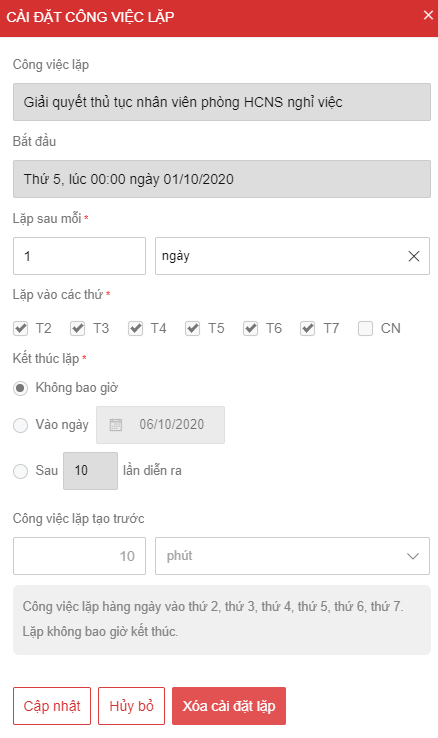
- Repeat every
- Repeat on days
- End repeat
- Create recurring task in advance
- Fields in the task settings:
- Task type: Regular Task and Process Task
- When selecting a process task, the system automatically fills in the fields as in creating a new process task (similar to when selecting a regular task) for input.
- Actions:
- Recurring schedule
- Activate/Stop recurrence
- Attachments
- Edit
- Delete
Process tasks:
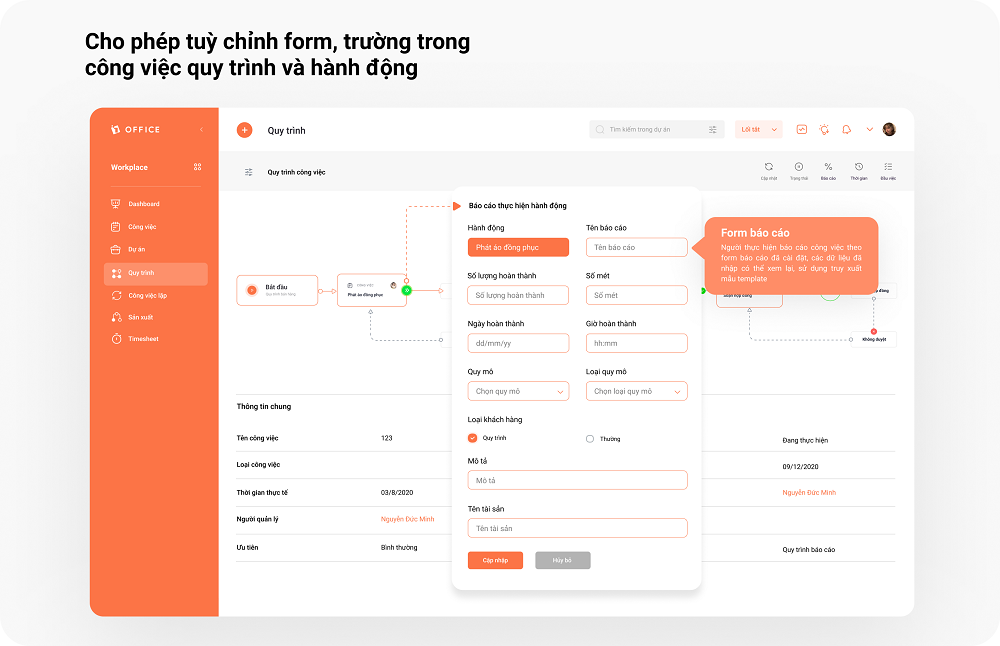
Add form customization feature in process templates
- Allow customization of the content fields displayed in each process, and for each action within the process.
- For process templates with customized forms, when creating a new task, the system will display the configured fields for the user to enter corresponding information.
- For actions with customized forms, when proceeding to the next step of that action, the system will display the configured fields for the user to enter the corresponding parameters.
- Allow exporting forms based on the representative keywords of the created fields.
Add recurring task setting feature
- A recurring task is a function that allows you to create tasks that need to be repeated on a set date. If you have tasks that repeat frequently, the recurring task feature will allow you to perform that task again without having to create it from scratch.
- These tasks can be part of your daily work that needs to be completed each time, such as: sending daily notes, meeting minutes, invoices at set intervals, and marketing newsletters…
Features
- It is mandatory to create a task with an estimated start time for the recurring task setting feature to work.
- Users can configure the recurrence through the following fields:
- In the recurring task details: display the recurring schedule field with a detailed description of the recurrence settings and a list of the repeated tasks.
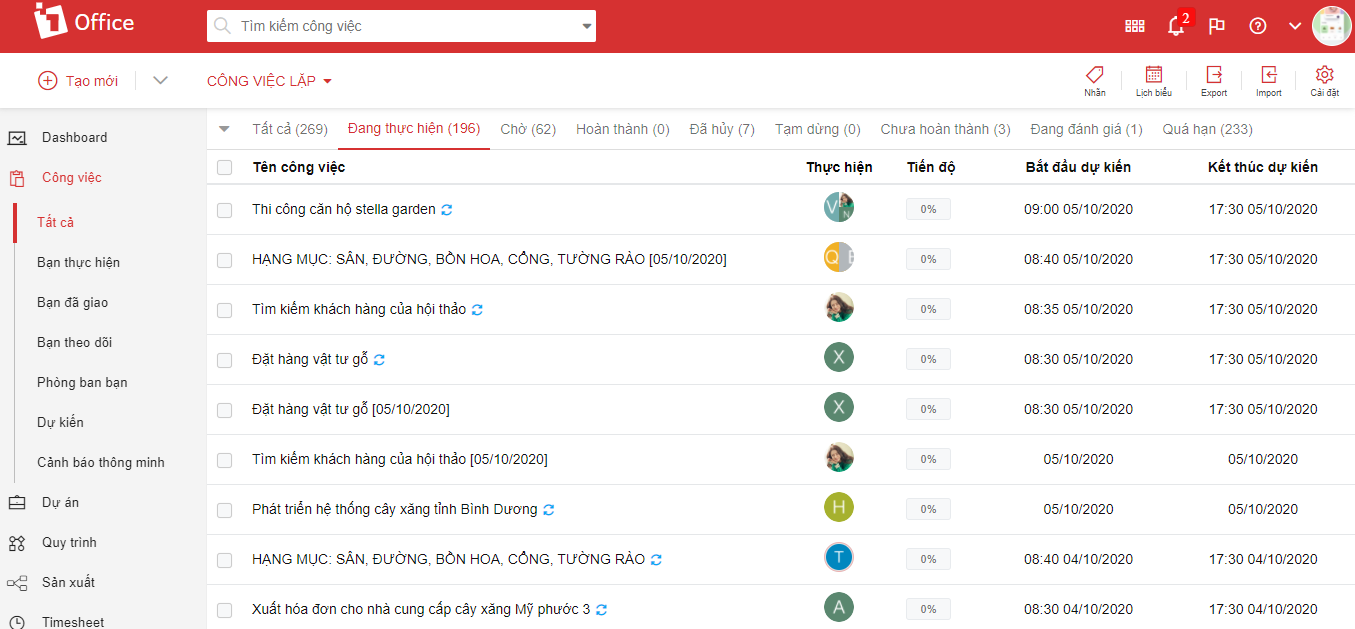
- Allow viewing a list screen of all recurring tasks and repeated tasks.
- The task history records the recurrence history.
For detailed instructions, visit: https://1office.vn/support_feature/cong-viec-lap/
Recurring Task Feature Upgrade
- Recognizing that recurring tasks are crucial and frequently used for generating daily, weekly, and monthly reports, 1Office has decided to make recurring tasks a distinct task type (similar to regular and process tasks).
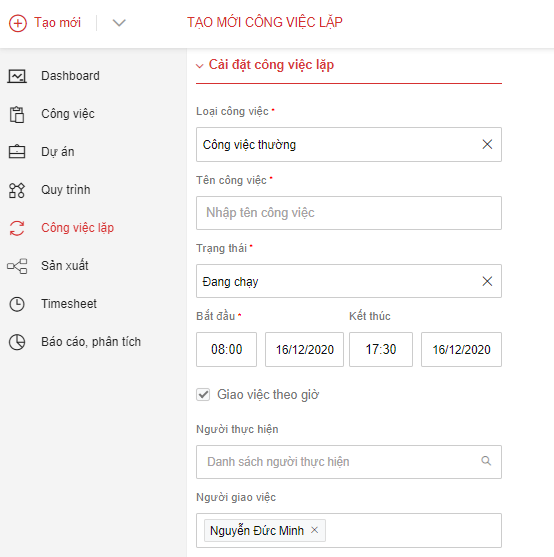
Features
- Allows setting up recurring tasks of two types: Regular tasks and process tasks.
- Users can create recurring task templates with a corresponding recurrence schedule for each template (this action is essentially the same as creating a regular/process task, but with an added step to set up the recurrence schedule). Once created, recurring tasks will be generated from the configured template.
- In the details of a recurring task template: Displays a list of recurring tasks that have been generated from the created template.
- The recurring task history logs the repeated tasks and related actions such as: Recurrence schedule, Stop/Activate recurrence, etc.
Note: Recurring task templates do not apply to regular tasks with multiple sub-tasks.
For detailed instructions, visit: https://1office.vn/support_feature/cong-viec-lap-2/
IV. Projects
Added ‘Add Milestone’ Feature
- Milestones are important “markers” in a project. These markers are very important stages or events that signify the project’s development and completion.
- A milestone focuses on very important points, breaking down a large project into smaller stages to make the project management process more manageable.
- Similar to ‘Set up recurring task’, ‘Add milestone’ is also an action.
- Milestones are displayed on the project’s Gantt chart screen.
Features
- When selecting the ‘Add milestone’ action, a popup will appear with the following fields:
Milestone Feature Upgrade
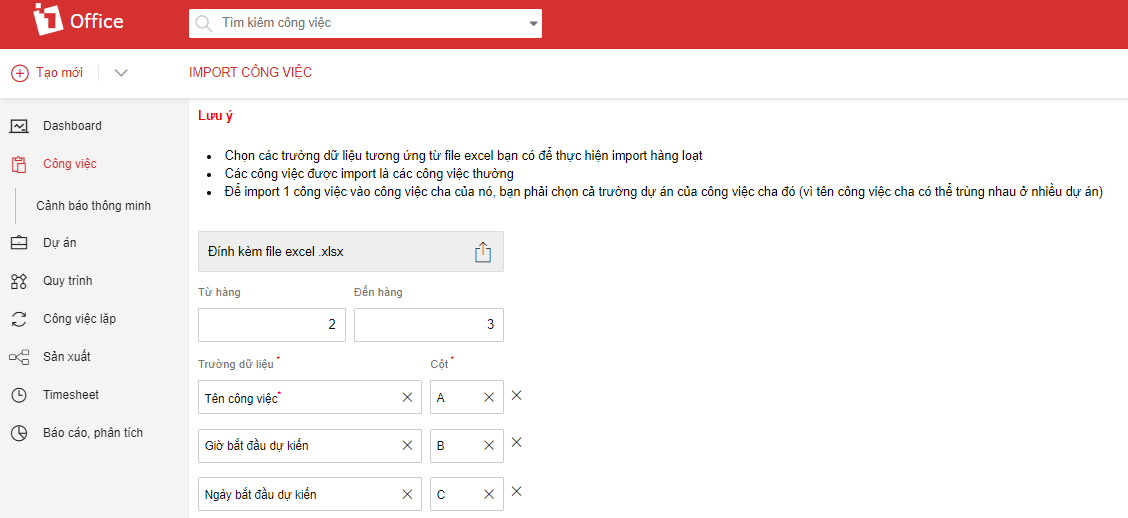
- <span style="font-Task import feature upgrade
Allows importing tasks, which typically include the following fields:
- Task name
- Project
- Parent task
- Status
- Assigner
- Assignee
- Follower/Coordinator
- Assign task by hour: Yes/No
- Planned start/end time
- Planned start/end date
- Actual start/end time
- Actual start/end date

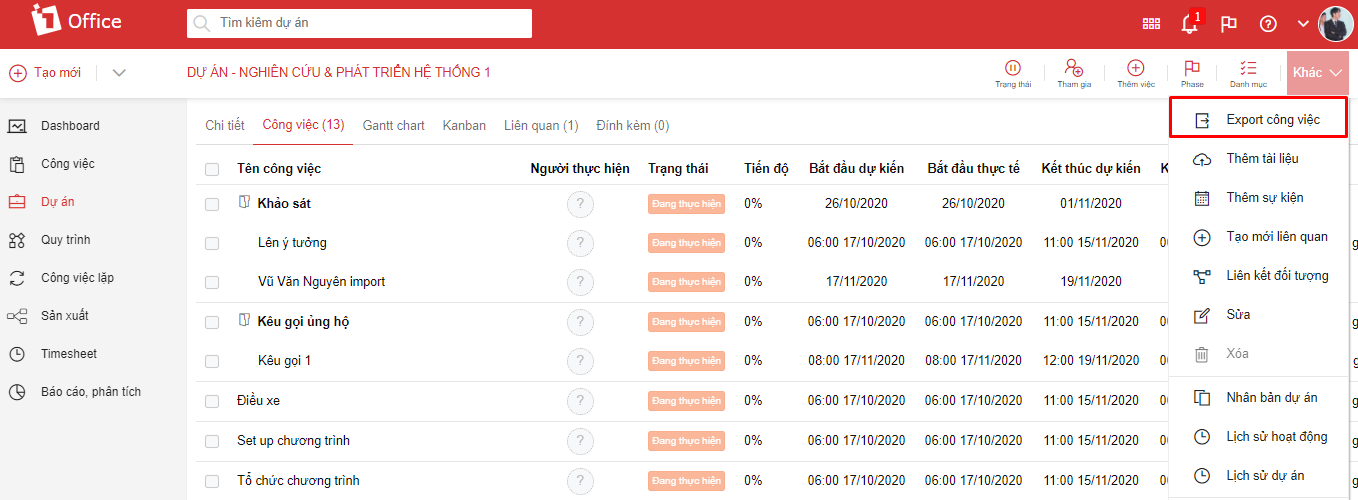
New task export feature in projects
- Add a task export action in project details.
- Allow exporting the list of tasks within a project.

Upgrade file management and add folders in projects
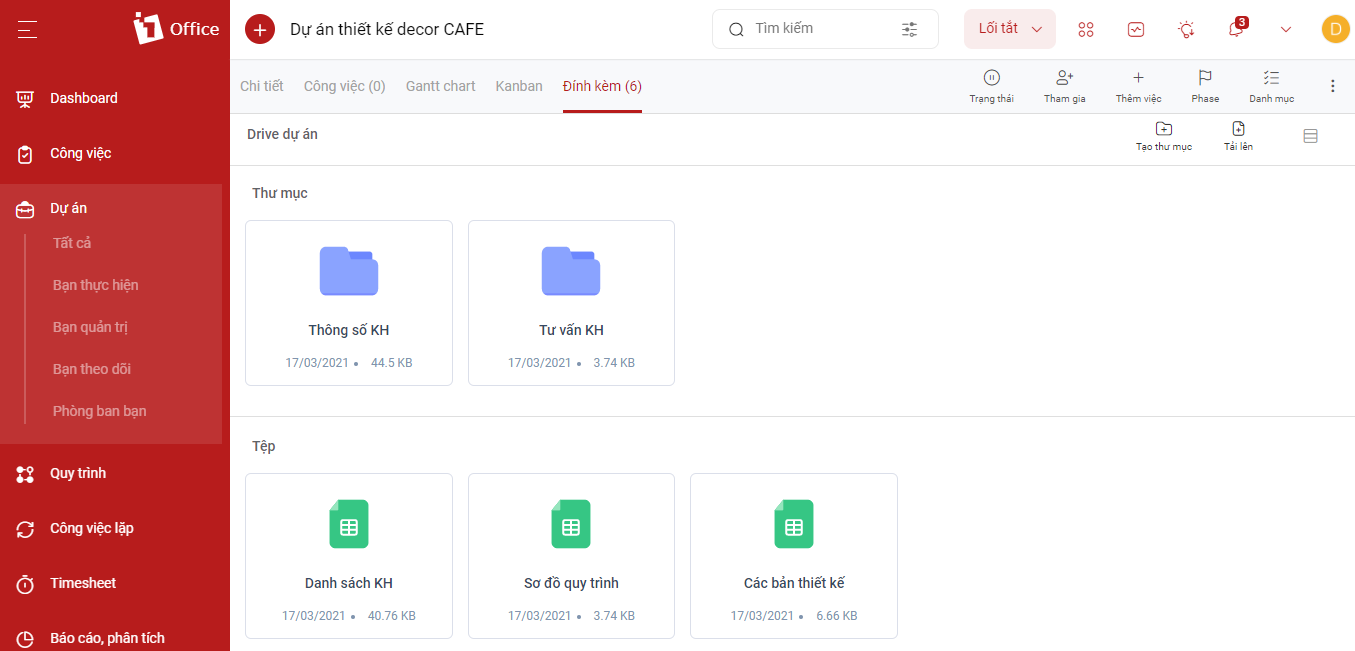
- Project attachments serve as a central repository for all project files. Authorized users can access these files from any device. With this in mind, our latest update introduces a refreshed, more modern, and user-friendly interface for a better user experience. We have also added a highly useful folder feature within projects.
- Some file and folder management features:
+ Allows creating folders and uploading files to a project
+ A folder can contain multiple subfolders and files
+ Files and folders can be viewed in two modes: List view and Grid view
+ Other file and folder management tasks, etc.

Task category upgrade
- Add a calculation method for project categories (similar to project progress calculation)
+ Calculate based on the average % of task completion
+ Calculate based on the weight of task execution days
Phase and Gantt chart upgrade
- Change some logic of the phase feature as follows:
+ Only constrain the task’s time to be within the phase upon creation
+ For parent-child tasks, only allow adding the parent task to a phase
- Allow displaying the Gantt chart screen by: Category, phase, or parent-child
- Smoother experience when viewing the project screen in Gantt chart format
The above are the new features upgraded by 1Office in the task module. In addition, we will continue to research, upgrade, and add more new features in the future.
1Office hopes to bring many new experiences to the customers who trust and use the 1Office application – The comprehensive business management solution.