


 10/05/2026
  157 views
Microsoft Teams is an online meeting tool familiar to many businesses, but not everyone knows how to create a meeting quickly and take full advantage of its features. In this article, 1Office will provide detailed instructions on how to create a meeting in Microsoft Teams using a computer, phone, and Microsoft Outlook, along with tips to make your meetings more effective.
Mục lục
- I. What is the structure of Microsoft Teams? How much does it cost?
- II. How to easily create a meeting in Teams for your business
- III. Tips for Using 5 Other Useful Features When Creating a Meeting on Teams
- IV. Pros and Cons for Businesses When Creating Meetings on Microsoft Teams
- V. Microsoft Teams vs. Zoom and Google Meet
- VI. Frequently Asked Questions About Creating Meetings in Microsoft Teams (FAQ)
- VI. Workplace 1Office – The Leading Professional Internal Communication Platform Today
I. What is the structure of Microsoft Teams? How much does it cost?
1. The structure of the MS Teams platform
As mentioned above, MS Teams is part of the Office 365 ecosystem, a teamwork platform with features like chat, video calls, online meetings, and quick information and resource sharing. Learning how to create a Microsoft Teams meeting will greatly benefit businesses when working online, enhancing their systems thinking capabilities.
Using MS Teams, creating a meeting in Microsoft Teams helps people within the same group or business collaborate more easily on a single platform. Additionally, MS Teams can now easily integrate with hundreds of other applications. The process of creating a meeting in Teams is also quite simple, and anyone can do it.
The structure of the MS Teams software is divided into 3 levels:
- Team: Includes everyone you want to collaborate with, such as members of the same department, project, or all employees in the business.
- Channel: These are conversations with different people within a Team, where activities like chatting, video calling, organizing meetings, sharing files, and collaborating with everyone take place.
- Tab: Tabs help users navigate through channel content. The system has 3 default tabs: Posts (stores messages with people in the channel), Files (stores all documents shared with everyone in the channel), and Wiki (a smart text editor). Users can add custom tabs as they wish.
2. MS Teams software costs for businesses
Teams is usually bundled with Office 365 packages; however, you can still learn how to create a Microsoft Teams meeting and download a free version with somewhat limited features. Specifically, the Teams software is integrated into the following packages:
- Business Essentials ($2.50/user/month)
- Business Premium ($10.00/user/month)
- E1 ($8.00/user/month)
- E3 ($20.00/user/month)
- E5 ($35.00/user/month).
For the Office 365 Business plan, which does not include it by default, each user will have to pay an additional $5.00/month to use Teams.
II. How to easily create a meeting in Teams for your business
1. How to create a Microsoft Teams meeting on a computer
To create a meeting on Microsoft Teams for PC, you need to download the software and log in to your Microsoft Teams account. Then, follow these steps:
- Step 1: Open the Microsoft Teams software. On the main screen’s toolbar: Select Teams > Choose the team you want to meet with.
- Step 2: After the selected team’s interface appears, click the icon as shown in the top right corner of the screen.
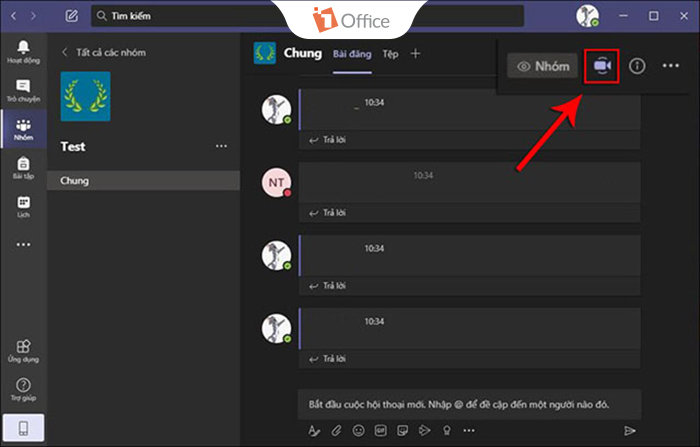
- Step 3: A dialog box with options will appear > Click Meet now if you want to start a meeting immediately. Select Schedule a meeting if you want to arrange a time for a future meeting.
- Step 4: To end the meeting, in the top right corner of the screen, click Leave > End meeting.
2. How to create a meeting room on your phone
For more convenience in less formal meetings with fewer participants, businesses often access MS Teams on their phones to meet anytime, anywhere.
- Step 1: Open Microsoft Teams > Tap Calendar.
- Step 2: Select Schedule > Fill in the meeting details > Tap Share to a channel.
- Step 3: Choose the team you want to hold the meeting in.
- Step 4: Set the meeting time > Tap Done.
- Step 5: In the Chat, tap on the meeting you just created
- Step 6: Select Join > Join now. The meeting has been set up.
- Step 7: Tap the end call icon if you want to end the meeting.
Read now: MS Teams tips to improve productivity and optimize time
3. Create a Microsoft Teams meeting with Outlook
Outlook is another software owned by Microsoft. However, unlike Microsoft Teams, Outlook specializes in managing tools for email, calendars, personal information, and more.
Therefore, to make it easier for users to manage online meetings, Microsoft has integrated the meeting creation feature directly into Outlook.
- Step 1: Open Outlook > Switch to calendar view.
- Step 2: Select New Meeting > Add invitees to the meeting > Set a meeting name > Create a message > Click Send.
III. Tips for Using 5 Other Useful Features When Creating a Meeting on Teams
1. Create a meeting link when creating a meeting on Microsoft Teams
Sometimes you may want to send a meeting invitation to other platforms, for example, sending a class participation link to students. Follow these steps:
- Step 1: Go to Microsoft Teams > On the toolbar on the left side of the screen > Select Teams.
- Step 2: Select the team you want to send the link to > Click the 3 dots (as shown) > Select View meeting details.
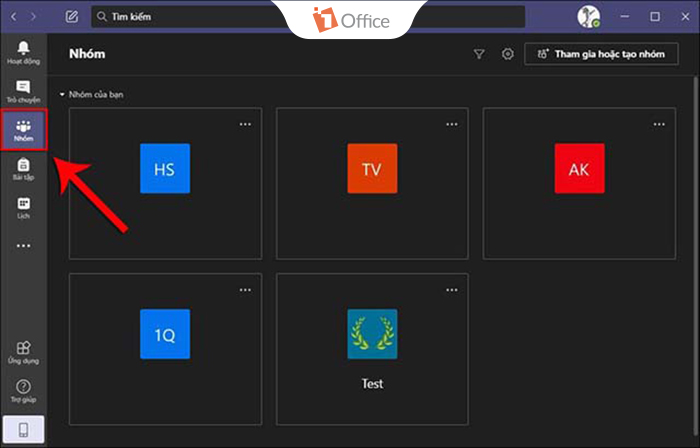
- Step 3: In the meeting interface as shown > Scroll down > On the ‘Join Microsoft Teams Meeting’ line, right-click > Copy link.
- Step 4: After you have finished copying the link. If you want to send it to someone else, simply use the key combination Ctrl + V or right-click > Paste to paste the copied link into a chat message.
2. Add members to a meeting when creating a Microsoft Teams meeting
After you know how to create a meeting on Teams and have started the meeting, what if you want to add someone else to it? Here are the steps:
- Step 1: Go to Microsoft Teams => On the toolbar on the left side of the screen => Select Teams.
- Step 2: In the team where you want to add a member, click the 3-dot icon (as shown) => Select Add member.
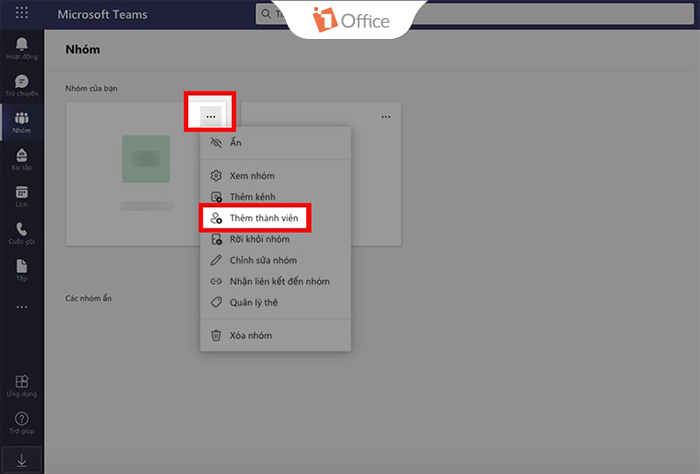
- Step 3: Enter the name or email address of the member you want to add.
- Step 4: In the ‘Add member as a guest’ section > Select Add.
- Step 5: Select Close.
3. Save messages when creating a Microsoft Teams meeting
If you receive an important message but don’t have time at the moment, you can save it and come back to it later.
Hover over the message and click the ellipsis (…), then click Save this message. To view your saved messages, click on your profile picture, select Saved, and all saved messages will be displayed in the left pane. You can unsave these messages by clicking the bookmark icon at the top right of each message.
Each team using Microsoft Teams will have a site in SharePoint Online, which contains a default document library folder. All files shared across all conversations are automatically saved to this folder. Permissions and security options can also be customized for sensitive information.
5. Online video calls and screen sharing
Enjoy fast and seamless video calls when using how to create a meeting on Teams for employees within the company or clients outside the company. When you apply how to create a Microsoft Teams meeting, a good video calling feature is a great thing to have on a collaboration platform. People can also share their desktop screens simply and quickly for technical support and real-time collaboration with multiple users.
IV. Pros and Cons for Businesses When Creating Meetings on Microsoft Teams
Pros
The strength of creating a Microsoft Teams meeting lies in its features, which are developed in both breadth and depth for collaborative spaces, company meetings, as well as employee training and development
- No additional cost if your business is already using Office 365
If your business is using a licensed version of Office 365, the Microsoft Teams software is already integrated, and you won’t incur any additional costs (except for the Office 365 Business plan).
- Easily create meetings anytime, anywhere with just an internet connection
With cloud calling, creating a Microsoft Teams meeting has Skype integrated to ensure a full range of online cloud calling features. Not only that, the Teams calling system also has other interesting features such as consultative transfers, music on hold, call parking, voicemail, and especially a cloud-based auto attendant with a virtual operator.
- High information security capability
Microsoft Teams provides encryption for data, messages, and files when shared between users. Two-factor authentication is applied to ensure that only your company’s employees can access accounts.
Disadvantages
Although it is very useful and supports businesses in countless online tasks, there are still certain limitations when it comes to creating meetings on Microsoft Teams:
- Limited number of channels
Microsoft Teams limits the maximum number of channels to 100 per team. This means if your company’s large team reaches this limit, you cannot create new channels – or you will be forced to delete some existing ones.
- Restricted permission settings
Similar to file organization, Microsoft Teams’ permission settings are minimalistic in terms of time but are not optimal for long-term use, and may even pose potential risks.
>> Suggestion: Top 5+ Causes of Wasted Time You Need to Know
V. Microsoft Teams vs. Zoom and Google Meet
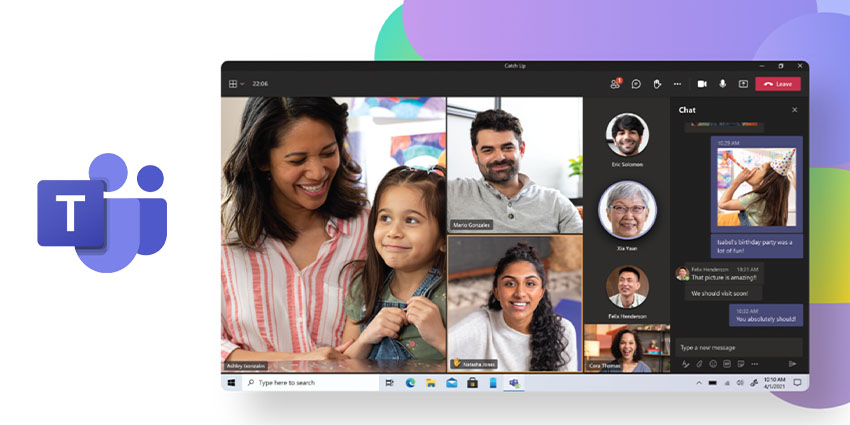
Microsoft Teams, Zoom, and Google Meet are the three most popular online meeting platforms today. Each platform has its own strengths in terms of work environment security, call quality, pricing, and ecosystem integration capabilities. Understanding the differences helps businesses choose the right tool for their scale and operational needs.
1. Security Feature Comparison
Microsoft Teams
- Part of the Microsoft 365 ecosystem, it uses enterprise-grade security standards.
- Applies end-to-end encryption (E2EE) for 1:1 calls and TLS/SSL encryption for meetings.
- Features Azure Active Directory for managing user identities at the organizational level.
- Allows administrators to control screen sharing, recording, and adding external users.
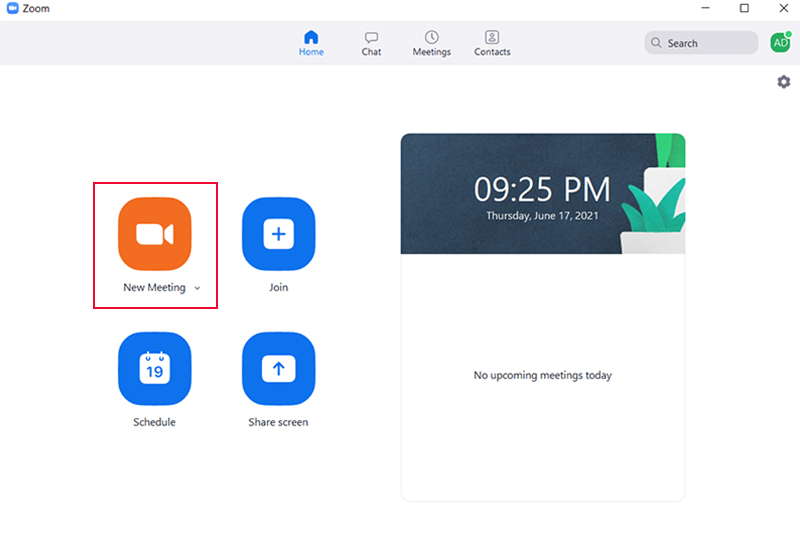
Zoom
- Applies end-to-end encryption, but only for certain types of meetings.
- Has experienced “Zoom-bombing” incidents (strangers joining meetings), but has since improved.
- Permission management is good but not as in-depth as Microsoft’s.
Google Meet
- Encrypts information during transmission (in-transit encryption).
- Security system is based on the Google Workspace platform.
- Doesn’t have as many customization options as Teams.
Suitable for simple environments, educational institutions, and startups.

2. Stability and Call Quality Comparison
Microsoft Teams
- Stable call quality when used on an intranet or by businesses using Microsoft 365.
- Smart bandwidth adjustment, but sometimes more resource-intensive than Zoom.
Zoom
- Considered the most stable, especially with weak Internet connections.
- Optimized image and audio compression technology, minimizing lag.
The number one choice for businesses with frequent online meetings or webinars.
Google Meet
- Good call quality, optimized for the Chrome browser.
- Runs smoothly and is stable, but not superior to Zoom.
3. Collaboration Feature Comparison
Microsoft TeamsTightly integrated with Word, Excel, PowerPoint, OneDrive, and SharePoint.
- Supports group chat
- , create channels, manage files, and assign tasks on the same platform.
- Has a Whiteboard, Wiki, and shared note-taking tools.
Zoom
- Collaboration features are more limited than Teams.
- Has a Whiteboard and breakout rooms but lacks a document and workflow ecosystem.
- Suitable for training, seminars, and webinars.
Google Meet – user-friendly, simple
- Integrates well with Google Docs, Sheets, and Drive.
- Simple features, easy to use.
4. Price & Meeting Limit Comparison
Microsoft Teams
- Free: limited features, 100 participants.
- Paid version (Microsoft 365 Business): from $3 – $12 USD/month/user.
- Meeting duration: up to 24 hours.
Zoom
- Free: 40-minute meeting limit, 100 participants.
- Paid version: $12.49 – $19.99 USD/month/user.
- Webinars for up to thousands of people.
Google Meet
- Free: 60-minute meeting, 100 participants.
- Google Workspace version: $6 – $18 USD/month/user.
- Up to 250 participants in the premium version.
VI. Frequently Asked Questions About Creating Meetings in Microsoft Teams (FAQ)
The FAQ section below helps users quickly grasp the core issues when organizing meetings in Microsoft Teams and also helps content display better in Google Featured Snippets.
1. Do I need a Microsoft account to create a meeting in Microsoft Teams?
Yes, but it depends on the situation.
To create and manage meetings, users must have a Microsoft account (either a Microsoft 365 or a free Microsoft account).
However:
- Meeting participants do not necessarily need a Microsoft account
- Guests can join via a meeting link using a web browser or the Teams app
This makes Teams flexible for meetings with partners, clients, or external suppliers.
2. Does Microsoft Teams have a limit on the number of meeting participants?
Yes. The number of participants depends on the service plan your business is using.
Currently:
- The Microsoft Teams plan for businesses can support up to hundreds of participants simultaneously
- With premium plans, Teams also supports large-scale meetings and live events
Therefore, before organizing large meetings, businesses should check their license plan to choose the appropriate meeting format.
3. Can I record a meeting in Microsoft Teams?
Yes. Microsoft Teams allows you to record meetings as videos and store them on Microsoft’s system (OneDrive or SharePoint).
Some important notes:
- Only authorized individuals within the organization can enable the recording feature
- When a meeting is being recorded, all participants are notified
- The recording file will be stored for review, internal sharing, or training purposes
This feature is particularly useful for:
-
Internal meetings
-
Staff training
-
Reviewing discussion content after the meeting
4. Can external guests join a Microsoft Teams meeting?
Yes. Microsoft Teams supports joining meetings as a guest from outside the organization.
Specifically:
- The organizer just needs to send the meeting link
- Guests can join via a browser without needing to install Teams (depending on the device)
- The business can limit guest permissions, such as: no screen sharing, no recording
This makes Teams a suitable tool for:
- Meetings with partners and clients
- Interviewing candidates
- Collaborating on joint ventures and partnerships
VI. Workplace 1Office – The Leading Professional Internal Communication Platform Today
Besides MS Teams, which is popularly used as a unified work platform, businesses today are also seeking software solutions that facilitate more effective, rapid, and systematic internal communication. Workplace 1Office is one such tool.
With an internal communication network system operated and designed like a miniature social network, Workplace is where leaders can convey messages to company members, along with outstanding features such as creating newsfeeds, creating tasks, managing announcements, timekeeping, accurate and efficient payroll calculation, work reminders, and more.
The Workplace system also becomes a place that helps bridge the gap between superiors and their employees, creating a family-like atmosphere where everyone feels close, friendly, and grows to love their job and the company even more.
The article above has helped readers understand the pros and cons of MS Teams software and learn more about how to create a meeting on this platform. We hope this information is useful for you and your business.
















