


 11/05/2026
  945 views
Don’t let work pile up just because you lack a suitable Excel file! If you need a tool to help you assign tasks, track progress, and control KPIs – then the Top 9 Excel task management templates in this article will be your ideal “assistant”. From Gantt charts to checklists, all have been carefully selected by 1Office and are ready to use immediately. Let’s explore!
Mục lục
- 1. What is task management using Excel?
- 2. What are the benefits of managing tasks with Excel?
- 3. Explore 9+ Excel Task Management Templates [Updated 2026]
- 4. Notes on Using Excel for Task Management
- 5. What are the limitations of managing tasks with Excel?
- 6. Comparing Excel with AI Technology in Task Management
- 7. When should a business upgrade from Excel to a work management software?
1. What is task management using Excel?
Task management using Excel is a method of using spreadsheet software to manage, note, organize, and track the progress of daily work and tasks. The Excel tool provides flexible features and tools that help users create and manage to-do lists easily and effectively.
![9 standard Excel task management templates [Free Download]](https://1office.vn/wp-content/uploads/2023/12/mau-quan-ly-cong-viec-bang-excel-1024x732.jpg)
- Tracking the progress of work and projects helps users identify tasks that need to be completed, are delayed, or are at risk of being postponed.
- Allocating resources such as time, manpower, and finances reasonably for each task ensures that tasks are completed on time.
- Controlling costs for each task or project helps businesses avoid cost overruns or resource waste.
- Supporting report creation while providing a comprehensive overview of the work helps managers make improvements when necessary.
2. What are the benefits of managing tasks with Excel?
Using Excel as task management software to track progress brings many crucial benefits to a business. Here are some of the roles of managing tasks with Excel:

Increase productivity and work efficiency: Excel helps you track work progress, allocate resources reasonably, and control costs effectively. It saves time and effort, increasing productivity and work efficiency. Excel helps you track work progress, allocate
Minimize task overlap: By regularly organizing and tracking work progress, employees can avoid overlapping, forgetting, or missing tasks, thereby improving work efficiency.
Increase control over work: Using Excel to track work progress, allocate resources reasonably, and control costs will help businesses maintain tight control over their work, thus avoiding unwanted risks.
Improve communication and coordination among team members: Excel allows users to create custom-formatted work reports. This helps employees easily share work information, enhancing communication and coordination among team members.
Overall, managing tasks with an Excel sheet is an effective solution to help you increase productivity and work efficiency. If your business is looking for a free, simple, and easy-to-use task management solution, then Excel is an excellent choice.
3. Explore 9+ Excel Task Management Templates [Updated 2026]
3.1. Excel Task Management Sheet
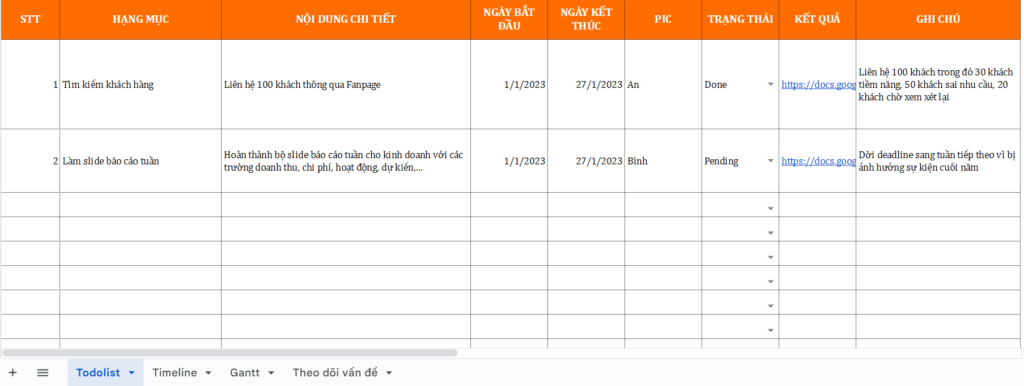
An Excel task management template is a simple spreadsheet that helps you track the tasks that need to be done. This template typically includes details such as task name, start and end times, assignee, status, etc.
This template can be used to manage individual tasks or group work. It is a good way to track the progress of tasks and ensure that all tasks are completed on time.
| Free download: Excel Task Management Template |
3.2. Work Time Management – Timeline
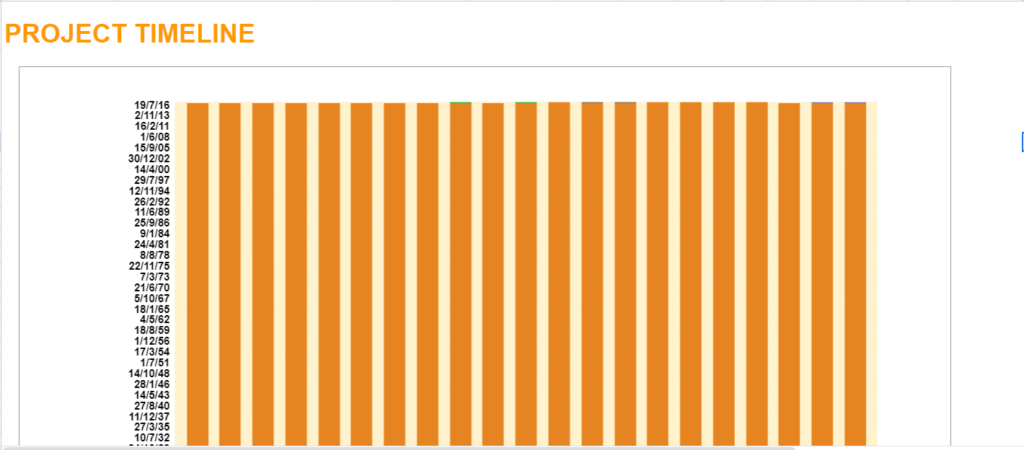
A timeline is a visual way to track the progress of a project or task. This template is often used to determine the time required to complete a project or task. It can also be used to monitor the progress of a project or task and identify any important milestones that may be delayed.
| Free download: Work Time Management Timeline Template |
3.3. Using Gantt Charts
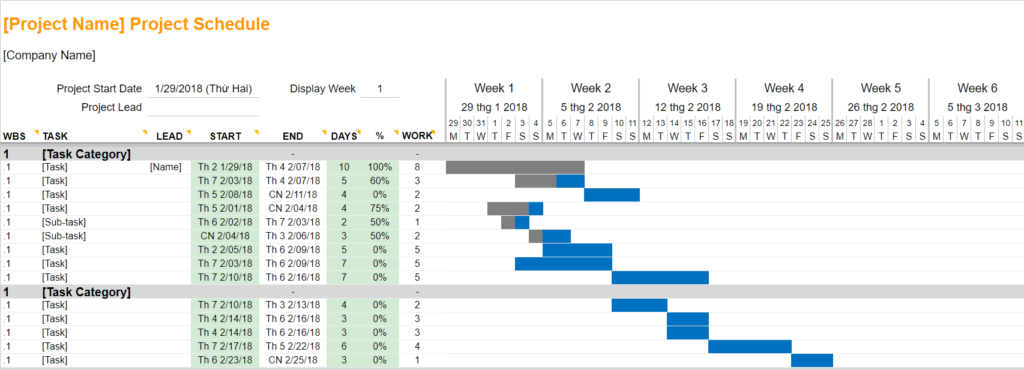
A Gantt chart is a special type of timeline used to track the progress of projects. With its visual graphics, this template is used to determine the time required to complete a project. It can also be used to track a project’s progress and identify any activities that may be delayed.
| Free download: Gantt Chart Task Management Template |
3.4. Task List Management – Todolist
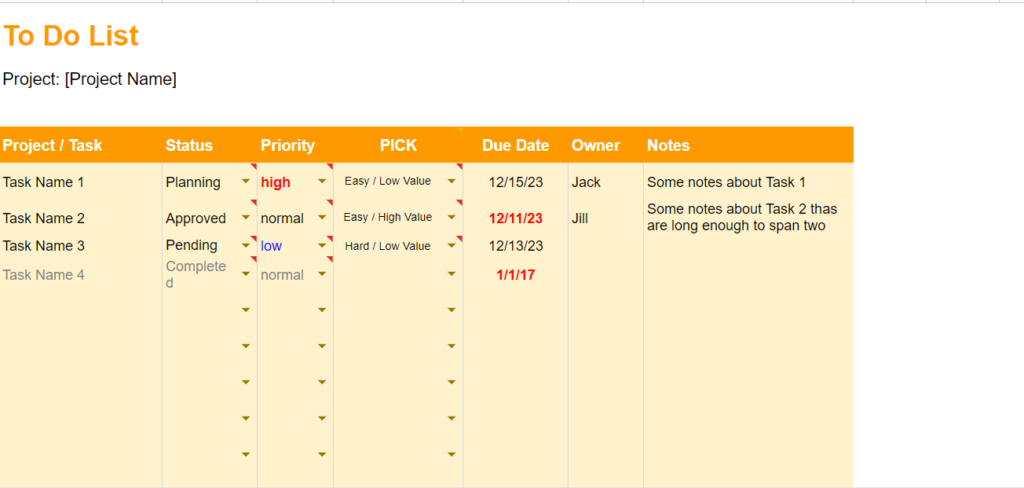
The Todolist task management template is used to manage personal tasks or tasks for individuals or teams. A to-do list is a great way to track the progress of tasks and ensure that all the most important tasks are completed first.
| Free download: Todolist Task Management Template |
3.5. Issue Tracking
An Excel issue tracking template is used to track issues that arise in a project. This template usually includes the following columns: issue name, description, date created, issue status, etc.
The Issue Tracking template is often used to track the progress of resolving issues and ensure that all issues are resolved in a timely manner.
| Free download: Excel issue management template |
3.6. Project Progress Tracking Template – Project Tracking
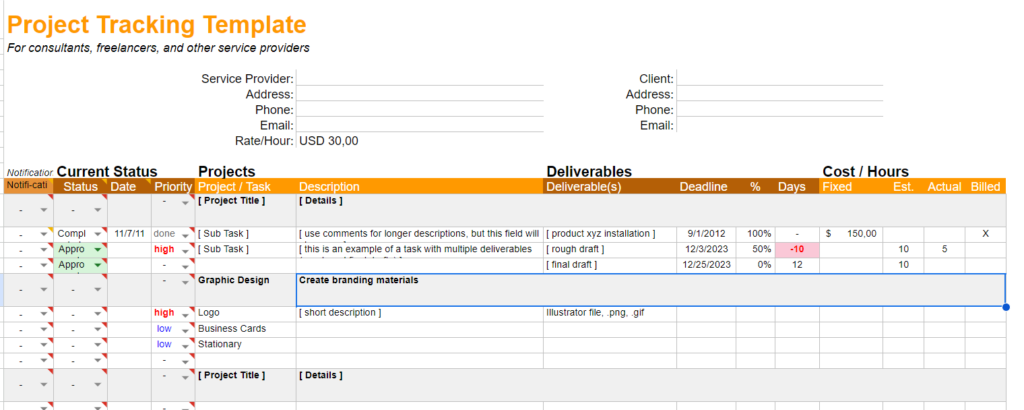
This is an Excel sheet commonly used to track the progress of a project and ensure that it is completed on time and within the proposed budget. However, for businesses with multiple projects, the Project Tracking template may not be suitable, and they may need to use other management support tools. For example, project management software like 1Office – a multi-dimensional toolkit suitable for all types and sizes of businesses.
| Free download: Excel project management template |
3.7. Work KPI Management Template – KPI Tracking
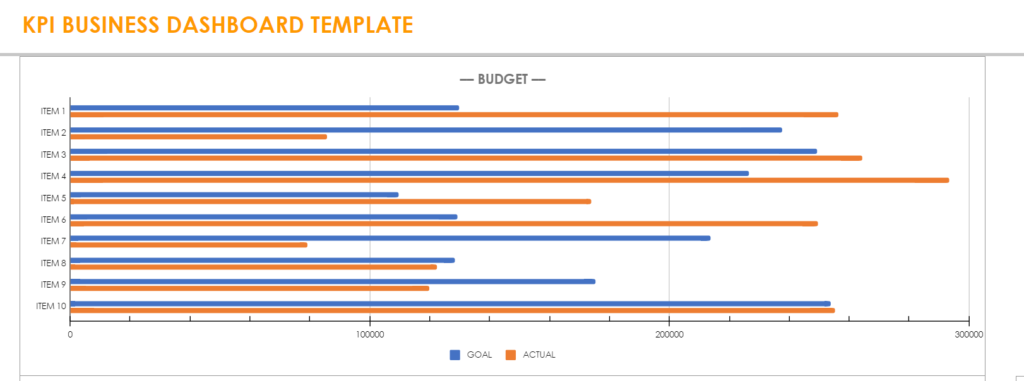
A work management template using KPIs is used to track the performance indicators of a project or task to ensure that it is on schedule and achieving its goals. A work KPI template typically includes the following content:
- KPI: Name of the KPI
- Unit of measurement: The KPI’s unit of measurement
- Target: The KPI’s target
- Actual value: The KPI’s actual value
- Variance: The difference between the actual value and the target
| Free download: KPI Task Management Template |
3.8. Project Task Checklist
A checklist is a list of tasks that need to be completed, used by managers to track the progress of a project.
Specifically, this template helps businesses: track the progress of all tasks in a project and identify tasks that need to be prioritized. It also ensures that all necessary tasks to complete a project are finished.
| Free download: Project Task Checklist Template |
3.9. Weekly Timecard
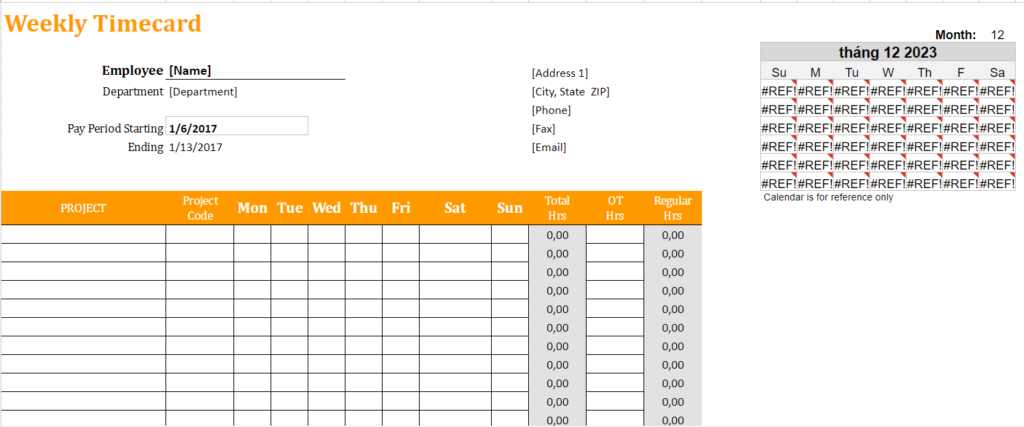
A weekly timecard is a template used to track the time you spend on different tasks or projects. This card typically includes the following columns:
- Date: Day of the week
- Task: Name of the task
- Time: Time you spent on the task
This card template can be used to track your efficiency and ensure that you are spending time on the most important tasks.
| Free download: Weekly progress tracking template |
4. Notes on Using Excel for Task Management
In business, when using Excel spreadsheets for task management, managers should note the following:
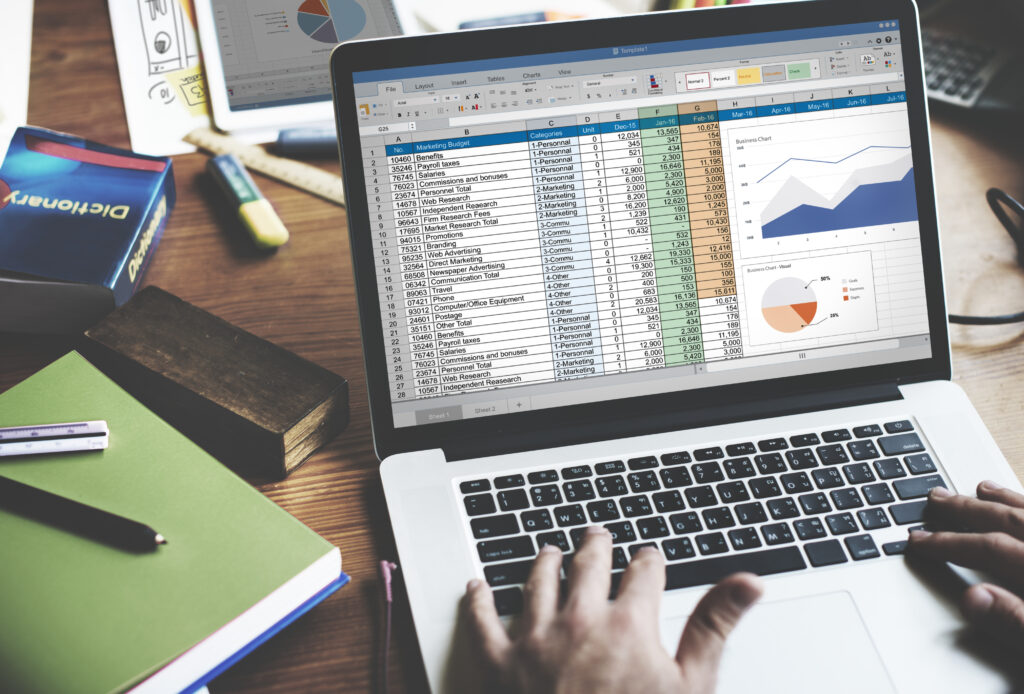
- Choose a suitable Excel template: As mentioned in the section above, you need to choose a template that fits the size and scale of the project or task, as well as your objectives.
- Customize the template accordingly: You can customize the template to fit the specific needs of individuals and the business. For example, you can add or remove columns, or change column names.
- Enter data accurately: Accurate data is a crucial factor for effective task management. You need to enter data accurately and update it regularly.
- Maximize Excel’s features: Users should organize data logically for easy tracking and access, and use colors and icons to make the data more visually appealing.
- Update and back up data: You need to update data regularly to ensure information is always accurate and back up data periodically to prevent data loss.
5. What are the limitations of managing tasks with Excel?
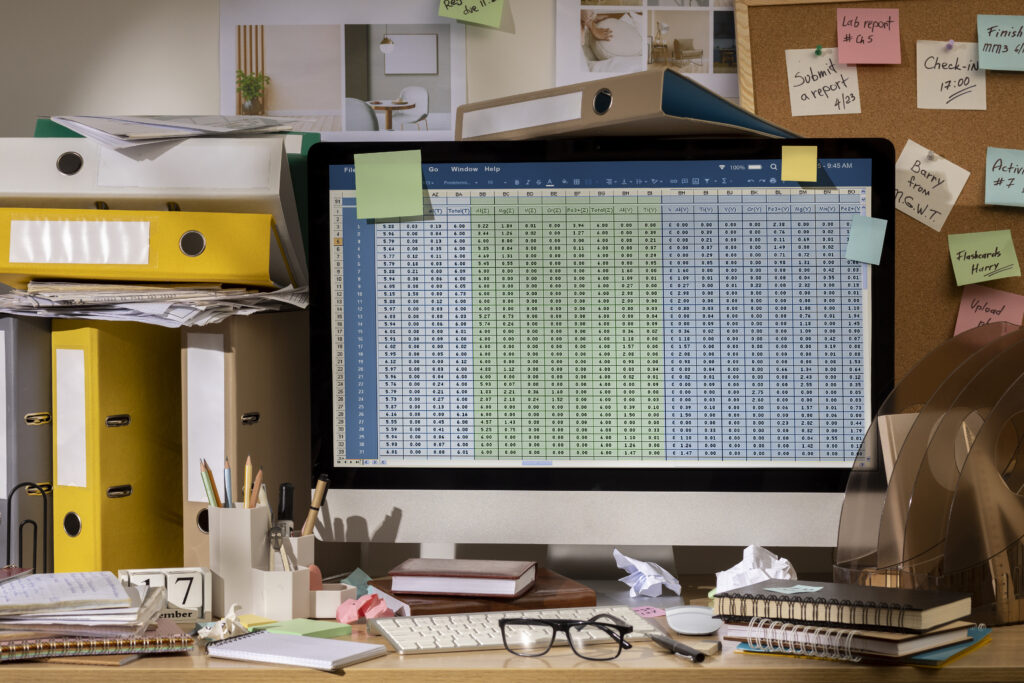
Excel is a powerful tool that can be used for various purposes, including task management. However, this tool also has many limitations that businesses should consider before using it. Excel can be difficult to customize to fit your specific needs. For example, if you need to track information not included in a standard Excel template, users must create their own custom template, which is time-consuming and labor-intensive.
Additionally, Excel can be difficult to use for those without experience with the tool. For instance, if you need to create complex formulas or charts, you may need to learn how to use these features. This can make task management more challenging.
Another risk when managing tasks with Excel is data security and information safety. When a manager shares an Excel spreadsheet with others, they can access, copy, and download the data, posing a serious security risk.
Therefore, if you are managing a large and complex project or task, you might consider using a dedicated task management solution. These solutions are often more flexible, user-friendly, and secure than Excel.
6. Comparing Excel with AI Technology in Task Management
Excel is a familiar task management tool that helps businesses track deadlines, KPIs, and project progress at a low cost. However, as businesses increasingly handle large workloads and complex data, Excel’s limitations become more apparent. AI technology emerges as an alternative or supplementary solution, offering analysis, forecasting, and automation capabilities that traditional Excel struggles to provide.
The core difference lies in how these two tools process data. Excel primarily relies on manual data entry and human-built formulas, whereas AI uses machine learning algorithms to automatically detect patterns, warn of risks, and provide intelligent suggestions. This helps businesses not only manage current tasks but also predict future trends.
| Criteria | Management with Excel | Management with AI Technology |
| Data Entry Method | Manual, dependent on the user | Automatically collects from multiple sources, reduces manual operations |
| Progress Tracking | Manual updates, prone to errors, lacks real-time data | Real-time tracking, overdue alerts, automatic reminders |
| Data Analysis | PivotTables, charts, requires advanced skills | Intelligent analysis, learns from past data, predicts outcomes |
| Scalability | Limited as the number of tasks and personnel increases | Flexible scaling, handles large datasets |
| System Integration | Manual Import/Export, difficult to link with CRM/ERP | Multi-platform integration: CRM, ERP, HRM, Email, Chat… |
| Implementation Cost | Low, suitable for small and medium-sized enterprises | Higher initially, but optimizes long-term costs |
| Value Proposition | Basic management, cost-effective, easy to access | Intelligent management, reduces risks, increases productivity |
Excel is still a useful tool for small businesses or simple needs. But as a business grows and requires real-time reporting, in-depth analysis, and automation, AI technology becomes a superior choice, helping to manage work more accurately and strategically.
7. When should a business upgrade from Excel to a work management software?
Excel is a popular work management tool due to its low cost and ease of use. However, as a business grows with more personnel, projects, and complex data, Excel begins to show its limitations. Many businesses have had to “pay the price” with delays and the risk of errors before deciding to switch to specialized work management software.
Signs that your business needs to upgrade:
- Sudden increase in workload and projects: When the number of tasks exceeds the capacity of a few Excel files, tracking progress becomes slow and deadlines are easily missed. This is when a business needs software capable of managing multiple projects and organizing workflows clearly.
- Multiple departments are involved but lack synchronization: Excel does not support detailed permissions, leading to data overwrites and a lack of transparency. Work management software solves this problem with role-based access and real-time updates.
- Need for fast and accurate reports for leadership: With Excel, data often has to be compiled manually, which is prone to errors and time-consuming. Management software allows for automatic report generation and instant KPI dashboard displays, helping leaders make decisions quickly.
- The business needs to integrate with other systems: When work needs to be linked with CRM, ERP, HRM, or marketing tools, Excel is practically powerless. At this point, work management software with APIs and built-in integrations is the optimal choice.
- Increasing frequency of errors and data loss: Excel doesn’t have detailed logs of who made edits or which version was used, making it easy to lose important information. Management software provides secure storage with the ability to track changes and restore data.
Excel is suitable for small businesses or small teams. But once a business starts to grow in scale, data, integration requirements, and the need for transparency, upgrading to work management software is an inevitable step. This is not just about optimizing performance, but also about laying the foundation for long-term sustainable growth.</p
It’s still suitable for small teams with few tasks and simple tracking needs. But when there are more tasks, more people involved, and a need for frequent updates, Excel’s limitations will start to show.
Is managing tasks with Google Sheets better than Excel?
Google Sheets is more convenient for its online collaboration capabilities. However, for long-term task management, both Google Sheets and Excel can easily become confusing as the number of tasks increases.
Can Excel track work progress in real-time?
It’s not truly optimal. Excel can be updated manually, but it’s difficult to track progress in real-time if multiple people are working together and tasks change constantly.
If multiple people update the file at the same time, is the data in Excel prone to errors?
Yes. When multiple people edit simultaneously, the file is very susceptible to being overwritten, version conflicts, or unsynchronized information.
Is there any software that can replace Excel for better task assignment and progress tracking?
Yes. If your business wants to assign tasks with clear assignees and deadlines, and track progress on a single system, you can consider the 1Office task management software for more centralized and efficient task management.
Above are 9+ Excel task management templates that 1Office would like to share with your business. We hope that through this article, your business has found suitable options for managing tasks for both individuals and your company. If you have any further questions or need a 1-on-1 consultation about the 1Office Work Management Solution Suite, please contact us for free via:
- Hotline: 083 483 8888
- Facebook: https://www.facebook.com/1officevn/
- Youtube: https://www.youtube.com/@1office-chuyendoisodn
- Zalo OA: https://zalo.me/3883877516951440238