


 11/05/2026
  36726 views
An Excel work plan template is a tool that helps businesses plan, track progress, and report on work efficiency. However, with numerous available templates, choosing the right one is not easy. In this article, 1Office will compile 7 standard, easy-to-use Excel work plan templates available for free download for you to apply immediately.
Mục lục
- I. What is an Excel Work Plan Template?
- II. Why Should You Create a Work Plan in Excel?
- III. The Most Effective Steps to Create a Work Plan in Excel
- IV- Collection of Work Plan Templates in Excel
- V. What checklists are needed for an effective work plan Excel template?
- VI. Common mistakes when creating a work plan in Excel
- VII. Using software to support work planning – 1Office
- VIII. What to note when creating a work plan template in Excel?
- IX. Frequently Asked Questions
I. What is an Excel Work Plan Template?
Excel is a tool for organizing and performing calculations on data. It can analyze data, create pivot tables, and calculate statistics in the form of charts or graphs.
For example, Excel allows users to create spreadsheets to calculate budgets, track spending, related costs, and organize data visually.
Based on the concept of Excel, an Excel work plan template is a pre-made work plan form created in the Excel software for various fields and industries. Users only need to fill in their information into the existing template to quickly track their work progress.
II. Why Should You Create a Work Plan in Excel?
Today, there are many free spreadsheet programs that one can use instead of Excel. However, Excel remains the spreadsheet of choice for many due to its available options, features, and because many businesses still use this program.
Thus, the benefits of creating a work plan template in Excel include:
- Simple operations: The Excel tool helps you proactively organize and search for data quickly.
- Diverse and easy-to-use analysis capabilities: Excel helps you create various spreadsheets, graphs, etc., in a vivid, intuitive, and easy-to-understand way.
- Track and monitor work progress: By looking at the Excel sheet, you can easily and quickly grasp the status of your own and others’ work.
- Excel allows the use of colors to categorize tasks by nature, such as: important, not important, etc.
III. The Most Effective Steps to Create a Work Plan in Excel
Creating a work plan involves various processes and requires a lot of detail before presenting it to stakeholders.
1. Clearly Define Objectives for Your Work Plan Using the SMART Model
Before creating a work plan for yourself and your business, you need to determine the time required to complete the project’s objectives. You can use the SMART model to define goals and assess the feasibility of the work. The meaning of the SMART model is expressed through the following 5 criteria:

- Specific: Define clear and specific goals.
- Measurable: Ensure your goals are measurable so you can track progress, which helps you stay focused and meet deadlines.
- Attainable: Create a realistic goal. It shouldn’t be restrictive but must be achievable.
- Relevant: Ensure your goal is important to you and aligns with your other objectives, as well as the organization’s needs.
- Time-bound: Specify a target date so your SMART goal doesn’t get lost in the mix of daily demands.
2. Identify Resources and Financials
After defining the plan’s objectives, you need to outline the metrics and implementation resources. These resources can include: documents, space, consultants (or other experts), and your implementation budget. To effectively identify resources, answer the questions below:
- How much of our budget will be allocated to this project?
- Where will that money come from (which department)?
- Do I need any special software tools to organize and complete this project?
3. Assign Tasks to Team Members
Next, you need to assign tasks to each individual to ensure that every task is completed in a timely and swift manner. Therefore, you must clearly assign the duties of each team member so they understand their work and responsibilities for that task. Assigning tasks helps minimize confusion about roles and jobs among individuals during the work process.
4. Execute the Plan
Finally, once your plan has secured the necessary human and financial resources, it’s time for execution. Create a daily work tracking sheet in Excel for everyone to monitor and closely follow the implementation. If you’re unsure how to create a work plan, feel free to reference some Excel work plan templates, ranging from basic to complex, designed to meet the various needs and goals of your business.
| See more: DOWNLOAD NOW 8+ common work checklist templates for all departments + Tips for effective application |
IV- Collection of Work Plan Templates in Excel
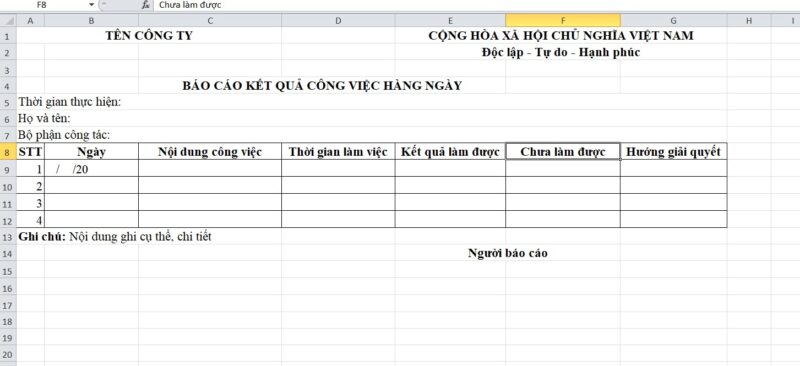
1. Daily Work Plan Template in Excel
Managing daily work progress with Excel helps you keep track of tasks according to the set schedule and plan. This allows you to easily allocate time and tasks to complete each assigned job.
2. Weekly and Monthly Work Plan Template
Unlike the daily work plan template, the weekly and monthly Excel work plan templates require more information for convenient and quick task management and tracking. The main content of the weekly and monthly Excel work plan template will include the following information:
- Name of the unit, company, or affiliated department
- Execution time (start time, end time)
- Objectives of the plan.
- Plan requirements and stakeholders involved in the plan
- Equipment and information needed to execute the plan
- Challenges, implementation methods, and contingency plans for potential risks, as well as temporary solutions for possible scenarios.
3. Gantt Chart Template
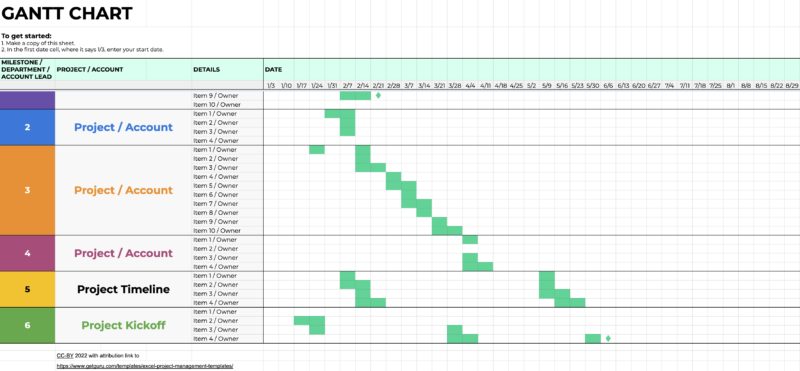
A Gantt chart is a visual breakdown of project phases, stakeholders, and tasks using color-coded bars on a horizontal calendar view. For easy tracking, you can choose specific colors for each group or stakeholder. Moreover, the Gantt chart format allows users to select a list view that displays tasks in a clear and dynamic way.
4. General Work Progress Management Plan Template (To-do list format)
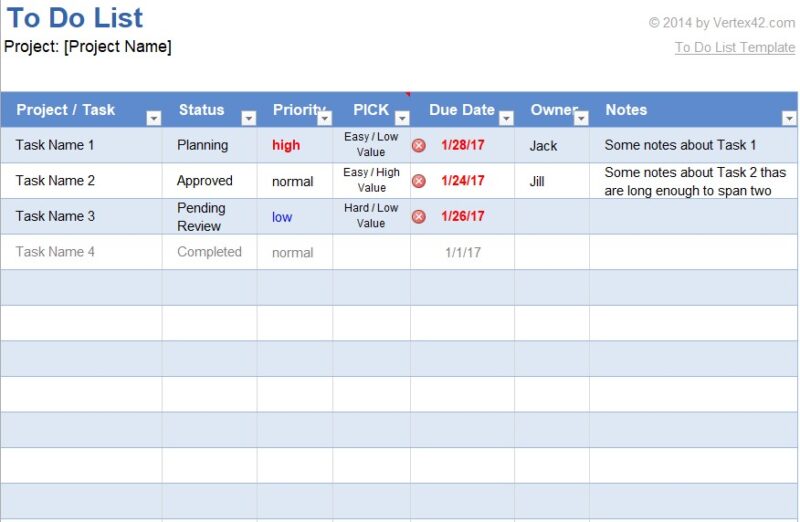
With this template, you can add project tasks, update statuses, priority levels, due dates, assignees, and any relevant notes to ensure everyone on the team knows what work is in progress.
5. Project Planning Tool Template
A project consists of many different stages and steps. Therefore, using pre-made Excel templates for project planning is an effective solution to help you systematically organize tasks, making it easier to complete work according to the set schedule.
| Read more: Planning software to quickly 3x your work productivity |
6. Business Plan Excel Template
KPI Management Excel Template
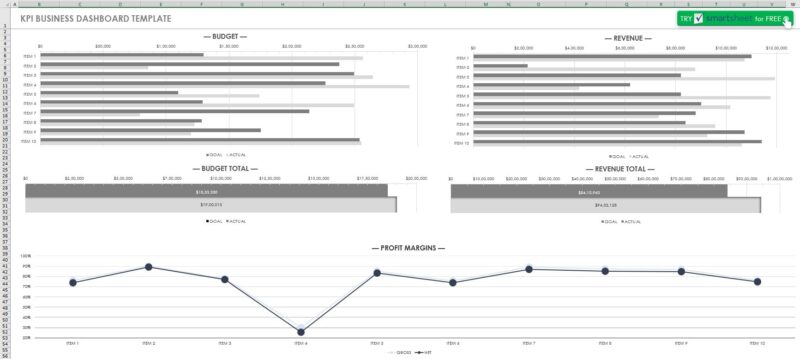
KPI management is a crucial task in a business plan. A KPI tracking sheet helps monitor and evaluate how a project is progressing and how the team is performing against their set goals and timeline. From the KPI evaluation sheet, you and your team will get the most comprehensive view of your progress and can easily adjust and update strategies.
7. Marketing Plan Excel Template
Communications Plan Template
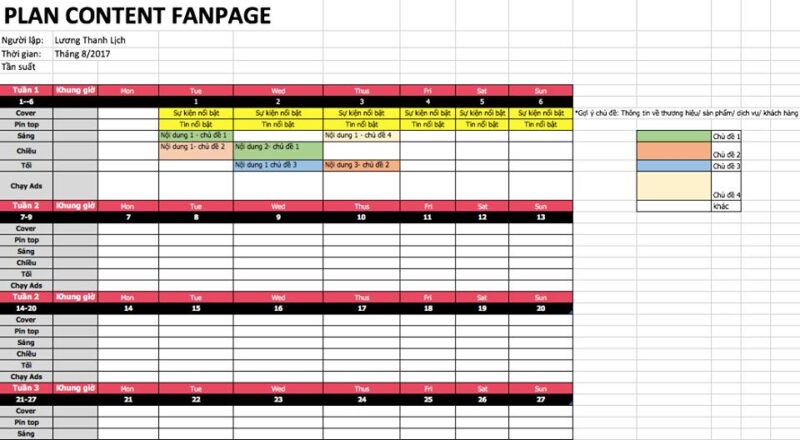
Once you have a business plan, have conducted market research, and have mapped out the customer journey, implementing a communications plan is essential. The template below will help you effectively execute a 12-month marketing plan.
Event Planning Template
When it’s time to celebrate a grand opening or when an important event occurs, use this event planning template to help your organizational activities run smoothly and without interruption.
On-Page SEO Plan Template
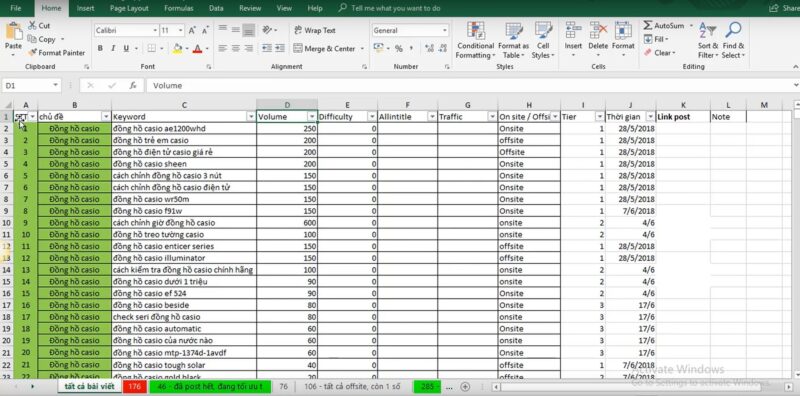
SEO is a technique that helps optimize for Google search engine keywords to increase a website’s ranking. Therefore, an SEO strategy plan template is an indispensable tool to help you easily and effectively track the traffic coming to your website.
SWOT Analysis Template
As your business grows, it’s essential that your team grows with it. To ensure your team is on the right track, use a SWOT analysis template for your business to identify opportunities and challenges.
V. What checklists are needed for an effective work plan Excel template?
Not every Excel template is truly useful. To avoid wasting time with cumbersome or impractical plan sheets, businesses need clear evaluation criteria. The checklist below will help you determine if a work plan Excel template is truly effective.
Detailed evaluation checklist:
- Clear, easy-to-read structure
- The sheet is logically laid out, with well-organized columns and rows.
- Has clear titles and notes, not visually cluttered.
- Meets the specific work management objectives
- The template should align with the goal: tracking progress, assigning personnel, or managing projects.
- No redundant, confusing columns, and no missing important data.
- Applies formulas and automatic features
- Includes built-in formulas like SUM, AVERAGE, COUNTIF… to save time.
- Uses Conditional Formatting to warn about deadlines or mark priorities.
- Flexible customization capability
- Allows adding or removing columns/rows as needed.
- Can change color formats and charts to suit the business.
- Supports visual progress tracking
- Includes Gantt charts, progress bars, or a color-coding system to show completion levels.
- Helps managers quickly grasp the situation without reading all the data.
- Easy to share and sync
- The file is lightweight and can be saved on Google Drive or OneDrive for team collaboration.
- No formatting errors when opened on different devices.
- Includes basic user instructions
- Good templates often come with notes or instructions to make it easy for new users.
An effective work plan Excel template must be scientific, flexible, visual, and easy to apply. Businesses should choose or build a template based on this checklist to ensure both accurate work management and time savings in operations.
VI. Common mistakes when creating a work plan in Excel
Using Excel for work planning offers many benefits, but it is not without risks. If not careful, small errors can lead to data inaccuracies, affecting management efficiency and project timelines.
Common errors and how to fix them
- Incorrect calculation formulas
- Cause: User enters incorrect function syntax or references the wrong data cell.
- Consequence: Inaccurate report results, leading to incorrect management decisions.
- Solution: Double-check the syntax, use the “Evaluate Formula” feature.
- Prevention: Create a standard file template with pre-set formulas, limit ad-hoc edits.
- Lack of file version control
- Cause: Multiple people edit simultaneously, each saving a different version.
- Consequence: Scattered data, difficult to identify the final version.
- Solution: Use the “Track Changes” feature or sync via Google Drive/OneDrive.
- Prevention: Clearly assign one person to be responsible for updating the main file.
- No standard data formatting
- Cause: Data cells contain mixed formats like Text, Number, and Date.
- Consequence: Errors when filtering, sorting, and analyzing data.
- Solution: Standardize the format before data entry.
- Prevention: Use Data Validation to control data input.
- Complicated, hard-to-follow spreadsheets
- Cause: Too many columns, data is not logically grouped.
- Consequence: Users find it difficult to track progress and waste time searching for information.
- Solution: Group data, use colors and Conditional Formatting to highlight deadlines.
- Prevention: Design a simple, intuitive table from the start.
- Lack of data backup
- Cause: The file is saved on only one device.
- Consequence: High risk of losing all data if the computer fails or the file becomes corrupted.
- Solution: Create a backup copy on the cloud.
- Prevention: Set up a periodic auto-backup schedule.
Errors when creating work plans in Excel often stem from user mistakes and unscientific file management. Businesses or individuals should standardize processes, use pre-made formulas/templates, and adopt cloud storage technology to ensure data is always accurate, transparent, and secure.
VII. Using software to support work planning – 1Office
Besides Excel work plan templates, you can use software to support effective work planning. Among them, 1Office is an effective work planning tool trusted by over 450,000 users from more than 5,000 different businesses. With many outstanding features, the software helps you organize and manage multiple tasks at once quickly and easily.
Key features of the work planning software:
- Create specific work plans: Automatically updates to personal schedules, helping users complete assigned tasks quickly.
- Easily track status and manage work progress with Gantt and Kanban views
- Allows dragging and dropping of task statuses such as: in progress, completed, not completed… to capture the details of each different work item.
- Smart alert and reminder system helps individuals proactively carry out their work.
Get a free consultation & Demo
VIII. What to note when creating a work plan template in Excel?
Work plans need to be clear and detailed
The more detailed and clear a work plan is, the easier it is to execute. Arranging tasks scientifically and logically will help you understand the workflow and avoid missing tasks or being forgetful during implementation.
Don’t take on too many tasks at once
This is a fairly common mistake many people make when faced with a “mountain of work” but still fail to complete any single task fully. Therefore, you need to prioritize tasks that need to be resolved quickly and urgently first. Less urgent tasks can be scheduled for a later time.
Add more information about work results
With the Excel work plan template, you should add information about the progress of the work being performed (completed or not completed). You can add a work result row below the task row for easy tracking.
The content above has shared the most detailed and standard Excel work plan template for 2022. We hope that through this article, you will gain more useful information on creating Excel work plan templates to apply for yourself or your business, making it easier to track work and achieve optimal efficiency.
















