

 11/05/2026
  2317 views
In 2026, managing tasks with Excel remains a familiar choice for many individuals and businesses thanks to its simplicity, flexibility, and being free of charge. However, not everyone knows how to choose the right template to track progress effectively. This article by 1Office will compile the 10 latest Excel task tracking templates to help you optimize your time and improve work efficiency.
Mục lục
- 1. What is a task tracking sheet?
- 2. What are the benefits of managing tasks with an Excel sheet?
- 3. Top 10 Work Tracking Templates in Excel
- 3.1. Work Progress Tracking Sheet
- 3.2. To-Do List Work Planning Template in Excel
- 3.3. Work Time Management – Work Timeline
- 3.4. Using a Gantt Chart
- 3.5. Project Management with Kanban
- 3.6. Project Progress Tracking Template – Daily Work Log Template
- 3.7. Work KPI Management Template
- 3.8. Project Task Checklist
- 3.9. Excel Weekly Task Progress Tracking Card (Weekly Task Card)
- 3.10. Issue Tracking Template
- SUMMARY TABLE OF PROS AND CONS OF 10 TYPES OF TASK ASSIGNMENT SHEETS
- Summary Comparison Table (Choose the Right Tool for Your Needs)
- 4. Creating a work assignment sheet in Excel: Key considerations
- 5. Limitations of Using Excel for Task Management
- 6. Tips for Choosing the Right Excel Spreadsheet Template
- 7. Common Errors When Using Excel for Task Management and How to Fix Them
- 8. An Effective Work Management Solution to Replace Excel Spreadsheets for Businesses
1. What is a task tracking sheet?
A task tracking sheet is a management tool that helps you monitor the progress of projects and tasks within a specific timeframe. A work progress sheet can be used for personal projects, team projects, or business projects within an enterprise.
Currently, task tracking sheets can be created manually using Excel or by using task management software. In a business environment, using a work progress tracking sheet helps managers control the completion level of tasks, easily measure and evaluate, and execute according to the established plan.

2. What are the benefits of managing tasks with an Excel sheet?
Excel is a popular office software, widely used in many fields, including task management. Tracking tasks with Excel offers many benefits for both individuals and businesses, specifically:
- Track work progress: Excel helps you track the progress of tasks easily and visually. Users can use Excel formulas to calculate progress indicators, such as percentage complete, expected completion date, and expected completion time.
- Ensure tasks are completed on time: Using Excel helps users identify delayed tasks and implement timely corrective measures.
- Allocate tasks reasonably: Ensure that each employee is assigned a workload appropriate to their capabilities. For example, use Excel formulas to calculate the time needed to complete a task, then use this information to allocate tasks to employees.
- Track costs and evaluate progress: You can use Excel functions to calculate the estimated and actual costs of a project or task. Additionally, for managers, using Excel to track tasks helps them understand each employee’s work situation and provide appropriate and timely solutions.
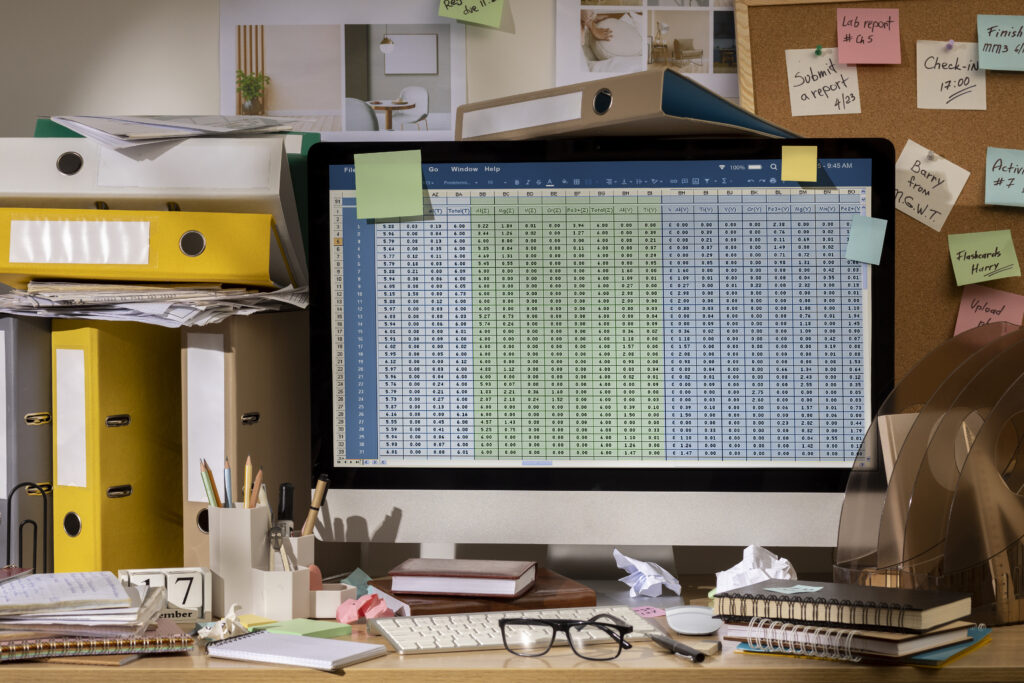
Overall, managing tasks with Excel is an effective way to help you track your work progress more efficiently. For small and medium-sized businesses, if you are looking for a free and easy-to-use task tracking tool, Excel is a suitable choice.
- Flexibility: Excel is a flexible tool that can be used to manage different types of tasks. Businesses can customize the work progress sheet to fit their specific needs.
- Ease of use: Excel is easy-to-use software, even for those with no Excel experience. You can find many free task tracking templates on the Internet.
- Effectiveness: Excel can help you track work progress and allocate tasks reasonably. It also ensures tasks are completed on time and identifies delayed tasks to implement appropriate solutions.
| >> Read more: What is Project Progress Management? 6 Detailed Steps for Progress Management |
3. Top 10 Work Tracking Templates in Excel
3.1. Work Progress Tracking Sheet
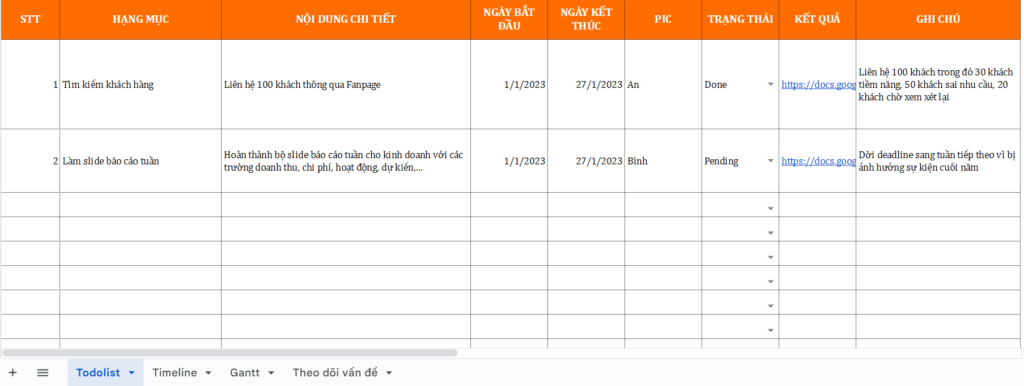
A work tracking sheet is a comprehensive Excel file that helps individuals monitor the progress of all tasks, projects, or jobs that need to be done. This is the most complete and detailed work management template, suitable for all types and sizes of businesses.
Reference: [1Office] Work Progress Tracking Sheet in Excel.xlsx
3.2. To-Do List Work Planning Template in Excel
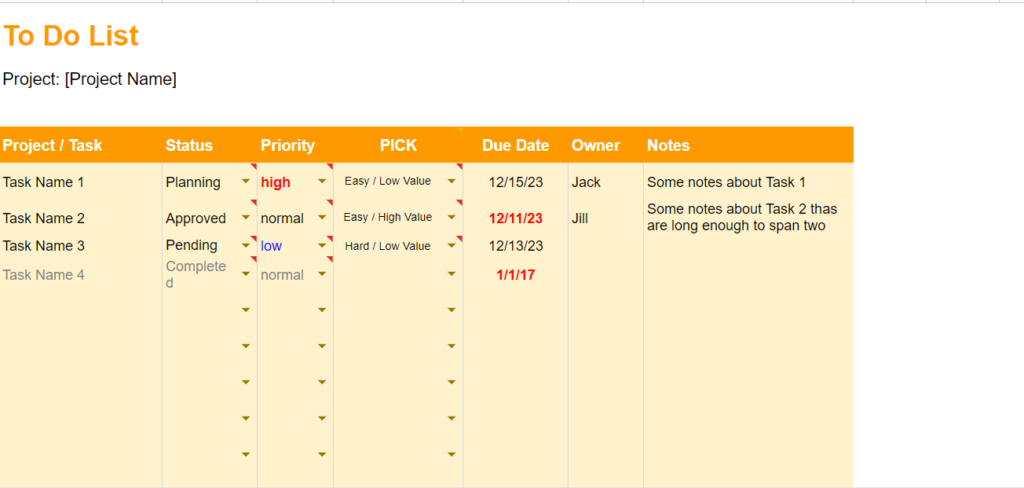
The To-do list work tracking template is one of the most popular work tracking templates. This template helps you list tasks to be done, track their progress, and identify priority tasks. The To-do list template typically includes the following columns:
- Task Name
- Start Date
- End Date
- Progress
- Notes
To use the To-do list template, simply enter the necessary information into the corresponding columns. You can use Excel formulas to calculate the progress of the tasks.
Reference: [1OFFICE] To-do List Work Management.xlsx
3.3. Work Time Management – Work Timeline
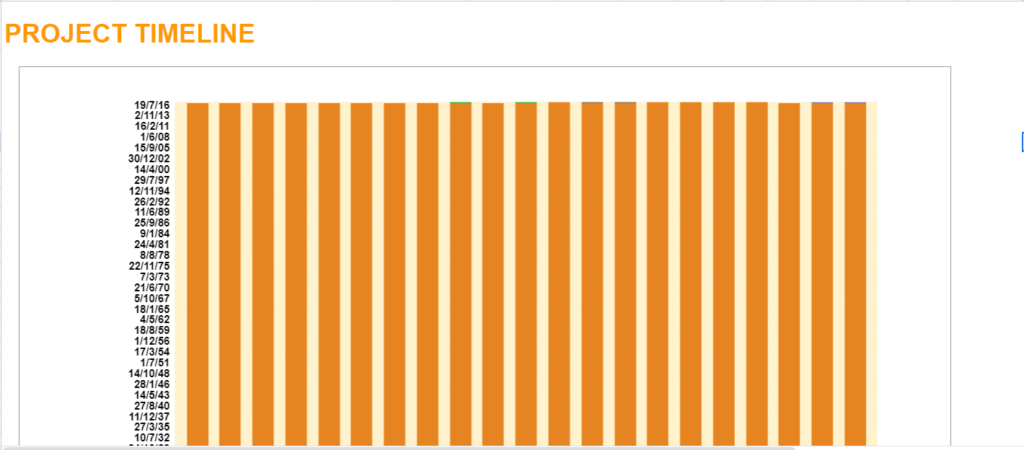
The Excel work timeline template (Timeline management) gives you an overview of the time you spend on each task. This Excel template helps you identify which tasks are taking up most of your time and make appropriate adjustments.
Reference: [1OFFICE] Timeline Management.xlsx
3.4. Using a Gantt Chart
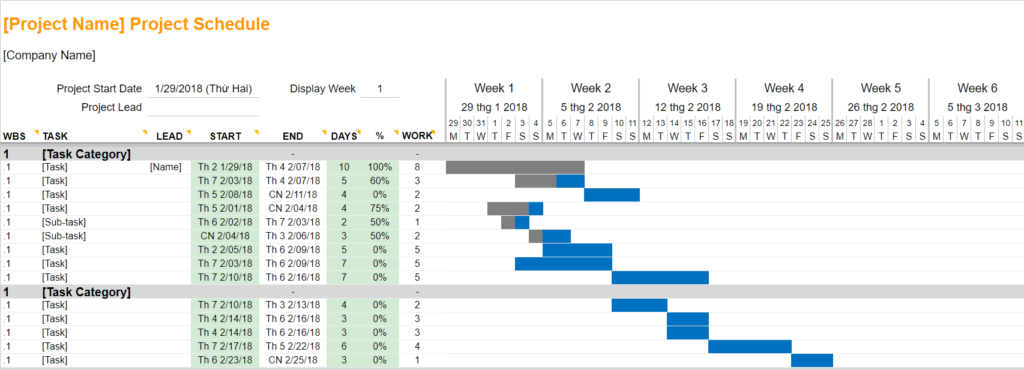
A Gantt chart is a visual tool that helps you track the progress of tasks in a project. A Gantt chart helps you identify which tasks are delayed and take timely corrective measures. The benefits of managing work with a Gantt chart:
- Helps you track the progress of tasks in a project
- Identify which tasks are delayed
- Take timely corrective measures
3.5. Project Management with Kanban
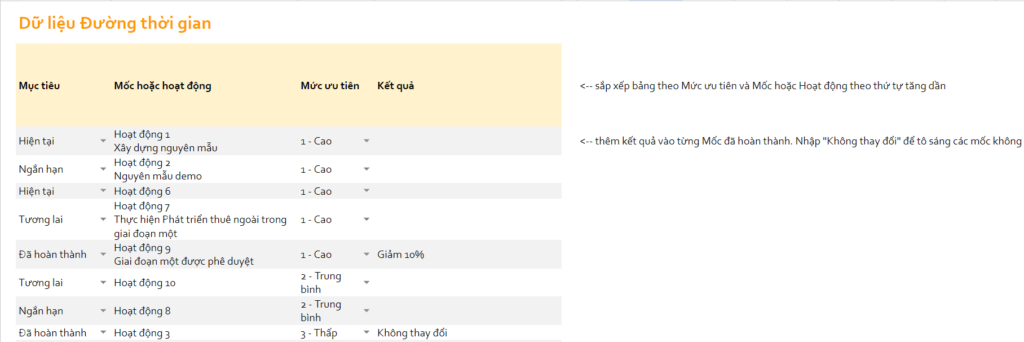
Kanban is a card-based project management method. This method helps you visually track the progress of tasks in a project. To use the Kanban method, you need to create a Kanban board with three columns:
- To do: Tasks to be done
- In progress: Tasks being worked on
- Done: Completed tasks
You can use cards to represent tasks. When a task is completed, you move its card from the “To do” column to the “In progress” column, and then to the “Done” column.
Reference: [1Office] Kanban-style Project Progress Management Template in Excel
3.6. Project Progress Tracking Template – Daily Work Log Template
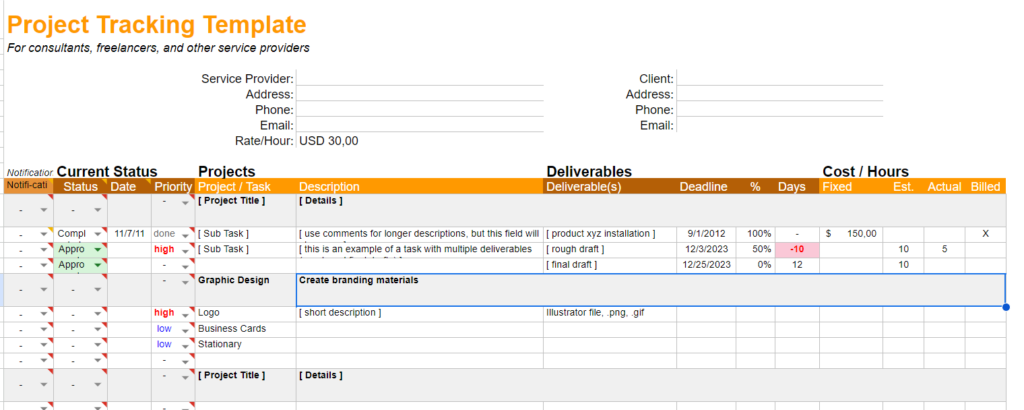
This project progress tracking sheet is suitable for agencies and businesses with multiple projects and tasks. The Excel work tracking file will help you monitor work progress against set deadlines, allowing you to measure and make effective evaluations. This template typically includes the following columns:
- Task Name
- Start Date
- End Date
- Progress
- Person in Charge
- Estimated Cost
- Actual Cost
- Completion Level
Reference: [1Office] Project Progress Management.xlsx
3.7. Work KPI Management Template
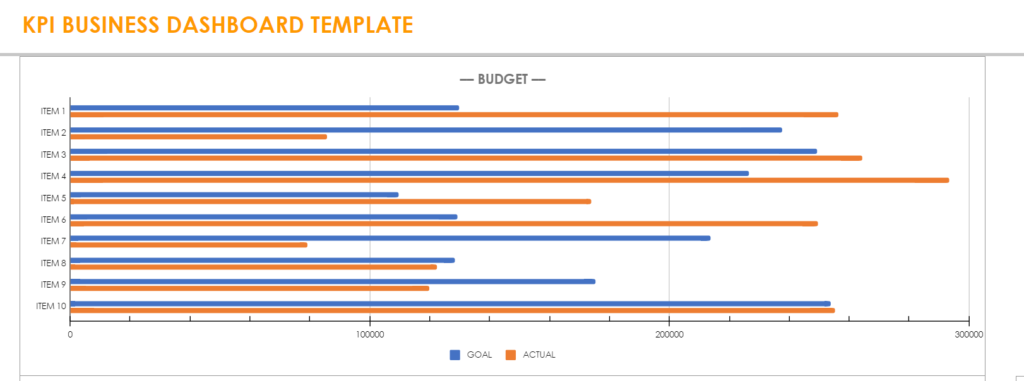
Thanks to the Excel sheet for managing work with KPIs, leaders can easily implement and measure the performance of a project or task. This ensures that work proceeds according to the correct process, schedule, and quality standards set by the client’s requirements.
Additionally, when using the KPI management template, managers can also track and monitor the team’s work status, ensuring timely completion and avoiding missed deadlines or errors in assigned tasks.
Reference: [1Office] Work KPI Management Template.xlsx
3.8. Project Task Checklist
A project task checklist is a list of tasks that need to be performed to complete a project. This checklist helps you ensure that all necessary tasks are completed.
Download 8 task checklist templates with effective application tips to triple your productivity: here
3.9. Excel Weekly Task Progress Tracking Card (Weekly Task Card)
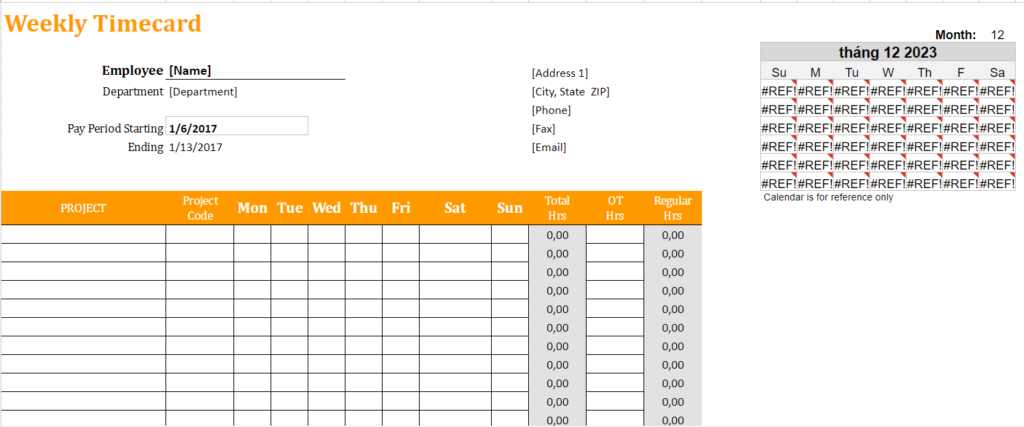
A weekly progress tracking sheet/card is a tool that helps you monitor the progress of tasks within a week. This card helps you identify priority tasks and ensure they are completed on time.
Reference: [1Office] Weekly Progress Tracking Card.xlsx
3.10. Issue Tracking Template
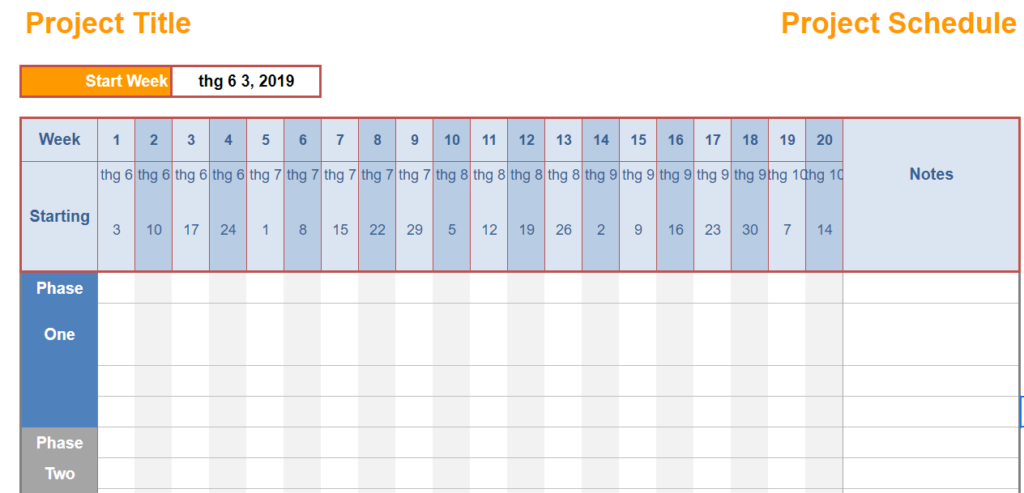
To easily track ongoing issues, creating an Excel file to record the progress monitoring process or project milestones is essential. The issue tracking template helps you monitor problems that arise during a project’s execution. This sheet helps users identify issues that need to be resolved and implement timely corrective measures.
An issue tracking template will record information such as when the issue occurred, the reason, the consequences, the solution, and who handled it. From this, managers can easily investigate the cause and implement thorough solutions, preventing the same mistakes from happening in the future.
Reference: [1Office] Issue Tracking Management.xlsx
SUMMARY TABLE OF PROS AND CONS OF 10 TYPES OF TASK ASSIGNMENT SHEETS
| No. | Board Type / Method | Key Advantages | Disadvantages / Limitations | Best Suited For | Score (out of 10) |
|---|---|---|---|---|---|
| 1 | Daily Work Tracker Template (Excel/Standard List) | • Simple, anyone can use it immediately • Flexible column customization • Easy to export reports | • Becomes chaotic with >50 tasks • Not very visual • Doesn’t show dependencies between tasks | Individuals, small teams (<8 people), daily repetitive tasks | 7.0 |
| 2 | To-do List Task Management | • Extremely fast task creation • Focuses on action • Has reminders, recurring tasks | • Lacks a project overview • Cannot manage resources or long-term deadlines | Individuals, freelancers, highly personalized work | 8.0 |
| 3 | Work Time Management (Time-tracking) | • Know exactly who worked for how long • Accurate payroll and timekeeping • Identifies wasted time | • Employees can easily feel “monitored” • Doesn’t reflect the quality of work | Agencies, companies that bill by the hour, teams needing to measure productivity | 7.5 |
| 4 | Gantt Chart | • Excellent timeline visualization • Clearly shows dependencies, critical path • Easy to report to leadership | • Difficult to update when changes occur • Not suitable for flexible, creative work • Requires software | Construction, manufacturing, software implementation projects with clear, fixed milestones | 9.0 |
| 5 | Kanban Project Management | • Visualizes workflow • Limits WIP (Work In Progress) → reduces multitasking • Highly flexible | • Doesn’t show specific deadlines • Not suitable for projects with rigid timelines | Dev, marketing, content, customer support teams, repetitive projects | 9.5 |
| 6 | Project Progress Tracker Template (Project Dashboard) | • One-page overview: % completion, budget, risks • Easy to present in progress meetings | • Requires continuous updates • If data is incorrect → reports are incorrect | Managing multiple projects simultaneously, PMs, leadership | 8.5 |
| 7 | Work KPI Management Template | • Clear results measurement • Directly linked to salary, bonuses • Easy for year-end reviews | • Difficult to design reasonable KPIs • Employees may focus on “polishing” KPIs rather than actual work | Companies with KPI-based salary systems, sales, customer service, production | 8.0 |
| 8 | Project Task Checklist | • No steps are missed • Easy to train new employees • Ensures quality | • Lacks flexibility • Doesn’t show overall progress | Projects with fixed processes: employee onboarding, ERP implementation, audits… | 7.5 |
| 9 | Weekly Progress Tracking Card (Weekly Task Card) | • High focus during the week • Easy for weekly reviews • Suitable for hybrid/remote work | • Cannot manage tasks that span multiple weeks • Easy to “forget” old tasks | Small teams, startups, creative work | 8.0 |
| 10 | Issue Tracking Management (Issue Log / Risk Register) | • Early risk detection • Assigns responsibility for resolution • Issue history for learning lessons | • Becomes a “graveyard” if not updated regularly • Requires someone to proactively monitor it | Large projects, technology, construction, digital transformation projects | 8.5 |
Summary Comparison Table (Choose the Right Tool for Your Needs)
| Primary Need | Suggested Tool Combination (Best for 2026) | Overall Score |
|---|---|---|
| Individual / Freelancer | To-do List + Weekly Task Card | 9.5 |
| Small Team (<10 people), flexible work | Kanban + Simple Task Tracking Board | 9.8 |
| Projects with clear timelines, reporting to leadership | Gantt Chart + Project Dashboard + Issue Log | 9.7 |
| Companies that charge by the hour | Time-tracking + Task Tracking Board + Kanban | 9.0 |
| Enterprise (50–500 people) | Kanban/Gantt + KPI + Issue Log + Dashboard (using Notion, ClickUp, Jira) | 9.9 |
| Projects with fixed processes, no room for error | Checklist + Gantt + Issue Log | 9.2 |
4. Creating a work assignment sheet in Excel: Key considerations
Excel is an effective and easy-to-use tool for managing work progress. However, to use Excel effectively, you need to keep the following points in mind:
- Define the objective of work progress management: What is your purpose for managing work progress? Do you want to track the progress of individual, team, or project tasks? Do you want to identify delayed tasks or those that need prioritization? Once you define the objective, it will be easier to select a suitable template and the information you need to track.
- Choose a suitable template: Many Excel templates for managing work progress are available online. You should select a template that fits your objectives and needs. If you cannot find a suitable one, you can create your own.
- Enter accurate and complete information: The information in the work progress management sheet must be accurate and complete. This will help you track work progress accurately and make appropriate decisions.
- Update information regularly: You should update the information in the work progress management sheet frequently, at least once a day. This will help you stay on top of the actual progress of tasks and make timely adjustments.
- Use Excel formulas: Excel offers many useful formulas for calculating work progress metrics. You can use these formulas to automatically calculate the necessary metrics, saving you time and effort.
- Customize the work progress management sheet: You can customize the work progress management sheet to fit your business’s needs. You can add or remove columns, change the colors and formatting of the sheet, and add supplementary features.
| >> Read more: Effective employee work management methods – Successfully applied by 90% of managers |
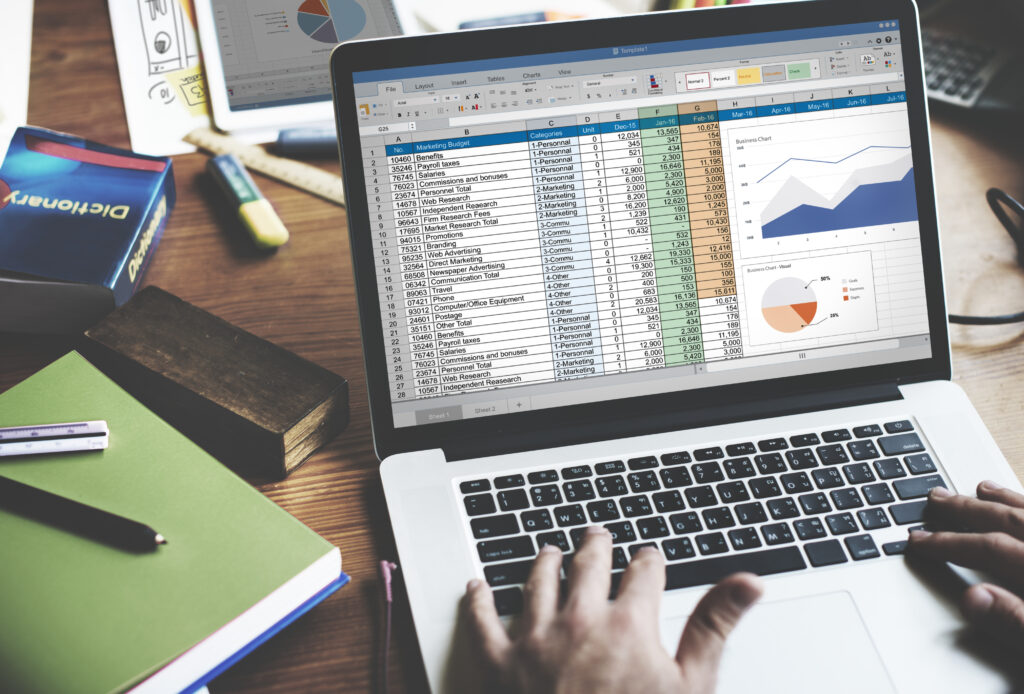
5. Limitations of Using Excel for Task Management
When using Excel, users often encounter seemingly minor errors that directly impact data accuracy and transparency. This is also the main reason why many businesses find Excel unstable for long-term implementation. To use Excel more effectively, businesses need to understand common errors and apply timely corrective measures. Below are the most common errors and their corresponding solutions.
Limited collaboration capabilities:
- Limitation: Excel files are often stored locally, and sharing them via email can easily lead to duplicate versions and data desynchronization.
- Solution: Use Excel Online or Google Sheets to allow multiple people to update in real-time; establish file naming conventions and manage files on OneDrive/Drive to prevent loss.
Lack of automation features:
- Limitation: Excel lacks automatic reminders, detailed permission settings, and real-time reporting.
- Solution: Use Macros, Pivot Tables, and Power Query for semi-automation; or combine Excel with task management software like 1Office, Trello, or Asana to compensate for missing features.
Data security risks:
- Limitation: Excel files are easily edited, and information can be leaked if sharing is not controlled.
- Solution: Use the Protect Sheet/Protect Workbook feature to set a password; share files through platforms with permission controls (SharePoint, Google Drive) to manage access.
Difficult to scale as the business grows:
- Limitation: When data volume becomes too large, Excel files become heavy, prone to crashing, and difficult to maintain.
- Solution: Split the file by project/department; use tools like Power BI for visualization; or switch to professional task management software when the scale exceeds Excel’s capabilities.
6. Tips for Choosing the Right Excel Spreadsheet Template
Not every Excel template is suitable for every need. Choosing the right template will determine whether your task management is truly effective, time-saving, and easy to apply in practice.
To help businesses select the right work tracking tool, here are some important tips to consider when choosing an Excel spreadsheet template.
- Define the management purpose: For tracking personal tasks, a simple Todolist is sufficient; for project management, choose a template with a Gantt Chart or Kanban board.
- Assess team size: A small team of 3–5 people can use a basic Excel template, while larger teams or multiple departments should choose a detailed sheet with columns for tasks, deadlines, and assignees.
- Choose an easily customizable template: The template should allow for flexible addition of columns/rows to meet changing needs over time.
- Prioritize templates with built-in formulas: This helps reduce data entry errors and saves initial setup time.
- Test before implementing: Download a few templates, test them for 1–2 weeks, and then decide on the standard template for the business.
7. Common Errors When Using Excel for Task Management and How to Fix Them
Although Excel is very flexible, managing tasks with this tool can easily lead to errors during data entry, calculation, or storage. These errors not only distort data but also seriously affect reports, progress, and management decisions.
To mitigate risks and improve management efficiency, businesses need to identify common errors early and apply appropriate solutions. Below are the most common errors when using Excel and specific ways to handle each situation.
- Incorrect formulas and data links: A small error in a calculation function can lead to inaccuracies in the entire report.
→ Solution: Always check formulas using the Error Checking feature and use standard templates instead of creating them from scratch. - No file version control: Multiple people saving the file with different names leads to data chaos.
→ Solution: Use OneDrive or Google Drive to manage versions and allow for collaborative editing. - Lack of permissions and security: Excel files typically do not have access control modes.
→ Solution: Protect the file with a password and share it via platforms with access permissions (SharePoint, Drive). - File is too large and prone to crashing: With thousands of rows of data and many complex sheets, Excel can easily lag, making it difficult to work with.
→ Solution: Split the data into smaller files, or consider using specialized management software.
8. An Effective Work Management Solution to Replace Excel Spreadsheets for Businesses
Overall, Excel offers businesses many useful work management features, but it cannot meet all user needs, especially for medium and large-sized businesses.
Excel can be used to manage a small workload, but for thousands of complex projects and tasks, it becomes difficult to manage. Additionally, another limitation of using Excel for task tracking is its lack of real-time management capabilities and strong security features. This can lead to the risk of data leakage if the Excel spreadsheet is not managed and permissioned strictly.
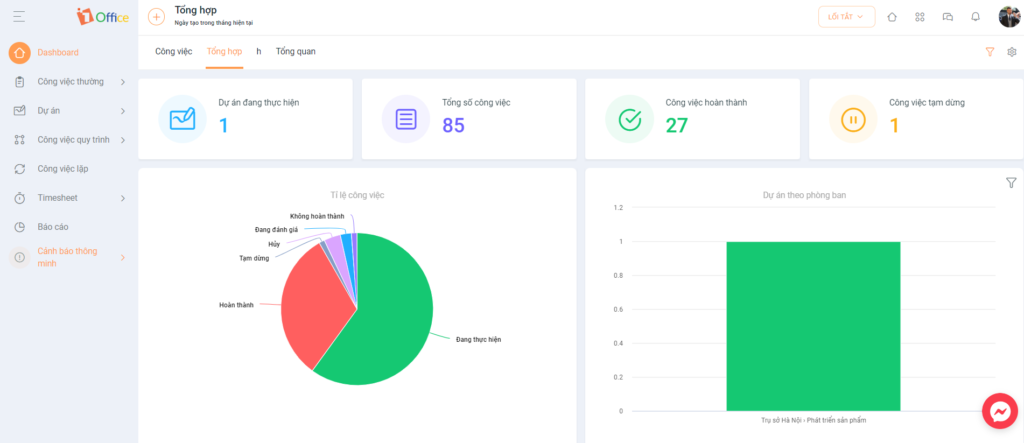
To overcome these limitations, businesses can use specialized work management software to completely replace Excel spreadsheets. This platform will provide extended features with better interactivity and security. Some outstanding features of 1Office work management software compared to Excel spreadsheets include:
| Key Features | 1Office Task Management Software | Excel Task Tracking Sheet |
| Plan, track, and manage all types of tasks according to user needs | x | x |
| Clear permission delegation, assign performers to ensure privacy for each project | x | |
| Automate all business processes, accelerating digital transformation | x | |
| Smart alert feature helps performers avoid forgetting or missing tasks | x | |
| Exchange, chat between individuals, departments, and internal communication | x | |
| Digitize and store all company documents and records | x | x |
| Organize priority workflows and synchronize schedules with tasks | x | |
| Smart, multi-dimensional, customizable, and visual real-time reports | x | |
| Links with KPI and OKR modules to support managers in evaluation and decision-making | x |
If you are interested in 1Office’s work management solution suite, register with us now for a consultation and to receive a demo to experience its features.
The above is all the information about work tracking sheets that 1Office wants to share with your business. If you have any further questions, please contact us via our Hotline: 083 483 8888
FAQs (Frequently asked questions when choosing a work tracking sheet template)
Should Excel be used for long-term work management?
Excel is suitable for individuals or small teams due to its ease of use and flexibility. However, as the scale increases, data becomes larger, and real-time collaboration is needed, Excel’s limitations become apparent. At this point, businesses should consider switching to management software.
At what size should a business switch from Excel to work management software?
Typically, when a business has 10-15 or more employees or manages multiple projects simultaneously, Excel becomes difficult to control.
Which Excel sheet template is best for managing personal tasks?
For individuals, templates like To-do Lists or Weekly Task Cards are suitable choices due to their simplicity and ease of use. You can start with an Excel file, then upgrade to a work management system like 1Office when you need automatic reminders and performance tracking.
How can I track work performance more effectively than with Excel?
Excel only supports basic progress tracking, making it difficult to assess overall performance. Businesses can apply the OKR method to measure objectives and results more clearly. Alternatively, refer to the top OKR management software which helps link objectives – tasks – results on a single system.
Can Excel completely replace work management software?
Excel cannot completely replace specialized software due to its lack of automation features, permission controls, and real-time reporting. For example, 1Office allows you to assign tasks, set deadline reminders, and generate automatic progress reports, helping businesses save time and reduce errors compared to Excel.